Settings
Browse the Integrations catalog
Find HubSpot, Shopmonkey, the API, QR codes, and accounting tools in one Settings page, then open the right card to finish setup.
The Integrations page is the list of extra tools you can connect to Car Storage Software. Each tool has a card. You search, open a card to read what it does, then finish setup in the same window.
Use this guide the first time you want HubSpot, Shopmonkey, a website data feed, printed QR codes, cameras, your own website address, or QuickBooks / Xero.
What you will accomplish
- Open Settings > Integrations.
- Search the catalog and read what each card does before you turn anything on.
- Understand the Off, On, and Connected labels on each card.
- Know why QuickBooks and Xero stay locked until payments are set up.
When to use this page
Open Integrations when you already use another tool for sales, shop jobs, or bookkeeping, and you do not want to type the same customer or invoice twice.
You can skip this page on day one if you only need cars, contacts, and the calendar. Come back when you are ready to connect another system.
Before you start
- Sign in as a team admin, or ask an admin to open Integrations with you.
- Know which outside tool you want: HubSpot, Shopmonkey, QuickBooks, Xero, or a website feed.
- For QuickBooks or Xero, finish Connect payment processing first.
Open Integrations
- Open Settings
From the Dashboard, click Settings in the left menu. On a small screen, open the menu first.
- Click Integrations
In the Settings list, click Integrations.
Direct link: Settings > Integrations.
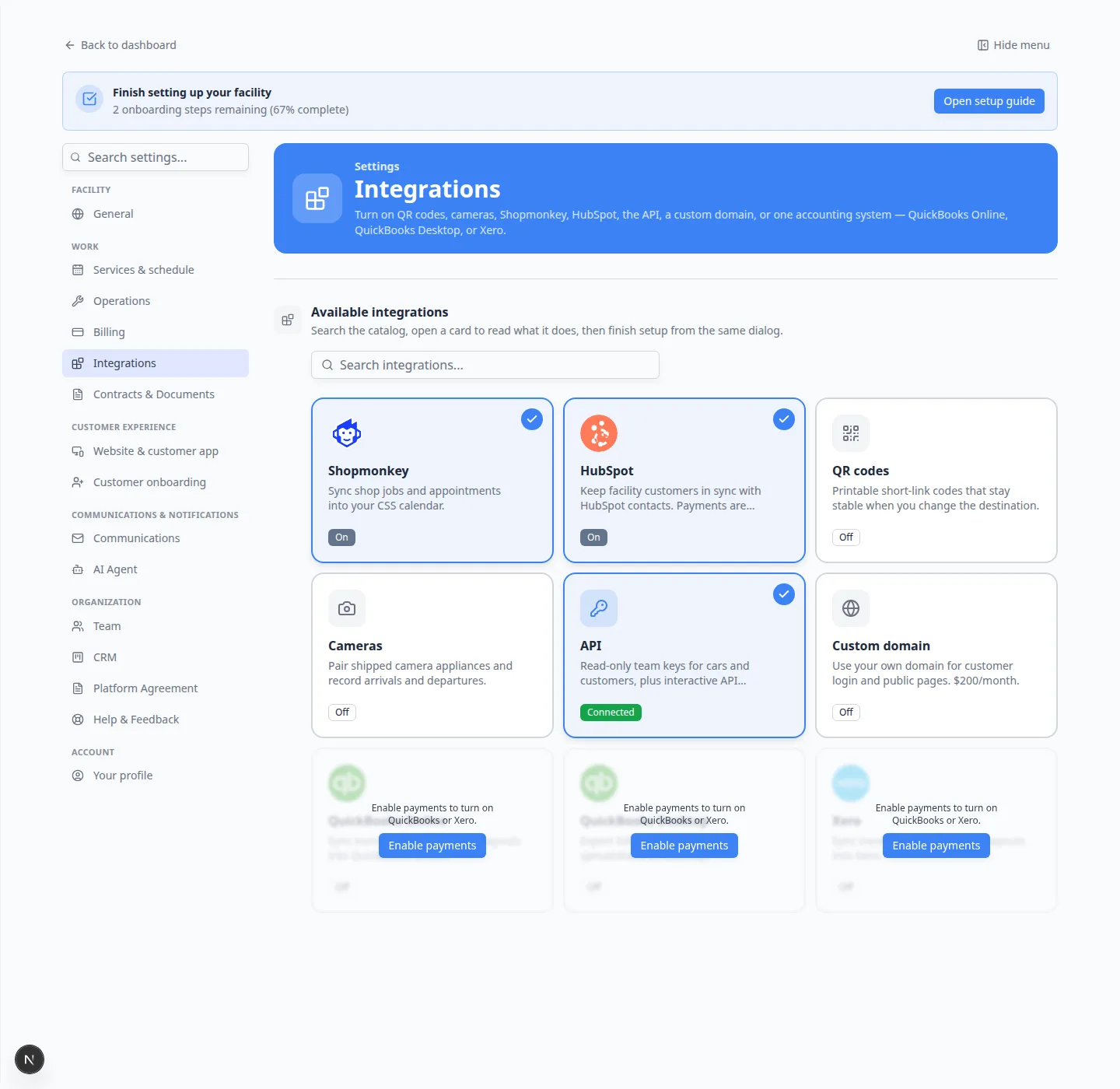
Expected result: The page title is Integrations. Under Available integrations you see a search box and a grid of cards.
Search for a tool
- Use Search integrations...
At the top of Available integrations, click the box that says Search integrations...
- Type a name
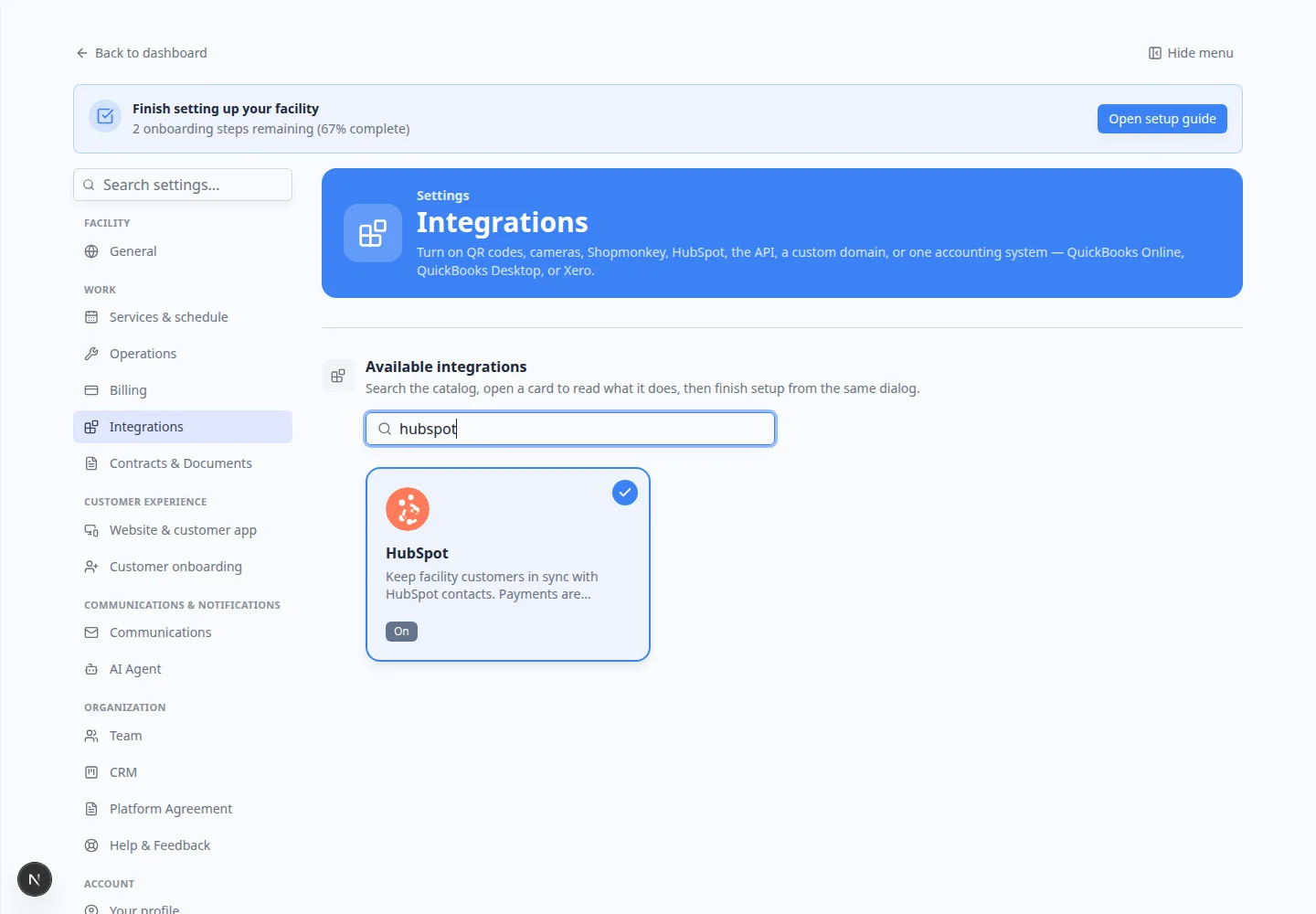
Type a word such as hubspot, shopmonkey, quickbooks, or api.
Expected result: Only matching cards stay on the page. If nothing matches, you see “No integrations match” plus the words you typed.
- Clear the search
Delete the text in the search box to see the full list again.
Read the labels on each card
Each card has a small status label:
Off means the tool is listed but not turned on for your facility.
On means you turned the tool on. You still need to finish sign-in or create a key for tools that connect to another company.
Connected means the tool is on and the sign-in or key is working. For the API, Connected appears after you create at least one active key.
Why this matters: Turning a card On only makes the tool available. HubSpot still needs Sign in with HubSpot. Shopmonkey still needs Connect Shopmonkey. The API still needs a named key.
Open a card and finish setup
- Click the card
Click HubSpot, Shopmonkey, API, or another name. A window opens with a short explanation and a list of what the tool does.
- Turn it on if you see the switch
Most cards have a switch labeled Enable this integration. Turn that on.
Shopmonkey is different: it shows the API key box in the same window. You connect with Connect Shopmonkey instead of a switch.
- Follow the extra buttons
Finish the steps that appear after the tool is on. That may be Sign in with HubSpot, Create API key, Open QR codes, or Enable payments.
What each group is for
Shop management: Shopmonkey puts shop jobs on your Schedule.
CRM and marketing: HubSpot keeps sales contacts in HubSpot and storage work here.
Operations: QR codes and cameras help the floor team scan cars and watch gates.
Developer: The API lets a trusted website or inventory tool read your cars and customers. It cannot change records.
Website: Custom domain puts customer login on an address your customers already know.
Accounting: QuickBooks Online, QuickBooks Desktop, or Xero — only one of these can be on at a time.
Confirm it worked
- You can open Settings > Integrations and see the catalog.
- Search finds the card you need.
- Opening a card shows a clear next button, such as Sign in with HubSpot or Create API key.
Troubleshooting
What to do next
Pick the guide that matches the tool you want: