Settings
Configure customer onboarding
Set up your public registration form and the steps new customers complete after they sign in to the customer app.
Customer onboarding is the path a new customer follows when they join your facility online.
This guide covers two related settings on Settings > Customer onboarding:
- Online registration form — what strangers fill out on your public signup page before they have an account.
- Customer app onboarding — what happens after they sign in for the first time (welcome screen, payment, contracts, document uploads, and more).
When onboarding is set up well, customers finish paperwork without repeated phone calls, and your team sees complete records from day one.
What you will accomplish
- Turn your public registration form on or off and choose which questions to ask.
- Turn customer app onboarding on or off and pick which steps run after sign-in.
- Put steps in a sensible order (for example, add cars before signing a vehicle contract).
- Connect contracts, payments, and document uploads to the right steps.
- Test the full flow with a safe test email before sharing your public link.
Before you start
- Complete Set up facility branding so signup pages show your logo and colors.
- Review Connect payment processing if customers must pay during signup or onboarding.
- Create contract templates in Create a contract template if customers must sign during onboarding.
- Add document types in Configure document requirements if customers must upload insurance, registration, or other files.
- Know your public registration link from Settings > Website & customer app (under Public facility page).
Open Customer onboarding settings
- Open Settings
From the Dashboard, click Settings in the main sidebar.
- Choose Customer onboarding
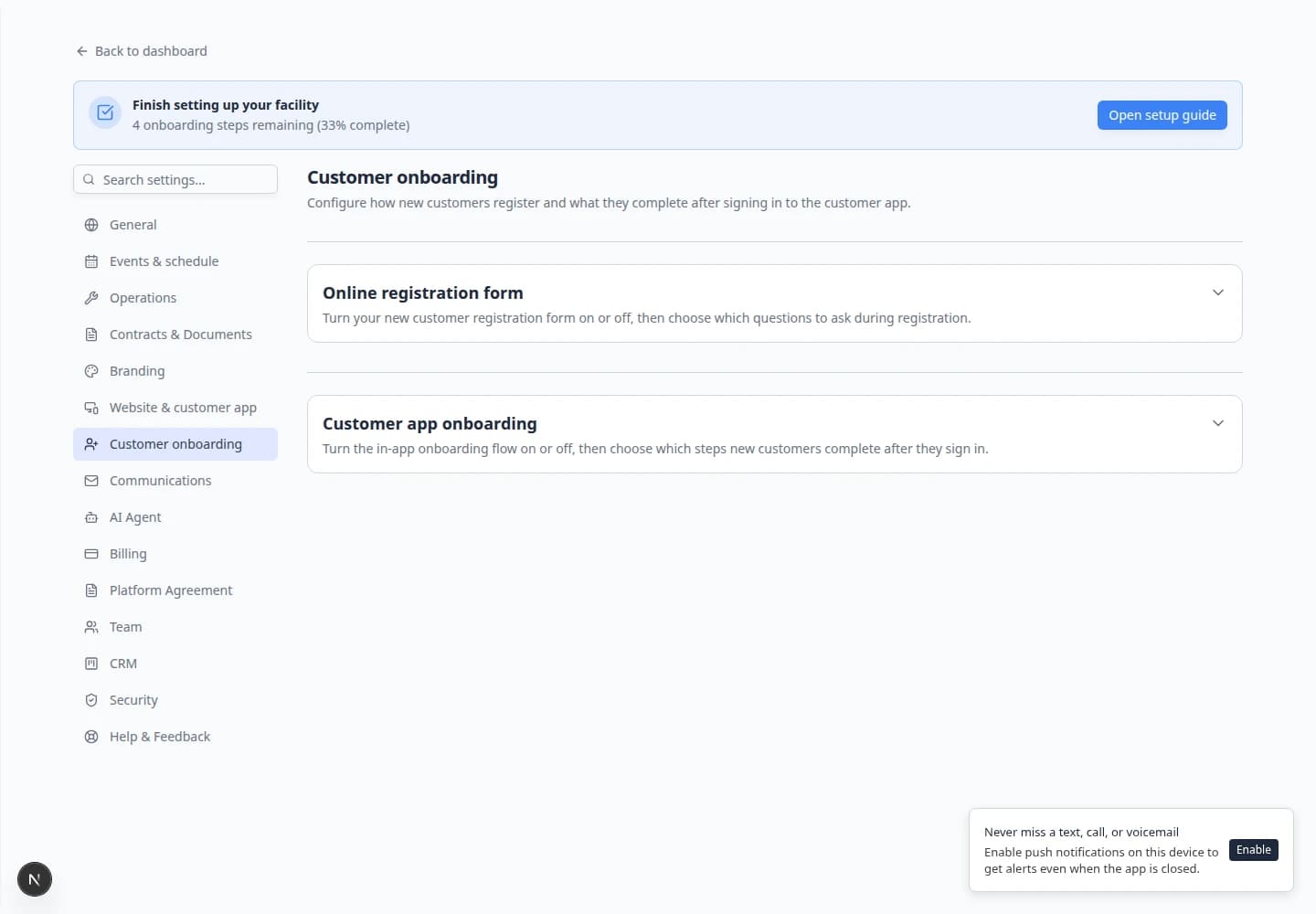
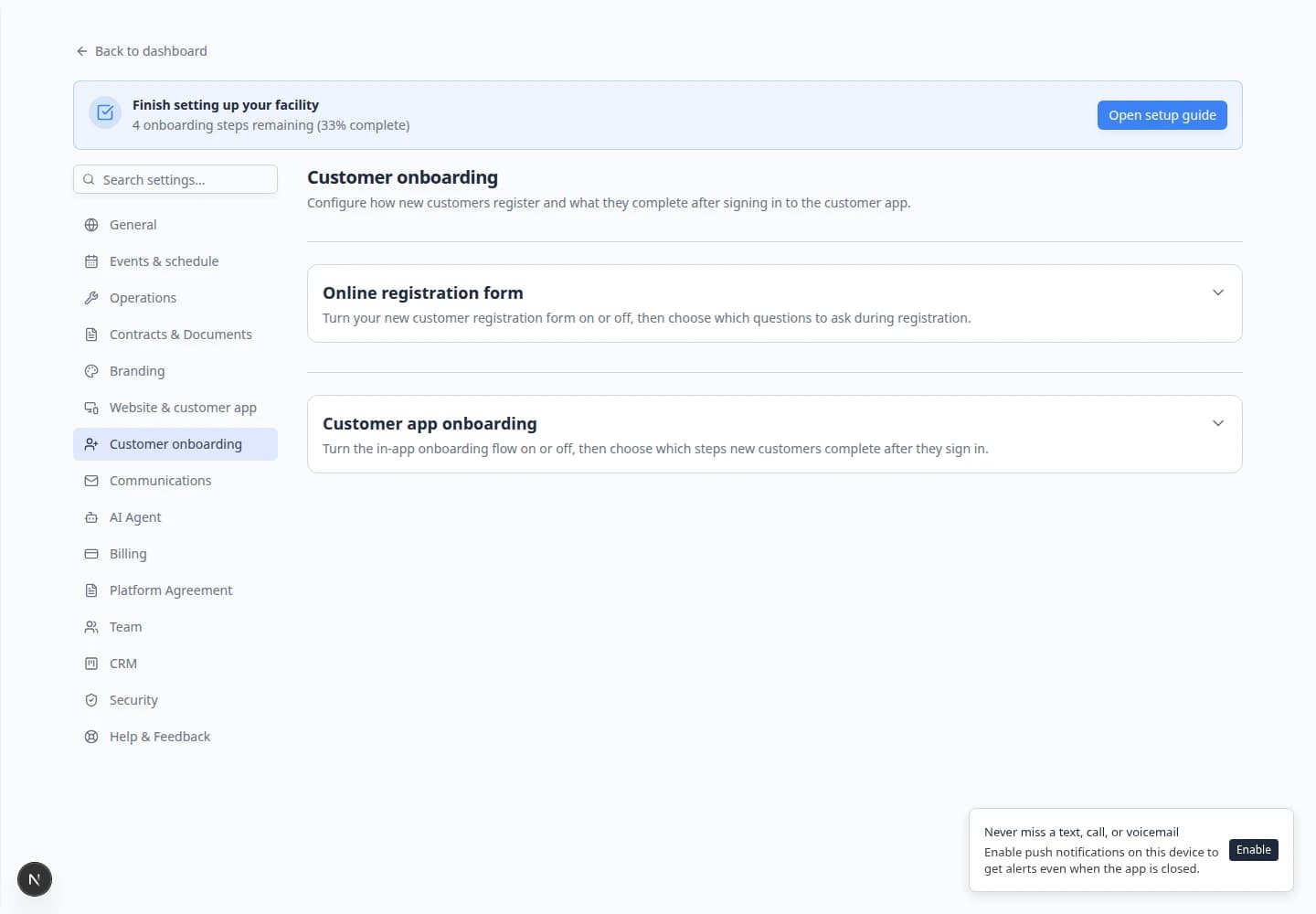
Click Customer onboarding in the settings category list—or search registration in Search settings….
Direct link: Settings > Customer onboarding.
Expected result: The page title is Customer onboarding. You see Online registration form at the top and Customer app onboarding below it.
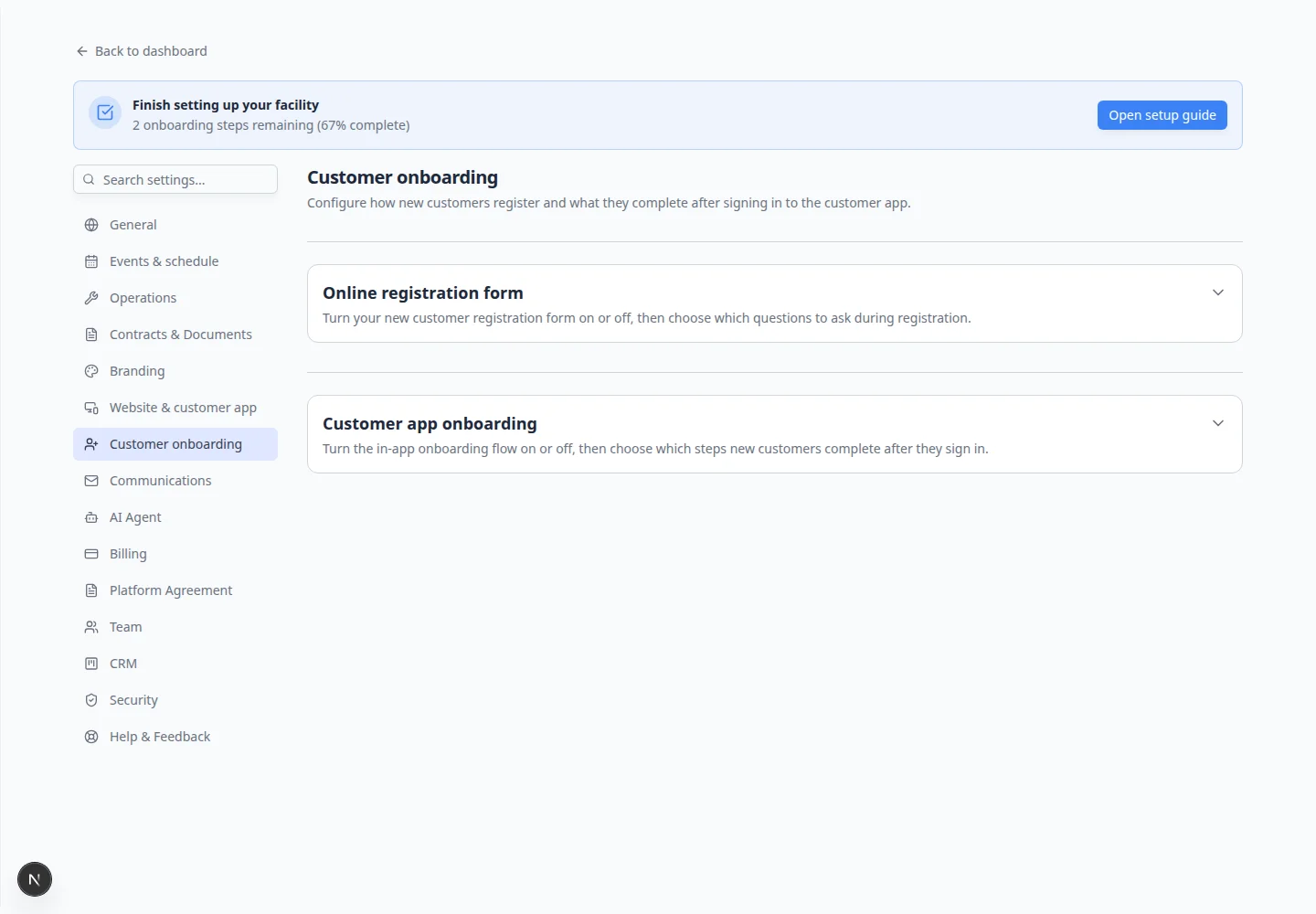
Part 1: Set up the online registration form
Use this when new customers should sign up from a link on your website or facility page.
- Turn the registration form on or off
At the top of Online registration form, use the main switch to enable or disable public registration.
Leave it off until your questions, payment rules, and approval process are ready.
Expected result: When enabled, your public registration link (from Website & customer app) accepts new signups.
- Review each registration card
Each row is one section of the public form. Common sections include:
- Your Information — name, email, phone, address
- Vehicle Information — VIN, plate, or manual year/make/model
- Drop-off Details — preferred date and notes
- Payment — card on file or product checkout (requires billing setup)
- Documents — insurance, registration, and other uploads
- Custom Questions — your own text or choice questions
Use the switch on each row to turn sections on or off.
- Drag cards into a sensible order
Grab the handle on the left side of a row and drag it up or down.
Put Your Information first. Put Vehicle Information before Payment if price depends on the car.
Why this matters: Customers abandon long forms when questions feel random. A natural order feels like a conversation.
- Configure cards that need extra choices
Some rows show a Configure button on the right side of the row. Click it to set details such as:
- Which document types are required on the Documents card
- Which product or plan appears on the Payment card
- How customers enter vehicle details on the Vehicle Information card
- Custom questions on a Custom Questions card
Expected result: Each configured card matches what your team actually needs before approving a new customer.
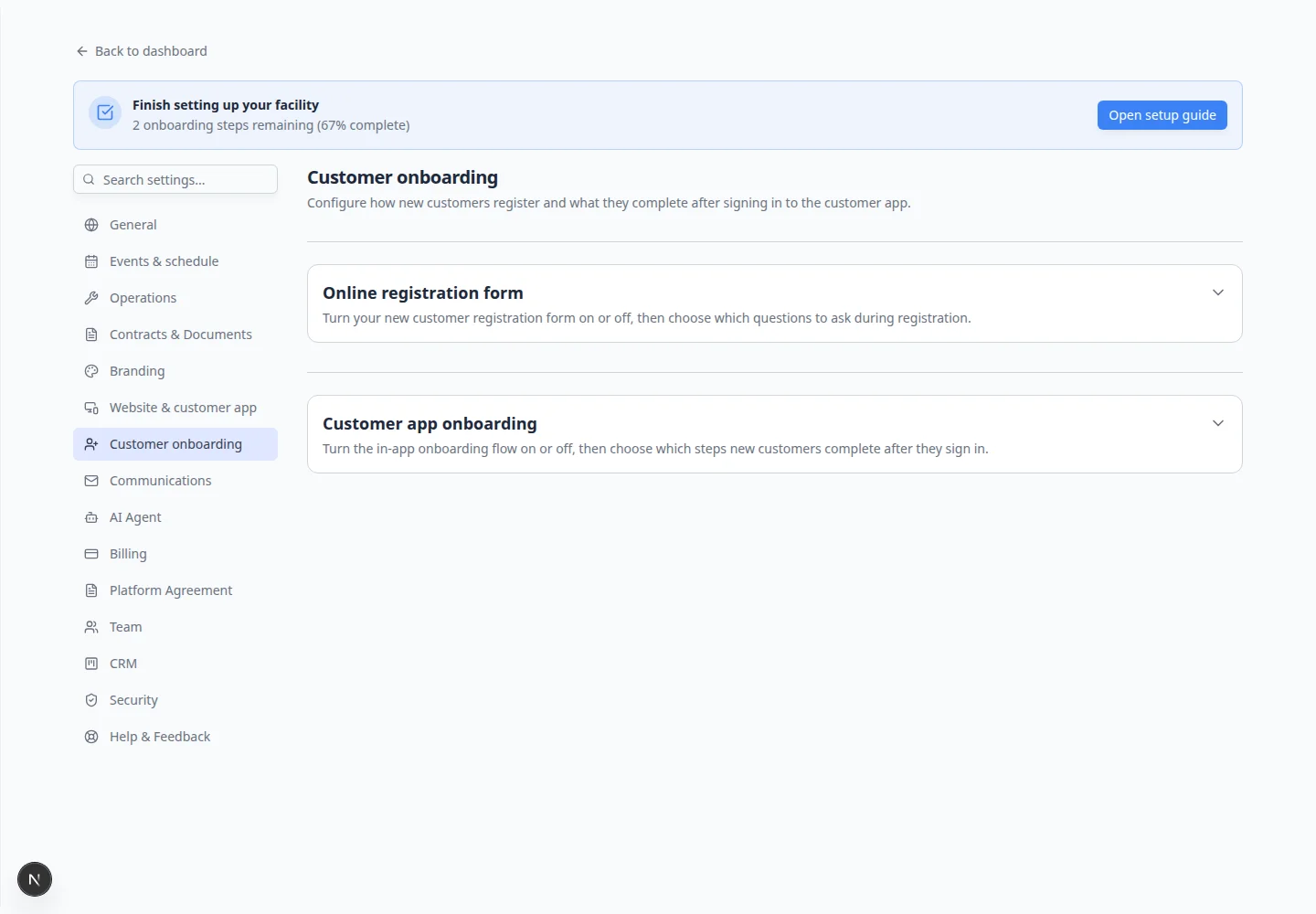
Part 2: Set up customer app onboarding
Use this when customers who sign in to the portal should complete guided steps (contracts, uploads, payment, and more).
- Scroll to Customer app onboarding
Find the Customer app onboarding section below the registration form.
- Turn onboarding on or off
Use the main switch to enable or disable the in-app onboarding flow.
When off, customers go straight to the customer app home screen after sign-in.
- Review each onboarding step
Each row is one screen customers may see. Examples include:
- Welcome — greeting with your branding
- Profile — confirm contact details
- Cars — add vehicles to the account
- Contract Signing — sign required agreements
- Document Upload — upload insurance or registration
- Payment — add a card or buy a plan
- Push Notifications — optional alerts on their phone
- Mobile App Install — help them save the portal to their home screen
Turn off any step your team handles manually or does not need yet.
- Drag steps into the right order
Drag rows by the handle on the left.
Put Cars before Contract Signing when your agreement uses vehicle fields (year, make, model, VIN).
Put Contract Signing and Document Upload before you mark onboarding complete if paperwork is required to store a car.
Expected result: The step list matches the order you would explain to a customer on the phone.
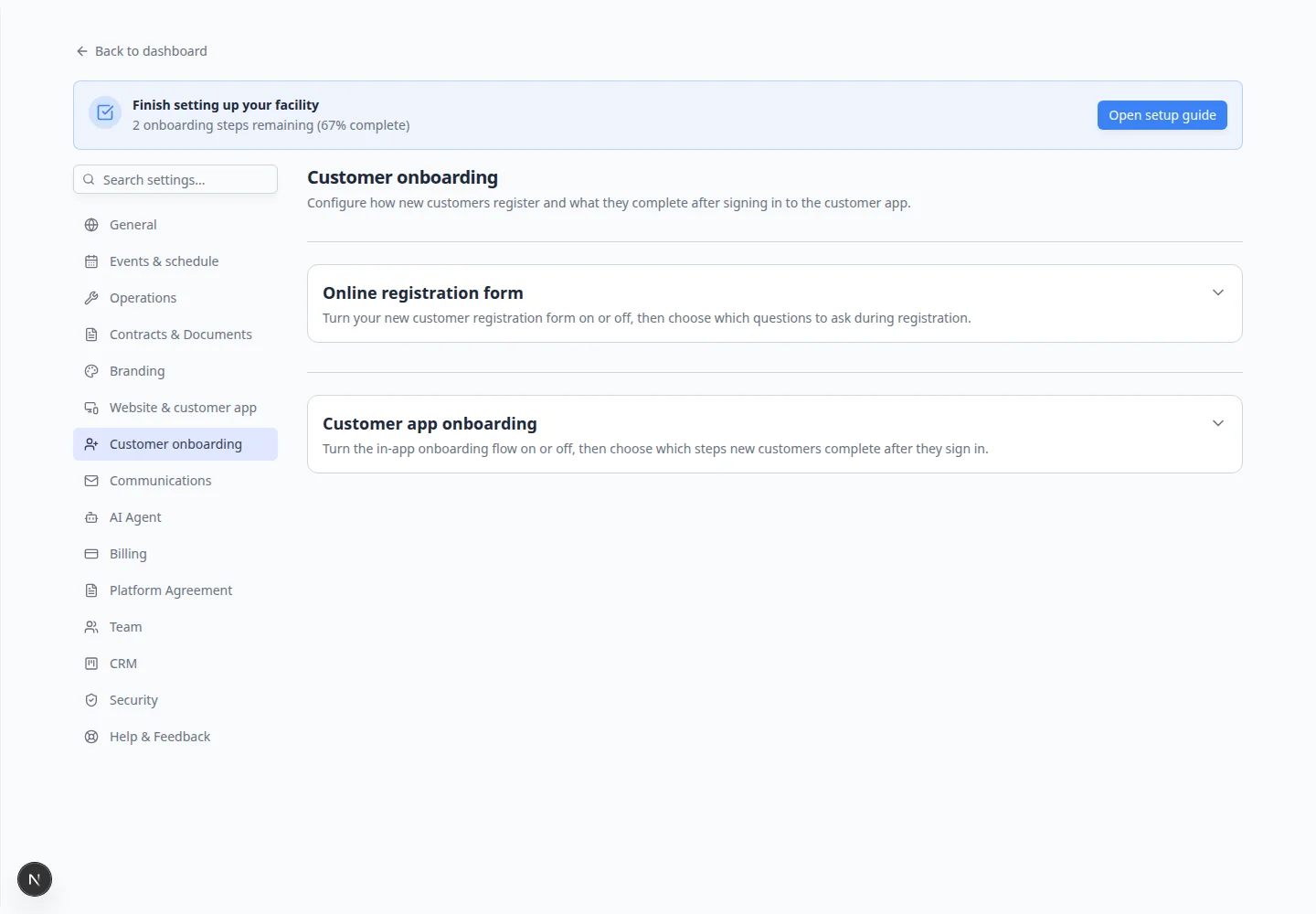
Configure contract signing
- Turn on Contract Signing
In Customer app onboarding, find the Contract Signing row and turn its switch on.
Click Configure next to that row.
- Select required contract templates
In the configuration panel, turn on each agreement customers must sign (for example, Car Storage Agreement).
Only active templates from Settings > Contracts & Documents appear here.
Expected result: Selected templates are required before onboarding finishes.
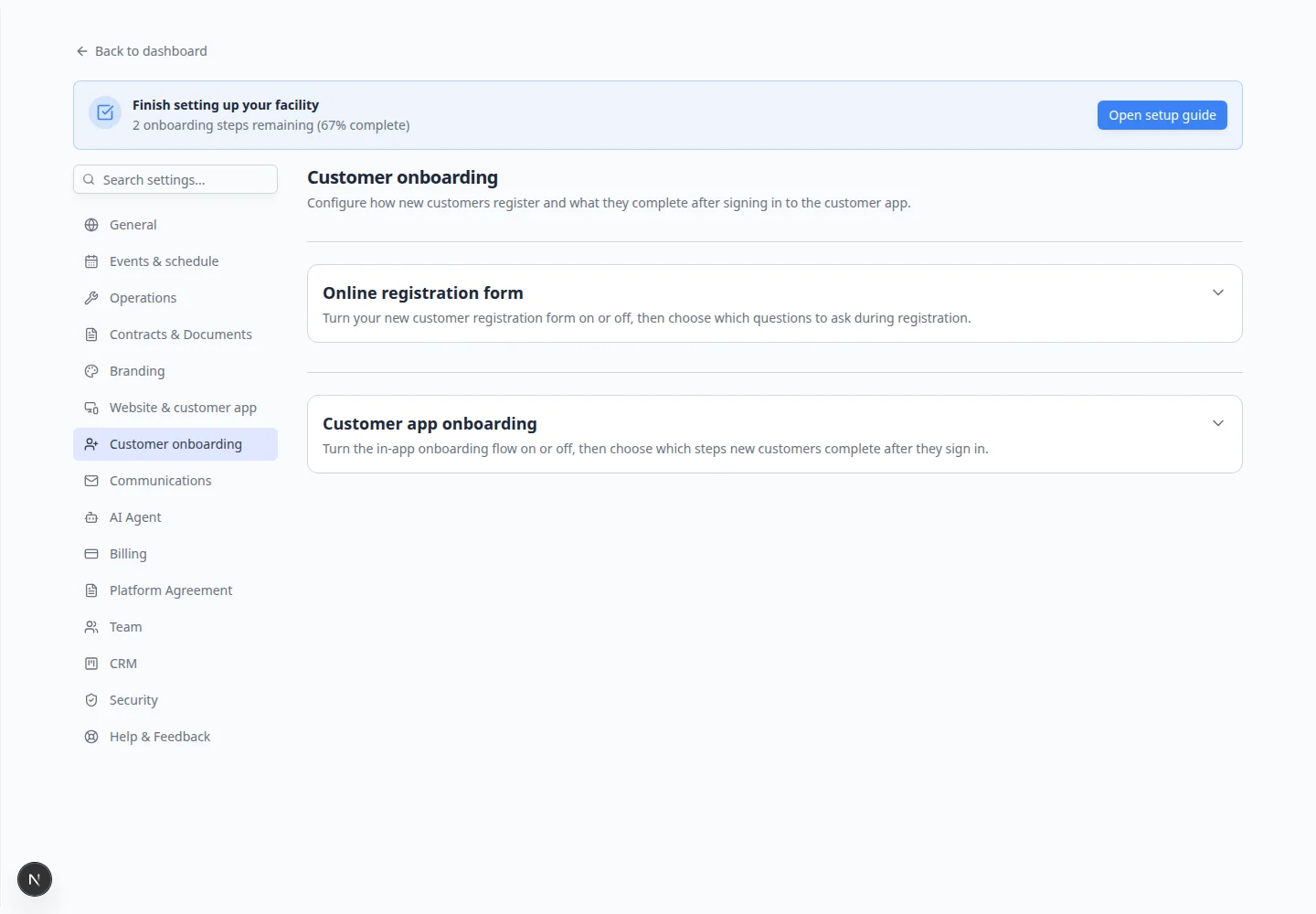
Configure payment and document steps
- Turn on Document Upload (if needed)
In Customer app onboarding, enable the Document Upload step and click Configure.
Choose which document types customers must upload (for example, Insurance and Vehicle Registration).
Document types must exist and have Customer Access turned on in Configure document requirements.
Expected result: The configuration panel lists only active document types your team created ahead of time.
- Turn on Payment (if needed)
Enable the Payment step only after Connect payment processing is complete.
Click Configure to choose whether customers add a card on file or purchase a specific product or plan.
Why this matters: Turning payment on before Stripe is connected causes failed signups and support calls.
Test the full customer journey
- Use a test email address
Pick an email your team controls (not a real customer's inbox).
- Run the public registration test (if enabled)
Open your public registration link and submit the form.
Approve or review the request following Review and approve registration requests.
- Sign in as the test customer
Open the customer login link from Settings > Website & customer app and sign in with your test email.
- Walk through every enabled onboarding step
Complete each screen the way a real customer would. Confirm contracts, uploads, and payment steps behave as expected.
Expected result: After onboarding, the customer lands on the customer app home screen with cars, documents, or billing visible as configured.
- Check the customer record on your dashboard
Open Contacts, find the test customer, and confirm signed contracts and uploads appear under Documents & Contracts.
What success looks like
- Public registration (if enabled) asks only the questions your team needs.
- New portal customers complete contracts and uploads without staff re-sending links.
- Step order matches real-world work (vehicles before vehicle contracts, payment after billing is ready).
- Your team tested the flow with an internal email before sharing public links.
Troubleshooting
What to do next
- Copy and test public links in Configure portal and website.
- Invite real customers with Invite a customer to the portal.
- Return to Settings overview for the full first-week setup path.