Basics
Use the Create event home page
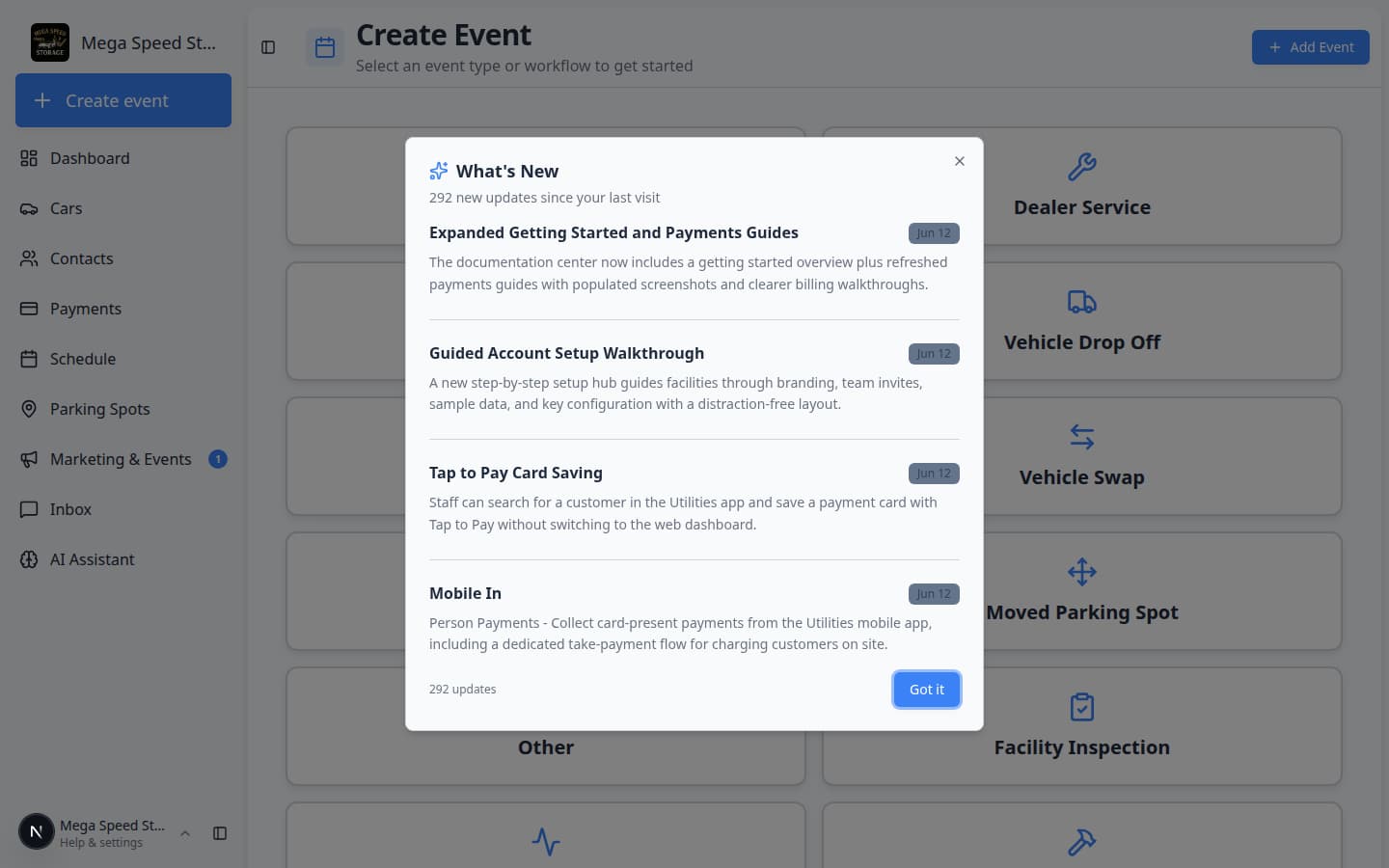
Start vehicle drop-offs, service work, pickups, and multi-step workflows from the Create event page — the classic staff home screen.
Use this guide when you sign in and land on Create event, or when front-desk staff need the fastest way to start vehicle work without opening the full Schedule calendar first.
For your first week in the app, start with Getting started or Getting started overview.
The Create event page is the large-button home screen at the top of the sidebar. It helps your team pick what kind of work is happening (drop-off, detail, pickup, and more), choose the vehicle or customer, and continue into photos, checklists, or scheduling.
What you will accomplish
You will open Create event, pick an event type or workflow, connect the right car or customer, and continue into the next step your facility uses for that job.
When to use Create event vs Schedule
Create event (Create event) is best when someone is starting work right now — a car just arrived, a detail is beginning, or a team member is walking through a workflow with photos and checklists.
Schedule (Schedule) is best when you are planning ahead — booking next Tuesday at 2 PM, moving an appointment, or reviewing the whole week.
Many teams use Create event dozens of times per day and open Schedule when they need the calendar view.
Before you start
- You are signed in as a staff user (not a customer portal login).
- For vehicle work, the car should already exist in Cars. If not, add it first with Prepare your first customer and car.
- For customer-only visits, the contact should exist in Contacts.
- Your facility owner should have set up event types in Settings > Events & schedule. If the card grid looks empty, finish that setup first.
Open Create event
- Find Create event in the sidebar
Look at the top of the left sidebar. Below your facility name, you should see a large Create event button with a plus (+) icon.
You can also open the page directly at Create event.
Expected result: The page title at the top says Create Event and you see a grid of colored cards.
- Read the subtitle
Under the title, the page shows Select an event type or workflow to get started until you pick a card.
Why this matters: This confirms you are on the starting screen, not inside an active job yet.
Pick an event type card
Each card is one event type your facility configured — for example Vehicle Drop Off, Dealer Service, Vehicle Pick Up, or Customer Visit.
- Choose the card that matches the job
Click the card that best describes what is happening.
Example: a collector just dropped off a Porsche for storage → choose Vehicle Drop Off.
Why this matters: The event type controls which photos, checklists, customer messages, and billing rules run after you click Continue. Picking the wrong card is one of the most common front-desk mistakes.
Expected result: The page moves to the next step. Near the top you see a banner with the event name (for example Vehicle Drop Off). The subtitle changes to Creating followed by that name.
- Use Back if you picked the wrong card
If you clicked the wrong card, click ← Back to Selection near the top left.
Expected result: You return to the full card grid without saving anything.
Pick a workflow card (if your facility uses workflows)
Some facilities also show workflow cards in the same grid. Workflows have a small branch icon in the corner and show how many steps they include.
Workflows are multi-step checklists — for example a full intake process with photos, condition notes, and parking assignment.
- Find a workflow card on the grid
Look for a card with a branch icon and a step count (for example 4 steps). These sit alongside regular event type cards on Create event.
Expected result: You can tell workflows apart from single event types by the icon and step number.
- Click the workflow card
Choose the workflow your manager trained you to use for that job.
Expected result: You see the workflow name, description, and a Start Workflow button.
- Click Start Workflow
Press Start Workflow to begin the step-by-step screen.
Expected result: The app opens the workflow page where you complete each step in order — photos, readings, parking, and similar tasks.
Connect the vehicle or customer
After you pick an event type, the page asks for the record that work belongs to.
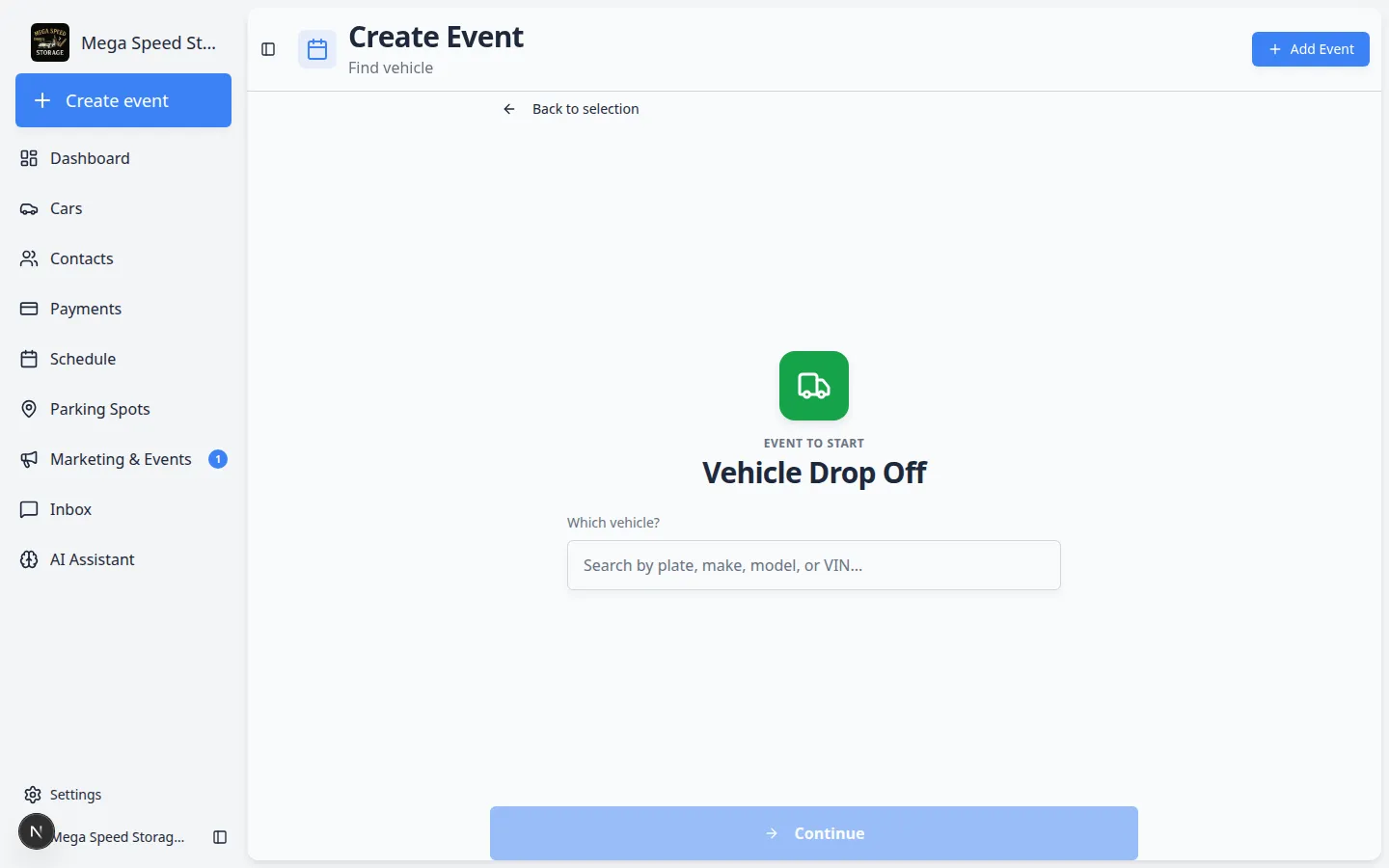
- Vehicle events — search for the car
When the page shows Search Vehicle, type part of the license plate, make, model, or VIN.
Wait for the dropdown list to appear, then click the matching car.
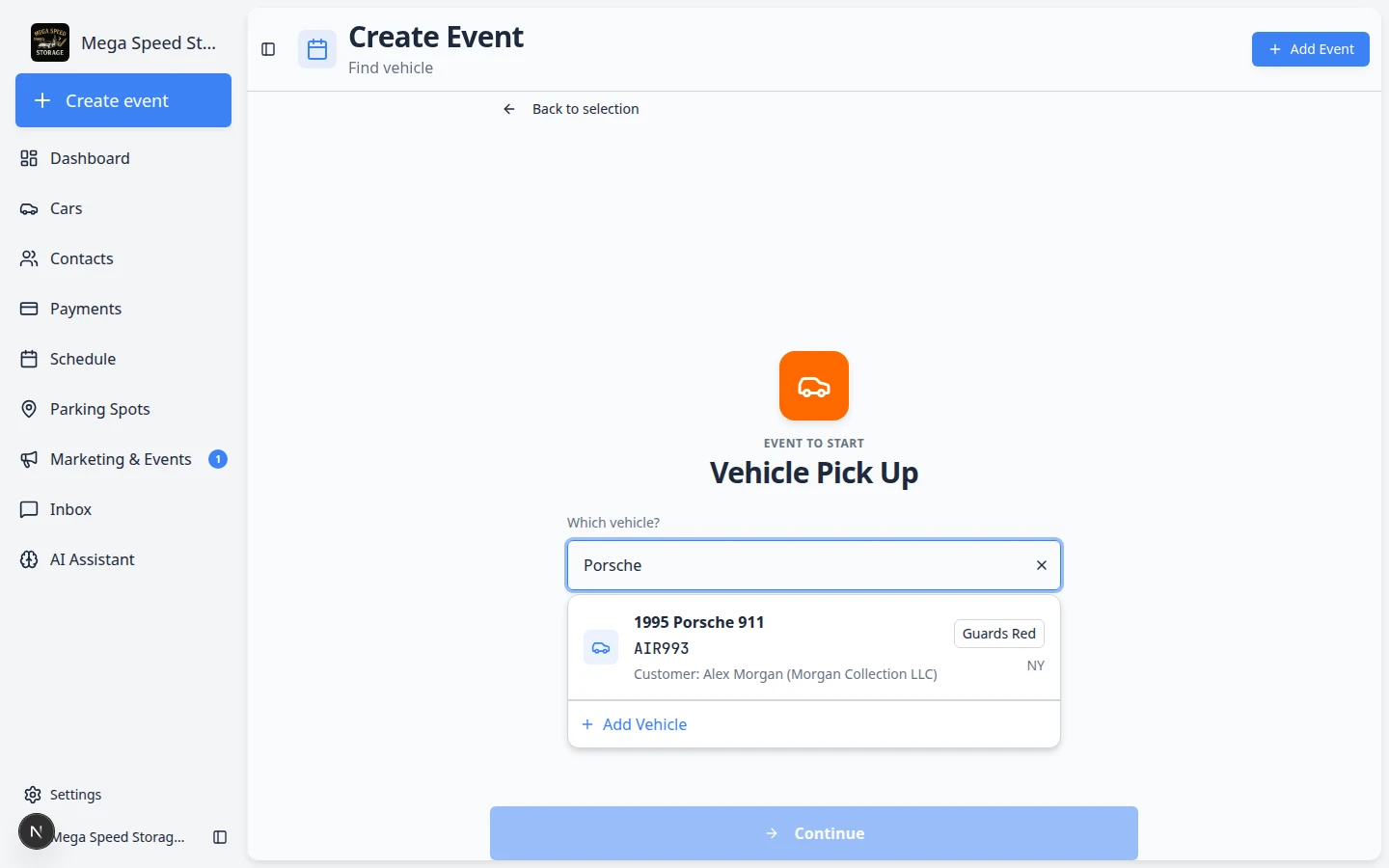
Type a few letters and read every line in the dropdown before you click. Similar cars may share the same make and model. Why this matters: Linking the right vehicle keeps photos, parking, invoices, and history on one record.
Expected result: Matching vehicles appear in a dropdown. Click the one that matches the plate, VIN, and color you expect.
- Customer visits — search for the contact
Some event types ask for Select Customer instead of a vehicle. Search by name, email, or company and pick the correct person.
Expected result: The customer name appears in a summary box before you continue.
- Choose options when shown
Some event types show extra choices below the search — for example which service package or appointment option applies.
Pick the option your facility uses for this visit before continuing.
- Click Continue
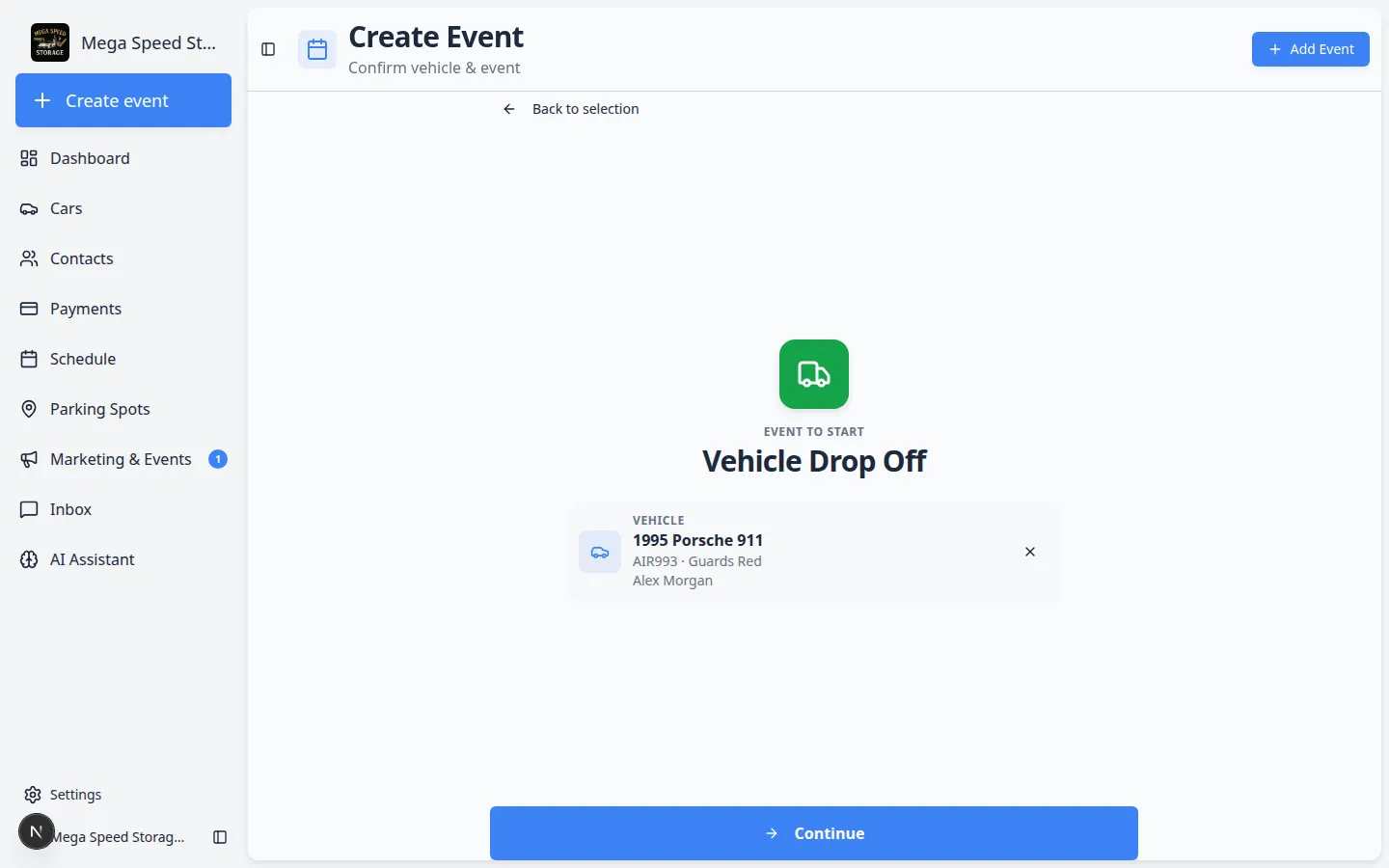
When required fields are filled in, the Continue button at the bottom becomes active. Click Continue.
Expected result: The app opens the next screen — often a photo walkthrough, checklist, or scheduling step depending on how your facility configured that event type.
What happens after you click Continue
The next screen depends on how your facility configured the event type. Common next steps include:
- Photo walkthrough — step-by-step camera prompts for intake or inspection images.
- Checklist or readings — fuel level, odometer, tire pressure, or condition items your team must record.
- Parking assignment — choosing where the vehicle sits in the building.
- Scheduling — picking a date and time when the event type books future work instead of starting immediately.
- Read the first screen carefully
After Continue, the app may ask for photos, readings, or parking before the event is fully started.
Why this matters: Skipping a required photo or reading can leave the car record incomplete — and your team may need to walk back to the lot later.
- Complete each prompt in order
Follow the on-screen steps until the event shows as started or complete. Use Back only if you need to change the vehicle — not to skip required work.
Expected result: New activity appears on the car's Activity Feed on Cars.
- Confirm on the car record
Open the vehicle from Cars and scroll the Activity Feed on the right. You should see the event you just started with the correct time and status.
Expected result: Your manager can answer customer questions from the record without asking you what happened on the floor.
Important words in plain English
Event type — A labeled kind of work (drop-off, pickup, detail, customer visit). Each type has its own card color and rules.
Workflow — A fixed list of steps your team follows in order. Workflows appear as separate cards with a branch icon.
Search Vehicle — Finds cars already in your facility’s records. It is not for adding a brand-new car from this screen.
Continue — Moves you into the operational screen (photos, forms, or scheduling) for the event you started.
Common mistakes to avoid
Troubleshooting
What success looks like
When Create event is working well for your team:
- Staff pick the correct event card on the first try (drop-off vs pickup vs detail).
- Every session links to the correct vehicle — search results are read before Continue.
- Photos, parking, and checklists after Continue save to the car’s Activity Feed.
- Managers configured enough event types that staff rarely need workarounds or paper notes.
Use Create event on a phone or tablet
Shop-floor staff often open Create event from a phone after saving it to the home screen.
- Install the home screen shortcut
Follow Install the mobile app while signed in on Create event.
Expected result: A home screen icon opens the event card grid full-screen.
- Tap the same cards as on desktop
The steps in this guide work the same on a phone — pick the event type, search for the vehicle, then tap Continue.
Tip: Turn your phone sideways if the keyboard covers the search box.
- Take photos when prompted
After Continue, your facility may ask for intake photos. Use the phone camera when the app requests it — those images save to the car record automatically.
What to do next
- Learn the rest of the sidebar
Read Learn the dashboard for a tour of Cars, Contacts, Schedule, Payments, Parking, and more.
- Save Create event on your phone
Follow Install the mobile app so porters can open the card grid from the home screen.
- Plan future appointments
When you need a calendar instead of starting work now, read Schedule overview.
- Set up event types (managers)
Facility owners configure which cards appear here. Start with Events overview.