Settings
Settings overview
Follow the first-week setup path for facility details, billing, communications, portal, team access, CRM, and security.
What you will accomplish
You will follow a clear first-week setup path so your facility's time zone, payments, messages, portal, team access, and daily operations tools work correctly before customers and staff rely on them.
Settings is where you tell Car Storage Software how your facility works.
Use this guide when you are setting up a new facility, preparing to invite staff, turning on customer-facing tools, or checking that important business settings are correct.
When Settings is set up well, your team can:
- Schedule work in the right time zone.
- Send invoices and collect payments.
- Send emails and text messages from the right business identity.
- Standardize recurring care, checklists, status labels, and bookable facility spaces.
- Invite customers to a portal that looks like your facility.
- Collect signed agreements and customer documents.
- Give staff the right access without exposing private areas.
- Organize leads and customer follow-up.
Quick start: your first 30 minutes
If you are brand new to the app, do these steps in order before you invite customers or staff. Each step links to a full guide when you need more detail.
- Set time zone and regional formats (about 5 minutes)
Open Settings > General and follow Set up general facility settings.
Expected result: Dates and times on Schedule match how your team talks about the day.
- Add your logo and colors (about 10 minutes)
Open Settings > Branding and follow Set up facility branding.
Expected result: Customer emails and the portal show your facility name—not a generic label.
- Set customer portal language (2 minutes, if needed)
If many customers speak Spanish, open Settings > General and set Language in Set up general facility settings.
Expected result: Portal menus and messages appear in the language you chose.
- Connect payments if you will invoice (about 10 minutes)
If you plan to send invoices or collect storage fees online, open Settings > Billing and start Connect payment processing.
You can skip this step today if you only need scheduling and customer records.
- Invite one trusted teammate (optional)
When someone else needs dashboard access, use Manage team permissions. Give them only the areas they need—not admin access by default.
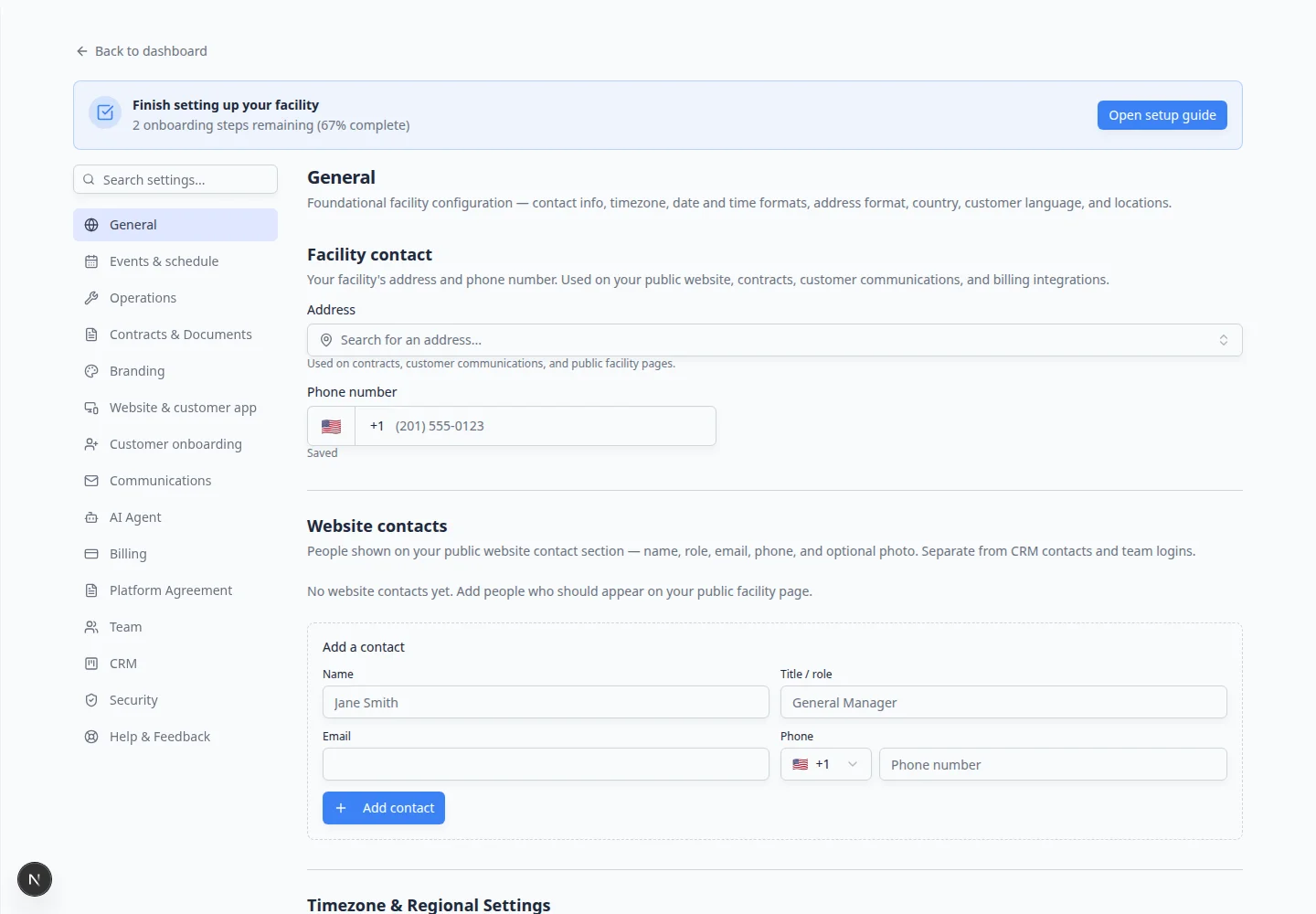
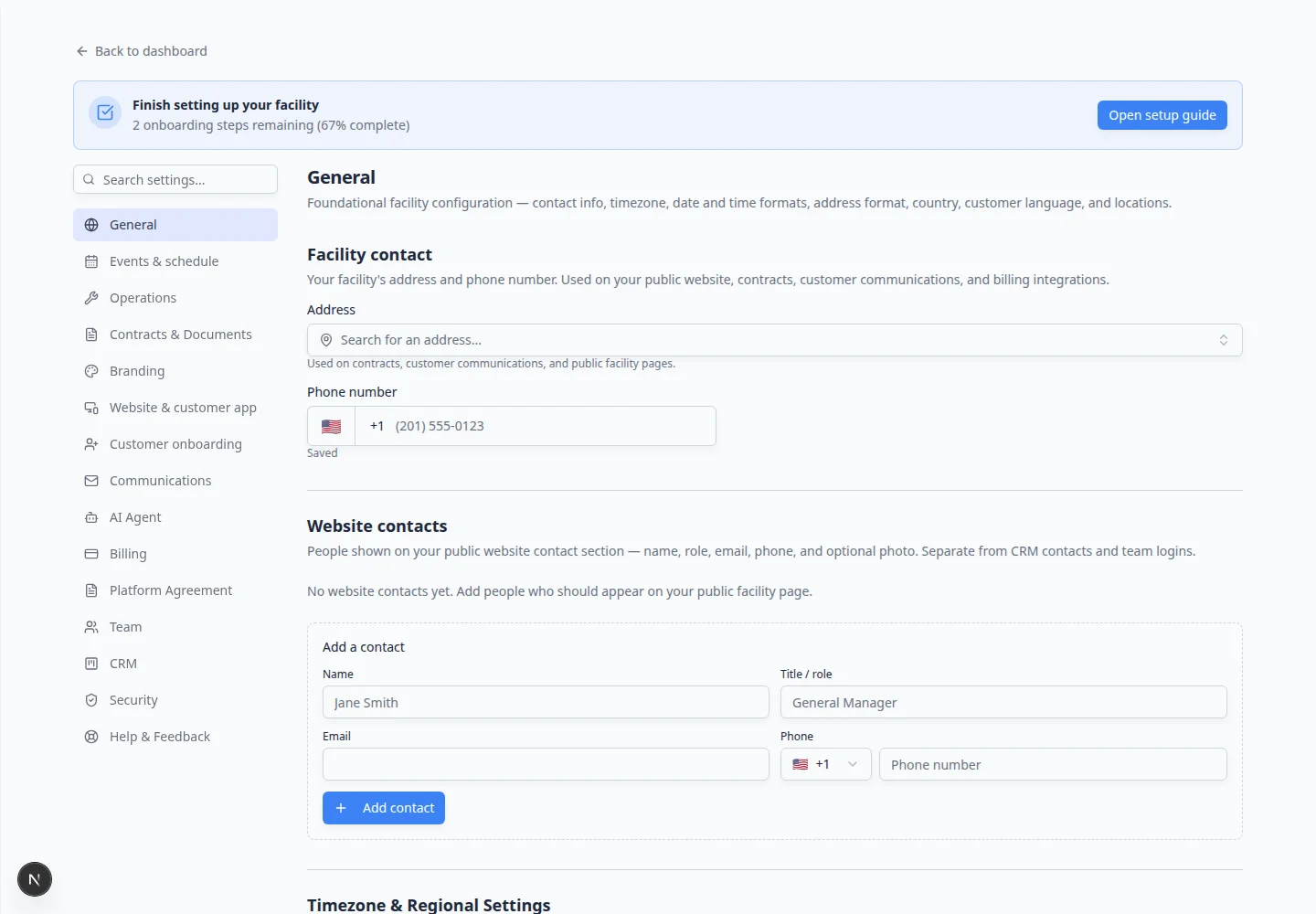
How to find any settings page
- Open Settings from the dashboard
In the main dashboard sidebar (far left), click Settings near the bottom.
Expected result: The settings area opens with a search box and a list of categories such as General, Billing, and Team.
- Search when you know a keyword
Click Search settings… and type a plain word, such as tax, logo, invite, or passkey.
Matching sections on the current page highlight, and you can pick a category from the list.
Why this matters: You do not need to memorize where every option lives. Search is often faster than scrolling.
- Or click a category name
Click a category in the middle column—for example Communications or Customer onboarding.
Expected result: The page title at the top of the right panel matches the category you chose (for example Communications).
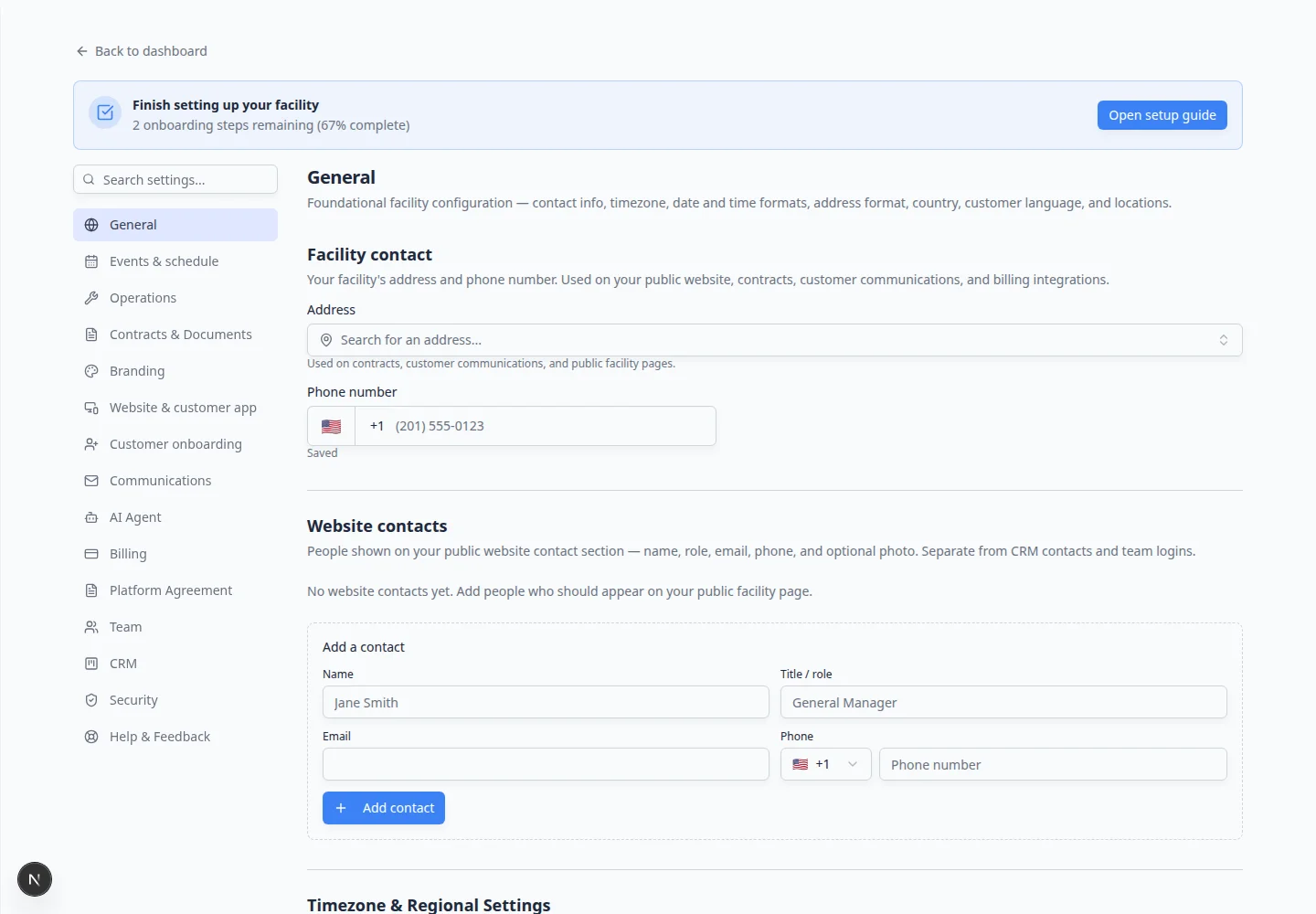
What success looks like after your first week
When your first-week setup is done well, you should be able to check these outcomes without guessing:
- Schedule shows appointments in the correct local time zone.
- Customer emails and the portal show your logo and facility name, not a generic label.
- At least one teammate besides the owner can sign in with the right areas—not full admin unless they need it.
- If you bill online, Payments is connected and a test invoice looks correct.
- Your public registration or login link opens in a private browser window and looks ready for customers.
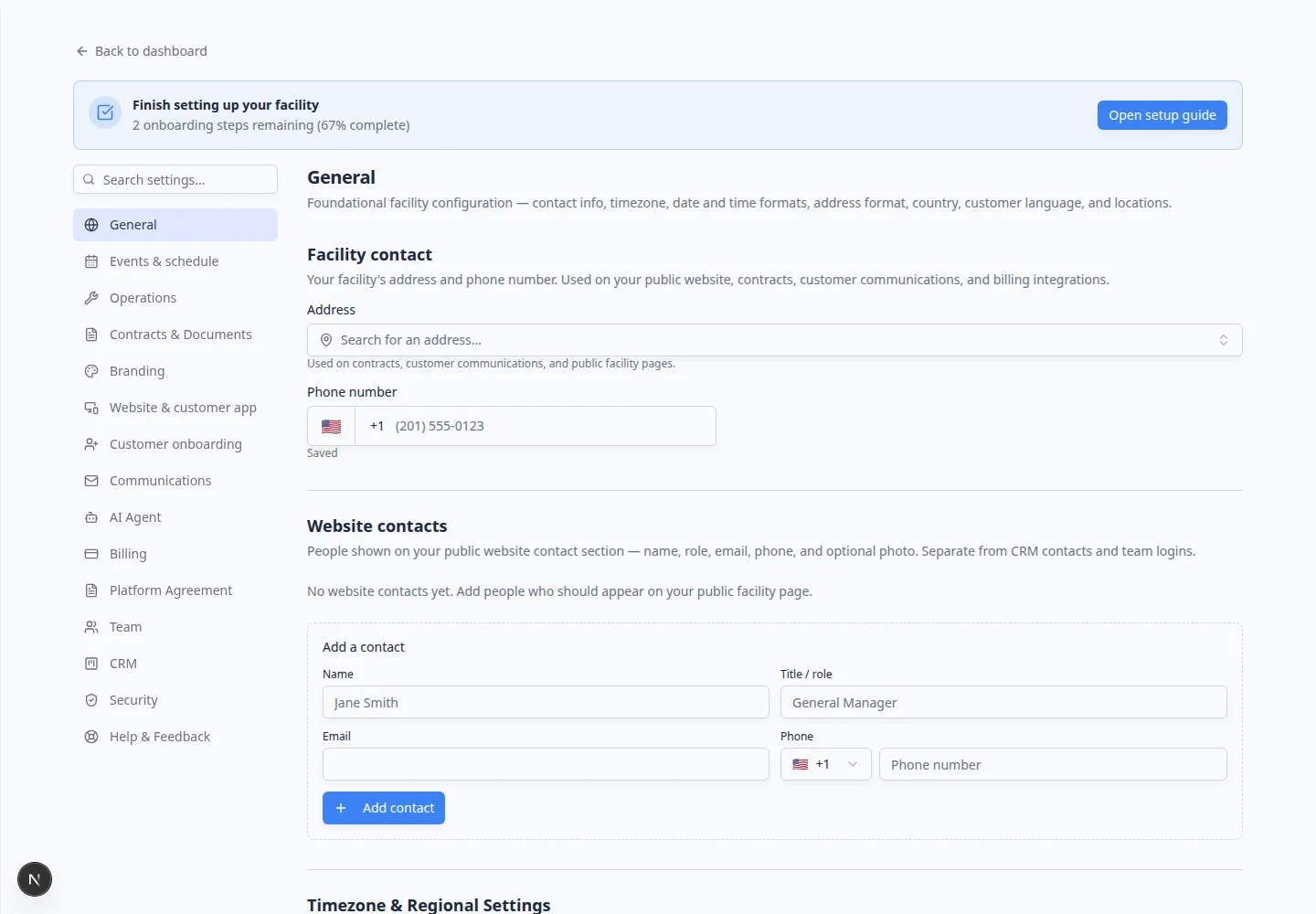
First-week guides (start here)
These eight guides cover the setup most new facilities complete in the first week. Each one focuses on a single outcome so you do not have to read every page at once.
- Day 1 — facility basics
- Day 2 — money and messages
Connect payment processing (if you bill online) and Configure communications.
- Day 3 — how work runs on the floor
Configure operations settings and Set up vehicle service plans when stored cars include repeating care.
- Day 4 — customers and staff
Best setup order for a new facility
Follow this order if your team is setting up the app for the first time. Each step builds on the one before it.
- Start with General settings so dates, times, addresses, country, and locations are correct.
- Set up Branding so your logo, colors, and facility name look correct on customer pages and emails.
- Set up Billing before your team sends invoices, quotes, recurring charges, or checkout links.
- Set up Communications so emails, texts, review links, and notification defaults work the way your team expects.
- Set up Operations before staff rely on recurring care plans, workflows, custom statuses, bookable amenities, or floor plan tools.
- Set up Contracts before requiring customers to sign agreements or upload important documents.
- Set up Customer onboarding before turning on public registration or required portal setup steps.
- Set up Website & customer app before inviting customers or adding public links to your website.
- Review Team permissions before inviting staff into the dashboard.
- Set up CRM settings so leads, customers, follow-up dates, and customer types are easy to understand.
- Finish with Security settings so sign-in and admin access are safe.
What each Settings page is for
- General
Open Settings > General for time zone, date format, time format, address format, country, and facility locations.
- Events & schedule
Open Settings > Events & schedule for services, appointment types, reminders, booking rules, photo rules, and resources. Start with Configure events and schedule settings, then Configure event types when you add each service.
- Operations
Open Settings > Operations for service plans, statuses, workflows, amenities, and floor plan setup. Start with Configure operations settings.
- Contracts & Documents
Open Settings > Contracts & Documents for contract templates, e-signature setup, document types, and customer upload categories. For a full guide, see Contracts overview.
- Branding
Open Settings > Branding for your logo, brand colors, facility name, app home screen name, and theme. For a full guide, see Set up facility branding.
- Website & customer app
Open Settings > Website & customer app for customer app home layout, shareable links, booking widget, vehicle page visibility, and public facility pages. For a full guide, see Configure portal and website.
- Customer onboarding
Open Settings > Customer onboarding for the public registration form and the steps customers complete after sign-in. For a full guide, see Configure customer onboarding.
- Communications
Open Settings > Communications for phone and text messaging, email domain setup, social links, Google Reviews, and notification defaults.
- Billing
Open Settings > Billing for Stripe payment processing, processing fee rules, statement billing, invoice settings, tax rates, quote settings, and accounting integrations.
- Team
Open Settings > Team to invite staff, update permissions, review notification preferences, assign locations, and remove access for people who no longer need it.
- CRM
Open Settings > CRM for pipeline stages, customer types, lead sources, and automatic follow-up timing.
- Security
Open Settings > Security to manage passkeys for safer sign-in.
Important words in plain English
Customer portal means the private area where customers sign in to see their cars, invoices, documents, messages, and events.
Website & customer app means the signed-in customer experience plus public links and pages you can place on your own website.
Customer onboarding means the public registration form and the guided steps new customers complete in the portal (contracts, uploads, payment, and more).
Operations means the repeatable work your team does every day, such as recurring vehicle care, intake checklists, status labels, and reserving bays or rooms.
CRM means the way your team tracks leads and customer follow-up. You do not need to know the term to use it. Think of it as your sales and relationship board.
Passkey means signing in with your device, such as Face ID, Touch ID, Windows Hello, or a security key.
Admin means a teammate who can access sensitive settings. Admin access should be limited to trusted owners or managers.
Common setup mistakes to avoid
- Do not invite customers before the portal sections, logo, and billing settings are ready.
- Do not build workflows before the event types they use are correct.
- Do not give every staff member admin access. Most people only need access to the areas they work in.
- Do not send invoices until payment processing, tax settings, and invoice numbering are reviewed.
- Do not copy website links until you confirm the public page or portal page opens correctly.
How-to guides in this section
- Set up general facility settings — time zone, dates, country, and locations.
- Configure events and schedule settings — services, plans, closed days, and reminders.
- Set up facility branding — logo, colors, facility name, and theme.
- Connect payment processing — Stripe, fees, taxes, and invoices.
- Configure communications — phone, text, email domain, reviews, and alerts.
- Configure operations settings — overview of service plans, workflows, statuses, and amenities.
- Set up vehicle service plans — recurring care packages for stored vehicles.
- Create operations workflows — step-by-step checklists for intake, pickup, and similar jobs.
- Manage custom statuses and amenities — job labels and bookable bays or rooms.
- Configure customer onboarding — public registration form and portal setup steps.
- Configure portal and website — customer app layout, login links, booking box, and public pages.
- Manage team permissions — invite staff and choose safe access.
- Configure CRM settings — pipeline stages, customer types, and sources.
- Review security settings — passkeys and access habits.
Quick links by job
- Owner / manager setting up the facility: Start with Set up general facility settings, then Set up facility branding, then Connect payment processing if you bill online.
- Front desk inviting customers: Finish Configure customer onboarding and Configure portal and website before sending public links. See Facility Web Pages.
- Hiring or updating staff: Use Manage team permissions and Review security settings.
- Shop floor / operations lead: Use Configure operations settings and Create operations workflows.
- Sales or CRM lead: Use Configure CRM settings.
Troubleshooting
What to do next
If this is your first time setting up the app, open the in-app Setup Guide and continue with Set up general facility settings.
If your team is already using the app and you need to fix one area, choose the guide that matches your task from the list above.