Cars
Cars overview
Understand the vehicle workflows available from the Cars section of the dashboard.
The Cars section is the operational center of your facility dashboard. Every vehicle your team stores, services, or tracks lives here as a car record — connecting the vehicle to its owner, parking spot, billing history, activity, documents, photos, and notes.
What you will accomplish
After reading this overview and the linked guides, you and your team will know how to:
- Find any vehicle quickly from the Cars page.
- Keep vehicle details, customer links, and parking assignments accurate.
- Run intake, inspection, and service work using events and photo sessions.
- Review the Activity Feed, notes, and photos before talking with a customer.
When to use the Cars section
- A vehicle is arriving for storage, service, or consignment and needs a record before work starts.
- Someone asks where a car is parked or who owns it.
- You need to document intake, inspection, delivery, or other work with photos and a timeline.
- Plate, VIN, insurance, or customer details changed and the record must stay accurate for billing and messages.
Before you start
- You can sign in to the dashboard and open Cars from the left sidebar.
- Your facility has at least one customer in Contacts when you plan to link owners to vehicles.
- If you will assign parking spots, your team has set up spots or zones in Parking Spots.
What you can do from Cars
- Add a car — create a vehicle record with or without a photo walkthrough so your team can start tracking it immediately.
- View and edit vehicle details — update make, model, year, color, VIN, license plate, insurance, mileage, fuel level, declared value, tags, and customer ownership from one detail page.
- Move a car — assign or change the vehicle's parking spot, zone, or vendor location so the record matches the physical floor plan.
- Look up by VIN — on a phone, tap Scan in the bottom bar to open a record from the windshield barcode.
- Track parts — log aftermarket parts, modifications, and accessories with photos and costs on the car record.
- Create events and tasks — schedule work, log a quick task, start a quick photo session, or upload a document from the Add menu on a car record.
- Review market trends — when your facility uses Classic.com, see Market Data on the car record next to declared value.
- Scan plan health from the list — turn on the Service column on the Cars page to see which vehicles have plan work due.
- Review activity history — see every past and upcoming event, status change, and note in the Activity Feed. For a searchable full timeline, see Review car activity, notes, and photos.
Quick links by job
| I need to… | Open this page | Step-by-step guide |
|---|---|---|
| Add a car that just arrived | Cars → Create New Car | Add a car |
| Park a car from the floor map | Parking Spots → click a spot | Move a car (from the map) |
| Find a car by plate or customer | Cars → Search | Find and filter cars |
| Scan a VIN on the lot (phone) | Bottom bar → Scan | Look up a car by VIN |
| Answer "where is this car?" | Open the car → check Zone: or Spot: at the top | Move a car |
| Move several cars quickly | Move Car | Use the Move Car page |
| Update plate, VIN, insurance, or owner | Open the car → Vehicle Details | View and edit vehicle details |
| Record insurance or registration dates | Open the car → Insurance / Registration | Track insurance and registration on a vehicle |
| List consignment or inventory for sale | Open the car → For Sale | List a vehicle for sale on your marketplace |
| Log a quick reminder for the team | Open the car → Add → Quick task | Start a car session |
| Upload insurance or registration | Open the car → Add → Upload document | Start a car session |
| Check if plan work is overdue | Cars → Service column | Find and filter cars |
| Schedule intake, detail, or pickup | Open the car → Add → Create event | Start a car session |
| See what happened at intake | Open the car → Activity Feed and Notes | Review car activity, notes, and photos |
| Research a long vehicle history | Car → View all on Activity Feed | View full vehicle activity history |
| Log installed upgrades or parts | Open the car → Parts in Vehicle Details | Track parts, modifications, and accessories |
| Remove a mistaken duplicate record | Car detail → scroll to Danger Zone | Delete a vehicle record |
Finding cars quickly
The Cars list supports search, filters, and two view modes so you can find the right vehicle fast:
- Search — type any part of the make, model, year, VIN, plate, stock number, or customer name. The search bar may show removable chips for parts of your query (such as a year).
- Table view — a sortable table with columns you can show or hide. Turn on Inline edit only when you mean to change fields directly in the list.
- Card view — a responsive grid of vehicle cards with thumbnail photos. Useful on tablets or when you recognize cars by photo.
- Filters — narrow the list by facility location, make, model, color, year range, for sale status, insurance status, service plan, and tags.
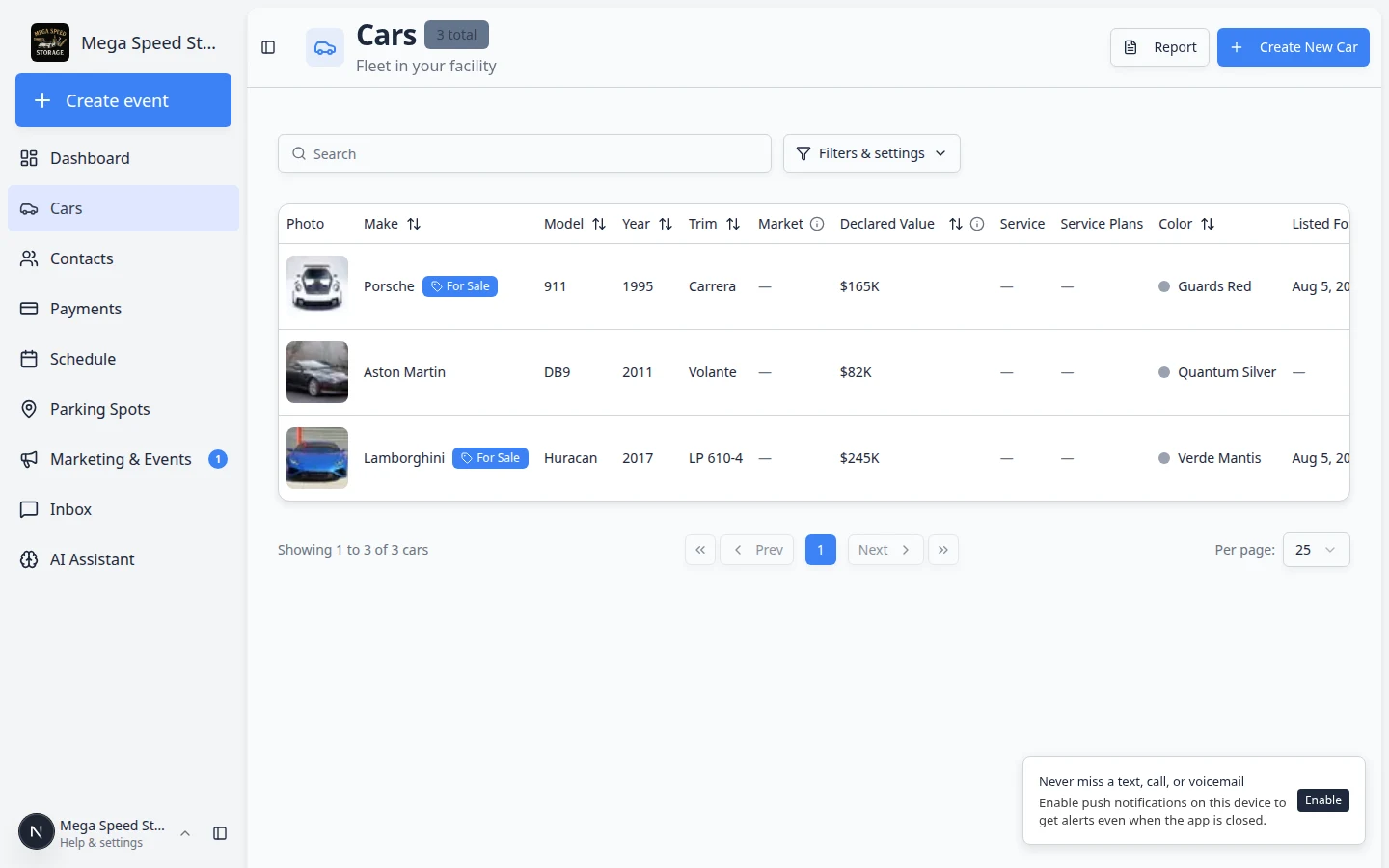
To open a car, click View in the Actions column (or click the vehicle row when inline edit is off).
Helpful terms
These words appear often on car records. Knowing them helps your team talk about the same thing:
| Term | What it means |
|---|---|
| Car record | The full page for one vehicle—details on the left, Activity Feed and Notes on the right. |
| Session | A structured workflow tied to an event (intake, inspection, delivery, and so on). You complete photos, readings, and checklists inside a session. |
| Event | A scheduled or in-progress piece of work on the calendar. It appears as a row in the Activity Feed. |
| Quick task | A fast internal reminder on a car—not a full calendar appointment with photos. |
| Quick photo | A photo walkthrough that starts right away without scheduling a time slot first. |
| Inline edit | A table mode on the Cars list that lets you change fields in the list. Turn it off when you want clicking a row to open the full record. |
| Zone | A general parking area (for example Outdoor Lot). The car is in that region but may not have an exact numbered spot. |
| Spot | One numbered parking position on your floor plan (for example A1). |
| Activity Feed | The timeline on the right side of a car record—every event, parking move, and status change for that vehicle. |
The car detail page
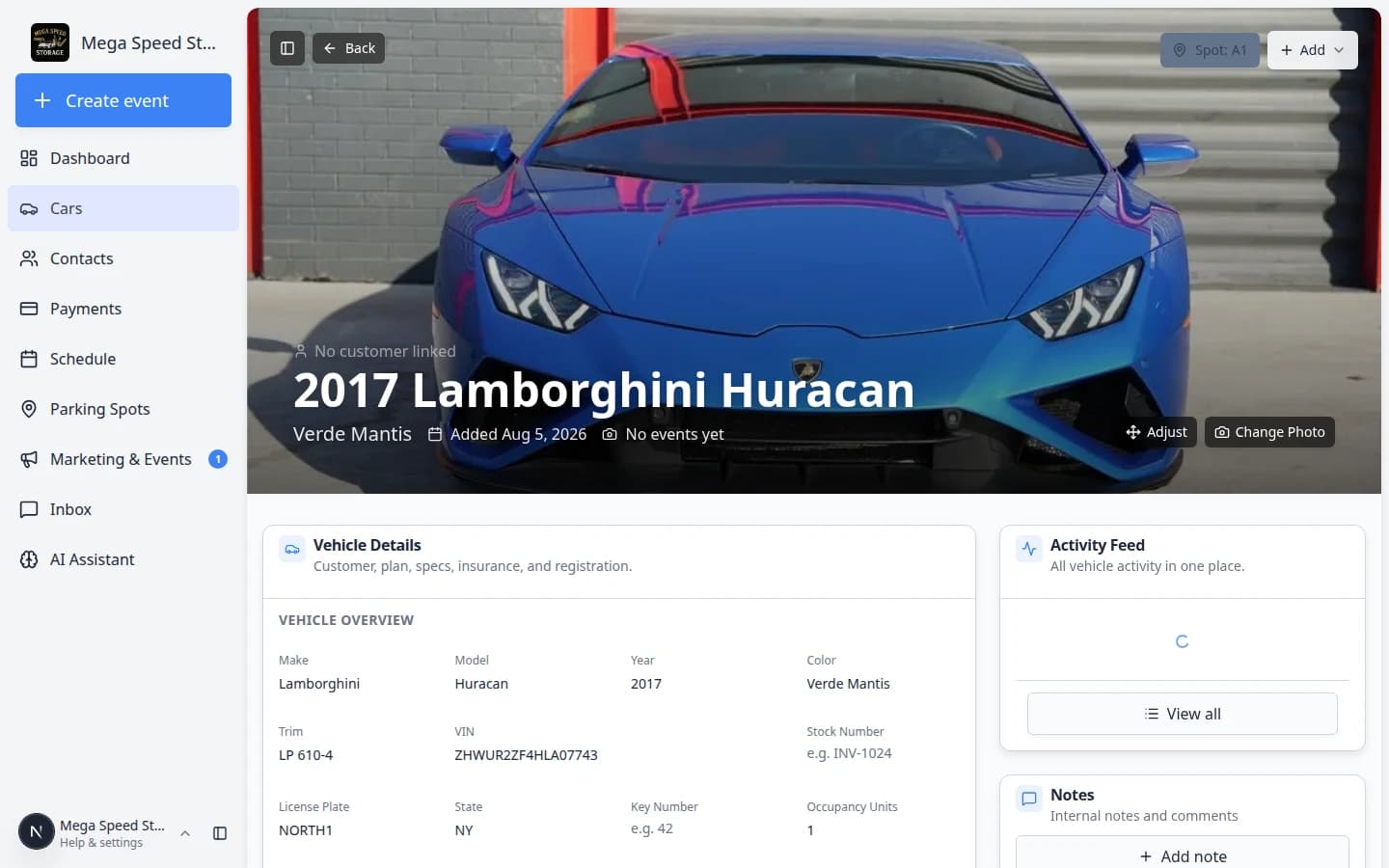
Click any vehicle to open its detail page. This single page is the source of truth for everything about the car.
On wide screens, the page is split into two main areas:
- Vehicle Details (left) — specs, customer, insurance, registration, service plans, marketplace listing, photos, and readings.
- Activity Feed and Notes (right) — timeline of work plus internal team notes.
At the top of the page you will also see:
- Back — return to the Cars list.
- Zone:, Spot:, At vendor:, or Assign location — open the parking assignment dialog.
- Add — menu with Create event, Quick task, Quick photo, and Upload document (upload requires a linked customer).
- Market Data — inside Vehicle Details, optional Classic.com price trends when your facility enables them.
- Adjust / Change Photo — update the banner image when a photo exists.
How-to guides
- Add a car
Create a new vehicle record with or without a photo intake walkthrough. Read the guide →
- Import vehicles from a spreadsheet
Upload many vehicles at once from a CSV or Excel file and link them to customers. Read the guide →
- Find and filter cars
Search by customer, plate, year, make, model, VIN, or tag. Adjust filters, views, columns, and inline editing so the Cars list shows what you need. Read the guide →
- Look up a car by VIN
On a phone, tap Scan in the bottom bar to open a record from the windshield VIN—or start a new intake when the car is not on file yet. Read the guide →
- View and edit vehicle details
Update vehicle information, customer ownership, insurance, registration, declared value, readings, and service details from one car record. Read the guide →
- Assign service plans on a vehicle
Connect recurring care packages so your team sees what work is due. Read the guide →
- Link recurring billing to a vehicle
Show which monthly storage or membership charge belongs to this car. Read the guide →
- Review Classic.com market data on a vehicle
Read price trends and fix the market chart when it points at the wrong vehicle type. Read the guide →
- Move a car
Assign or change a vehicle's parking spot or zone inside your facility. Read the guide →
- Send a car to a vendor location
Record when a vehicle is at an outside shop or partner. Read the guide →
- Use the Move Car page
Reassign spots from a focused page when you are walking the lot or following a link with the car already selected. Read the guide →
- Track parts, modifications, and accessories
Log aftermarket parts and upgrades with photos and costs so your team shares one inventory list per vehicle. Read the guide →
- Start a car session
Schedule an event, run a quick photo session, or continue work already shown in the Activity Feed. Read the guide →
- Manage vehicle photos
Set the banner image, add quick photos, and browse the full gallery. Read the guide →
- Review car activity, notes, and photos
Read the vehicle timeline, internal notes, and photo sections so your team understands what happened and what should happen next. Read the guide →
- View full vehicle activity history
Search and filter the complete activity timeline when the short feed on the car page is not enough. Read the guide →
- Delete a vehicle record
Permanently remove a car that was created by mistake. Use only when history should not be kept. Read the guide →
Recommended order for new teams
If your facility is just getting started with vehicle records, use this order:
- Add your first cars
Create records with Add a car, or import many at once with Import vehicles from a spreadsheet. Link each vehicle to the correct customer in Contacts when you can.
Expected result: Every vehicle in your building appears on Cars with year, make, model, and (when possible) a linked customer.
- Assign parking spots
Place cars on your floor plan with Move a car so everyone knows where vehicles are parked.
Expected result: The header button shows Zone: or Spot: and the Parking Spots map matches the real floor.
- Run intake or inspection sessions
Document condition and readings with Start a car session.
Expected result: The Activity Feed on each car shows completed work with photos and statuses—not only paper notes.
- Keep records current
When details change, use View and edit vehicle details. Attach care packages with Assign service plans on a vehicle and monthly charges with Link recurring billing to a vehicle. When you need history or photos, use Review car activity, notes, and photos and Manage vehicle photos.
Expected result: Your team can answer customer questions from the record instead of searching email or clipboards.
Related guides outside Cars
Cars work connects closely with other parts of the dashboard:
- Contacts — add customers before or while you link cars. Use Import customers and cars from a spreadsheet for bulk customer upload.
- Parking Spots — set up your floor plan so Move a car has spots to choose from.
- Schedule — see facility-wide appointments in addition to each car's Activity Feed.
- Payments — invoice storage or service after the car and customer records are correct.
Common mistakes to avoid
- Do not leave Inline edit turned on on the Cars list after you finish quick edits—rows may not open the full record when you click them.
- Do not forget to update the parking assignment when a car physically moves. The map is only useful when it matches reality.
- Do not assume a note was sent to the customer. Notes on the car record are usually for your team only.
Troubleshooting
What success looks like
When your Cars section is working well:
- Every vehicle in your building has a car record with correct year, make, model, and customer link.
- Parking spots on car records match where cars actually sit on the Parking Spots map.
- Intake and service work show up in the Activity Feed with clear statuses—not only on paper clipboards.
- Your team can find any car in seconds using search or filters on Cars.
What to do next
If a vehicle is arriving today, start with Add a car. If you are migrating from another system, start with Import vehicles and photos from a spreadsheet. If you already have records but need to find one quickly, open Find and filter cars.