Facility Web Pages
Share customer login links
Copy the correct customer login link, place it where customers can find it, and test it before sharing.
What you will accomplish
Existing customers will have a simple Customer login link on your website, emails, or printed materials. They can open their portal without calling your office for the address.
When to use this guide
Use this guide when someone who already has a customer account needs to sign in to the portal.
This is not the link for brand-new prospects. New customers usually start with Set up customer registration or your public facility page first.
Before you start
- Your logo and colors look correct in Settings > Branding.
- You can open Settings > Website & customer app.
- You know where customers should find the link (website header, welcome email, printed packet).
- If you use a custom domain, test it with Connect a custom domain before sharing widely.
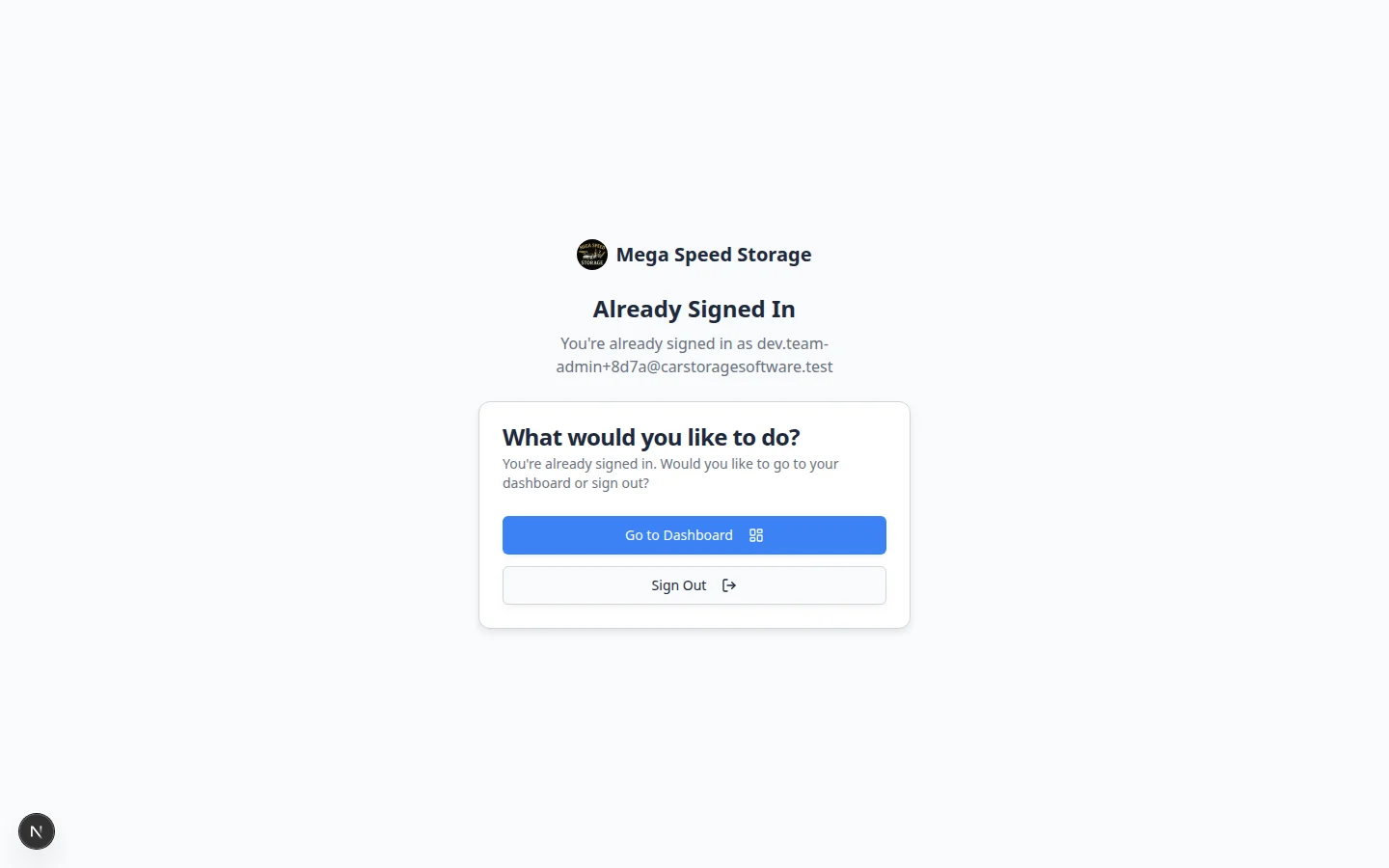
Step 1: Open Website & customer app settings
- Open Settings
In the dashboard sidebar, click Settings, then Website & customer app.
You can also go directly to Settings > Website & customer app.
Expected result: The page title is Website & customer app.
- Find Shareable links
Scroll to the Shareable links section near the top of the page.
Expected result: You see cards such as Customer login, Main page, Registration, and Vendor invoices (when your Facility slug is saved).
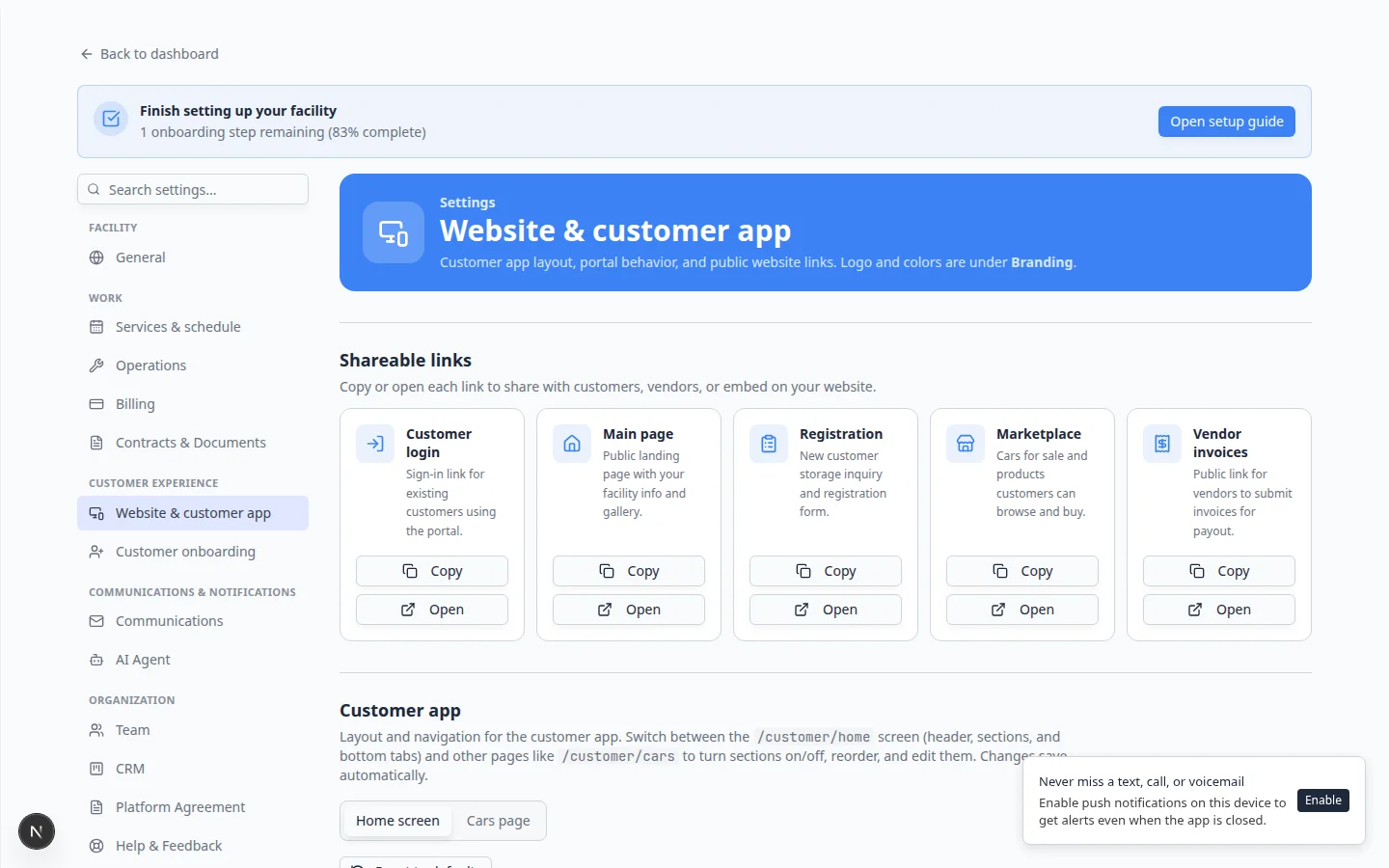
Step 2: Copy the Customer login link
- Find the Customer login card
Look for the card labeled Customer login.
The description should mention sign-in for existing customers using the portal.
- Click Copy
Click Copy on that card.
Why this matters: Copying prevents typos. One wrong character can send customers to an error page.
- Optional: click Open to preview
Click Open if you want to see the sign-in page before you send the link.
Expected result: A new tab shows the customer sign-in page—not the staff dashboard.
Step 3: Decide where the link should appear
Choose places customers already look for login access:
- A Customer Login button in your website header.
- A link on your storage or contact page.
- Your new customer welcome email (after they are invited).
- Your team’s email signature.
- A printed welcome sheet or QR code at the facility.
Use simple wording such as Customer Login or Open your customer portal.
Step 3b: Create a QR code (optional)
A QR code lets customers scan a sign at your front desk instead of typing a long web address.
- Copy the link you want to encode
From Shareable links, click Copy on Customer login (for existing customers) or Main page (for prospects learning about your facility).
- Open the QR code page
Go to QR code generator in your dashboard.
Paste your copied Customer login link into the URL field if the page asks for one.
Expected result: A square QR code appears on screen instead of No URL provided.
- Download and print
Click Download to save the image. Print it for your front desk, welcome packet, or facility signage.
Why this matters: Many customers are more comfortable scanning a code than typing a web address on their phone.
- Test the code with your own phone
Scan the printed code. Confirm it opens the page you intended—the customer sign-in page for Customer login, or your public facility page for Main page—not the staff dashboard.
Step 4: Add the link to your website or message
If you manage your website, add the link as a button or menu item.
If someone else manages your website, send a clear request:
Please add this link to our website header as a button named "Customer Login": [paste customer login link].
For email, use clear link text:
You can open your customer portal here: [Customer Login].
Step 5: Test the link like a customer
- Open a private browser window
Use private/incognito mode or a browser where you are not signed in as staff.
- Paste the link and open it
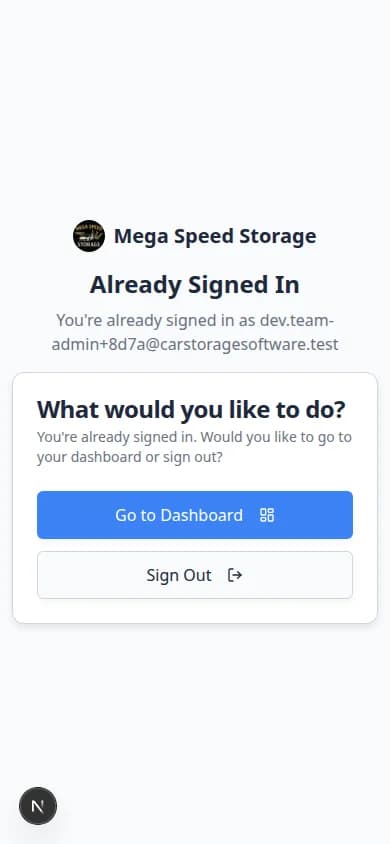
Confirm the page matches the screenshot below.
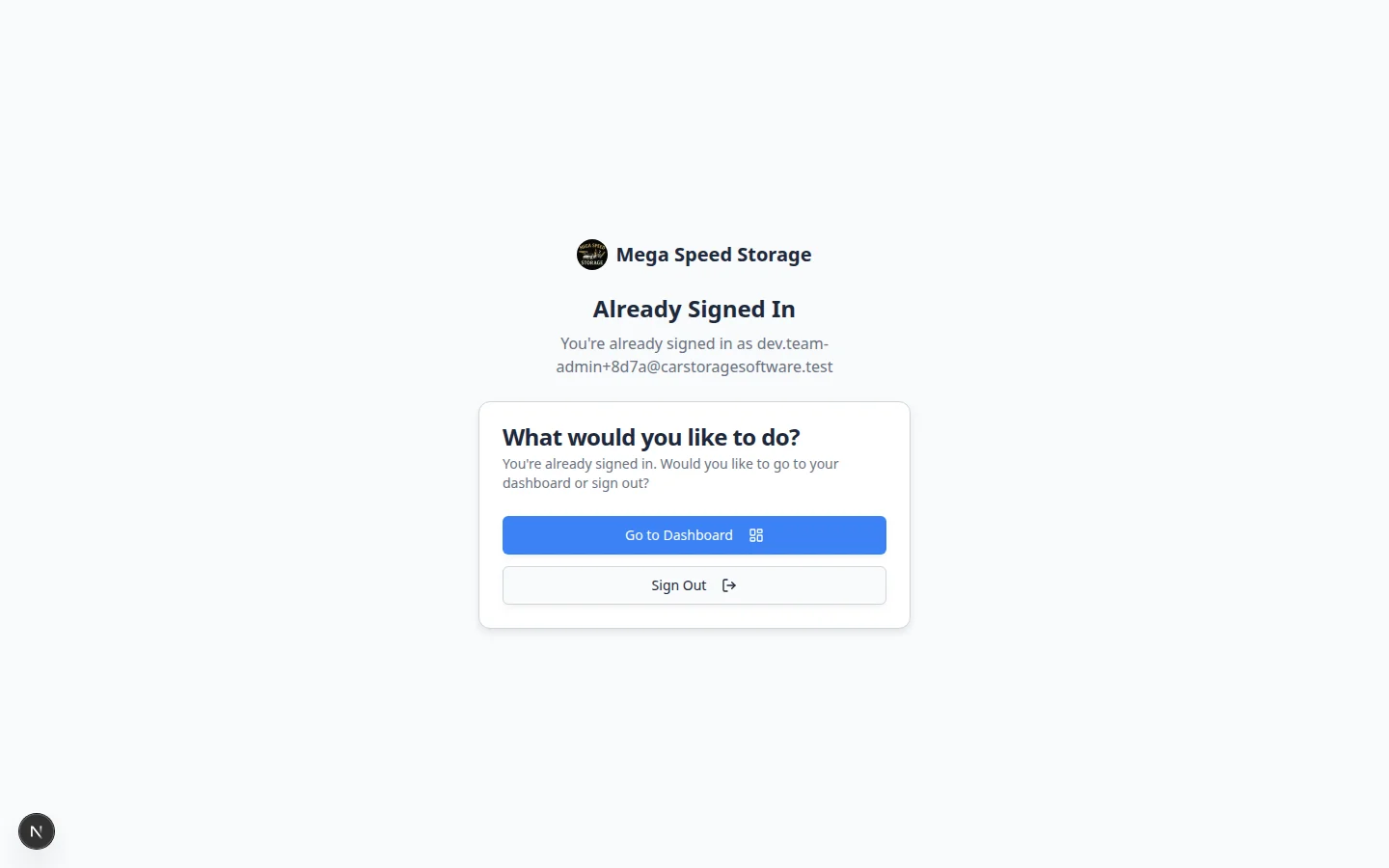
Check:
- The page does not show the staff dashboard sidebar.
- Your facility name or branding looks correct.
- The page asks for the customer’s email address.
- The page is readable on a phone-sized screen.
What the customer sees after they enter their email
- Customer types their email
They enter the same email address on file in Contacts.
Why this matters: Portal sign-in does not use a password. The email must match the record exactly.
- Customer checks their inbox
They receive a secure sign-in link or code from your facility.
Expected result: Clicking the link opens the customer portal—not the staff dashboard.
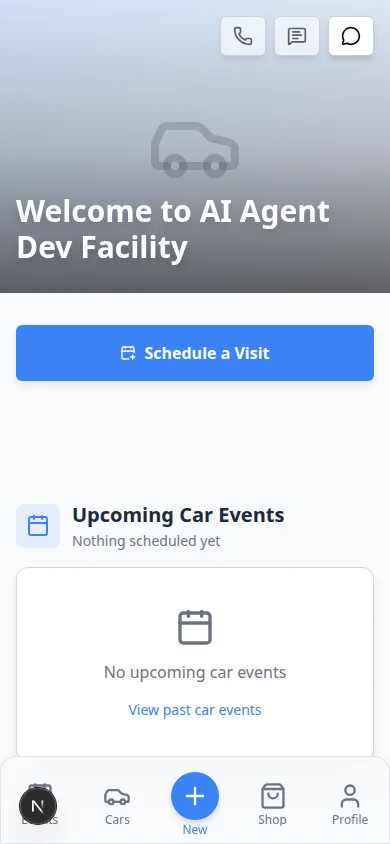
- Customer lands in the portal
After sign-in, they can view vehicles, events, documents, and billing (depending on your settings).
Expected result: The home screen matches the Customer app preview in Website settings.
For a full walkthrough, see Guide a customer through the portal.
Expected result
Customers can reach sign-in without extra instructions from your team.
Step 6: Tell customers what to expect
When you share the login link, add one short sentence:
Use this link to open your customer portal, view vehicle information, and review upcoming events.
Enter the email address we have on file. You will receive a secure sign-in link or code.
What success looks like
- Your team copied Customer login from Shareable links.
- The link appears where customers can find it easily.
- You tested the link outside the staff dashboard.
- Customers know to sign in with the email on their account in Contacts.
- Customer app layout was reviewed before wide portal invites (Customize the customer mobile app).
Troubleshooting
What to do next
Add the login link to your website, welcome emails, invoices, and staff signatures. If prospects still need to request storage, share the Registration link from the same Shareable links section—or follow Choose the right public link to share.