Facility Web Pages
Connect a custom domain
Use your own web address for public facility pages, customer login pages, and customer-facing email.
What you will accomplish
Customers will open links that use your business web address—for example app.yourfacility.com or yourfacility.com—instead of a default Car Storage Software address. That helps people trust the link and recognize your brand.
When to use this guide
Use this guide when:
- Your website helper asks for DNS records
- You want customer login or public pages on your own domain
- You are ready to update links on your website, emails, and printed materials
If you have not turned on public pages yet, finish Configure the facility landing page first. Then return here.
Before you start
- You own a domain name (for example
smithstorage.com). - You can sign in to the company that manages that domain (GoDaddy, Namecheap, Cloudflare, Squarespace, and similar services).
- You know whether you need Homepage (public website), Dashboard (customer login), Email, or more than one.
- You have the name and email of the person who can add DNS records if you do not manage the domain yourself.
Step 1: Open Custom domain settings
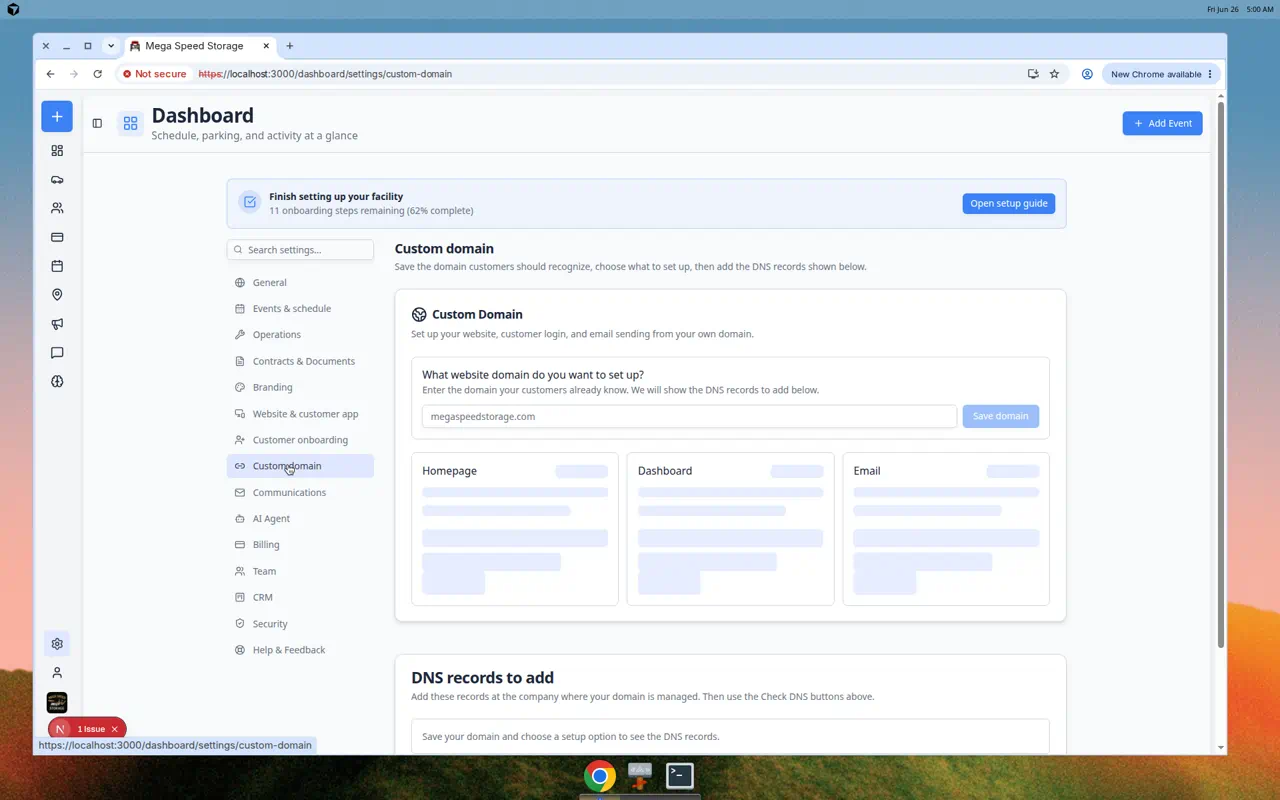
Go to Settings > Custom domain.
If Custom domain appears in the Settings sidebar, open it and confirm the page title says Custom domain with a short description about saving your domain and adding DNS records.
Expected result
You see a place to enter your domain and cards or buttons for Homepage (public website), Dashboard (customer login), and Email (customer-facing email).
Step 2: Enter your top-level domain
Type only the main domain your facility owns.
Good examples:
smithstorage.comapexmotorvault.com
Do not paste a full page address such as https://smithstorage.com/contact or an email address.
Expected result
Car Storage Software saves your domain and shows setup options for it.
Step 3: Choose what to set up first
On the Custom domain page you will see cards labeled Homepage, Dashboard, and Email.
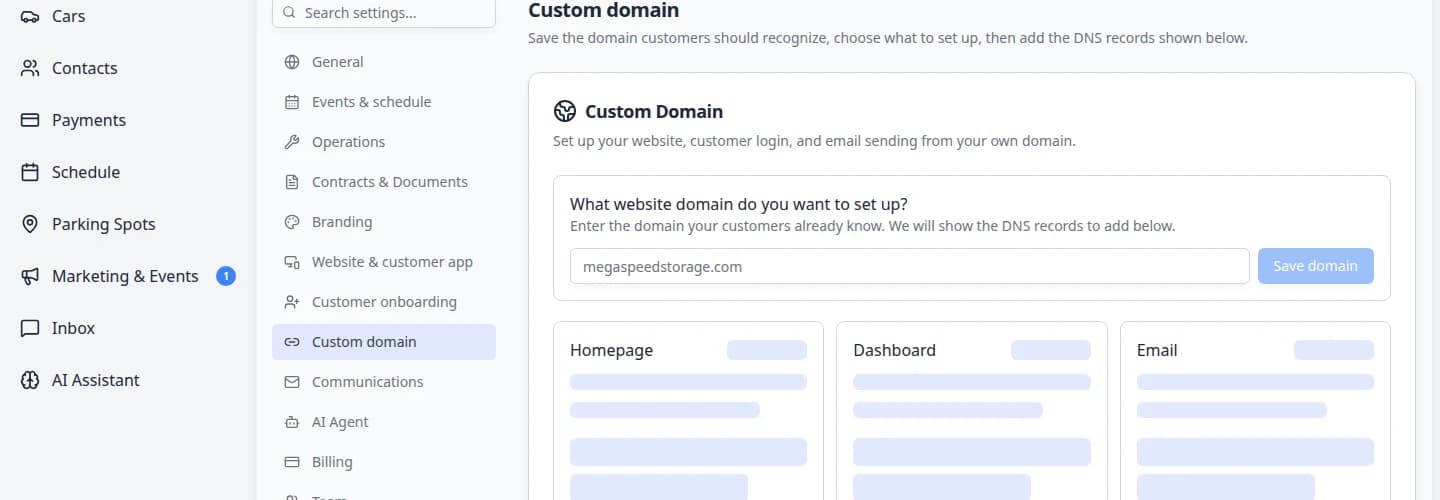
- Homepage
Choose Homepage when your public facility page or marketplace should open on your branded address (for example
www.yourfacility.com). - Dashboard
Choose Dashboard when customers should sign in at an address such as
app.yourfacility.com. - Email
Choose Email when customer-facing emails should come from your domain (for example
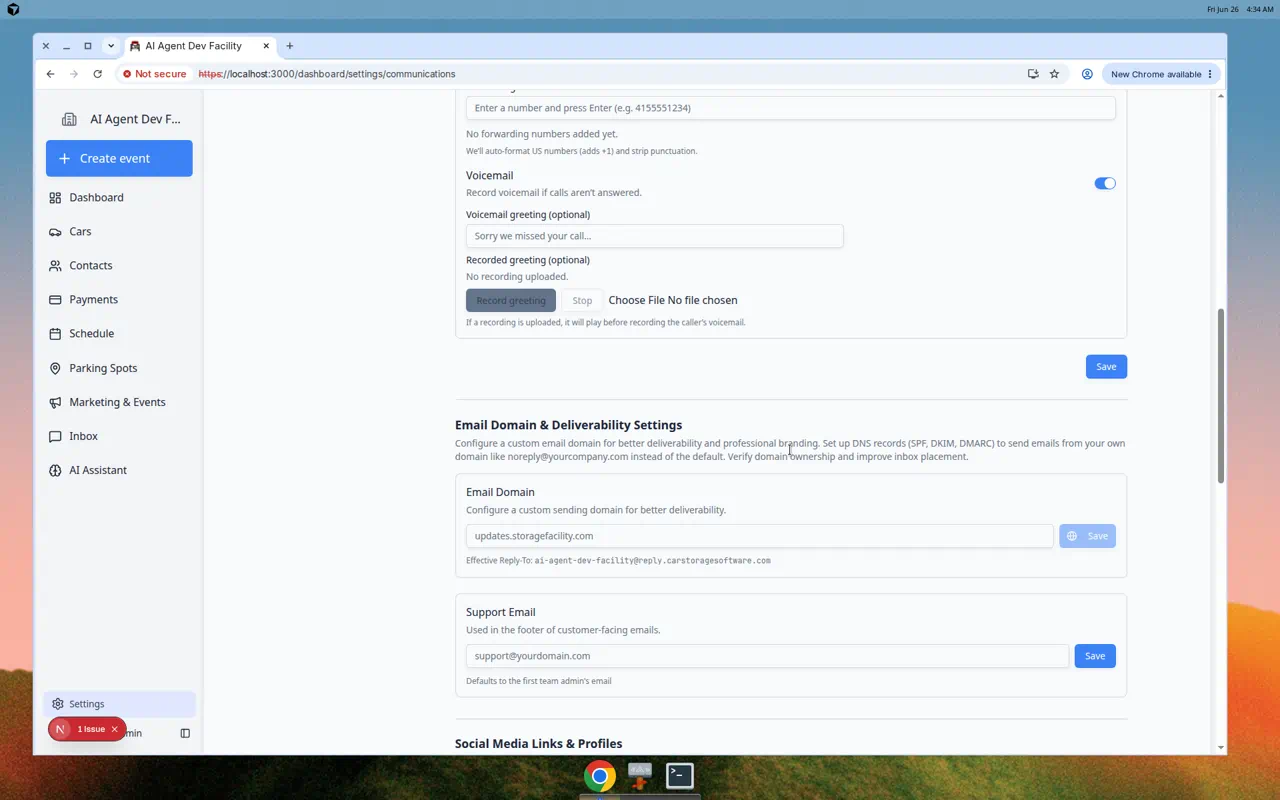
notifications@yourfacility.com). You may also set this up from Settings > Communications under Email Domain & Deliverability Settings.
Start with the option that matters most to customers. You can add the others later.
Step 4: Copy the DNS records
After you pick a setup option, the page shows DNS records to add.
Each row usually includes:
- Type (such as A, CNAME, or TXT)
- Host or Name (which part of the domain the record applies to)
- Value (where that host should point)
- Purpose (a short note about why the record is needed)
Copy each record exactly. A missing dot or extra space can delay verification.
Expected result
You have a complete list of records ready to paste at your domain company.
Step 5: Add the records at your domain provider
Sign in where your domain is managed. Open a section named DNS, DNS settings, Manage DNS, or Advanced DNS.
- Add each record
Create a new record for each row from Car Storage Software. Match Type, Host, and Value carefully.
Why this matters: Your domain company may call Host something else—Name, Hostname, or Points to. If you are unsure, send your website helper a screenshot of the Car Storage Software table and ask them to add matching rows.
- Watch for automatic domain suffixes
Some providers add your domain name automatically in the Host field. If Car Storage Software says
appbut your provider showsapp.yourfacility.com, that is often correct. If both the full address and the short name appear, you may have a duplicate—ask your helper before saving. - Save or publish
Click Save, Publish, or Apply at your domain provider when you are done.
Expected result: Each new row appears in your provider's DNS list with the same type and value Car Storage Software showed.
Expected result
Your domain provider shows the new records and confirms they were saved.
Step 6: Check DNS in Car Storage Software
Return to Settings > Custom domain.
Click Check DNS for the setup option you changed.
You may see:
- Verified or Complete when the records are found
- DNS pending when changes are still spreading across the internet
- Missing when one or more records still need to be added or corrected
Expected result
The status tells you whether the domain is ready or needs another fix.
Step 7: Test the custom domain in a browser
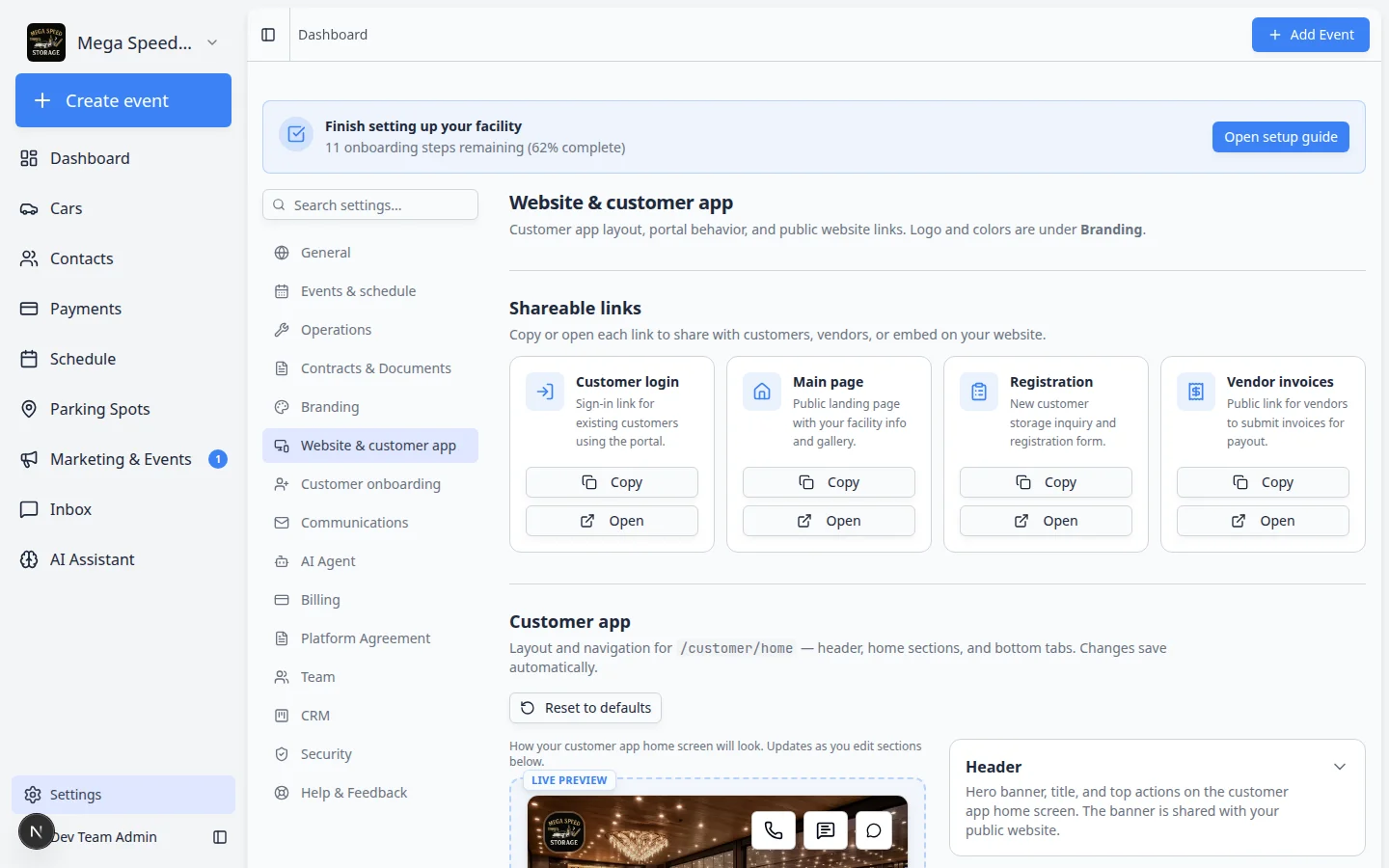
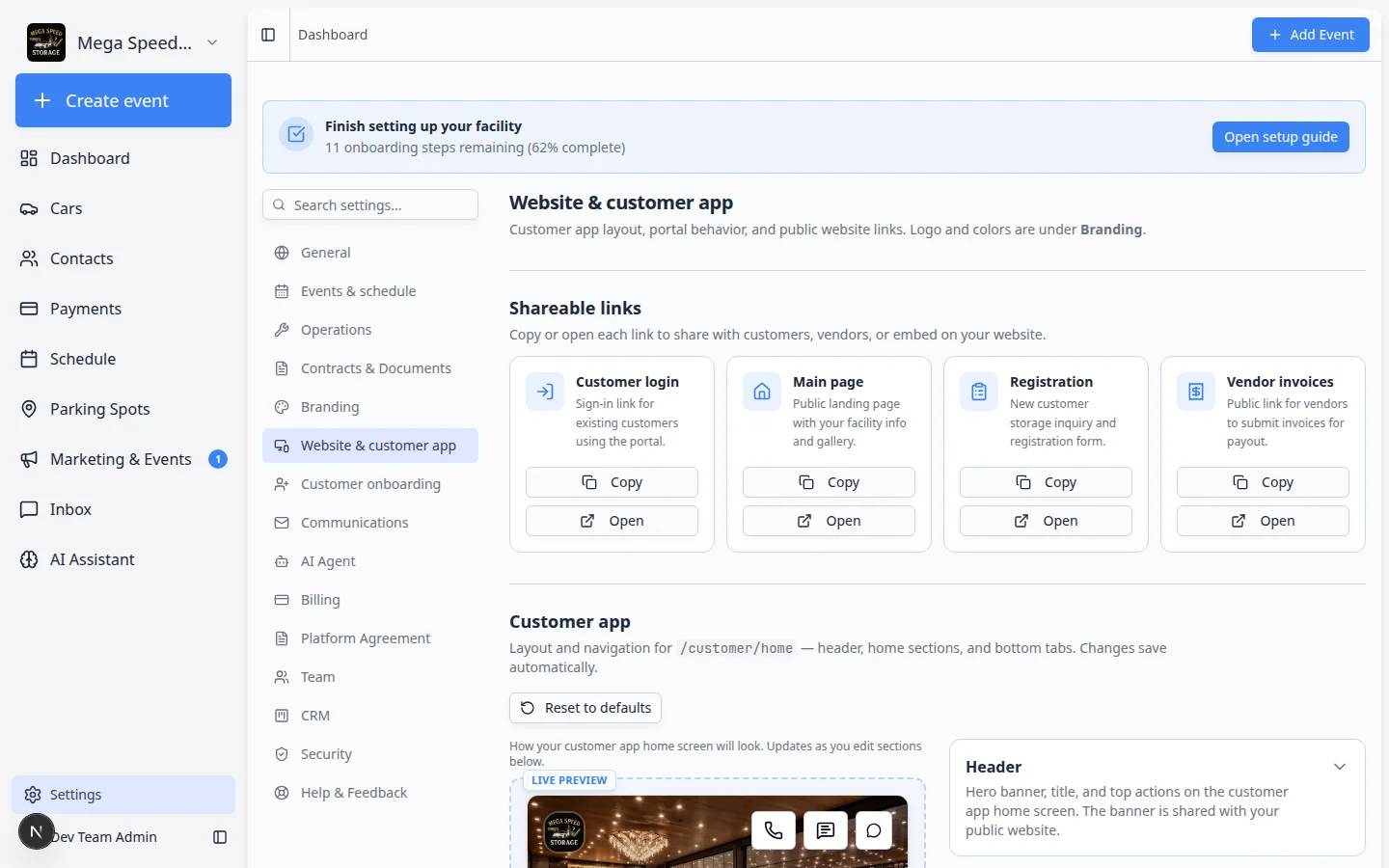
After the domain shows verified or complete, copy every link again from Shareable links on Settings > Website & customer app. Customer login, registration, and marketplace URLs may now use your branded domain.
- Open Shareable links
Go to Settings > Website & customer app and find Shareable links near the top.
- Copy each link your team uses
Click Copy on Customer login, Main page, Registration, and Vendor invoices (if enabled).
Why this matters: Old bookmarks and printed materials still point at the previous address until you update them.
Open the new address in a private browser window (where you are not signed in as staff).
Check:
- The page opens without an error
- Your facility name looks correct
- Registration, marketplace, login, or vendor buttons go to the right pages
- The address bar shows your domain
What success looks like
- Your custom domain is saved in Car Storage Software
- DNS records are added at your domain provider
- The domain status is verified or complete
- Your team tested the page like a customer would
Troubleshooting
What to do next
Update links on your website, email templates, vendor instructions, and customer welcome materials so everyone uses the new branded address. Then run Go live checklist for public pages.