Inbox
Use AI-suggested replies in Inbox
Use Suggest with AI as a careful starting point for customer replies in Inbox.
Use Suggest with AI when you want help drafting a customer reply from the recent conversation history.
AI suggestions can save time, but they are not a replacement for your judgment. Always read and edit the suggestion before sending it to a customer.
What you will accomplish
- Use Suggest with AI on a customer conversation that already has message history.
- Check the draft for correct names, dates, vehicles, and promises.
- Edit the draft and send it through the right channel.
Before you start
- Open the customer conversation in Inbox.
- Read the latest messages yourself first.
- Confirm any details the AI may mention, such as dates, times, vehicle names, prices, or promises.
- Do not use AI to guess about sensitive issues, payment disputes, legal terms, or safety concerns.
Create a suggested reply
- Open the conversation
Go to Inbox and select the customer.
- Review the timeline
Read the recent texts, emails, and calls.
This helps you know whether the AI suggestion is accurate.
- Click Suggest with AI
Above the message timeline, click Suggest with AI (sparkle icon).
The button sits between the customer name and the timeline filters (Texts, Emails, Calls).
The app reads recent texts and emails in this conversation and drafts a possible reply.
Why this helps: You still write the final message, but you do not have to start from a blank screen when the customer asked several questions at once.
- Wait for the suggestion
You may see Analyzing conversation... with a spinning icon. This usually takes a few seconds.
Expected result: A box titled AI Suggestion appears above the timeline with draft wording you can review.
Why this helps: The assistant reads recent texts and emails in this conversation only—it does not send anything automatically.
- Use Copy, Retry, or X if needed
Along the top of the AI Suggestion box:
- Copy (clipboard icon) — copies the full draft so you can paste part of it into your message.
- Retry — asks for a new draft if the first one missed the customer's question.
- X — closes the panel without using the text.
When to retry: If the customer asked about a specific car or date and the draft talks about something else, click Retry once before you write the reply yourself.
- Read recommended actions before you send
Below the draft text, look for small recommended action buttons (for example, open a car record or check Schedule).
Why this matters: The AI may notice that the customer asked about an appointment or vehicle. Treat these as a checklist—not automatic changes. Your team still confirms every fact before acting.
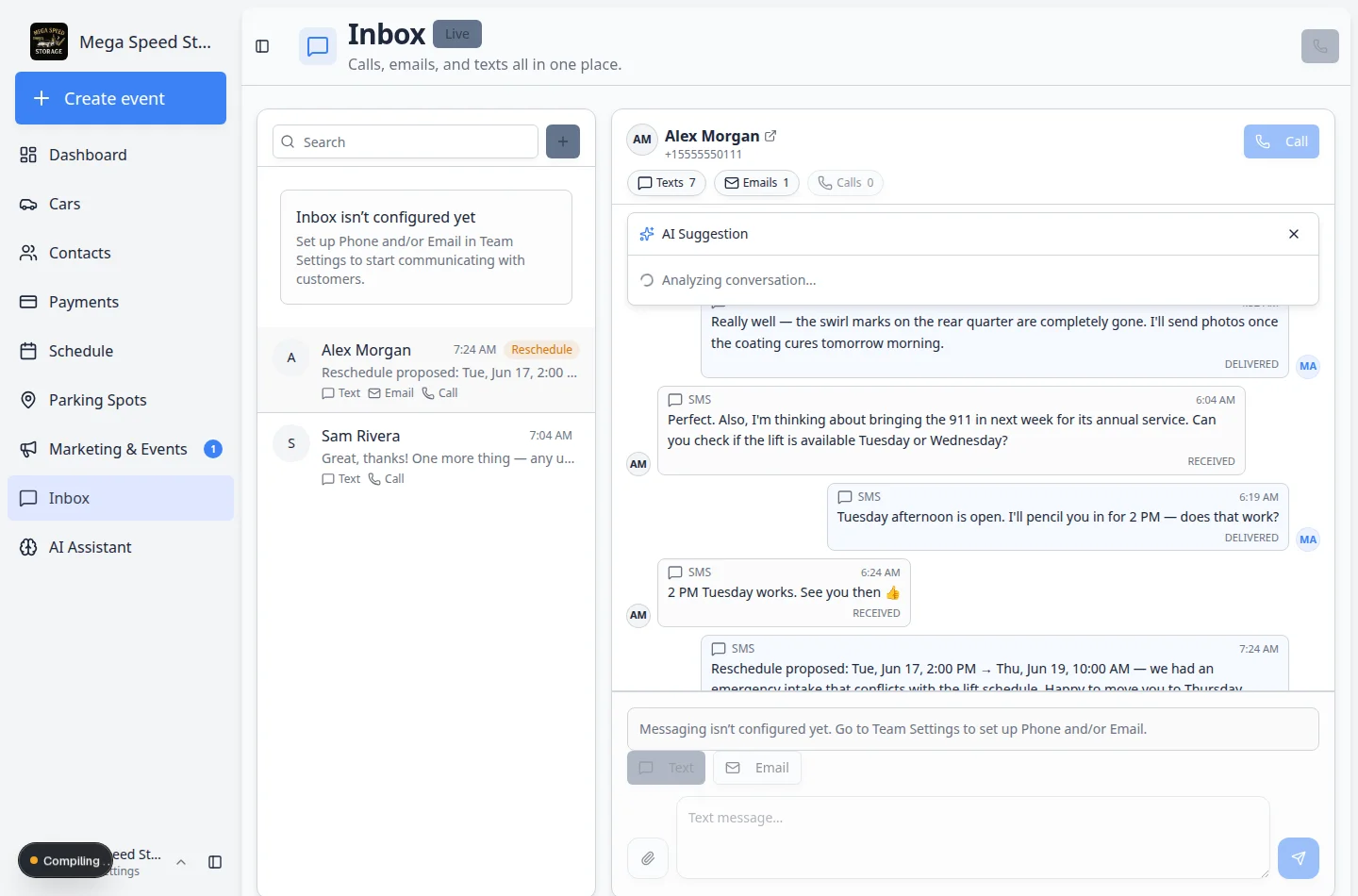
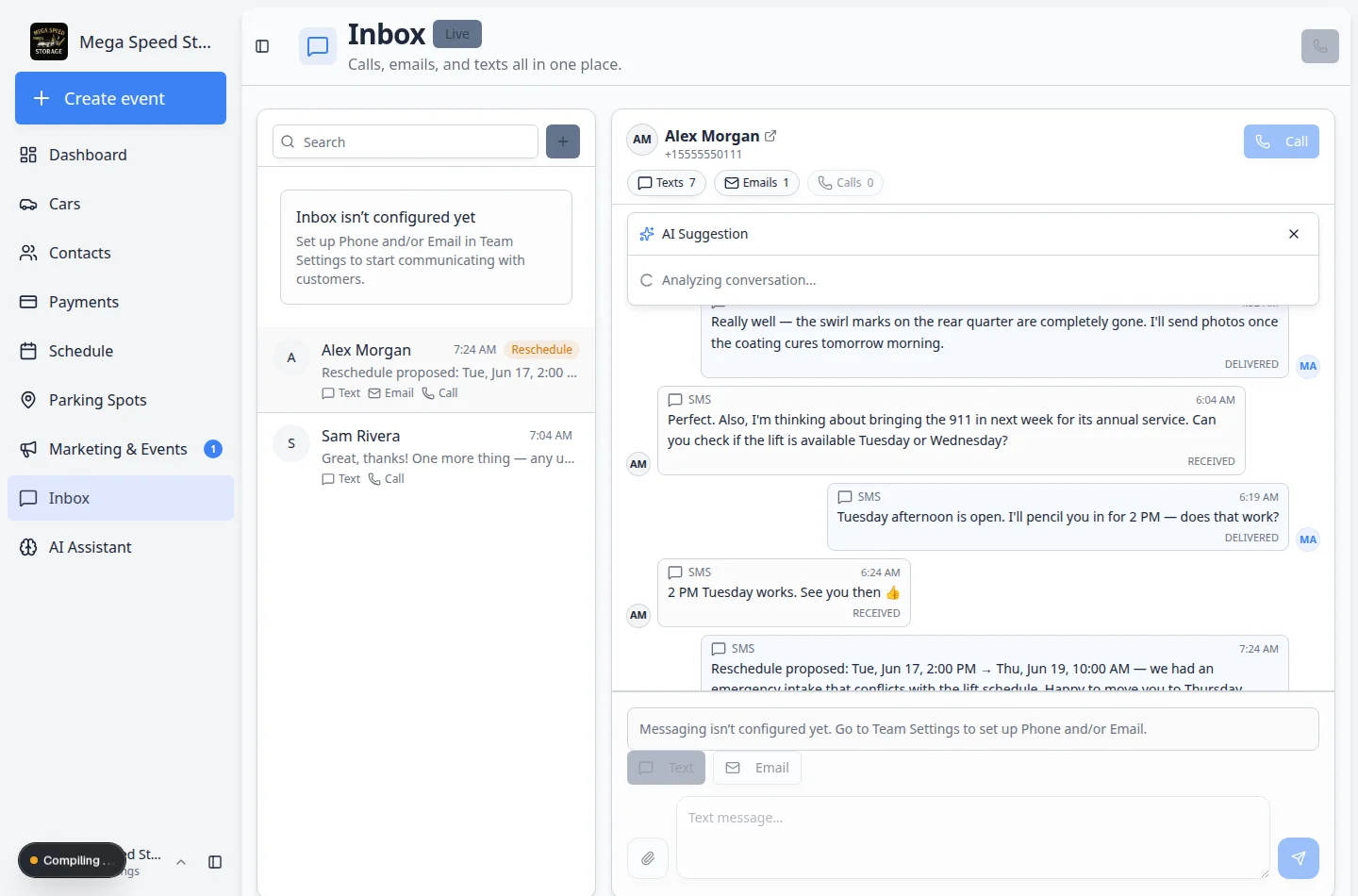
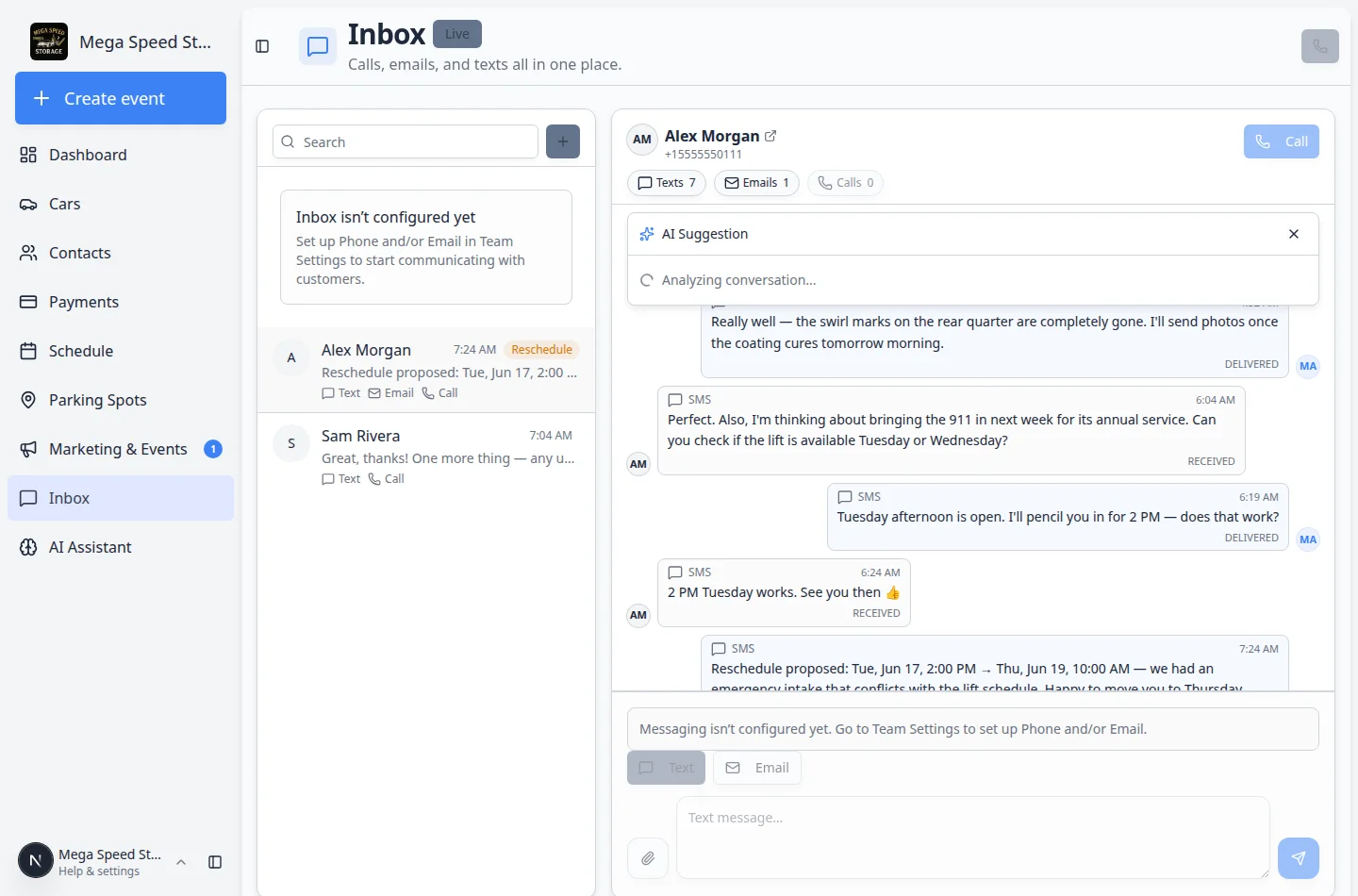
Buttons inside the AI Suggestion panel
Along the top of the AI Suggestion box you may see:
- Copy (clipboard icon) — copies the full draft so you can paste part of it into your message.
- Retry — asks for a new draft if the first one missed the customer's question.
- X — closes the panel without using the text.
At the bottom of the panel you may see Use as reply when the app can place the draft directly into the Text message… or Write your email… field.
- Click Use as reply when the draft is close
Expected result: The draft appears in the message box at the bottom of the conversation.
Important: Edit names, dates, vehicles, and promises before you send. The assistant can be wrong.
- Or click Copy and paste only what you need
Use Copy when you want one sentence from the draft, or when you plan to move the wording to Inbox later after checking a car or appointment record.
Review the suggestion
Before using the suggestion, check it carefully.
- Does it answer the customer's actual question?
- Are names, vehicle details, dates, and times correct?
- Does it promise only what your team can actually do?
- Does the tone sound like your facility?
- Is it short enough for text, or should it be sent as an email?
- Do any recommended actions match what your team should actually do next?
Edit before sending
Treat the AI text as a draft.
- Remove anything uncertain
Delete details you have not confirmed.
- Add the real next step
Tell the customer exactly what will happen next.
Example: "We will stage the Huracan at the front door at 10 AM."
- Choose the right channel
Use Text for short replies. Use Email for longer or more formal replies.
- Send only after review
Send the message after you have checked the customer, the details, and the tone.
When not to use AI
- Do not use AI to approve refunds, discounts, legal terms, or contract changes.
- Do not use AI to diagnose mechanical problems without staff review.
- Do not use AI when a customer is upset and needs a personal response from a manager.
- Do not use AI to send private customer information to an unknown number or unverified person.
Troubleshooting
What to do next
After using or editing the suggestion, send the reply through the correct channel. For exact channel steps, see Send a text message from Inbox or Send an email from Inbox.