Cars
View and edit vehicle details
Update a car record so the vehicle, customer, insurance, value, service, and readings stay accurate.
Use the car detail page when you need to review or update information about one vehicle.
This guide explains how to edit the Vehicle Details section, why each group of fields matters, and how to avoid common record mistakes.
What you will accomplish
You will update the fields on one car record so the vehicle can be identified, billed, insured, and serviced correctly.
Expected outcome: The car detail page shows saved values your whole team can trust—especially customer ownership, plate and VIN details, insurance dates, and odometer or fuel readings.
When to use this guide
Use these steps when:
- A car record is missing a plate, VIN, color, trim, stock number, or key number.
- A vehicle changes owners or needs to be linked to the correct customer.
- Insurance, registration, inspection, or plate expiration dates need to be updated.
- The declared value, odometer, fuel level, battery notes, or service plan information needs review.
Before you start
- Open the correct car from the Cars page. If you need help finding it, use Find and filter cars.
- Have the correct information ready before editing. For example, use the registration, insurance card, customer message, or intake paperwork.
- Make sure you are allowed to edit car records. If a field is locked or missing, ask a team admin for help.
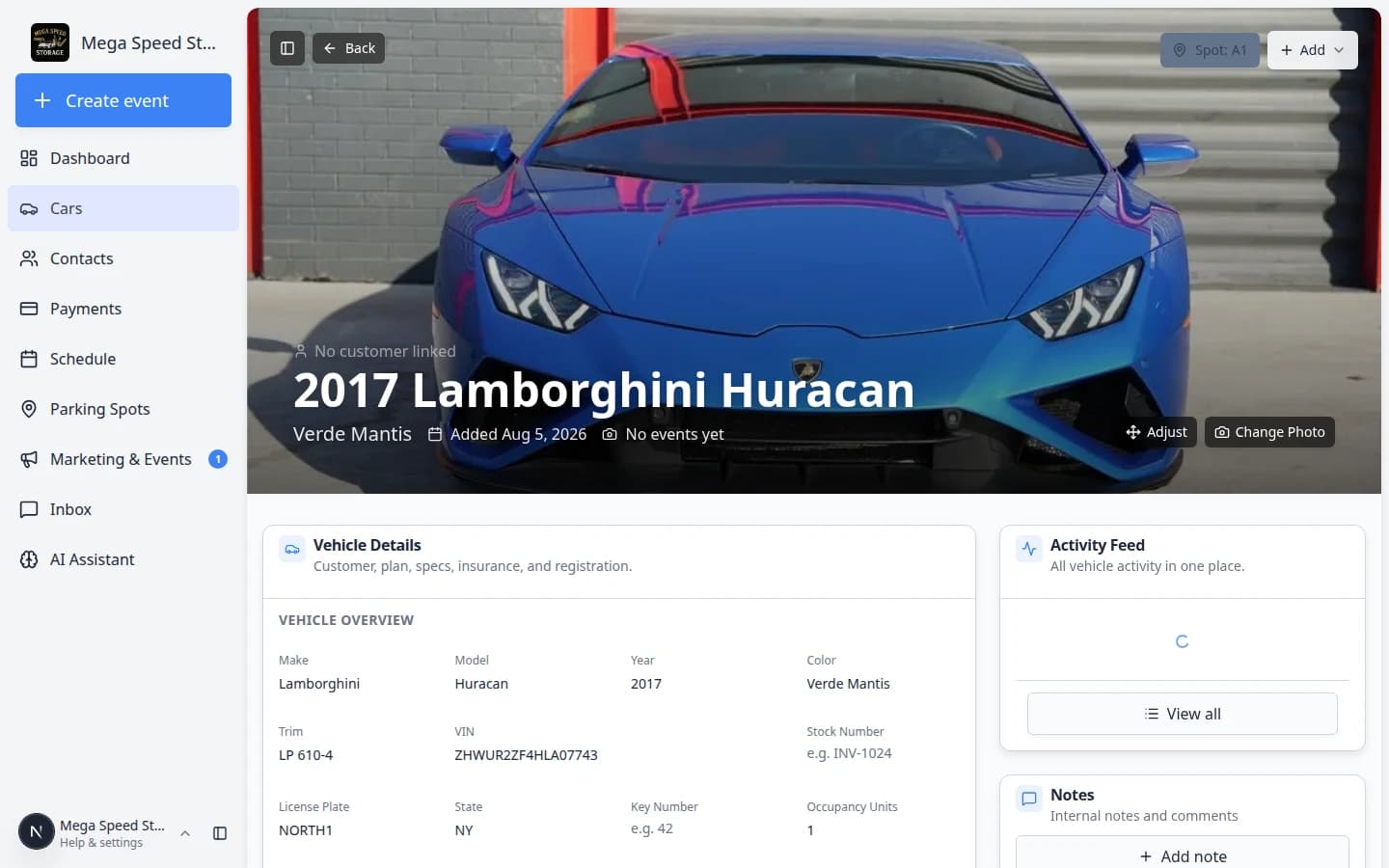
Update the banner photo (optional)
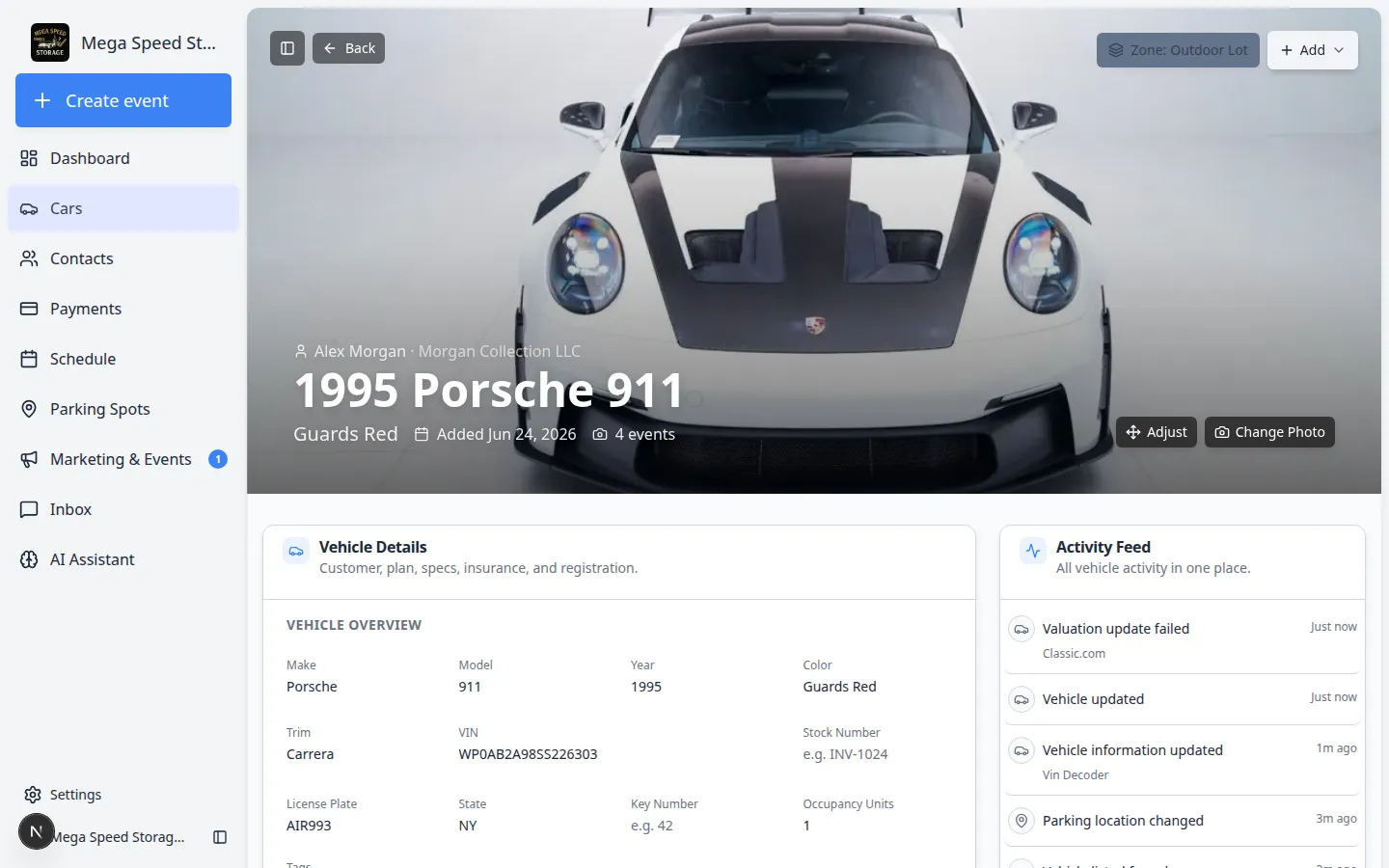
The large photo at the top of the car page is what teammates often see in Card view on the Cars list.
- Open the car record
Go to Cars and click View on the vehicle.
- Add or change the banner photo
If the car has no banner image, click Add Thumbnail on the photo area. If a photo already exists, use Change Photo or Adjust (to reposition how the image is cropped).
Expected result: The banner shows the vehicle image you chose. The same thumbnail can appear on car cards in the list.
Open Vehicle Details
- Open the car record
Go to Cars and open the vehicle you want to update.
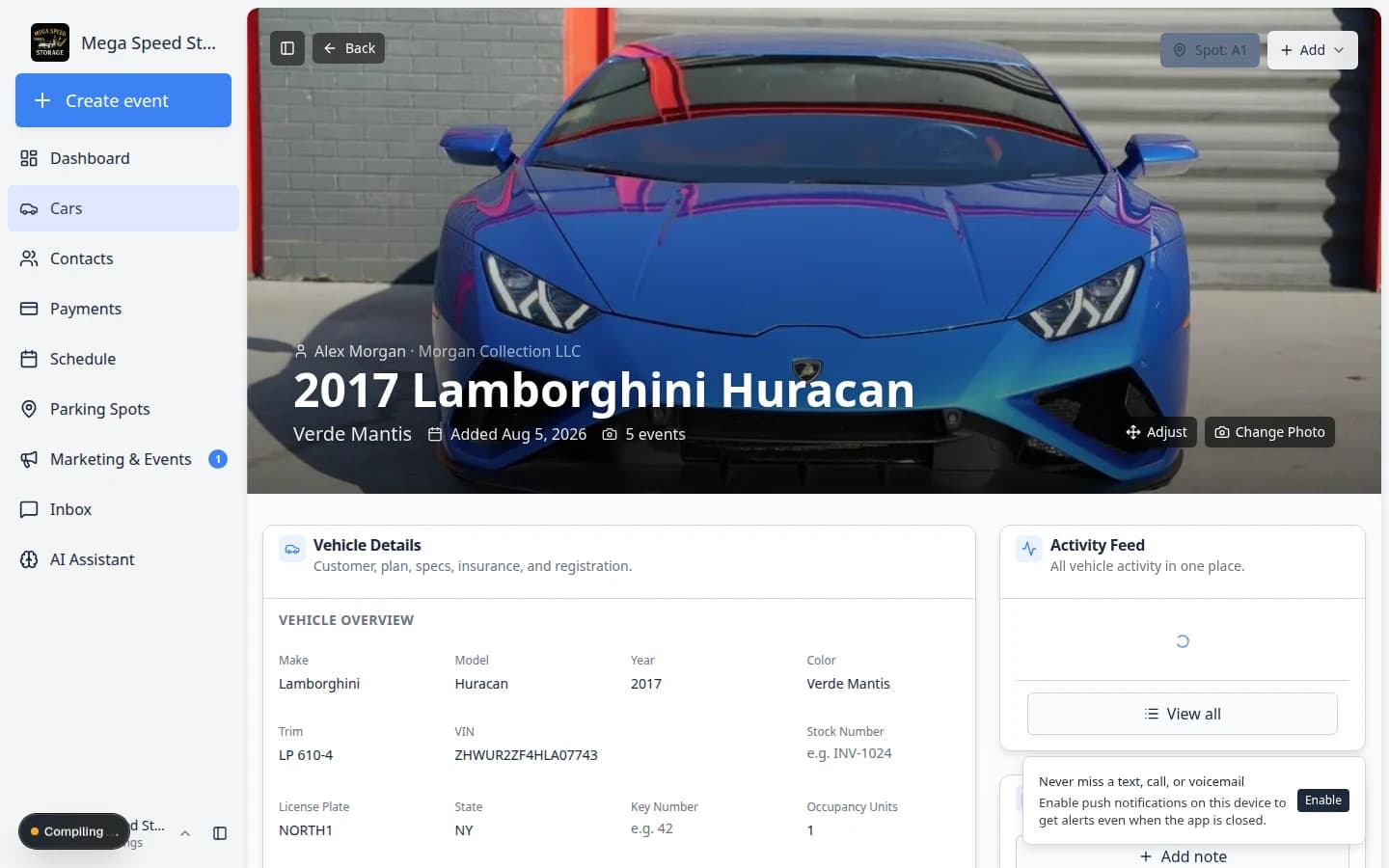
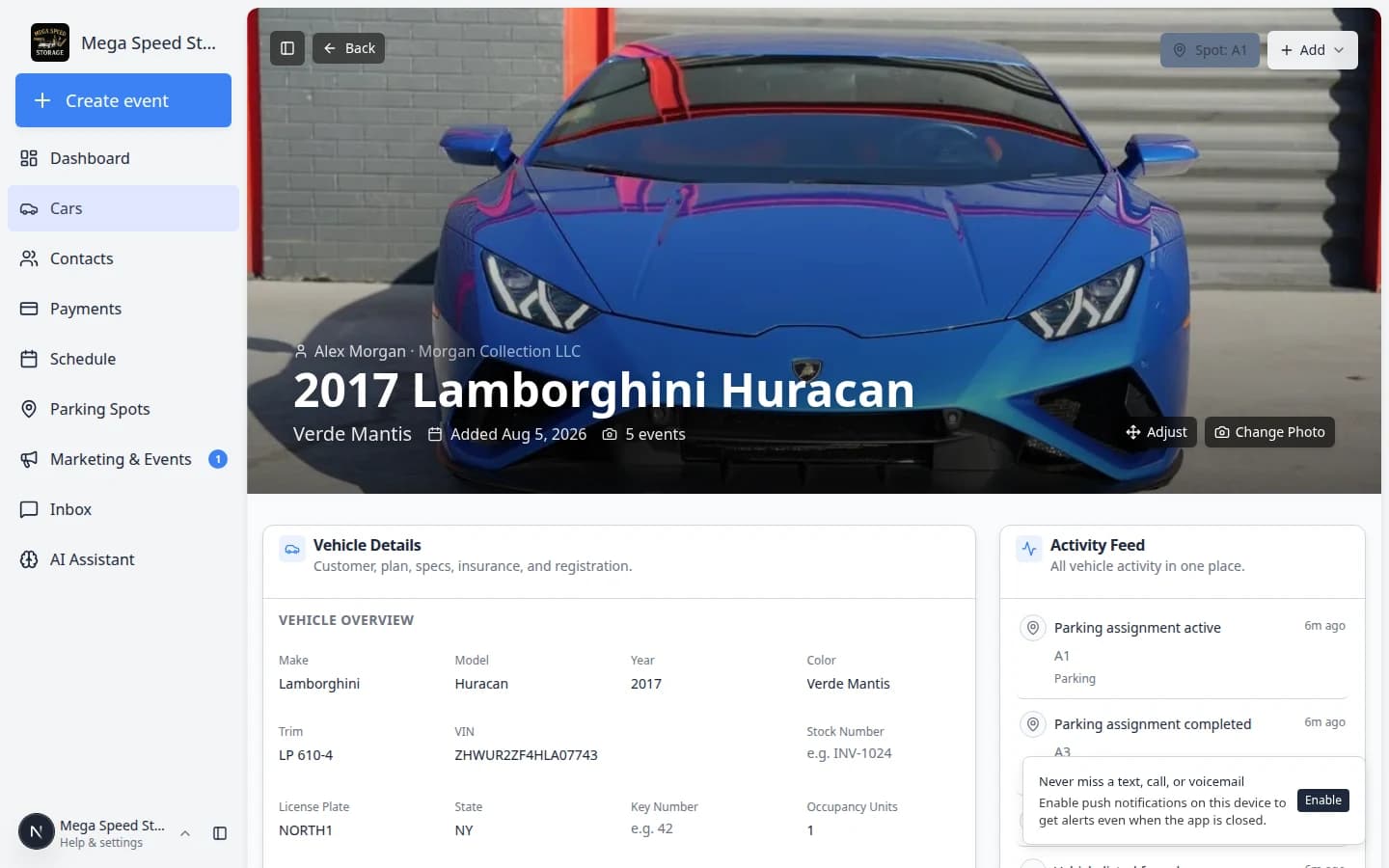
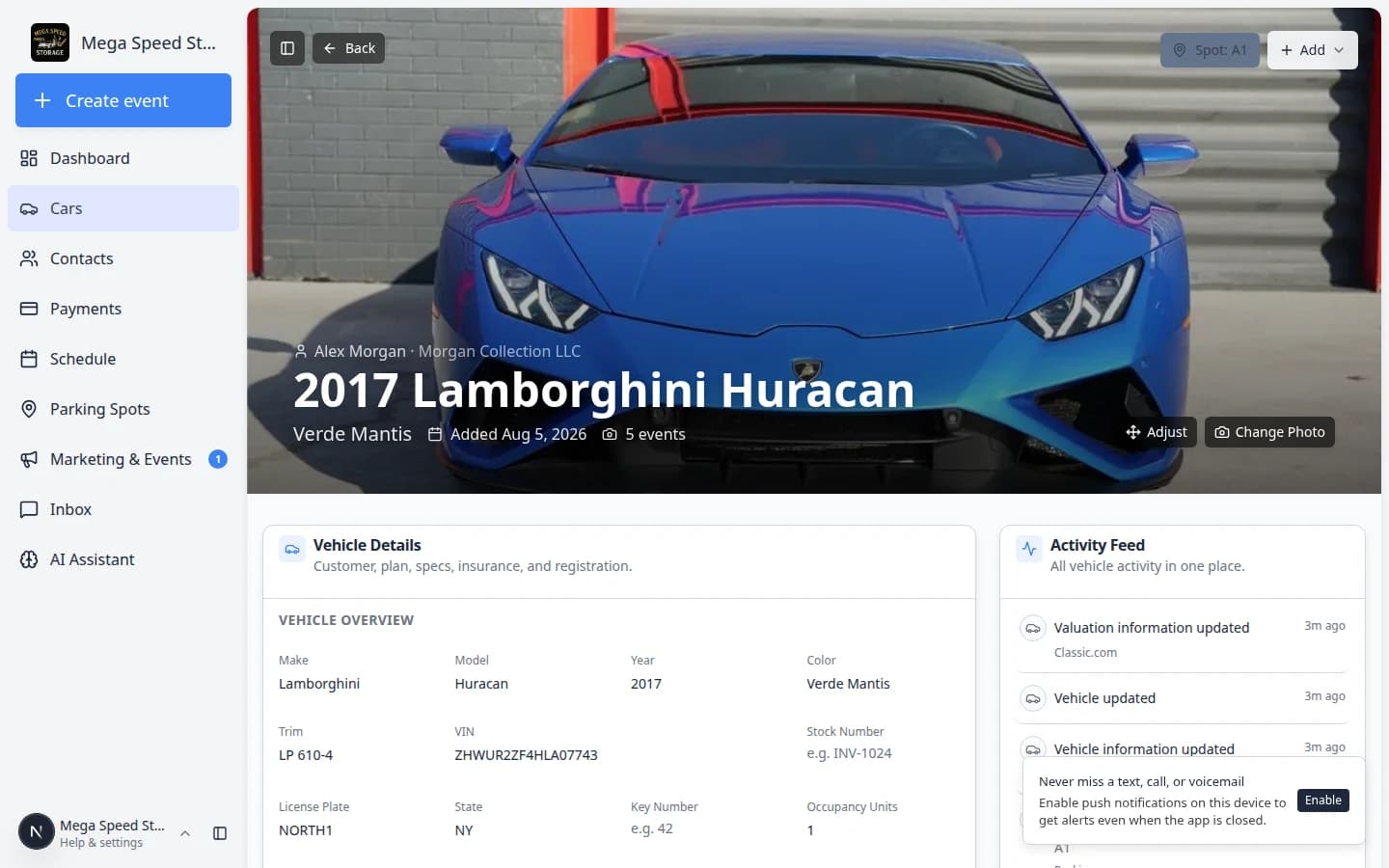
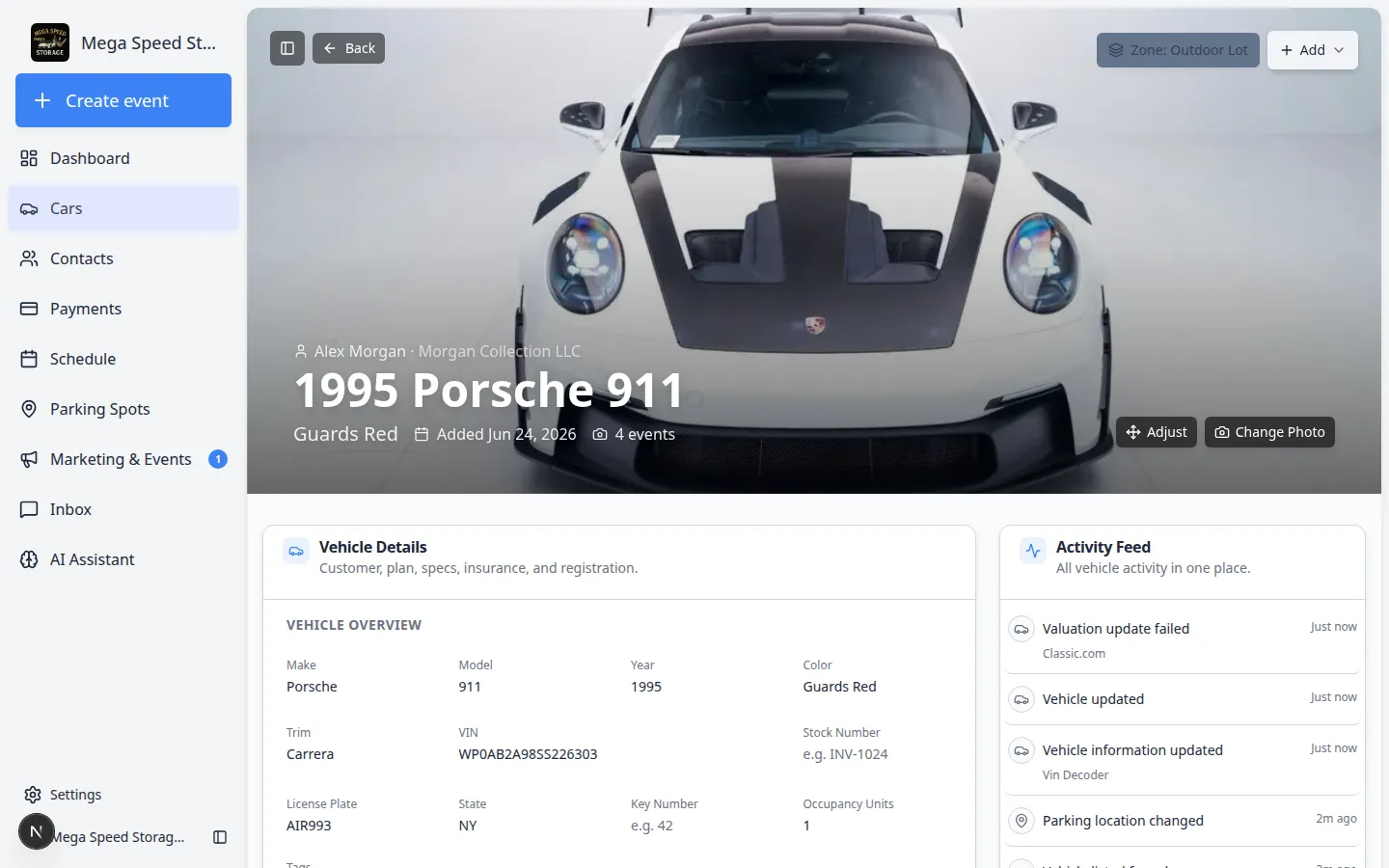
Expected result: The car detail page opens with the vehicle name on the banner and buttons such as Zone: / Spot: and Add.
- Find the Vehicle Details card
On the left side of the page (or below the banner on smaller screens), look for the card titled Vehicle Details with the subtitle "Customer, plan, specs, insurance, and registration."
Expected result: You see labeled sections you can scroll through and click to edit.
- Review the sections before editing
Vehicle Details is organized into clear blocks:
- Vehicle Overview — make, model, year, color, VIN, plate, tags
- Sale status — marketplace listing (when enabled)
- Customer — linked owner
- Payments — recurring billing badge
- Service Plans — storage or maintenance plans on this car
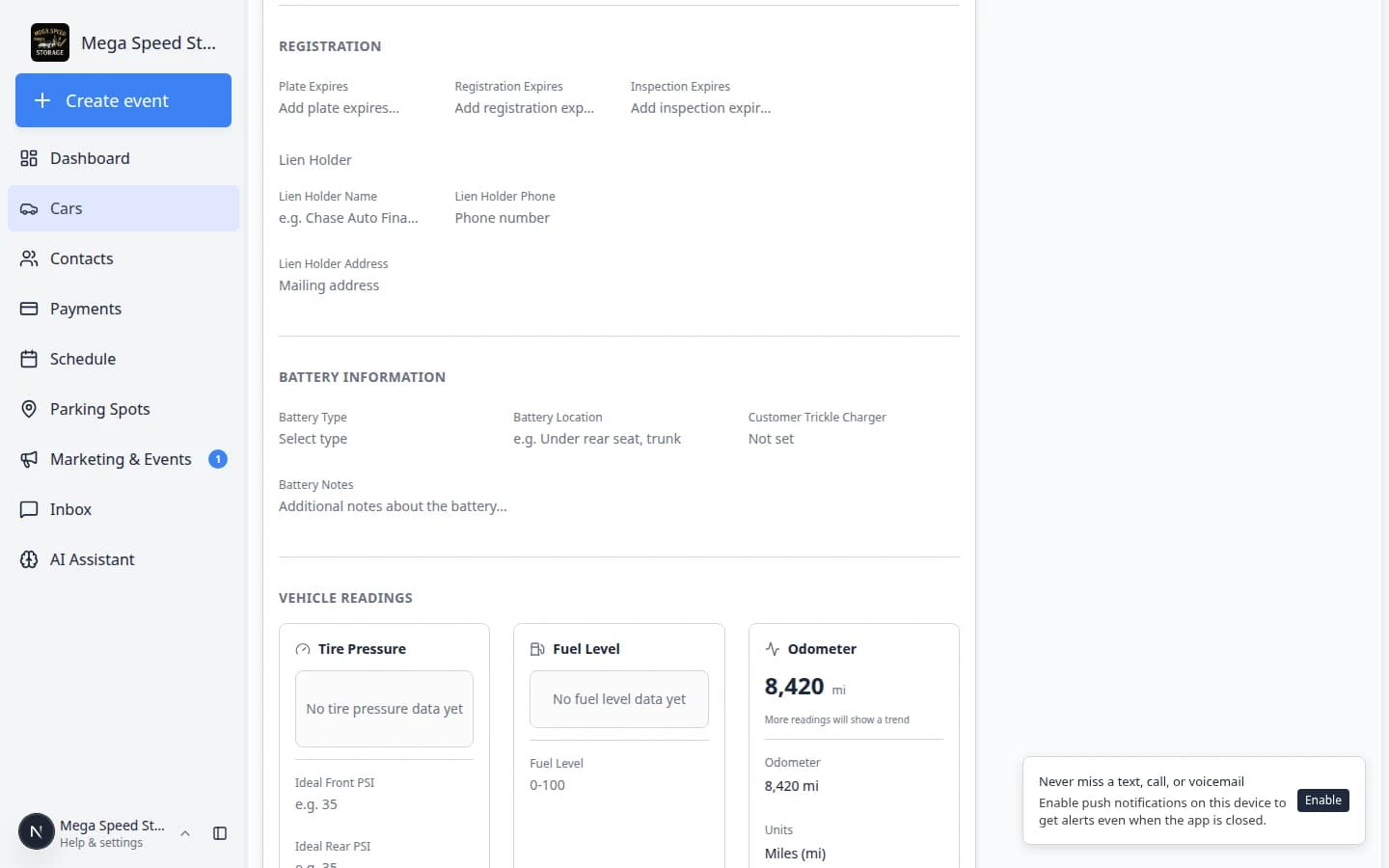
- Insurance and Registration — policy and expiration dates
- Market Data — Classic.com price trends (when enabled)
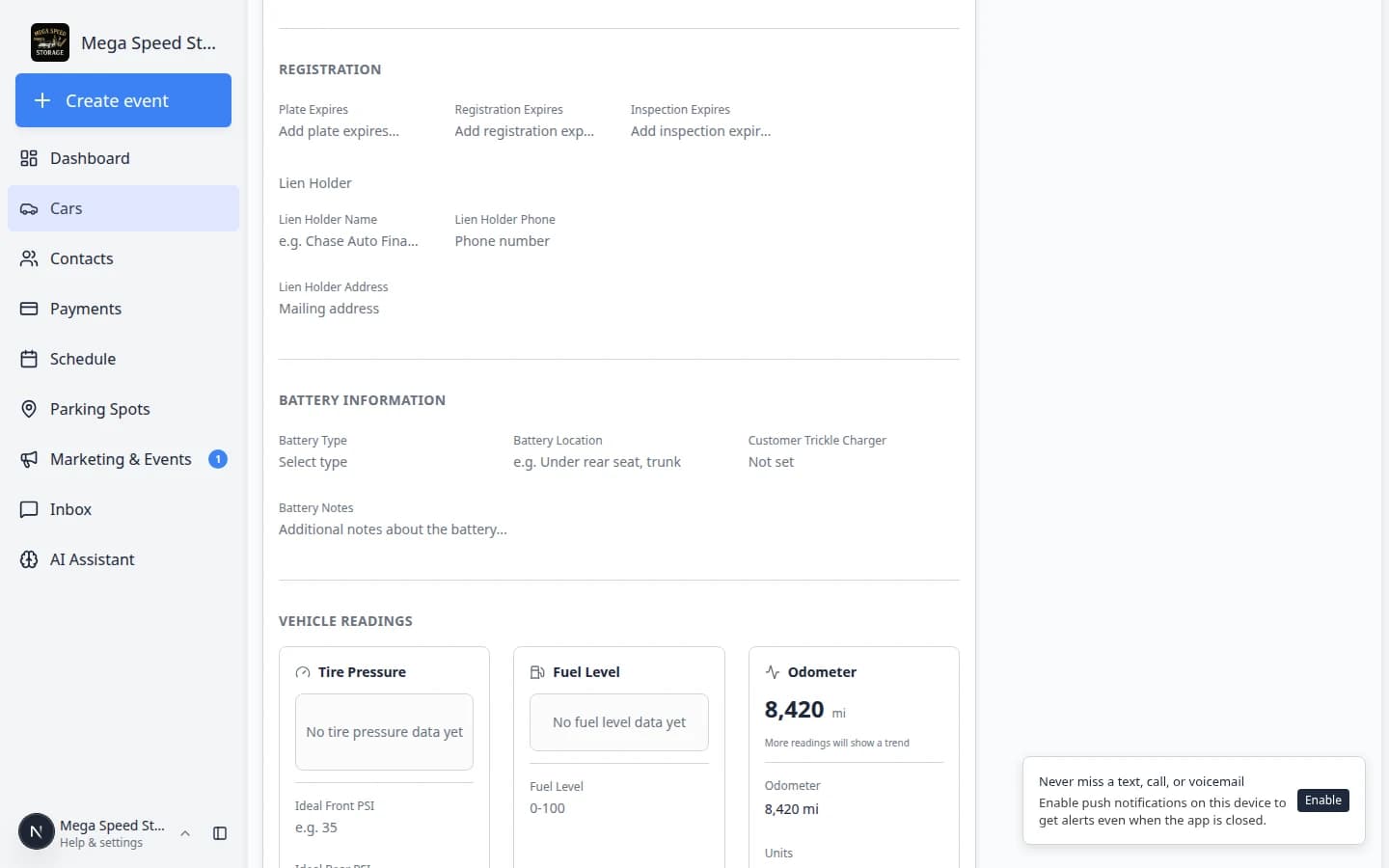
- Battery Information and Vehicle Readings — odometer, fuel, tire data
Why this matters: Knowing which block you need prevents changing the wrong field (for example, mixing up insurance dates with registration dates).
Edit a vehicle field
Most fields on the car detail page save one at a time. This helps prevent large accidental changes.
- Click the field you need to change
Click the value or empty placeholder for the field. Empty fields may show examples such as e.g. INV-1024, Enter number, or Add policy expires....
- Enter the correct information
Type the new value, choose an option, or select a date depending on the field.
- Save the field
Use the field's save action, or click away if the field saves automatically. Wait for the update to finish before editing another field.
- Confirm the field now looks right
Read the updated value on the page. This is the easiest time to catch a typo.
Expected result: The field shows your new value without error messages. If the value snaps back, the save did not complete—try again or refresh the page.
Upload insurance or registration files
Sometimes you have a paper or PDF file before you have every date typed into the form. You can store the file on the customer record and link it to this car.
- Open the car record
Go to Cars and click View on the vehicle.
- Click Add → Upload document
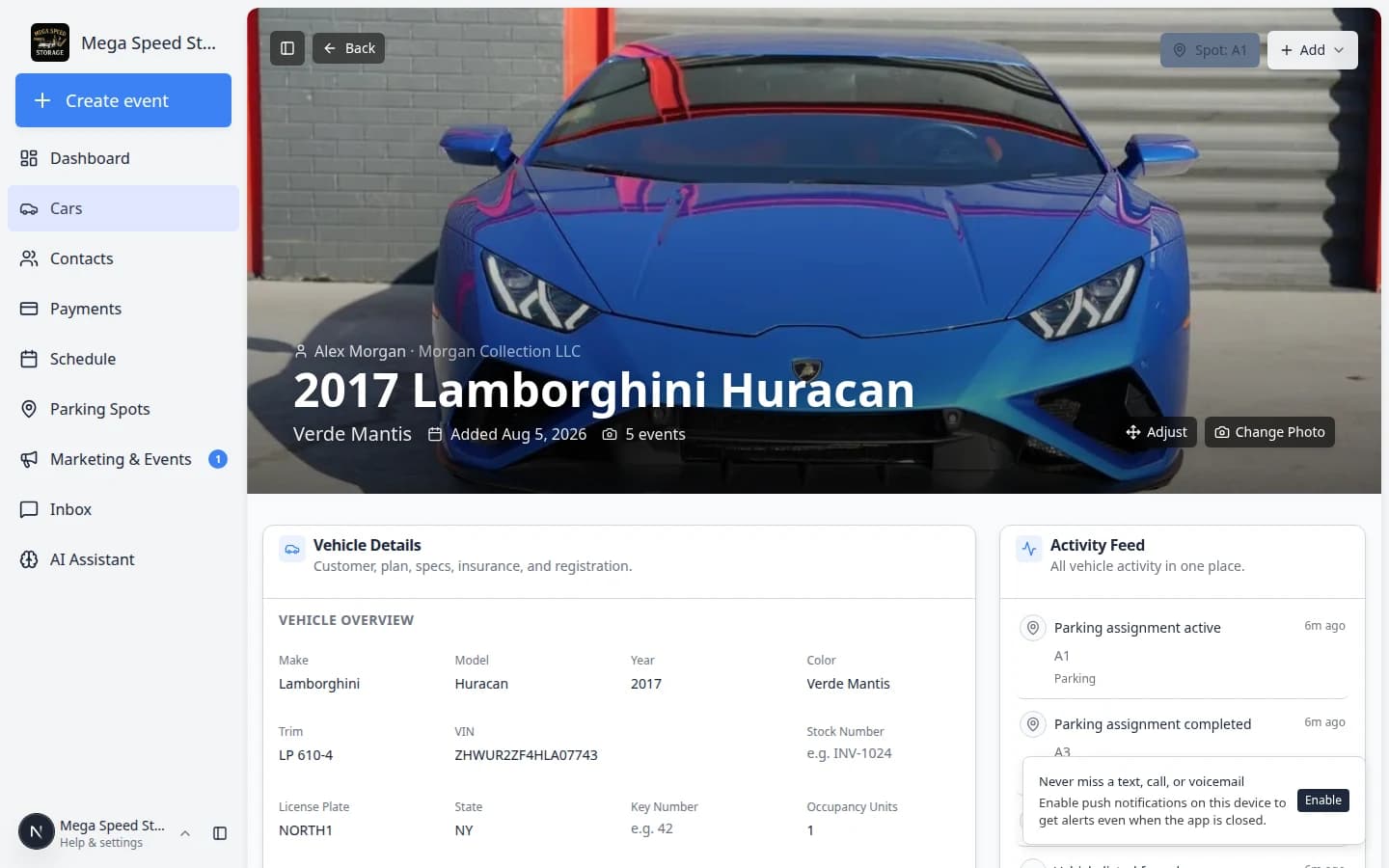
On the car banner (top of the page), click Add, then Upload document.
Expected result: A window titled Add New Document opens with Contract and General Document choices.
- Choose General Document for scans and cards
Click General Document when you are uploading a file you already have—such as an insurance card photo, registration scan, or title copy.
Pick a document type when your facility uses them (for example Insurance or Registration), or upload without a type if you are not sure yet.
- Select the file and save
Choose the file from your computer and complete the save steps on screen.
Expected outcome: The file is stored on the customer record and tied to this car when applicable. Your team can find it later from Contacts or contract guides—not only from this car page.
- Still add key dates in Vehicle Details
After the file is saved, scroll to INSURANCE and REGISTRATION and enter expiration dates when you know them.
Why this matters: Files are great for proof, but typed dates power reminders and the Insurance Exp column on the Cars list.
For the full signing workflow, see Send a contract for signature.
Link or change the customer
The customer connection matters because it affects billing, messages, portal access, and the customer's view of the vehicle.
- Find the Customer section
Scroll to the CUSTOMER block inside Vehicle Details. It shows the linked customer's name, company, and email when one is connected.
You can also see the customer name on the car banner above the vehicle title. Click that name to open the customer record.
- Select the correct customer
If no customer is linked, the banner may show No customer linked. Click it to search for and choose the owner, manager, or main contact for the car.
- Confirm the customer details
Check the name, company, and email. If the wrong customer is selected, invoices, messages, and portal access can go to the wrong person.
Expected result: The customer name and contact details on the car record match the person who owns or pays for this vehicle.
Keep insurance and registration current
Insurance and registration fields help your team spot expiring paperwork before it becomes a problem.
- Find Insurance and Registration
Scroll to the INSURANCE and REGISTRATION blocks inside Vehicle Details.
- Fill in the policy details
Add the insurance company, policy number, policy holder, and policy expiration date when you have them.
- Add plate, registration, and inspection dates
Add each expiration date your facility tracks. These dates make reports and reminders more useful.
- Check the Cars list later
The Cars page can show an Insurance Exp column, so your team can find records that need attention.
Expected result: Saved expiration dates appear on the car record and, if your team enabled the column, in the Cars table for quick scanning.
Check recurring billing on the car
Inside Vehicle Details, look for the Payments section.
Recurring plan means this car is tied to a repeat charge (for example monthly storage).
No recurring plan linked means billing for this vehicle is handled with one-time invoices or quotes instead—or no plan has been attached yet.
When a customer should be on monthly storage, confirm the badge matches what your team sold. For step-by-step linking, see Link recurring billing to a vehicle. To create the subscription itself, use Manage recurring billing.
Review service plans on the car
If your facility uses storage or maintenance plans, the Service Plans section shows which packages apply to this car.
For full steps to add or change plans, see Assign service plans on a vehicle.
Add or update tags
Some facilities tag cars for marketing, VIP storage, or internal tracking. Tags appear in the Vehicle Overview section.
- Find the tags field
In Vehicle Overview, look for Tags. Click Add to attach or create a tag.
- Choose existing tags or type a new one
Pick from tags your facility already uses, or type a new label if your team allows it.
Why this matters: Tags help you filter the Cars list when you need every vehicle in a group—for example, all cars listed for sale or all long-term storage.
- Save and confirm
Make sure the tag appears on the record. Then try Find and filter cars with the Tags filter to confirm it works for your team.
List a car for sale (when your facility uses marketplace)
Some teams sell vehicles on a public marketplace page. Inside Vehicle Details, look for the Sale status section.
- Open the car record
Go to Cars and open the vehicle you want to list.
- Find Sale status
Scroll to Sale status inside Vehicle Details. If you do not see it, your facility may not have marketplace selling turned on—ask an owner or admin.
- List or update the listing
When a car is listed, you may see View listing, Unlist, or Mark as sold. Follow the on-screen steps to publish or update the listing with clear photos and pricing.
Expected result: You see either Not listed with a List for sale button, or an active listing with price and status.
- Click List for sale
Click List for sale (or Edit listing if the car is already listed). A listing editor opens.
Why this matters: Customers browsing your public marketplace only see cars that are listed with a clear price and description.
- Add price and listing details
Enter the asking price and any fields your facility requires—such as a short description, highlights, or whether the price is negotiable. Use photos already on the car record when possible; clear exterior shots help buyers trust the listing.
Expected result: The editor shows a preview of how the listing will appear on your marketplace page.
- Publish the listing
Click Save or Publish (the exact button name may vary). The FOR SALE block should now show Listed with a View listing link.
Expected outcome: The car appears when you filter the Cars list by for sale, and buyers can find it on your public marketplace after publishing is complete.
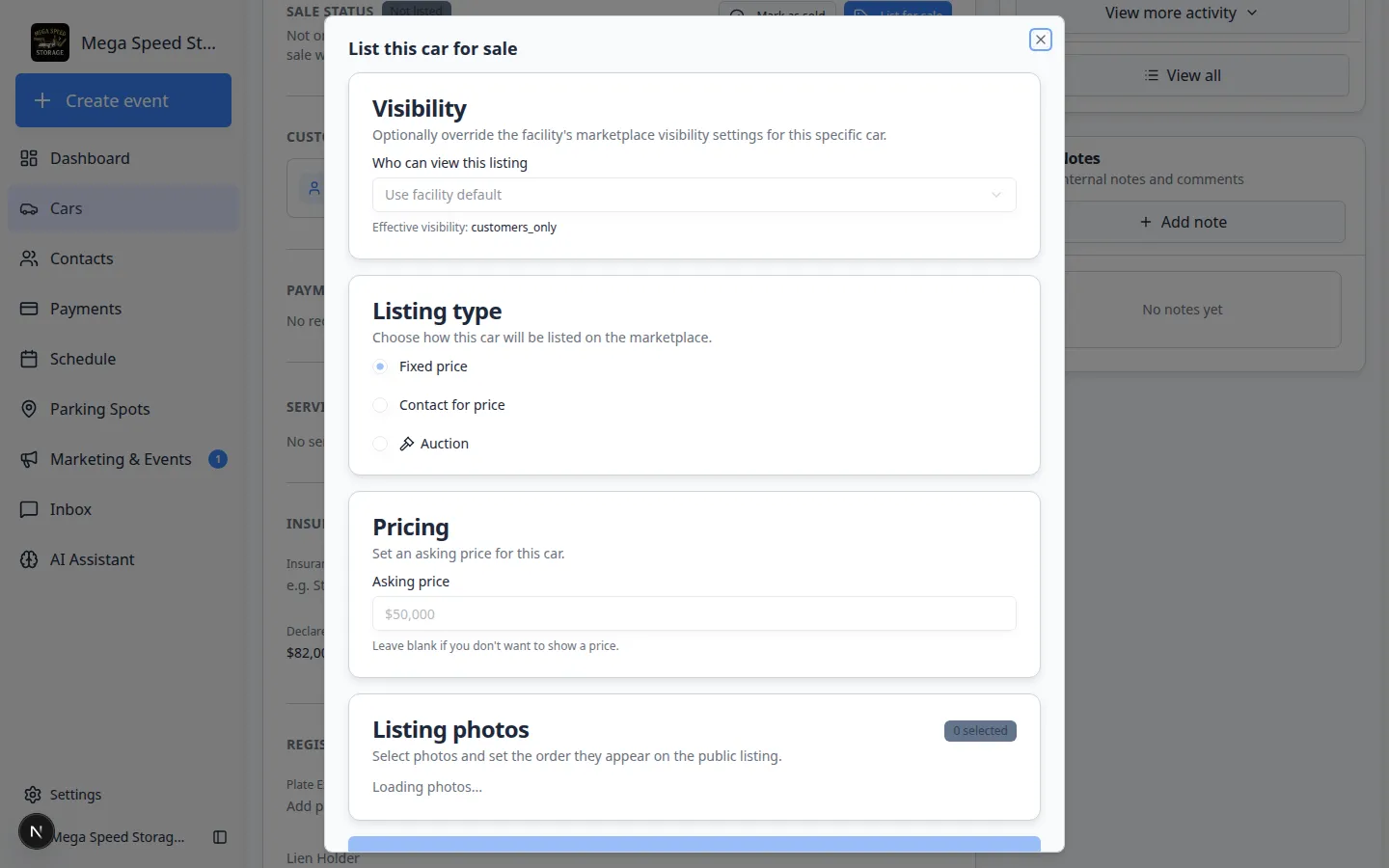
The listing editor is where you set price and publish the car to your public marketplace. - Unlist or mark as sold later
When the vehicle sells or should no longer appear publicly, return to FOR SALE and choose Unlist (hide from marketplace but keep the car record) or Mark as sold (close out the sale on your records).
Expected result: The car no longer appears on your public marketplace, but history stays on the car's Activity Feed.
For public page setup, see Publish marketplace listings.
Review market data (when your facility uses Classic.com)
Some facilities connect Market Data on a car record to Classic.com price trends. For a full walkthrough—including how to fix the chart when it shows the wrong vehicle type—see Review Classic.com market data on a vehicle.
Update declared value and readings
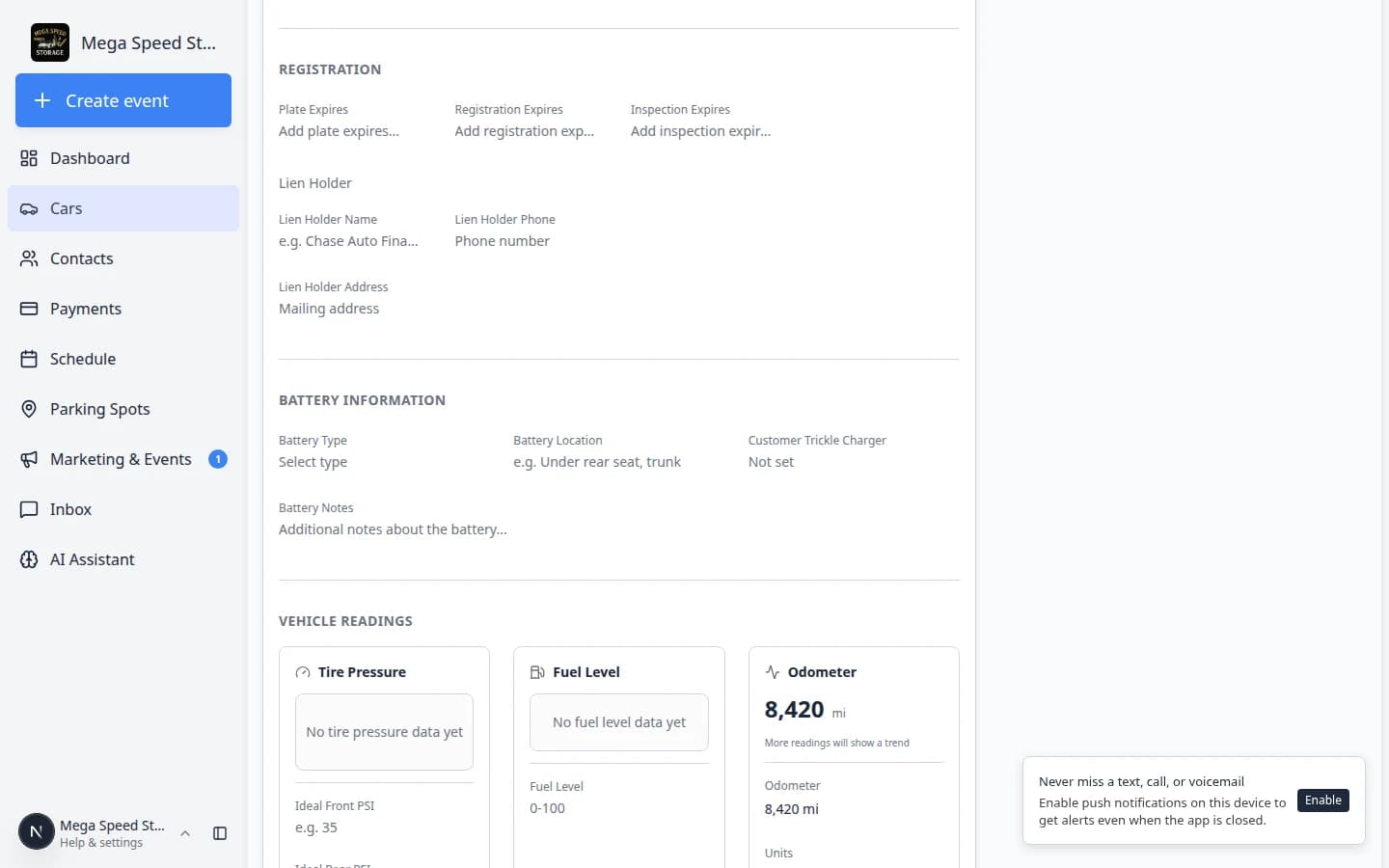
Declared value and vehicle readings help your facility understand risk, storage needs, and service history. Declared Value lives under Insurance. Odometer, fuel, and tire fields live under Vehicle Readings.
- Use Declared Value (USD) for the value your facility should use for insurance and reporting conversations.
- Use Odometer to record mileage from intake, inspection, or service work.
- Use Fuel Level when your team tracks fuel during intake, delivery, or storage checks.
- Use Battery Information for battery tender instructions, battery location, or special handling notes.
What success looks like
After updating Vehicle Details:
- The car can be identified without walking the floor.
- The correct customer is connected to the car.
- Insurance, registration, value, and readings are current enough for your team's daily work.
- Other teammates can trust the record when they search, invoice, schedule, or move the car.
Common mistakes to avoid
- Do not guess a VIN, plate, or expiration date. Leave the field blank until you have the correct information.
- Do not change the customer unless you are sure the car should belong to that customer record.
- Do not use internal shorthand in customer-facing fields. Use clear names and values.
- Do not edit several fields quickly without checking whether each one saved.
Troubleshooting
What to do next
After the car details are accurate, you can move the car, start a car session, or review car activity, notes, and photos.