Events
Test an event setup
Confirm an event type works correctly before customers or staff rely on it.
What you will accomplish
You will run a short practice appointment so you can see the event the same way your team and customers will see it. When you finish, you will know whether the event name, time slots, messages, photos, and resources are ready for real use.
Use this guide after you create or change an event type. Testing catches problems early—confusing names, missing fields, wrong hours, reminders that send at the wrong time, or bays that still allow double booking.
Testing is especially important when customers can book the event themselves.
Before you start
- Finish the basic event type setup in Configure event types.
- Review scheduling and options in Configure scheduling and booking options.
- Add closed days if needed with Set closed days for events.
- Review customer messages with Set up event notifications and reminders.
- If the event requires proof, review Configure photo rules.
- If the event needs a bay, lift, room, or staff member, review Set up bookable resources.
Use a safe test record
Use a real-looking test customer or vehicle when possible. This helps you see the same fields staff will see later.
Create a test appointment from Schedule
This is the fastest way to see how the event behaves on your calendar.
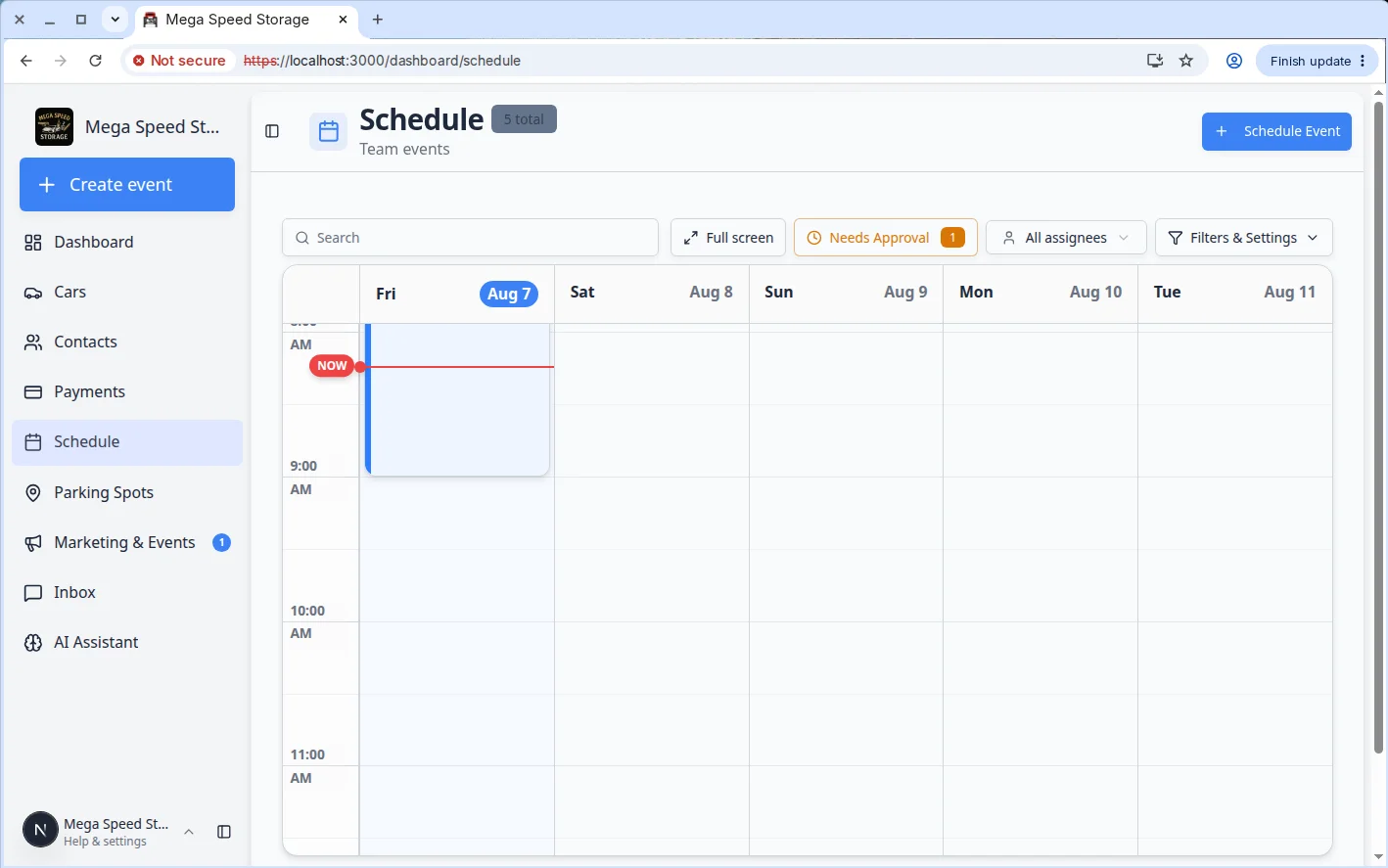
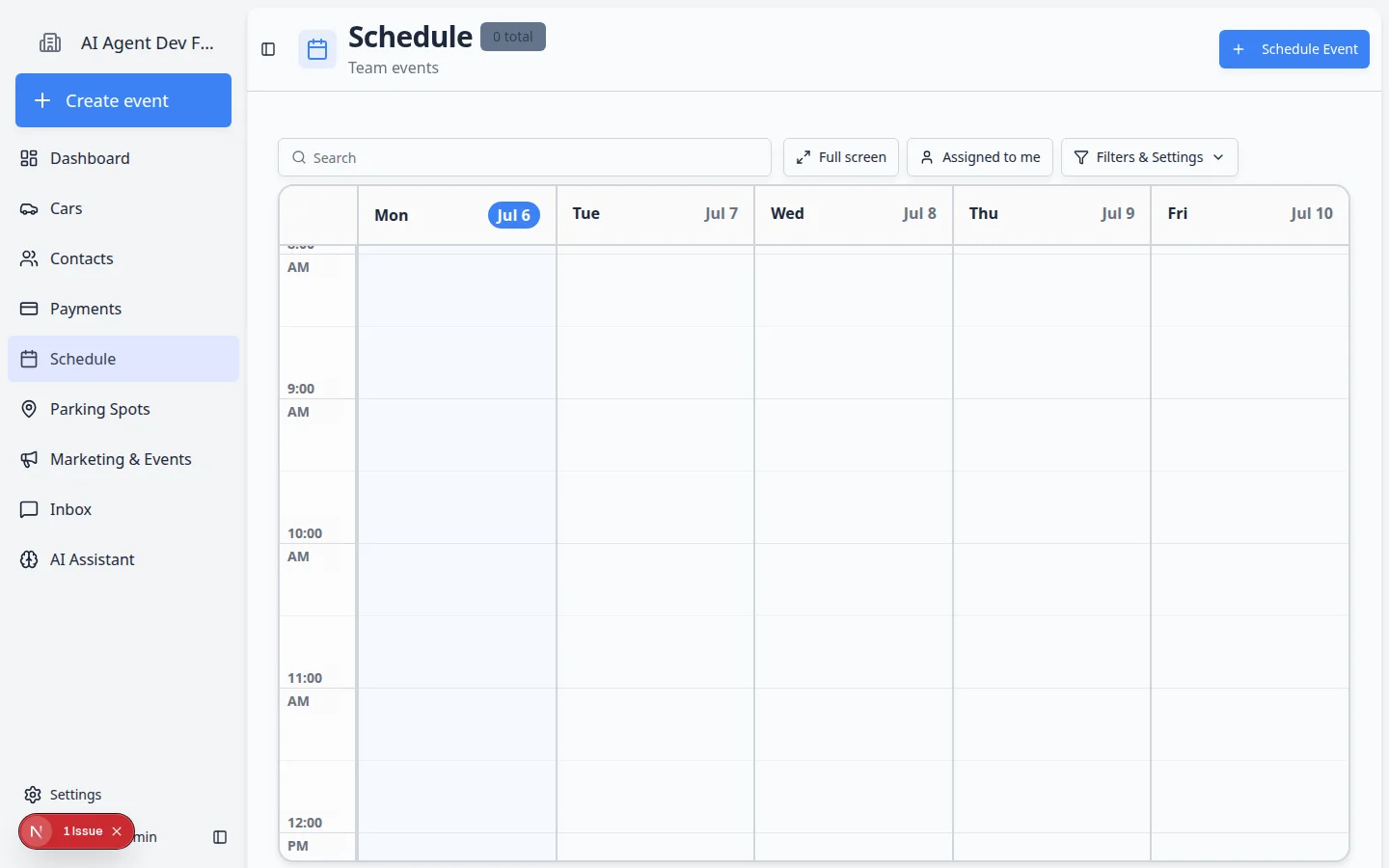
- Open Schedule
In the left sidebar, click Schedule, or go directly to Schedule.
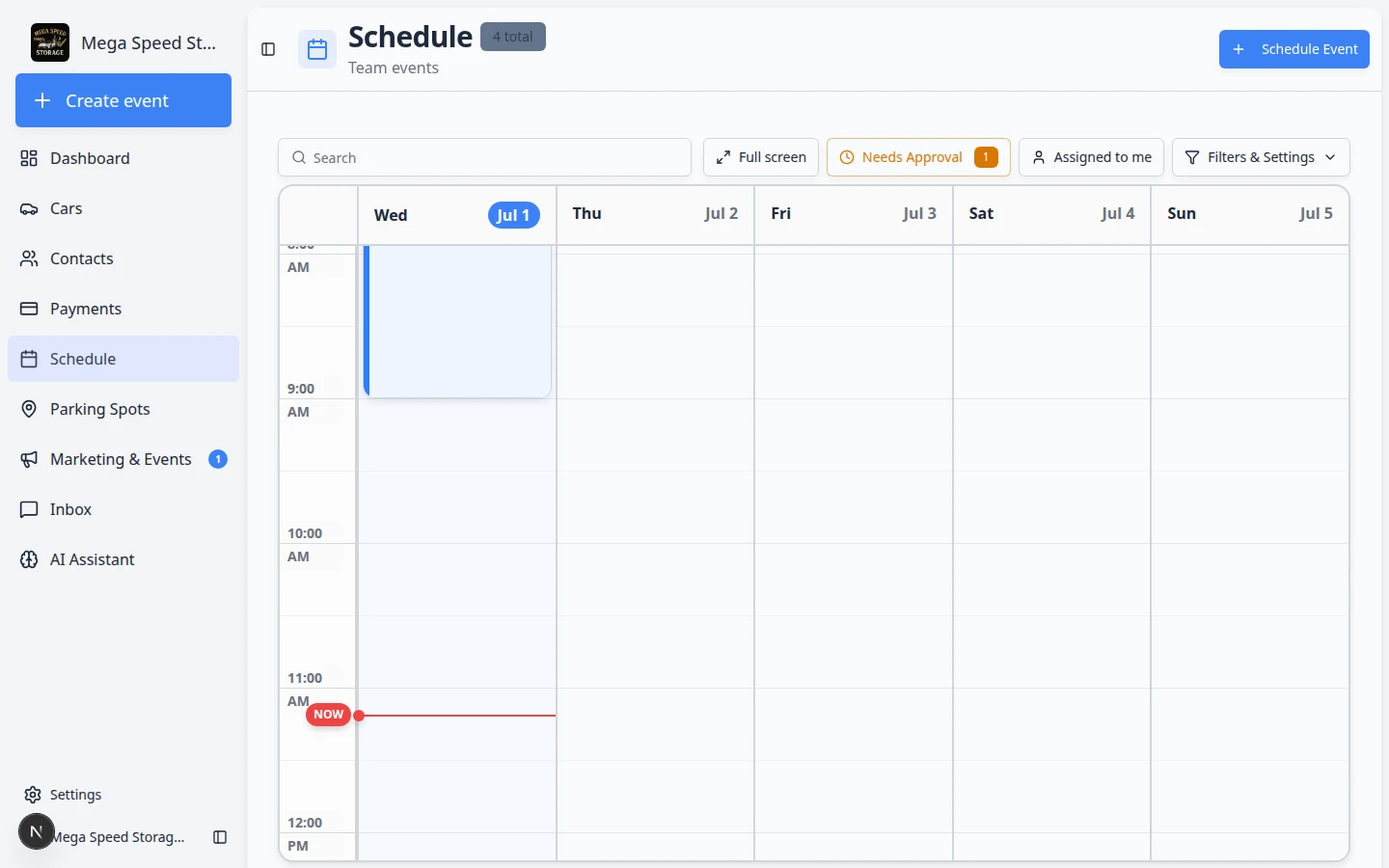
Expected result: You see your calendar with colored appointment blocks for the days your team already has work scheduled.
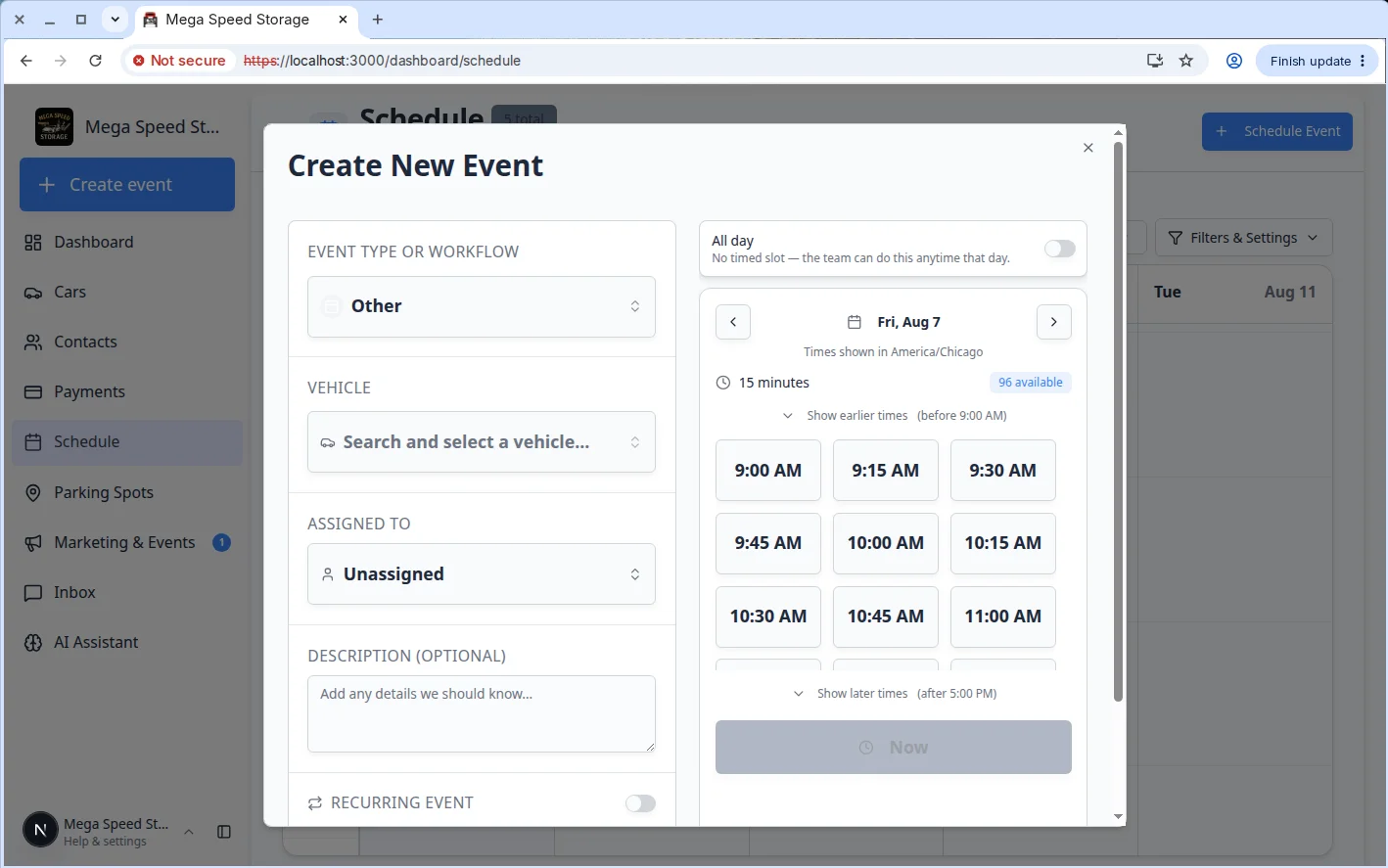
- Click Schedule Event
Click Schedule Event in the top-right area of the page.
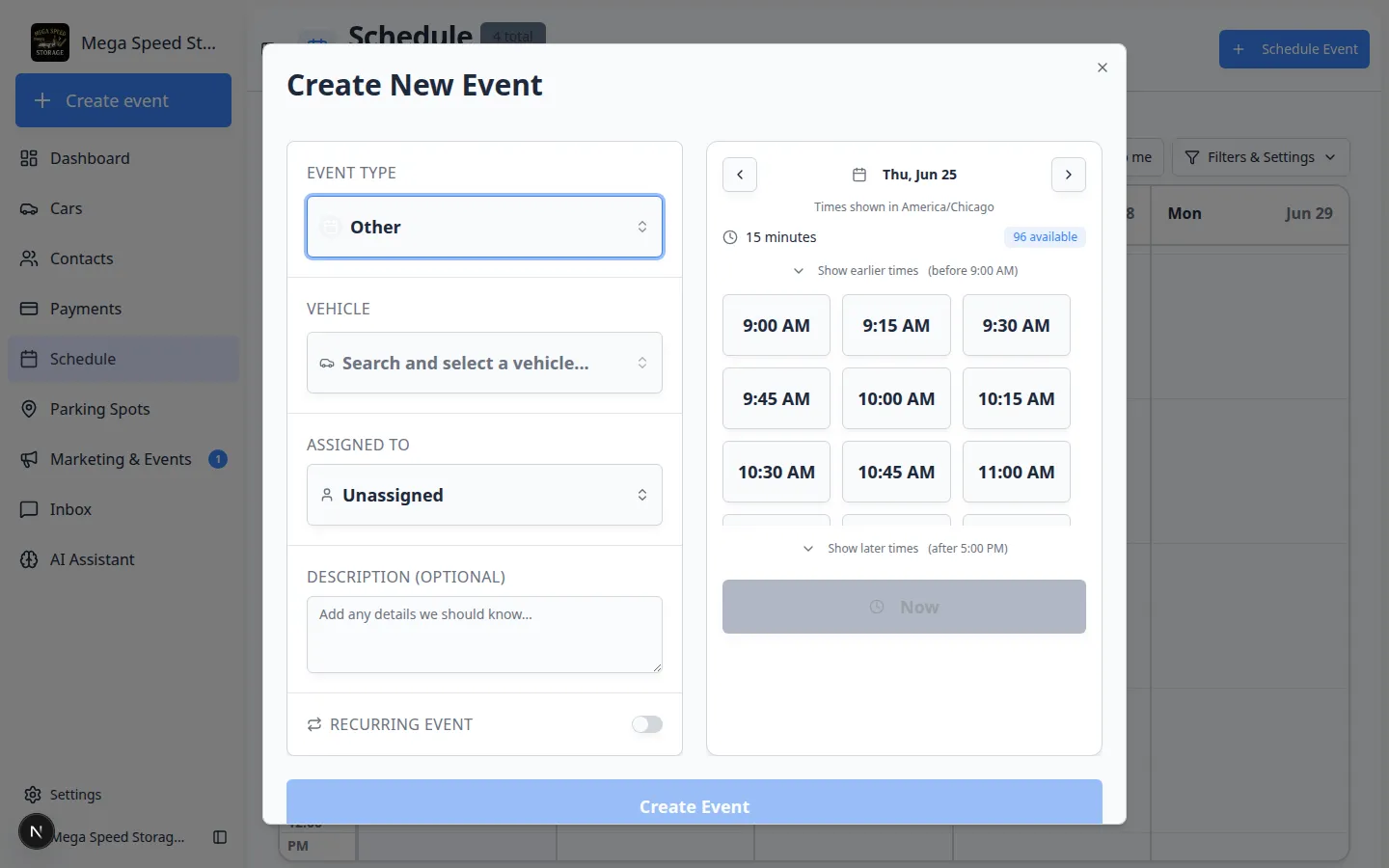
Expected result: A window titled Create New Event (or Schedule Event) opens.
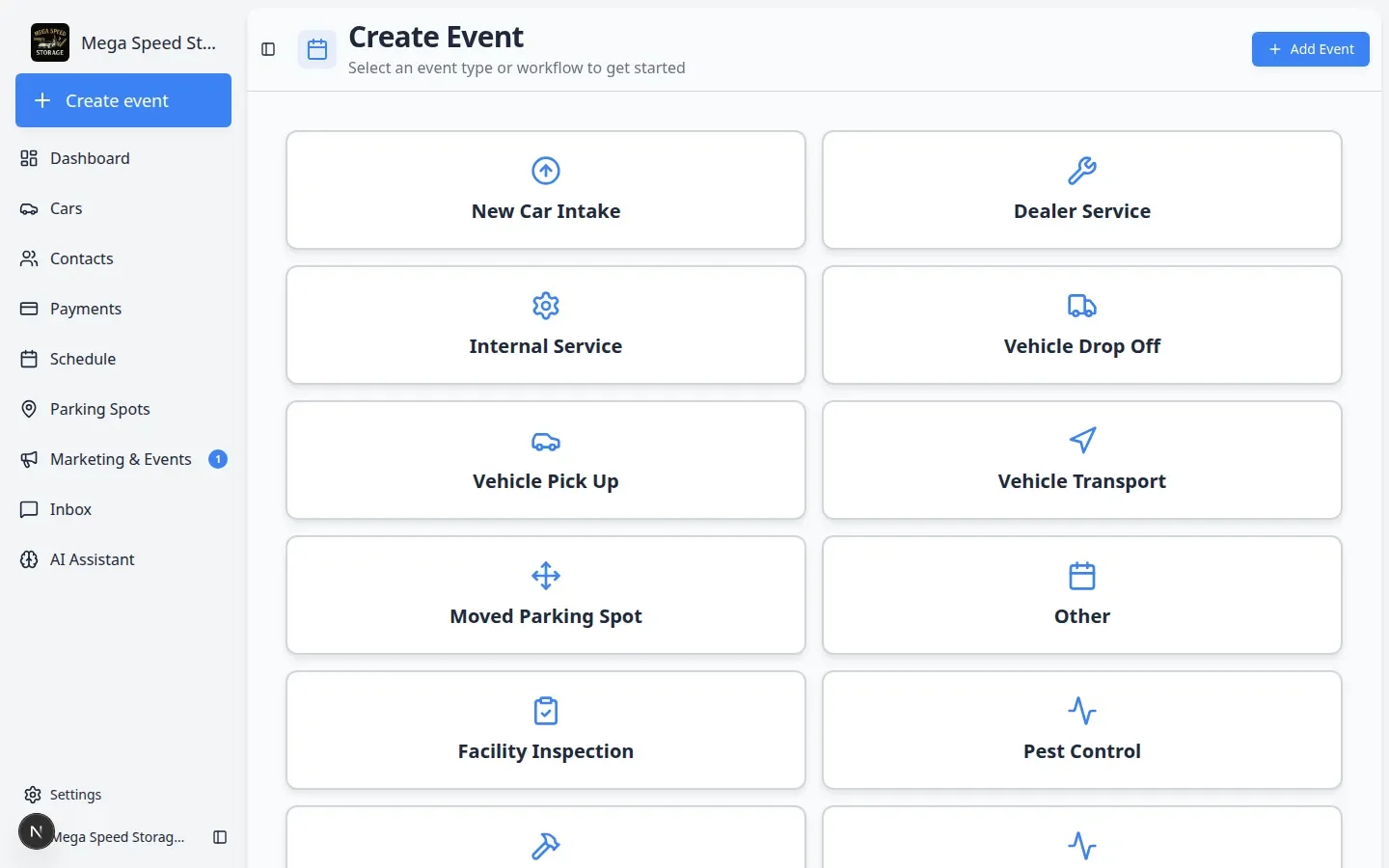
- Choose the event type
Open the Event type list and select the event you are testing.
Check that the name is easy to recognize and not too similar to another event type on the list.
- Choose the customer or vehicle if the form asks for one
If the event is about a vehicle, search for and select a test car.
If the event is about a customer only, select a test customer.
If the event is for the whole facility (for example, a calendar block), the form should not require a customer or car.
Expected result: The correct name appears in the vehicle or customer field before you pick a time.
- Choose an option if one appears
If you created booking options (for example, Basic Detail or Premium Detail), pick one and confirm the option names make sense to a new staff member.
If no option field appears, your team may use one default length for that event type.
- Check available times
Pick a date on the calendar, then look at the highlighted time slots.
Confirm the slots match your Scheduling hours, closed days, minimum notice, buffer time, and any resource rules.
Try a date that should be open and, if you can, a date that should be closed. The closed date should show fewer or no slots.
- Add a clear test note
In Description, type something obvious such as TEST – event setup check. This helps your team spot and remove the appointment later.
- Click Create Event
Review the event type, customer or vehicle, date, time, and notes. Then click Create Event.
Expected result: The window closes and a new colored block appears on the calendar at the time you chose.
Check the event on the calendar
After saving, stay on Schedule and review the appointment you just created.
- The event appears on the correct date and time.
- The event type name and color are easy to recognize.
- The right customer, vehicle, or facility information is attached.
- The assigned staff member, if any, is correct.
- The appointment length on the calendar looks right for the work (not too short or too long).
Click the appointment block if your team uses that to open details. Confirm the description shows your TEST note.
Open the event workflow from Schedule
If your event type uses photos, checklists, or other steps during the visit, confirm staff can start that workflow from the calendar.
- Click the test appointment
On Schedule, click the colored block for your test event.
Expected result: A detail panel opens on the right (or a dialog) showing the event name, time, customer, vehicle, and status.
- Look for Open Event
If this event type has a linked workflow, you should see an Open Event button.
Why this matters: Technicians use Open Event to take photos, complete checklists, and mark work finished—not just read the calendar block.
- Walk through one step
Click Open Event and confirm photo prompts or checklist items appear in the order you expect.
For day-to-day help, see Run event workflow from Schedule.
Quick verification matrix
Use this table when you want a pass/fail check for each part of the setup.
| What you set up | How to test | Pass signal |
|---|---|---|
| Event name and color | Create appointment on Schedule | Block is easy to spot; name matches what staff expect |
| Scheduling hours | Pick an open weekday vs a day outside hours | Slots only appear during configured hours |
| Closed day | Pick a blocked holiday date on customer booking; on Schedule month view, look for the marked day | Customers see Unavailable; month view shows the closure |
| Booking option duration | Save appointment and check block length on calendar | Block length matches the option you chose |
| Minimum notice | Try booking "today" if notice is 1 day | Today has no slots; tomorrow may |
| Resource / amenity | Book two appointments same time, same bay | Second booking blocked or shows conflict |
| Notifications | Submit test with notifications on | Confirmation email/text arrives (use test contact) |
| Reminders | Schedule appointment 2+ days out | Reminder sends at configured time (check next day) |
| Require Approval | Submit customer booking with Require Approval on | Needs approval appears on Schedule; approve/decline works |
| Photo rules | Open event workflow from calendar | Required photo prompts appear in order |
| Require Approval | Customer books online or staff saves a test booking | Appointment shows Pending approval or Needs Approval on Schedule until approved |
| Customer booking | Use portal or website booking page | Customer sees service name and open times |
| Require Approval | Submit customer test booking, then open Schedule Needs Approval | Request stays pending until staff approve; count badge updates |
Test Require Approval (when customers must wait for staff)
Skip this section if Require Approval is off for your event type. See Configure event types.
- Turn on Require Approval
Open the event type from Settings > Events & schedule, click Edit, and turn Require Approval on. Click Save Changes.
Expected result: New customer bookings for this service wait for staff before they are fully confirmed.
- Submit a customer-style test booking
Create a test appointment the same way a customer would—portal, website booking, or Schedule Event using a customer record.
Expected result: The appointment saves with a pending approval status instead of jumping straight to Scheduled.
- Open Schedule and filter Needs approval
Go to Schedule. Click Needs approval near the top of the page if that button appears.
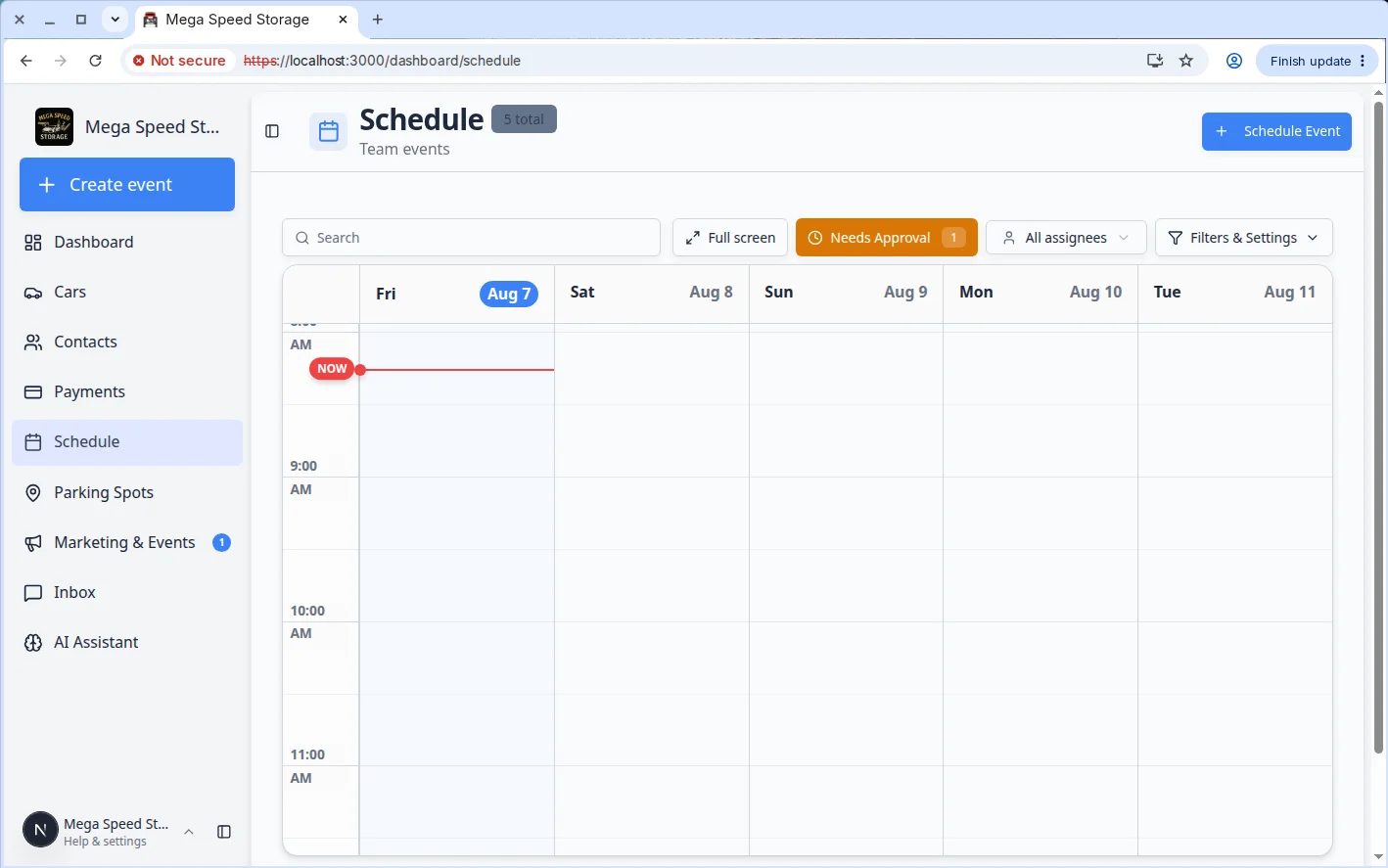
The **Needs approval** filter helps managers find customer requests waiting for a decision. Expected result: Your test booking appears in the list with a pending or approval-needed label.
- Approve or decline the request
Click the pending appointment to open the detail panel. Choose Approve or Decline and follow the on-screen steps.
Approving confirms the time with the customer. Declining frees the slot and should notify the customer when messages are enabled. Expected result: After approval, the event moves to a normal Scheduled state. After decline, it no longer blocks the calendar as confirmed work.
For daily approval habits, read Approve or decline customer booking requests.
Test Require Approval (when customers must wait for staff)
Skip this section if Require Approval is off for your event type. See Configure event types.
- Turn on Require Approval
Open the event type from Settings > Events & schedule, click Edit, and turn Require Approval on. Click Save Changes.
Expected result: New customer bookings for this service wait for staff before they are fully confirmed.
- Submit a customer-style test booking
Create a test appointment the same way a customer would—portal, website booking, or Schedule Event using a customer record.
Expected result: The appointment saves with a pending approval status instead of jumping straight to Scheduled.
- Open Schedule and filter Needs approval
Go to Schedule. Click Needs approval near the top of the page if that button appears.
The **Needs approval** filter helps managers find customer requests waiting for a decision. Expected result: Your test booking appears in the list with a pending or approval-needed label.
- Approve or decline the request
Click the pending appointment to open the detail panel. Choose Approve or Decline and follow the on-screen steps.
Approving confirms the time with the customer. Declining frees the slot and should notify the customer when messages are enabled. Expected result: After approval, the event moves to a normal Scheduled state. After decline, it no longer blocks the calendar as confirmed work.
For daily approval habits, read Approve or decline customer booking requests.
Check the setup areas that affect the appointment
Use this checklist to confirm the event is ready before you tell customers or staff to use it.
- Check scheduling
Try a date that should be available and a date that should not be available.
Expected result: Open dates show time slots for customers. Closed days show Unavailable on customer booking—or a marked day on the Schedule month view. Staff may still override from Schedule Event when a manager approves.
Pick a holiday or whole-shop closed day in the test dialog. Customer-facing booking should show **Unavailable** or no selectable times. See Set closed days for events for setup help.
- Check booking options
If the event has options, open Settings > Events & schedule, click Edit on the event type, and scroll to Booking Options.
Confirm each option has the correct duration, buffer, minimum notice, capacity, and Active status.
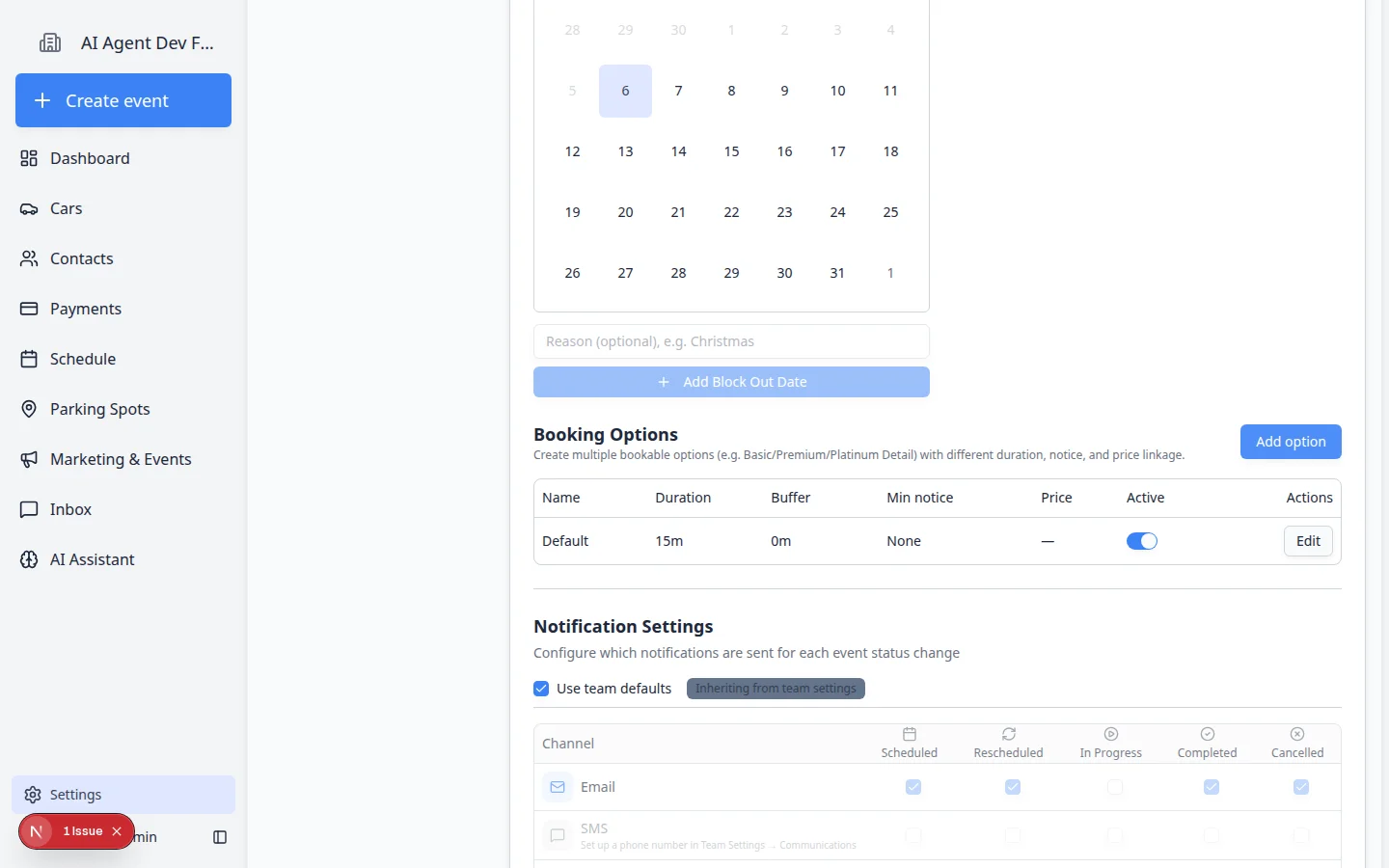
Booking Options are one of the most important places to check before customers use a new event type. - Check notifications and reminders
On the same event type edit page, scroll to Notification Settings and Reminder Settings.
Confirm the event uses the correct team defaults or custom settings.
If you do not want test messages to send, turn off customer email or text channels before testing with a real customer email or phone number. See Set up event notifications and reminders.
- Check photo rules
If photos are required, open the test appointment on Schedule and run the workflow (see Run event workflow from Schedule). Confirm the prompts are clear and in a sensible order.
For setup help, see Configure photo rules.
- Check resources
If a resource is required (bay, lift, room, or staff), try to book a second appointment at the same time for the same resource.
Expected result: The app should block the conflicting time or show that the resource is not available.
Test from a car record (optional)
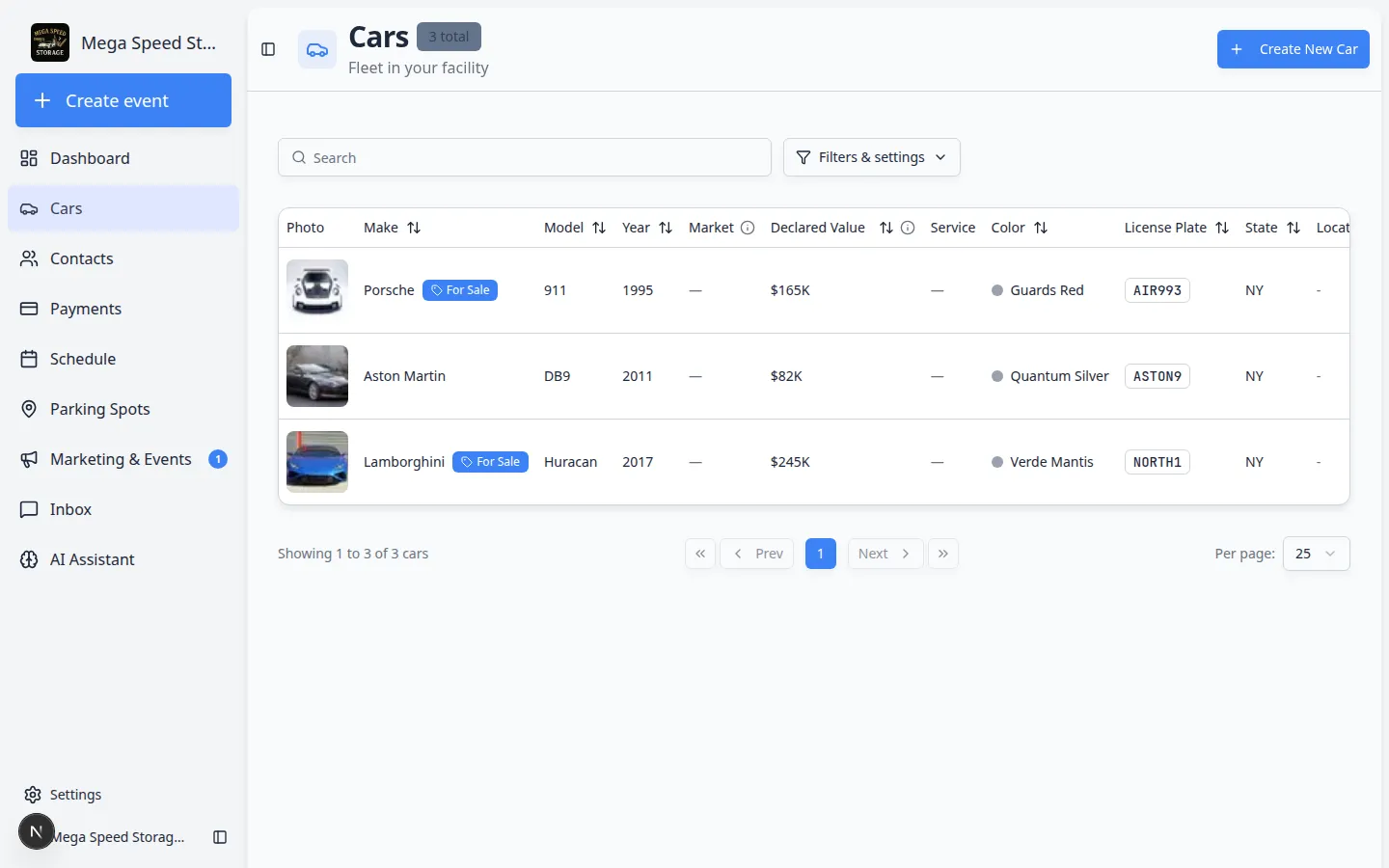
Some events are started from Cars instead of Schedule. If your team uses that path, run this quick check too.
- Open a test car
Go to Cars and open a vehicle that fits this event type.
- Click Event
At the top of the car page, click + Add, then choose Create event.
Why this matters: Starting from the car record saves time—the app already knows which vehicle the visit is for.
- Choose the same event type
Select the event type you are testing and pick a time slot.
- Create the event
Click Create Event and confirm the new event appears in Vehicle Activity on the car page.
Expected result: The car’s activity list shows the new event with the correct type and time.
For a full walkthrough of car-based events, see Start a car session.
Test Require Approval (when customers book online)
Use this section when Require Approval is turned on for the event type in Configure event types.
- Submit a test customer booking
Complete a practice booking from your public registration or booking page (see Test the customer-facing path below).
Expected result: The customer sees a confirmation that the request was received—not necessarily that the time is final.
- Open Schedule and click Needs Approval
Go to Schedule. Click Needs Approval near the top of the page.
Expected result: The calendar filters to pending requests. A number badge shows how many are waiting.
- Review and approve or decline
Open the pending event. Read the customer, vehicle, time, and notes. Click Approve or Decline.
Follow Approve or decline customer booking requests for full steps.
Expected result: Approved events move to normal scheduled work. Declined events no longer block the time slot for the customer.
Test the customer-facing path when customers can book it
If Customer Accessible is turned on, test the customer path too.
- Confirm Customer Accessible is on
Open the event type from Settings > Events & schedule and click Edit. In Access & Status, confirm Customer Accessible is on and Active is on.
- Confirm Require Approval matches your process
Still in Access & Status, check Require Approval.
- Turn it on if customers should wait for staff confirmation before the appointment is real.
- Turn it off if the booking should confirm as soon as the customer submits the form.
If you use a Designated Approver, remember that other team members’ bookings may also need that person’s approval—not just customer requests.
- Open the customer booking area your team uses
This may be the customer portal, a booking box on your website, a registration page, or a facility web page.
If you are not sure which page customers use, review Facility Web Pages and Choose the right public link.
- Find the event type
Confirm the event name and description make sense to a customer who has never used your software before.
Avoid internal shorthand unless your customers already use those words.
- Choose a time
Confirm available times match what you expect from your scheduling test.
- Stop before final booking if you do not want messages sent
If this is only a visual check, stop before submitting the booking.
If you submit the booking, label it as a test and cancel it after you finish.
Test Require Approval (when online bookings need staff review)
If Require Approval is turned on for this event type, run this extra check so customers and staff see the same experience.
- Submit a test booking as a customer
Use the customer portal or website booking page. Complete the form for this event type and submit it.
Expected result: The customer sees a thank-you or pending message—not a final “you are confirmed” message unless your facility sends that after approval.
- Open Schedule and click Needs Approval
Sign in as staff and go to Schedule.
Click Needs Approval near the top of the page if the button appears.
Expected result: Your test booking shows with a Needs Approval or pending status. A number badge on the button tells you how many requests are waiting.
- Open the request and approve or decline
Click the pending event and review the customer, vehicle, and requested time.
Use Approve to confirm the booking, Decline if you cannot take it, or Suggest a new time when the slot does not work.
For full steps, see Approve or decline customer booking requests.
- Confirm the calendar updates
After you approve, the event should move to Scheduled and appear like any other confirmed appointment.
Expected result: The Needs Approval count goes down and the event no longer looks like a waiting request.
Clean up after the test
- Open the test appointment
Find the test appointment on Schedule.
- Cancel or delete it if it is not needed
Remove the test appointment so staff do not treat it like real work.
For steps, see Cancel or delete a scheduled event.
- Keep notes if something was confusing
If a name, field, reminder, or time slot was confusing, update the event type before real customers use it.
What success looks like
After testing:
- The event type is easy for staff to choose from the list.
- The right customer, car, or facility fields appear when someone creates the event.
- Available times match your real operating process.
- Booking options have the correct duration, buffer, notice, and capacity.
- Closed days block the right dates.
- Messages and reminders are correct and not excessive.
- Photo prompts and resource rules appear when expected.
- Pending online bookings appear under Needs Approval when that setting is on—and staff can approve them.
- You removed or cancelled test appointments so the calendar stays accurate.
Troubleshooting
What to do next
After the test works:
- Tell your team which event type to use and when to use it.
- If customers can book it, review the public-facing name and description one more time.
- Use Create an appointment to train staff on day-to-day scheduling.
- Use Events overview to see how this event fits with your other setup guides.