Marketing & Events
Create and share a custom form
Build a signup or survey page your team can share by link, QR code, or website embed—without asking customers to call the front desk.
What you will accomplish
You will create a custom form—a simple web page where customers answer questions you choose (event interest, service waitlist, feedback, and more). When you are done, you will have a shareable link and a Published form ready for your website, email, or front desk.
When to use a custom form
- You want to collect answers from people who visit your website or open house—not only existing customers.
- You need a short survey (event interest, service waitlist, feedback after a visit).
- You want a link or QR code the front desk can hand out without building a full campaign email first.
- Your standard storage registration form does not ask the questions you need.
| If you need… | Use this guide | Use something else |
|---|---|---|
| Email or text many customers at once | — | Create a campaign |
| Customers RSVP to an in-person event | — | Create a social event |
| Ongoing posts inside the customer portal | — | Manage community channels |
| See answers and download a spreadsheet | Review form responses and export | — |
Before you start
- You can open Marketing & Events from the dashboard sidebar.
- You know the questions you want to ask (keep the list short—five questions or fewer works best for most customers).
- You decided who may fill out the form: anyone with the link, signed-in customers only, or invite-only.
Step 1: Open the Forms tab
- Open Marketing & Events
From the dashboard sidebar, click Marketing & Events. You can also open Marketing & Events directly.
Why this matters: Forms live in the same Marketing & Events section as campaigns and community tools so your team can plan outreach in one place.
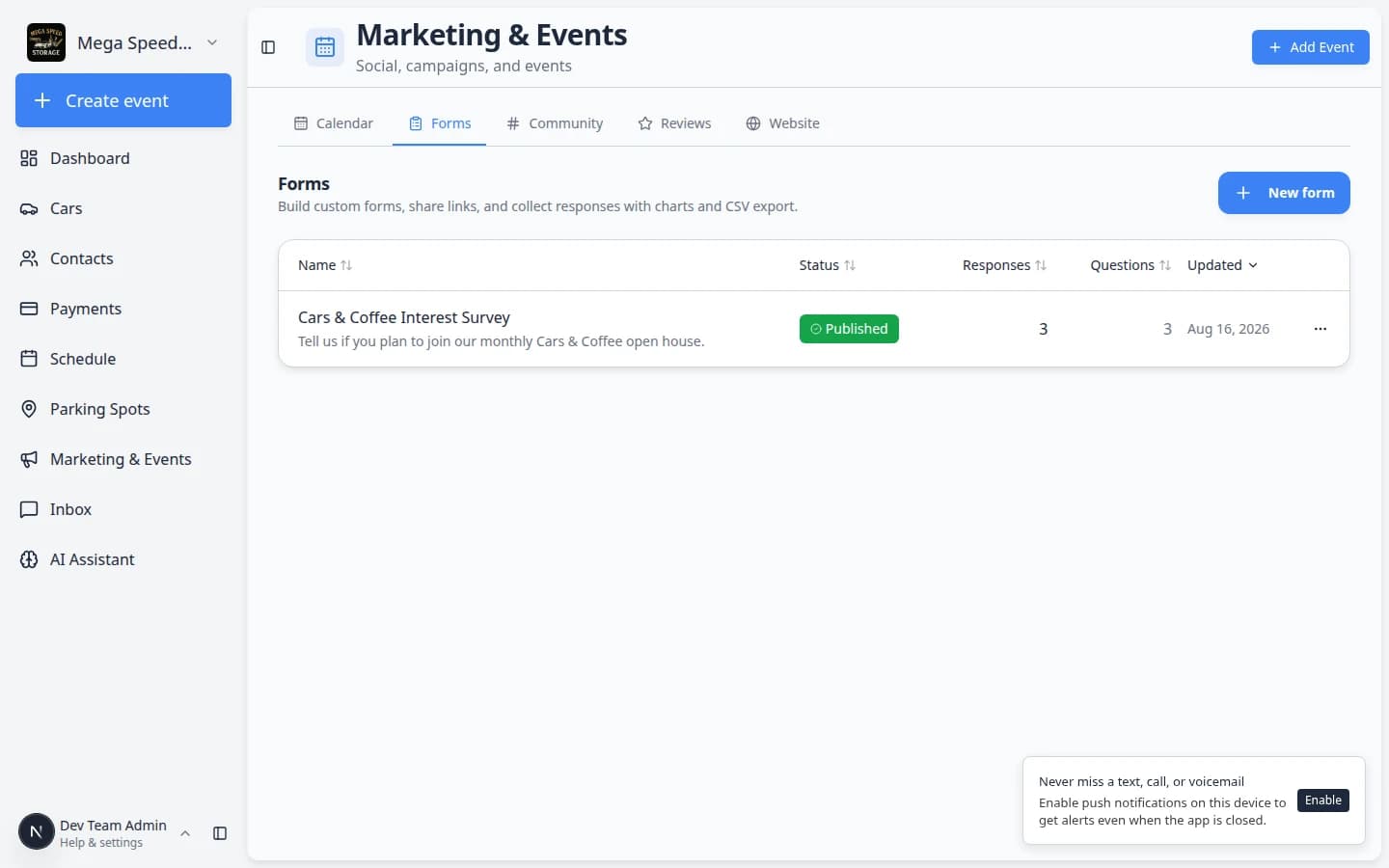
- Click Forms
Near the top of the page, click the Forms tab. You can also open Marketing & Events > Forms directly.
Expected result: You see the Forms heading, a New form button, and a list of forms your team has already created (or an empty state if this is your first form).
Step 2: Create a new form
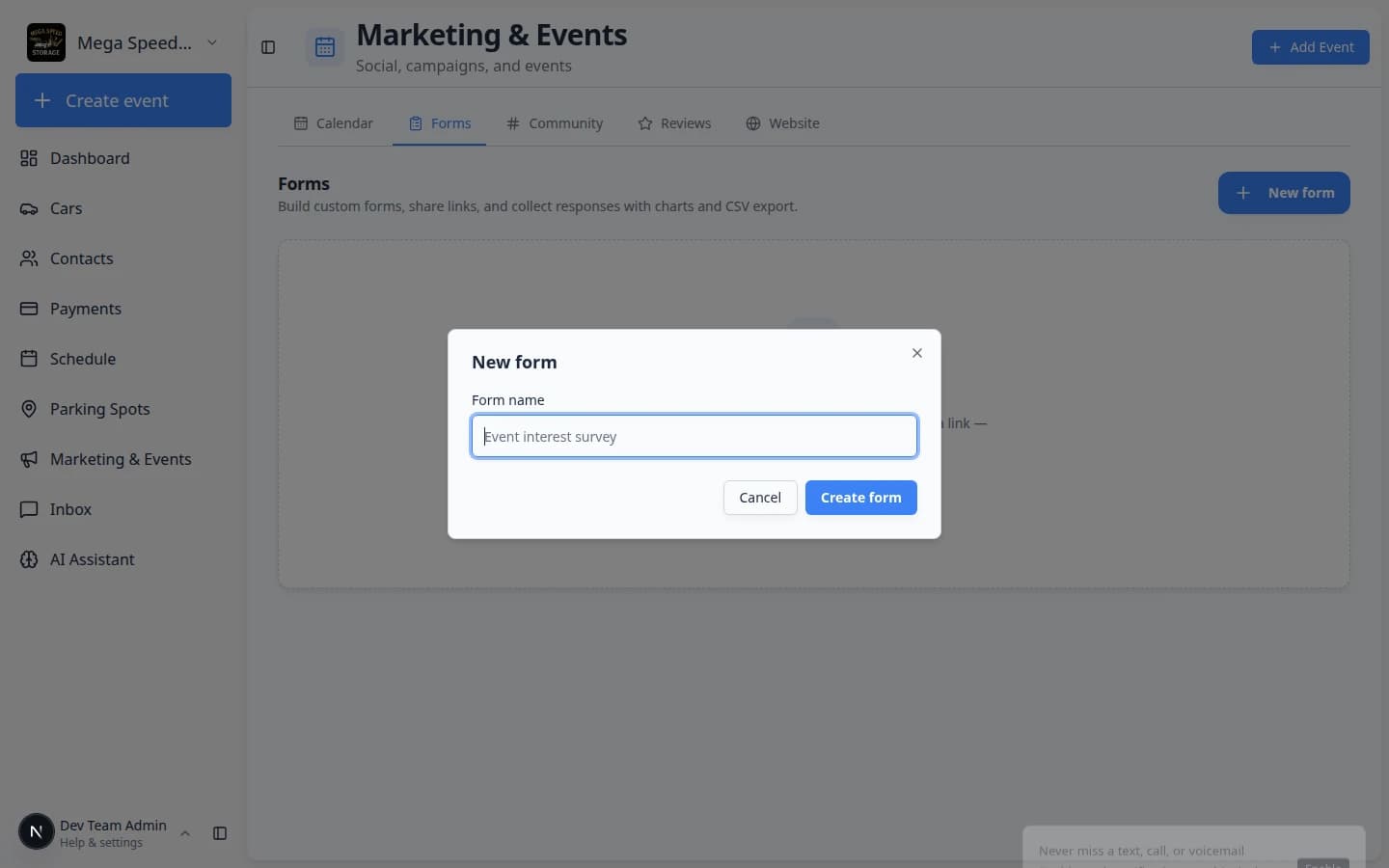
- Click New form
Click New form in the top-right area of the page.
Expected result: A window titled New form opens.
- Enter a form name
In Form name, type a name your team will recognize later. Customers may see this title on the public page.
Good examples:
- Cars & Coffee Interest Survey
- Detail Service Waitlist
- Open House Feedback
Why this matters: A clear name helps you find the form again when responses start coming in.
- Click Create form
Click Create form at the bottom of the window.
Expected result: The window closes and you land on the form editor for the form you just created.
Step 3: Add your questions
The editor opens on the Questions tab. Everything saves automatically as you type—you do not need a separate Save button.
- Review the Questions tab
Make sure Questions is selected near the top of the editor.
Expected result: You see a list of question cards (or one empty card ready for your first question).
- Add a question
Click Add question to add a new short-text question. Open the question card and use Answer type to choose the type you need:
- Short text — one-line answers (name, car model).
- Long text — paragraphs (comments, special requests).
- Number — counts (how many vehicles you store).
- Single choice — pick one option from a list.
- Multiple choice — pick more than one option.
Why this matters: Matching the question type to the answer keeps responses easy to read later.
- Write the question label
Click a question card to expand it. Type the Question—the words customers see above the answer box.
Example: Which events interest you most?
- Mark required questions
Turn on Required for questions customers must answer before they can submit.
Expected result: Required questions show a marker on the public form.
- Reorder if needed
Drag the handle on the left side of a question card to move it up or down.
Why this matters: Put the easiest questions first so customers are more likely to finish the form.
Step 4: Set who can fill out the form
- Open the Settings tab
Click Settings near the top of the form editor.
- Add a short description (optional)
In Description, explain what the form is for. Example: Tell us which events you would like to attend this season.
Expected result: The description appears under the form title on the public page.
- Choose who can fill out this form
In Who can fill out this form, pick one option:
- Anyone with the link — best for website visitors and open-house guests.
- Signed-in customers only — only people logged into your customer portal.
- Invite link only — only people who have your special invite link (shown in Advanced settings).
Why this matters: Public forms are great for lead capture. Customer-only forms are better for surveys that should not be filled out by strangers.
Step 5: Publish and share the link
- Turn on Published
Near the top-right of the form editor, flip the Published switch to on.
Expected result: The badge changes from Draft to Published. Only published forms accept new responses.
- Open the share menu
Click Share (or the share icon) next to the Published switch.
From the menu you can:
- Copy link — paste into email, text, or your website.
- Open link — see the live public page in a new tab.
- QR code — download a QR image for posters or the front desk.
Why this matters: Customers need the public link—not the dashboard editor URL.
- Add a website embed (optional)
From the Share menu, look for an embed or website option when your team wants the form on your facility website.
Why this matters: Visitors can answer questions without leaving your site. You still review answers on the Results page in the dashboard.
Expected result: You copy a small code snippet for your web person, or follow your facility's website guide at Add a website embed.
- Test the form yourself
Open the public link in a new browser tab. Answer every required question and submit once.
Expected result: You see your success message (or a thank-you screen). When you return to the Forms list or open Results, the test response appears there.
What success looks like
- The form shows Published on the Forms list.
- You can open the public link without signing in (when visibility is Anyone with the link).
- A test submission appears on the Results page.
- Your team knows where to find answers: Review form responses and export.
Remove a form you no longer need
- Open the Forms list
Go to Marketing & Events > Forms.
- Open the row menu
Find the form row. Click the three-dot menu (⋯) on the right side of the row.
- Choose Delete
Click Delete and confirm when the app asks.
Why this matters: Deleting removes the form from your list. Export responses first with Review form responses and export if you still need the answers.
Expected result: The form no longer appears on the Forms tab. The public link stops accepting new responses.
Common mistakes to avoid
- Do not share the dashboard editor link—customers cannot use it. Copy the public link from Share.
- Do not leave the form in Draft and wonder why no one can submit answers.
- Do not add twenty questions—shorter forms get more completed responses.
- Do not forget to tell the front desk which form link to use for each event or promotion.
Troubleshooting
What to do next
- Review form responses and export — read answers, view charts, and download a CSV.
- Embed a custom form on your website — show the same form on your public facility page.
- Create a campaign — email customers who should fill out the form.
- Marketing & Events overview — see how forms fit with campaigns, events, and community.