Facility Web Pages
Go live checklist for public pages
Review the customer-facing links, forms, marketplace, vendor invoice portal, and website links before you share them.
What you will accomplish
Your team will test every customer-facing link in a safe order, fix problems before launch, and know where each submission appears in the staff dashboard.
Overview
Use this checklist before you put Car Storage Software links on your website, in emails, on social media, or in printed materials.
When you finish, your team will know the public pages open correctly, the words make sense to customers, and every button sends people to the right next step.
This guide is helpful when you are about to launch a new facility page, registration form, marketplace, customer login link, vendor invoice portal, or custom domain.
Before you start
- Your team has access to Settings > Website & customer app.
- Your Public website is turned on only if you are ready to test it.
- You have one test customer email address your team can recognize.
- If you sell items online, payment processing is set up and tested.
- If you use a custom domain, the person who manages your domain can help with DNS if needed.
Launch checklist
Work through each item. Skip optional sections if your facility does not use that feature yet.
Required for most facilities
- Public Facility Pages is on and Facility slug is saved in Settings > Website & customer app.
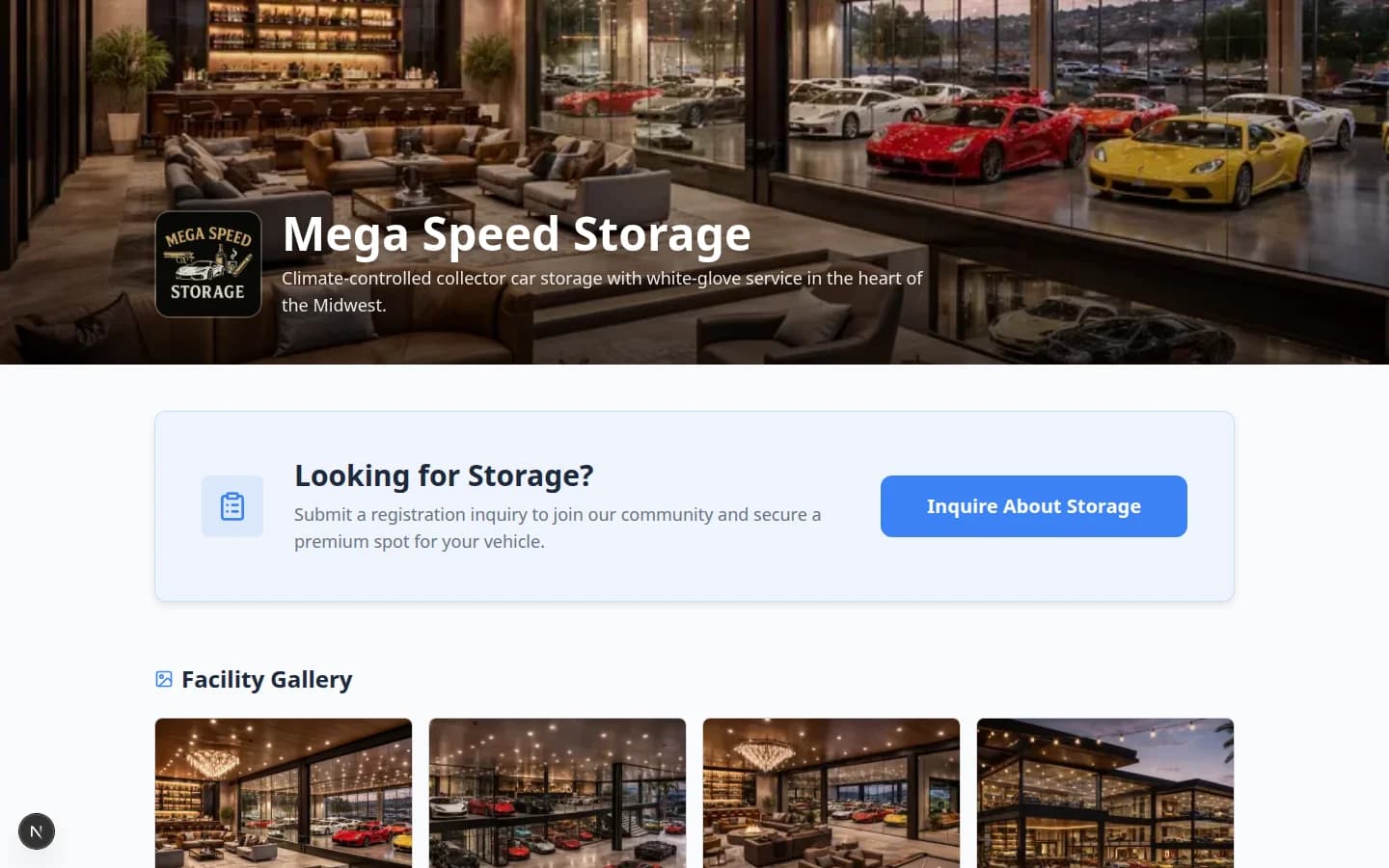
- Main page opens in a private window and shows correct facility name, description, and services.
- Registration link works; a test submission appears in Contacts.
- Customer login opens the sign-in page at your facility address (usually ending in
/signin)—not the staff dashboard. - Customer app home sections and Bottom navigation look clear in the live preview on Website settings.
- Marketplace section is configured on Website settings if you share marketplace links.
- Every public page was checked on a phone-sized screen.
Optional — marketplace
- Vehicle marketplace (
/marketplace) shows only approved car listings. - Product marketplace (
/marketplace/products) shows items with Show on marketplace turned on. - Product checkout was tested with Test marketplace checkout.
Optional — vendor invoices
- Vendor invoice portal opens at
/facility/your-slug/invoices. - Form fields (name, email, invoice number, amount, file upload) are clear to vendors.
- Staff know to review submissions on the Vendor tab in Payments > Invoices.
Optional — website and custom domain
- Website buttons or badge embed open the correct Car Storage Software pages (Add a website embed).
- Custom domain shows Complete in Settings > Custom domain and all Shareable links were re-copied after DNS finished.
Step 1: Confirm the main public page
Open Settings > Website & customer app.
Scroll to Public website.
Check:
- Public Facility Pages is turned on.
- Facility slug is short and easy to recognize.
- The facility name, description, and services are correct.
- The buttons you want customers to see are turned on.
Then open the public page link.
Expected result
The public page opens without a staff login and clearly explains what your facility offers.
Step 2: Test new customer registration
If prospects should request storage online, copy Registration from Shareable links and open it in a private window.
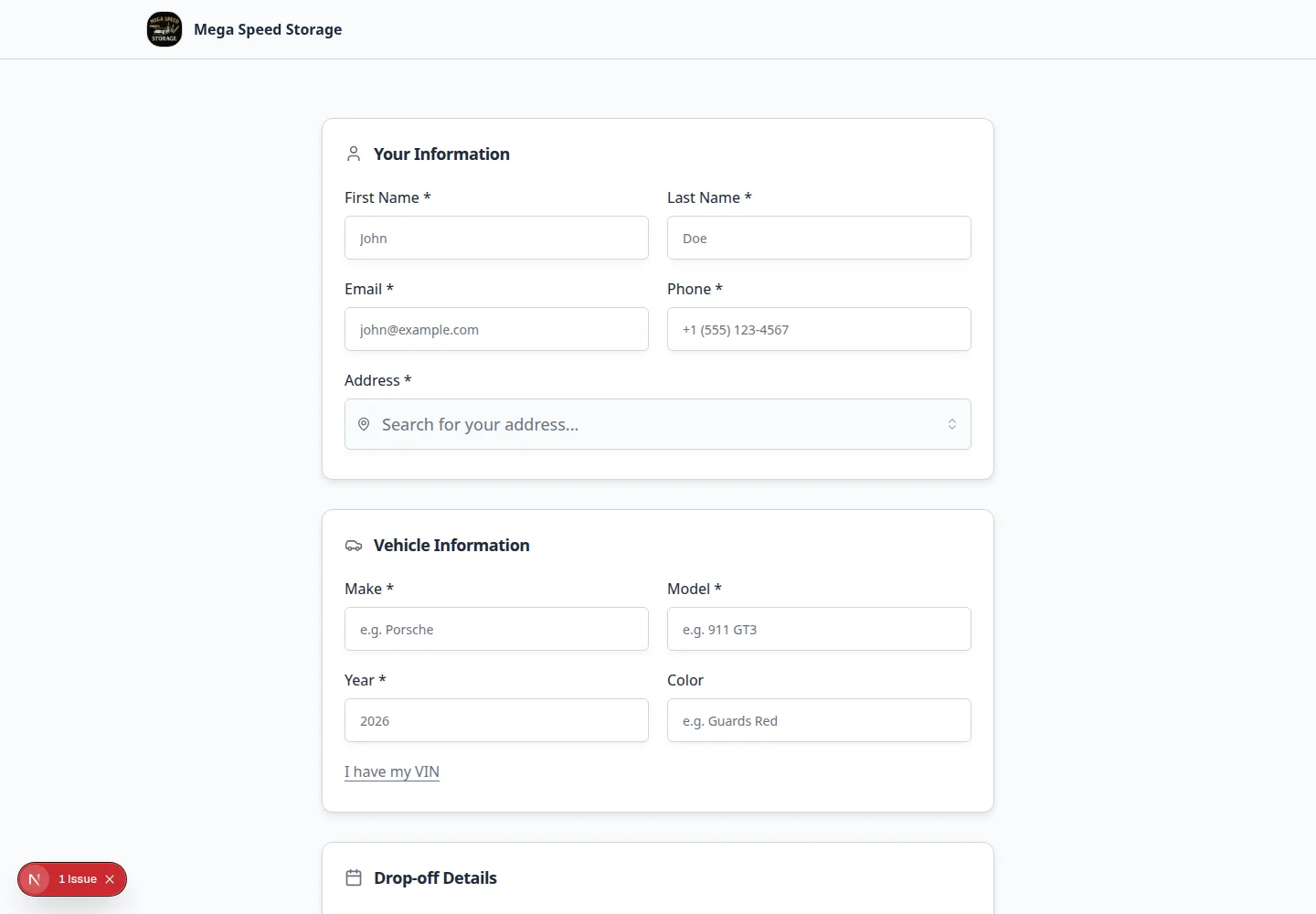
The link usually looks like:
/facility/your-facility-name/registration
Submit a test request using a clear test name, such as Test Registration.
Check:
- The form asks for the right information.
- The required fields make sense.
- The confirmation message is clear.
- Your staff can find the new request in Contacts.
If you need help with the staff review step, use Review and approve registration requests.
Step 3: Test customer login links
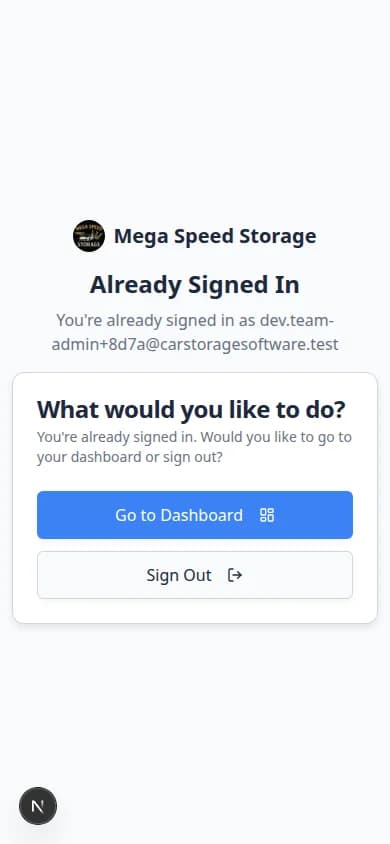
If existing customers need to sign in from your website, copy Customer login from Shareable links on Settings > Website & customer app.

Open the link in a private browser window or a different browser.
Check:
- The sign-in page uses the correct facility name.
- The customer knows they should enter their email address.
- The link does not send customers to the staff dashboard.
For more detail, follow Share customer login links.
Step 4: Test marketplace pages and checkout
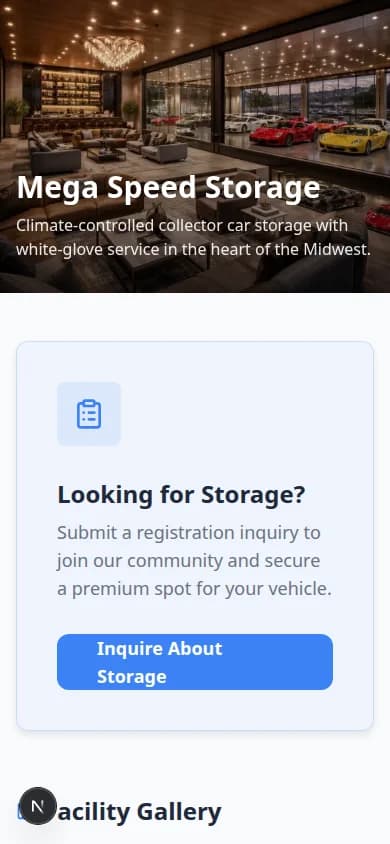
If you use marketplace listings, open the public marketplace page and review it like a customer.
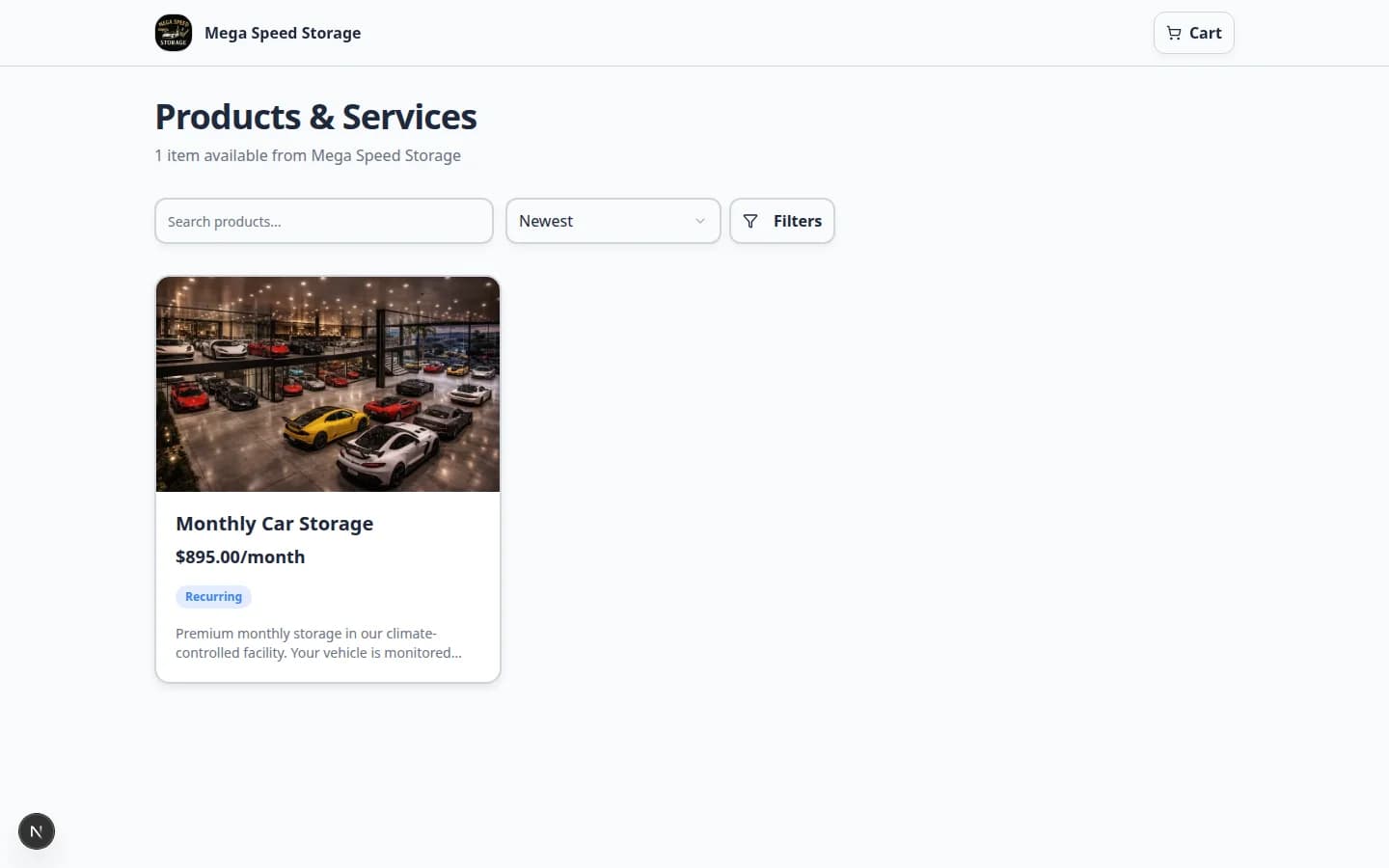
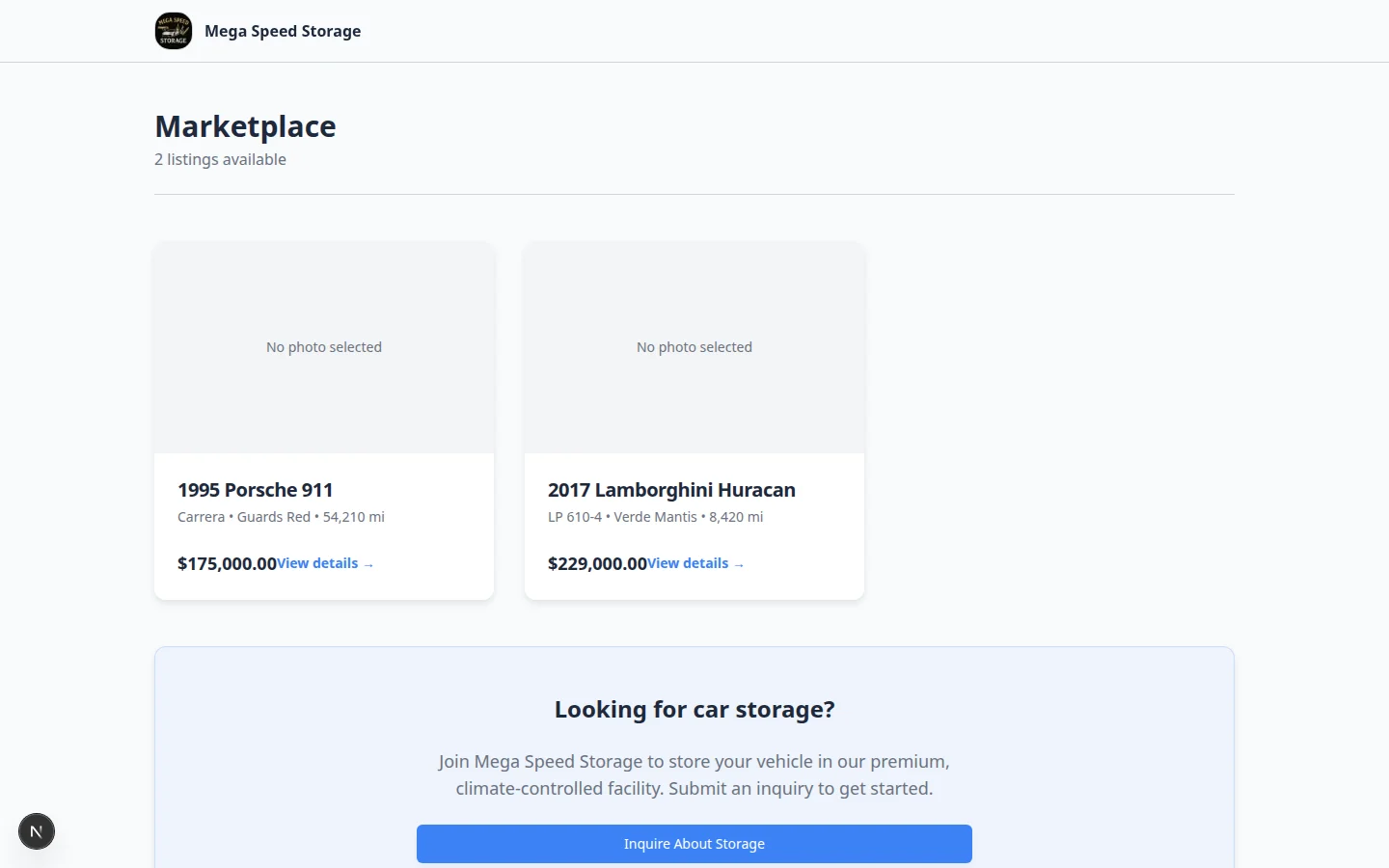
Check:
- Only items you want to share are visible.
- Names, descriptions, prices, and photos are correct.
- Buttons such as View details, Add to cart, or Checkout lead to the right place.
- Your team knows where new purchases or requests will appear.
If customers can pay online, follow Test marketplace checkout before sharing the link.
Step 5: Test the vendor invoice portal
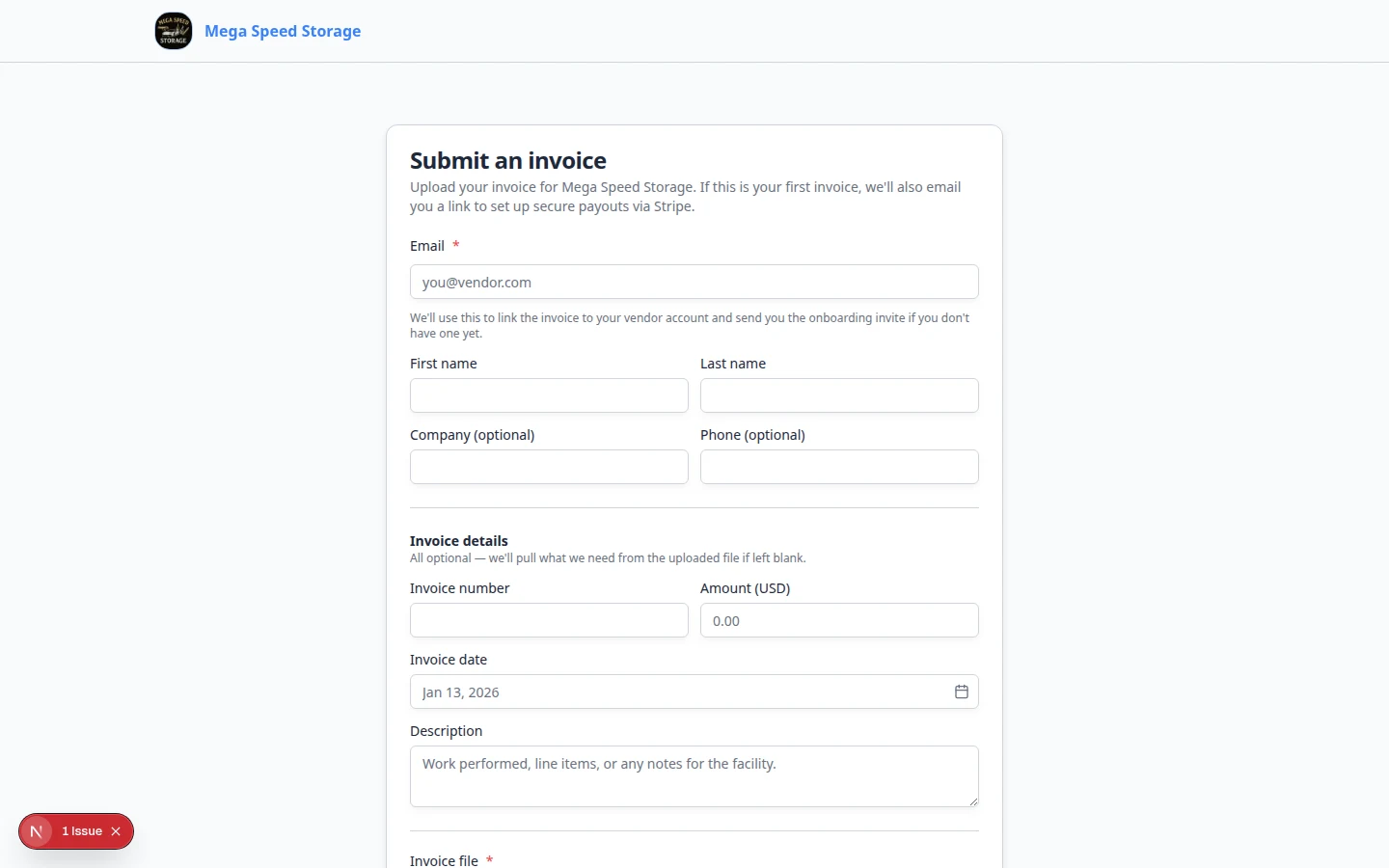
If vendors should send invoices through a public link, open:
/facility/your-facility-name/invoices
Check:
- The form asks for first name, last name, email, invoice number, amount (USD), invoice date, description, and a required invoice file upload.
- The instructions are clear enough for a vendor who does not use your staff dashboard.
- Your team knows to review submissions in Payments > Invoices.
For full setup steps, use Set up the vendor invoice portal.
Step 6: Test links from your own website
If you added a button, menu item, or embed to your existing website, open the public website like a customer would.
Check:
- The button or widget is easy to find.
- The words tell the visitor what will happen next.
- The link opens the correct facility page, registration page, marketplace, or login page.
- The page works on a phone-sized screen.
If you have not added a link yet, follow Add a website embed.
Step 6b: Complete one real test action per feature
After pages load correctly, walk through the same path a customer or vendor would:
- Registration
Submit a test registration from the Registration link. Confirm it appears in Contacts. Follow Review and approve registration requests.
- Customer login
Open Customer login in a private window. Confirm it asks for an email—not the staff dashboard.
- Marketplace (if used)
Run Test marketplace checkout before sharing product links.
- Vendor invoices (if used)
Open the vendor link in a private window and confirm the upload form loads.
Step 7: Confirm the custom domain, if you use one
If customers should use your own domain, open the custom domain in a browser.
Check:
- The page opens without an error.
- The address bar shows your domain.
- Registration, marketplace, vendor invoice, and login links still work.
If the domain is not ready, follow Connect a custom domain.
Step 8: Test on a phone-sized screen
Many customers open your links from a text message on their phone—not from a desktop computer.
- Open Main page on a narrow screen
Copy Main page from Shareable links. Open it in a private window and shrink the browser, or use your phone.
Expected result: Text is readable, buttons are easy to tap, and photos are not cut off.
- Repeat for Registration and Customer login
Test each link you plan to share. A page that looks fine on a large monitor may feel cramped on a phone.
What success looks like
- Your public links open without a staff login.
- Customers can understand what to do without calling your team for basic instructions.
- Test registration, checkout, and vendor invoice paths have been reviewed by staff.
- Your website, emails, and printed instructions use the same final links.
- Your team knows where each submitted request appears in the staff dashboard.
Troubleshooting
Common mistakes to avoid
What to do next
After every item passes, add the final links to your website, email templates, customer instructions, and staff call scripts.