Contracts
Attach contracts to customer workflows
Require the right agreements during customer onboarding or customer setup.
What you will accomplish
You will connect contract templates and required uploads to customer onboarding so new portal customers finish paperwork during their first sign-in—not only when staff sends a one-off email.
When this works, customers complete profile, vehicles, uploads, and signing in a sensible order, and your team can confirm the signed PDF on the customer record.
When to use this guide
Use this guide when:
- Every new storage customer must sign the same storage agreement.
- Customers should sign before they finish portal setup.
- Your agreement uses vehicle fields and customers may need to add a car first.
- Customers must also upload insurance or registration during onboarding.
- You have already created and tested a contract template.
Before you start
- Complete Create a contract template.
- Place required signature, initials, customer, and car fields on the template.
- If uploads are required, complete Configure document requirements.
- Sign in as a team member who can open Settings.
Manual send vs onboarding
Customer onboarding is best when every new customer should sign the same agreement during portal setup.
Manual send from a customer record is best when only some customers need the agreement or staff must review each case first.
| Situation | Use |
|---|---|
| Every new portal customer signs the same agreement | This guide — Customer app onboarding |
| One customer needs a agreement today | Send a contract for signature |
| Same agreement for several vehicles, one email | Send multiple contracts in one signing link |
Step 1: Confirm the template is ready
- Open Contracts & Documents
- Check the template list
Confirm your agreement appears and is Active. Only ready templates should be connected to onboarding.
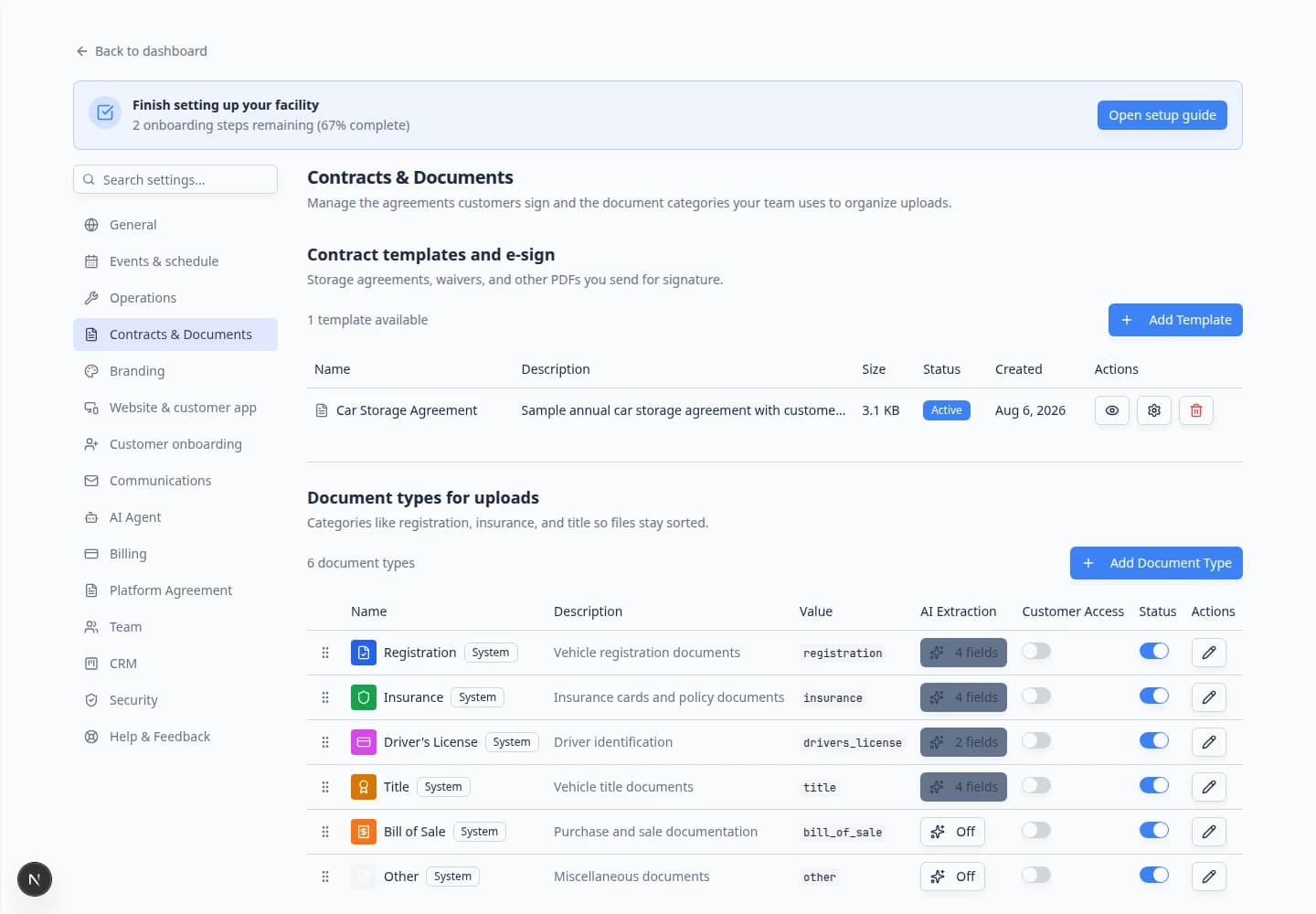
Expected result: Your team has at least one active template to select in onboarding settings.
Step 2: Open Customer onboarding
- In the sidebar, click Settings.
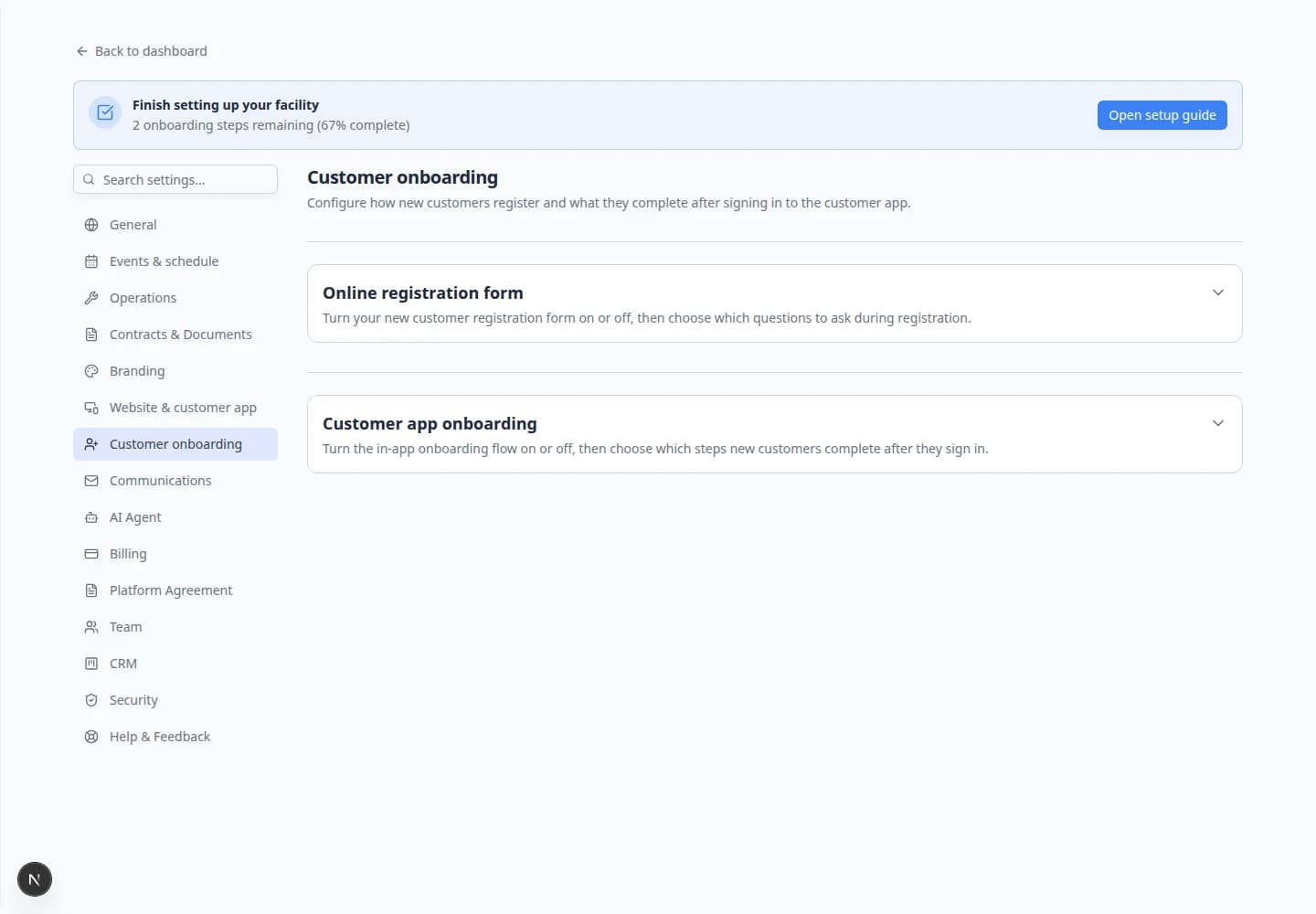
- Open Settings > Customer onboarding.
The page title is Customer onboarding. The subtitle explains registration and what customers complete after they sign in.
For a broader settings walkthrough (registration form vs portal onboarding), see Configure customer onboarding.
Step 3: Turn on Customer app onboarding
- Find Customer app onboarding
Scroll to the Customer app onboarding section.
- Turn the main switch on
Turn Customer app onboarding on.
Until this switch is on, the step list stays hidden.
Why this matters: This is the master switch for first-time portal setup after a customer signs in.
- Review the Onboarding steps list
Below the switch, find Onboarding steps. Your facility may show steps such as:
- Welcome — welcome screen with your branding
- Accessibility — text size preference
- Profile — review contact details
- Cars — add vehicles to the account
- Payment — card on file or product checkout (if billing is set up)
- Contract Signing — sign required agreements
- Document Upload — upload insurance, registration, or other files
Expected result: You can drag rows to reorder steps and turn each step on or off.
Step 4: Configure Contract Signing
- Enable Contract Signing
Find Contract Signing in the step list. Turn its switch on.
The row description reads Require contract signature during onboarding. A Configure link appears when the step is on.
- Click Configure
Click Configure next to Contract Signing.
Expected result: A window titled Contract Step Configuration opens.
- Select required templates
Under Required contracts, turn on each template customers must sign. Example: Car Storage Agreement.
Templates with a Car-linked badge need vehicle details on the customer record before signing.
Expected result: At least one template is selected.
- Close and save
Close the configuration window. Onboarding settings save as you make changes—confirm the Contract Signing step stays on.
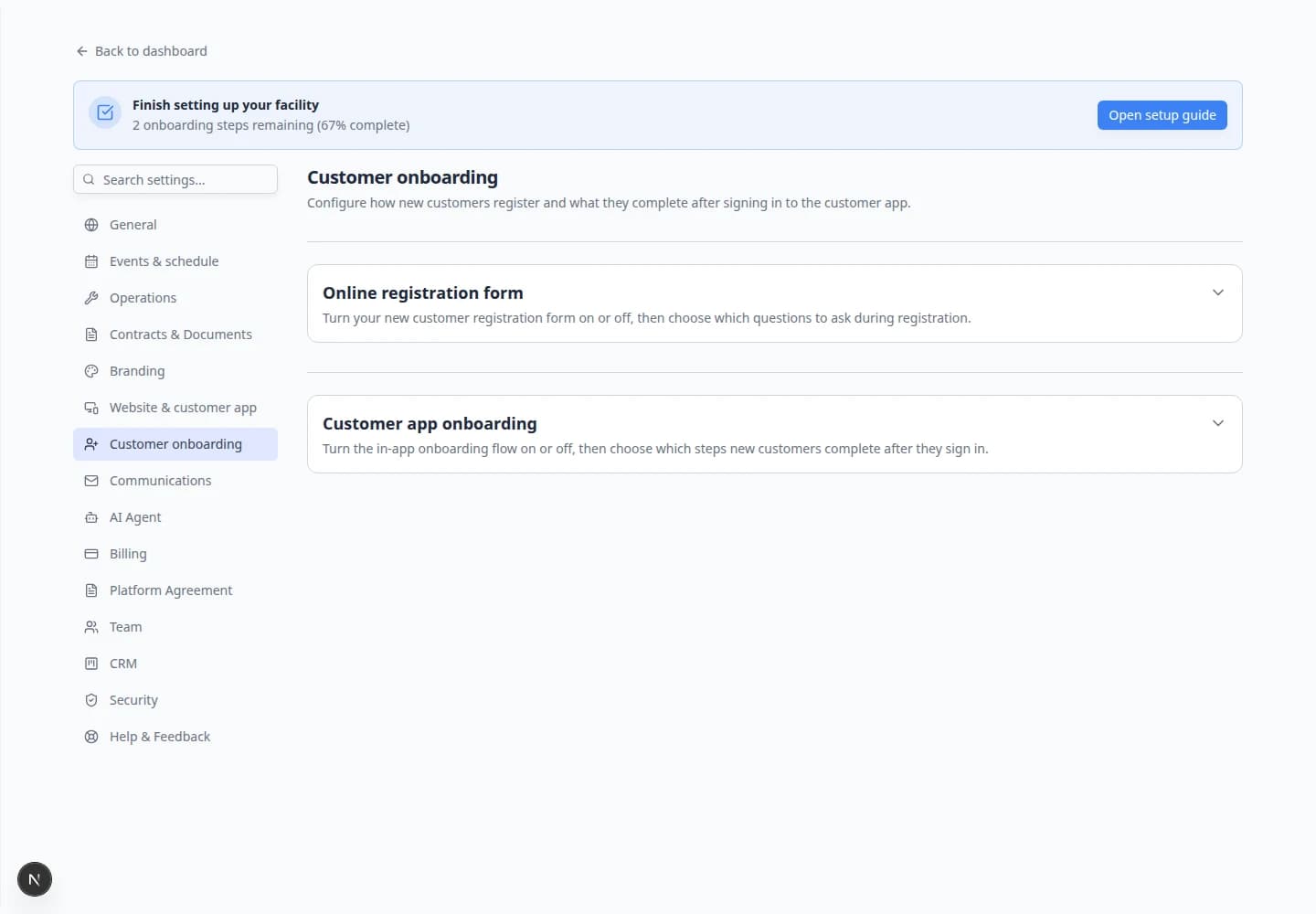
Step 5: Put vehicle steps before vehicle contracts
If the contract uses car fields (year, make, model, VIN, license plate), the customer needs a car on their account before the agreement can fill in correctly.
- Drag Cars above Contract Signing
In Onboarding steps, drag the Cars row above Contract Signing.
Why this matters: Customers who sign before adding a vehicle may see blank vehicle lines on the PDF.
Expected result: Customers add vehicle details before they are asked to sign a vehicle-specific agreement.
Step 6: Configure Document Upload (if needed)
If customers must upload insurance, registration, or other files during onboarding:
- Create document types
Add types in Settings > Contracts & Documents if you have not already.
- Turn on Customer Access
For each type customers should upload themselves, edit the type and turn Customer Access on.
Why this matters: Types without Customer Access are for staff-only uploads—even if the onboarding step is on.
- Enable Document Upload
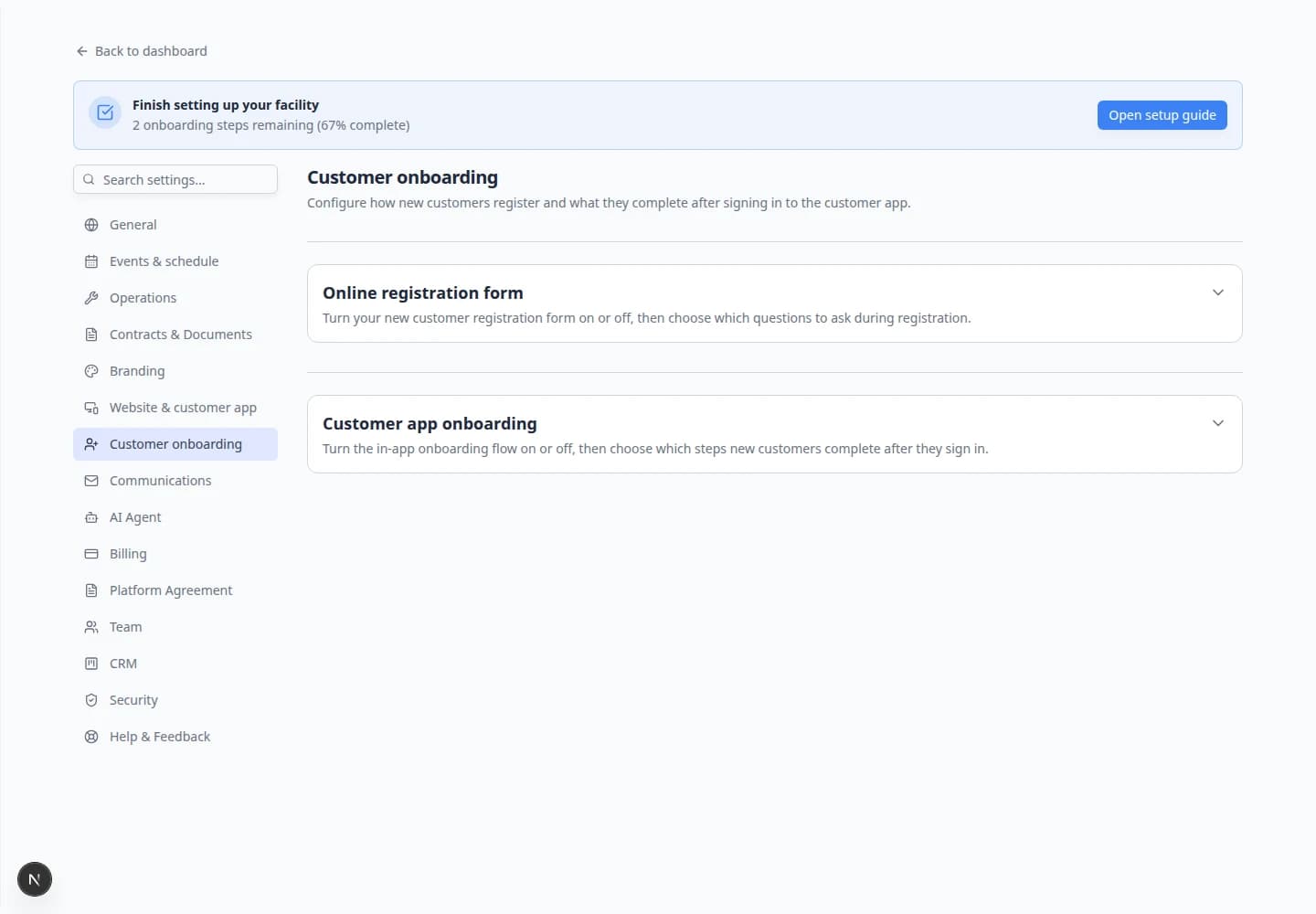
In Onboarding steps, turn Document Upload on and click Configure.
- Choose required types
In Document Upload Step Configuration, turn on each type customers must provide—for example Insurance and Vehicle Registration.
Expected result: Only types with Customer Access appear in this list.
Step 7: Test with a test customer
Before using this with real customers:
- Pick a safe test customer
Use a customer record your team can experiment with—for example a test account from your seed data or a staff member’s personal vehicle.
- Invite them to the portal
Follow your normal invite process from Invite a customer to the portal.
- Walk through onboarding
Sign in as the test customer (or open their portal link) and complete each enabled step: profile, cars, uploads, and contract signing.
- Sign the test contract
Confirm the agreement opens, vehicle details look correct, and signing finishes without errors.
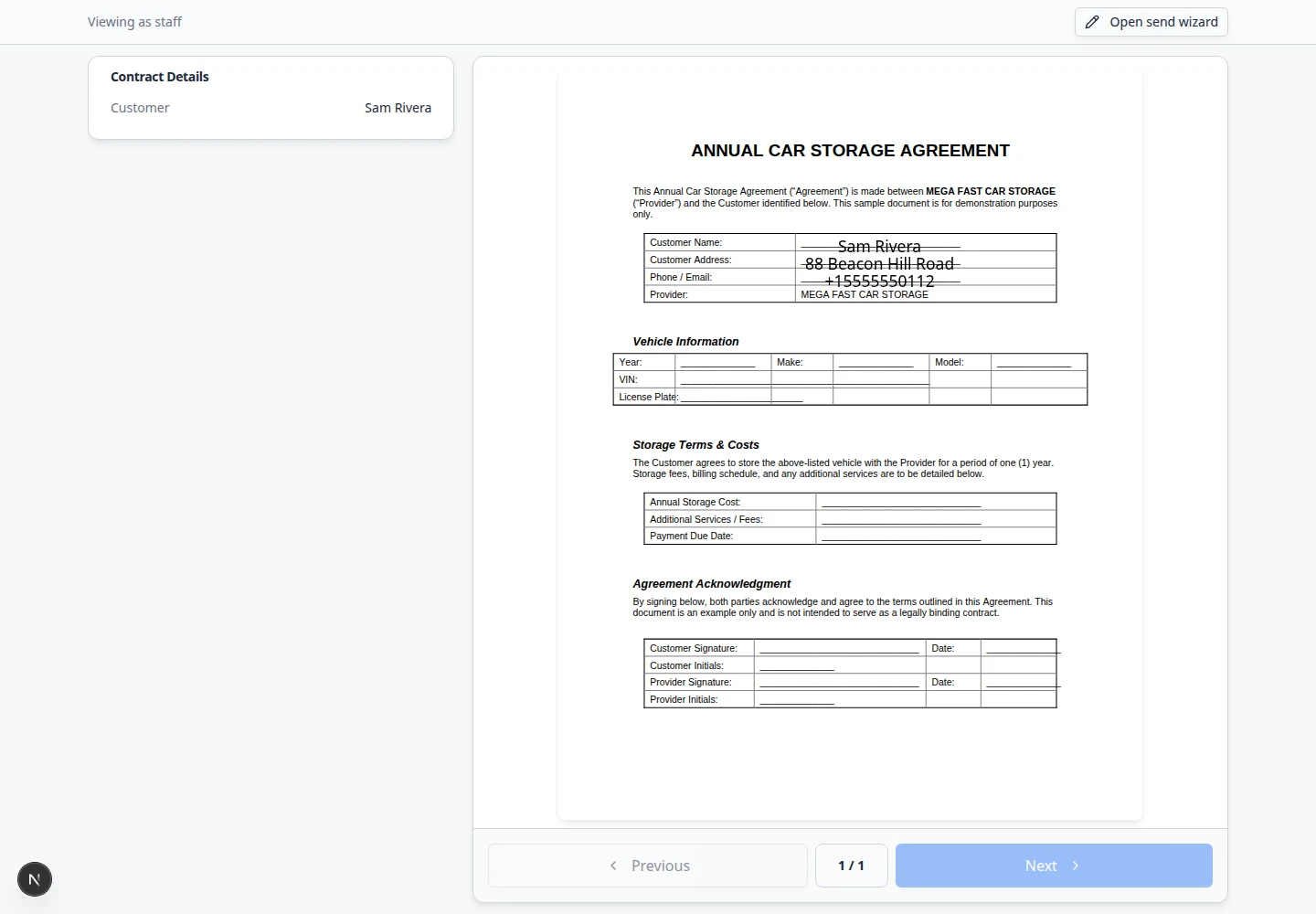
Expected result: The test customer can finish onboarding without staff help.
Step 8: Confirm on the customer record (staff view)
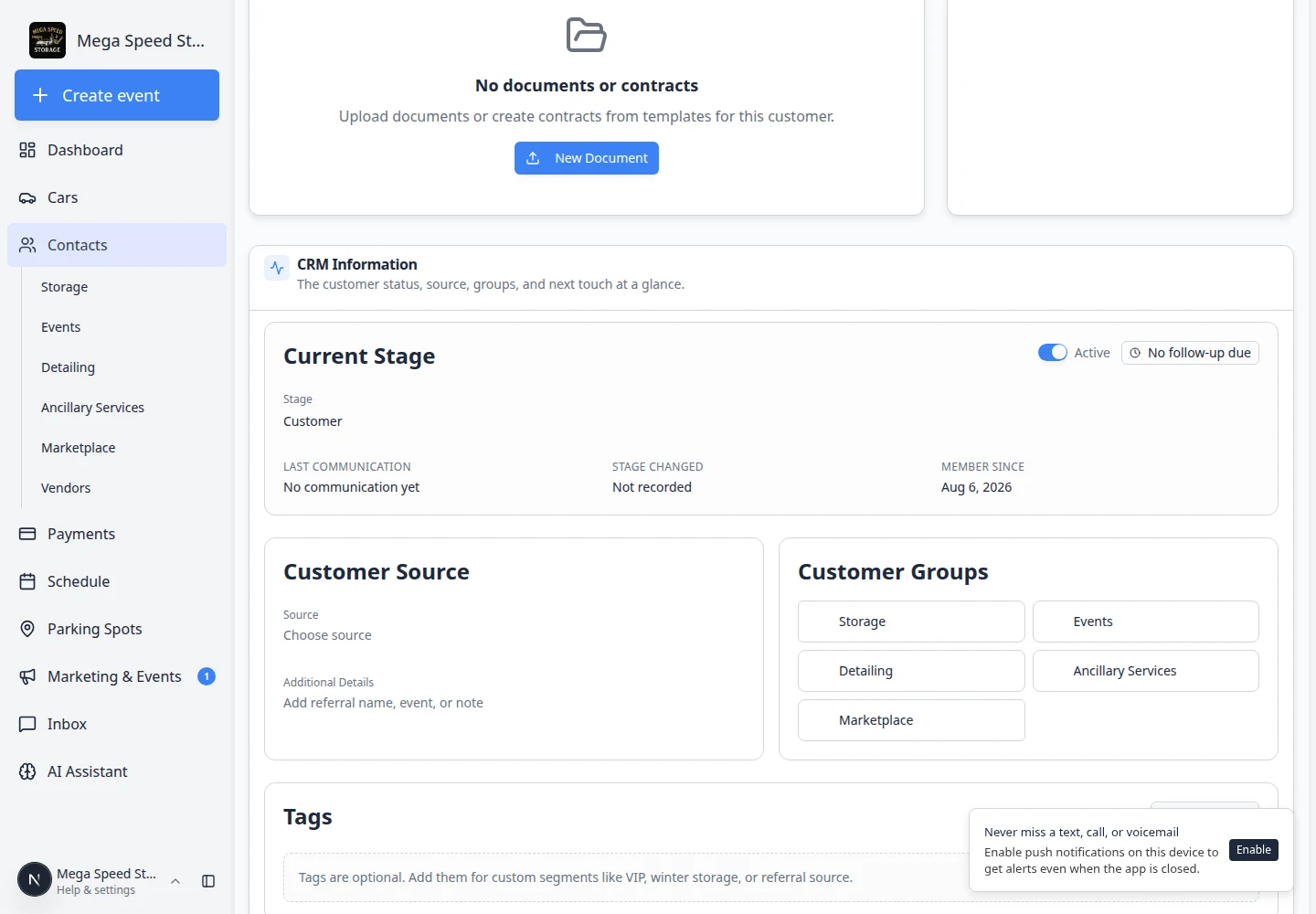
- Open the test customer in Contacts
Go to Contacts and open the test customer.
- Review Documents & Contracts
Scroll to Documents & Contracts and confirm:
- Uploaded files appear with the correct document type.
- Contracts appear with status Signed or Completed after signing.
- The signed PDF can be viewed or downloaded.
What success looks like
- Customer app onboarding is turned on.
- The correct template is selected in Contract Step Configuration.
- Cars comes before Contract Signing when the contract needs vehicle details.
- Required document uploads appear only when Customer Access and Document Upload are configured.
- A test customer completes the full flow without getting stuck.
- Staff can find signed agreements and uploads on the customer record.
Troubleshooting
What to do next
After onboarding is tested:
- Share portal invites or registration links with real customers.
- Train front desk staff with Upload a document for a customer for email attachments that arrive outside onboarding.
- For a single customer outside onboarding, use Send a contract for signature.
- When customers need help during first login, share Help customers complete onboarding paperwork.