Inbox
Start a new Inbox conversation
Begin a text conversation with an existing customer or a new phone number from Inbox.
Use this guide when you need to contact a customer before they have messaged you in Inbox.
Starting from Inbox helps keep the conversation history in one place. The next staff member can see what was sent and continue from the same thread.
What you will accomplish
- Start a new thread with an existing customer or a phone number.
- Confirm you selected the right person before sending.
- Send a first message that explains why you are reaching out.
Before you start
- Make sure text messaging is set up for your team. If it is not ready, review Configure communication settings for Inbox.
- If you are contacting an existing customer, make sure the customer exists in Contacts.
- Use a clear reason for the message, such as confirming a pickup time, asking about a service decision, or replying to a missed call.
- Do not send sensitive billing or personal details to an unsaved phone number unless you are sure who owns the number.
When to start a new conversation vs reply to an existing one
Reply in an existing thread when the customer already appears in your conversation list — even if the last message was days ago.
Start a new conversation when you need to reach a customer who has never messaged your facility line, or when you are texting a phone number that is not saved yet.
Open the new conversation search
- Open Inbox
Go to Inbox.
- Find the plus button beside Search
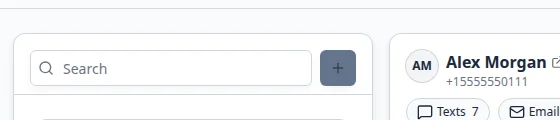
Look at the top of the conversation list on the left. You will see:
- A Search box (placeholder: search by name, email, or phone)
- A small + button immediately to the right of Search
Click +. On some screens the button is labeled New when you hover.
Why this placement matters: The main Search box only finds conversations you already have. The + button is how you start a brand-new thread or text a number that is not saved yet.
- Search for the customer
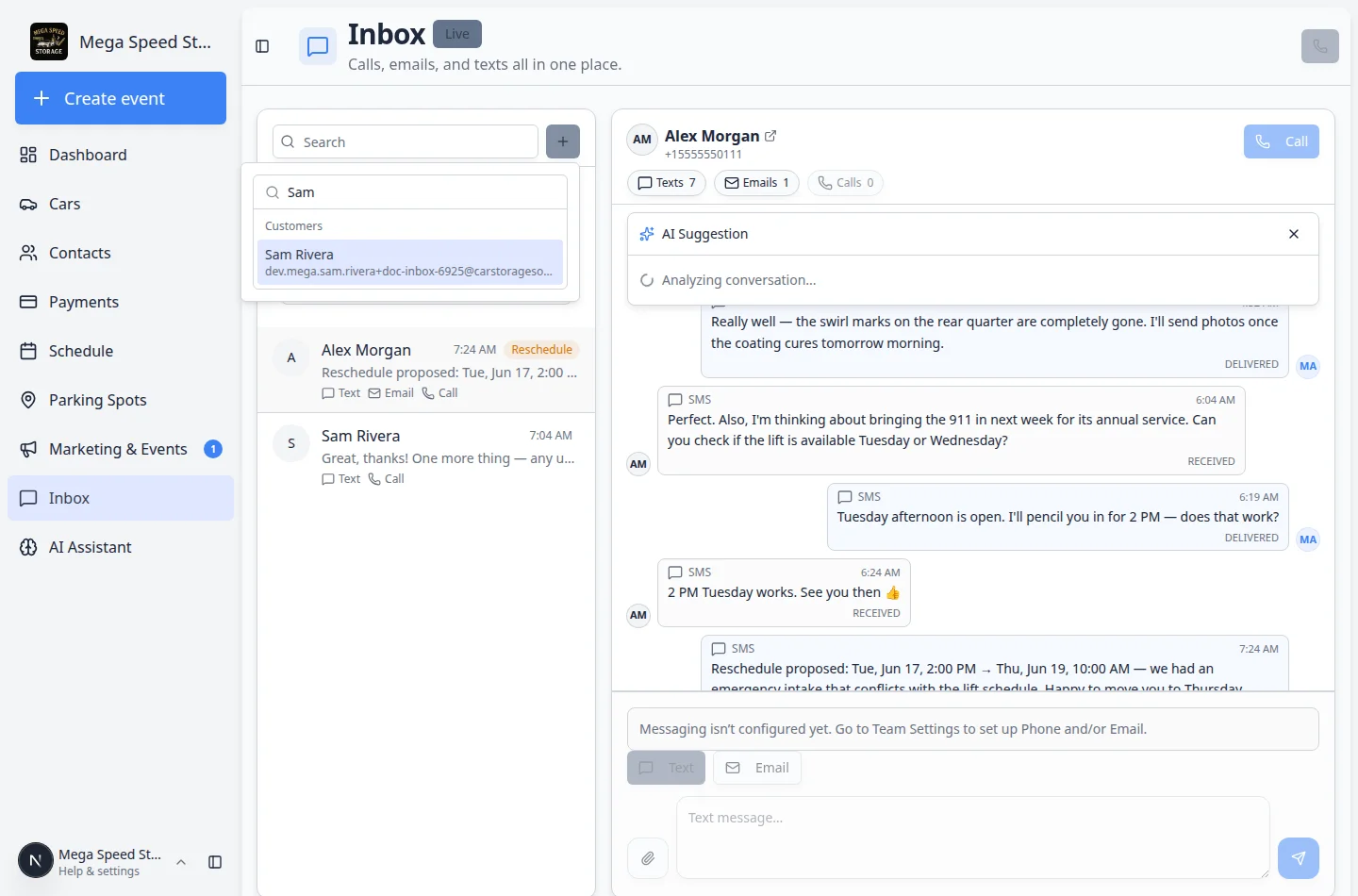
Start typing the customer's name, company, email address, or phone number.
Matching customers appear in the results list. Each row may show the customer's email or phone under their name to help you pick the right person.
You can also search by company name in this panel. The main Inbox Search box on the conversation list does not search company names.
Expected result: You see matching customers, or a New number option when you type a full phone number that is not already on file.
Start a conversation with an existing customer
- Choose the customer
Click the correct customer from the search results.
Check the email, phone, or company shown under the name if more than one person has a similar name.
Expected result: The customer opens in the conversation area on the right. If you clicked the wrong person, click the correct row in the conversation list on the left to switch.
- Review the conversation screen
The customer opens in the conversation area.
If there is past activity, read it before sending a new message.
- Write the first message
Click Text if needed, then use the Text message… field at the bottom of the conversation.
Keep the first message short and clear. Explain why you are reaching out.
- Send the message
Click the send button.
The message appears in the timeline after it is sent.
Expected result: The customer appears in the conversation list with your new message in the timeline.
Text a new phone number
Sometimes you may need to text a number that is not saved as a customer yet—for example when someone calls from a spouse's phone or a new lead texts your facility line.
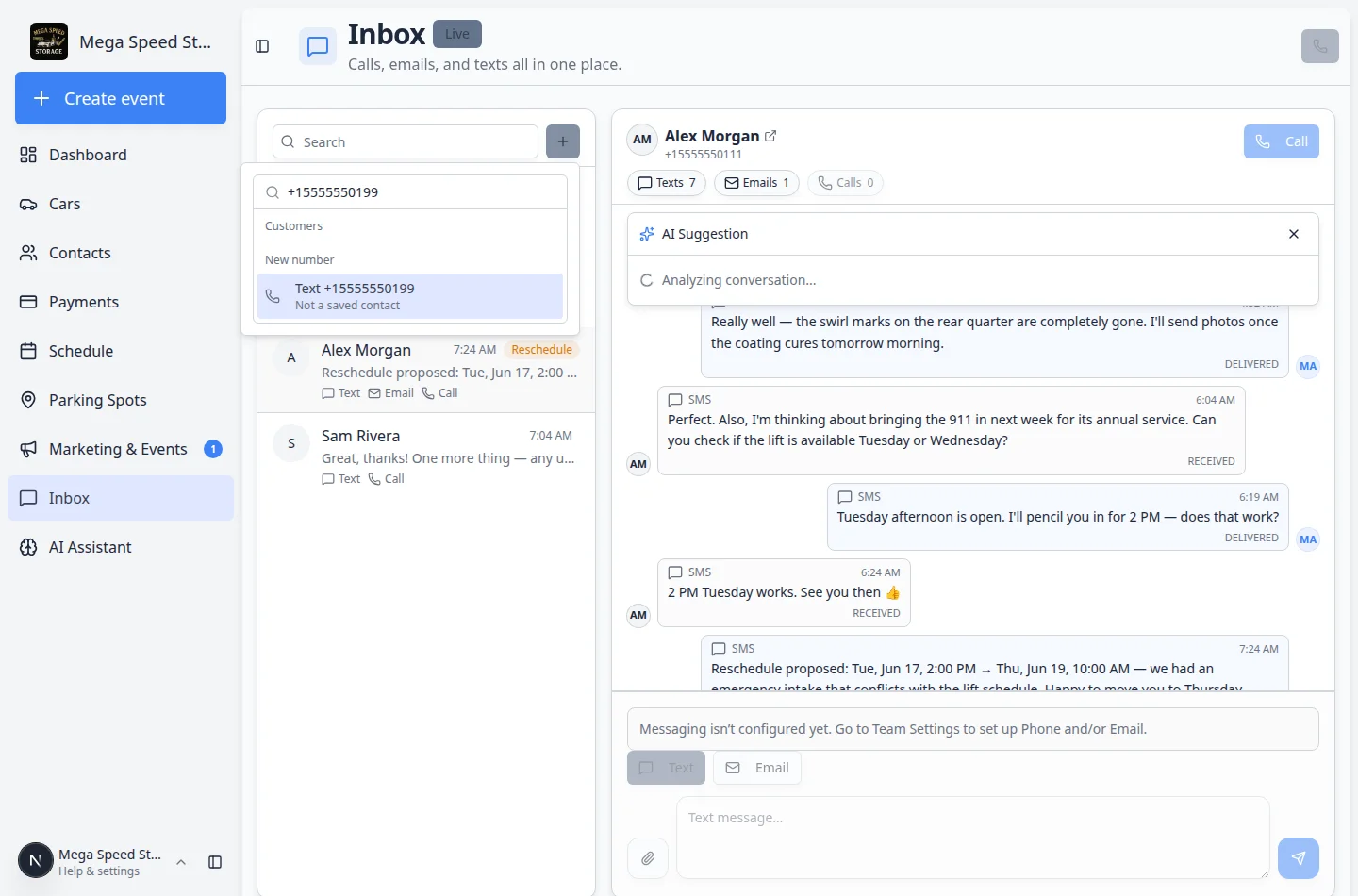
- Type the phone number
Click the + button, then type the full phone number.
Include the area code. If your team works internationally, include the country code too.
- Choose the New number option
If the number is valid and not already listed, Inbox shows a New number section with Text and the full phone number. A note below says Not a saved contact.
Expected result: You see a row such as Text +15555550999 with Not a saved contact underneath.
- Confirm who owns the number
Before sending anything private, make sure you know who owns the number.
If you are not sure, send a simple identity-safe message first, such as: "Hi, this is [Facility Name]. We are following up on your message. Is this the best number to reach you?"
- Send the message
Write your message and click send.
Consider adding the person to Contacts after you confirm who they are.
First message examples
Use these as starting points. Change the names, times, and details to match your facility.
Pickup reminder (text): Hi Alex, your Huracan is staged at the front entrance tomorrow at 10 AM. Reply here if you need a different time.
Missed call follow-up (text): Hi Sam, sorry we missed your call. This is Mega Speed Storage—how can we help today?
Service estimate ready (email subject): Re: Porsche service estimate
Document follow-up (email): Hi Alex, your signed storage agreement is attached to your customer portal. Sign in at [your portal link] when you have a moment.
What success looks like
- The customer or phone number appears in the conversation list.
- The message appears in the timeline after sending.
- Other staff can open the same conversation and see what was sent.
Troubleshooting
What to do next
After you start the conversation, continue with Send a text message from Inbox.
If the customer replies with a longer question, see Respond to a conversation.