Parking Spots
Find parking spots and available spaces
Use map view, table view, search, and columns to find cars, reserved spots, and open spaces quickly.
What you will accomplish
You will find the right spot, car, or open space on Parking Spots using map view, table view, and search—without walking the building first.
When to use this guide
Use this guide when you need to find a car, check whether a spot is open, or review several parking spaces before moving a vehicle.

Read the quick counts on the map
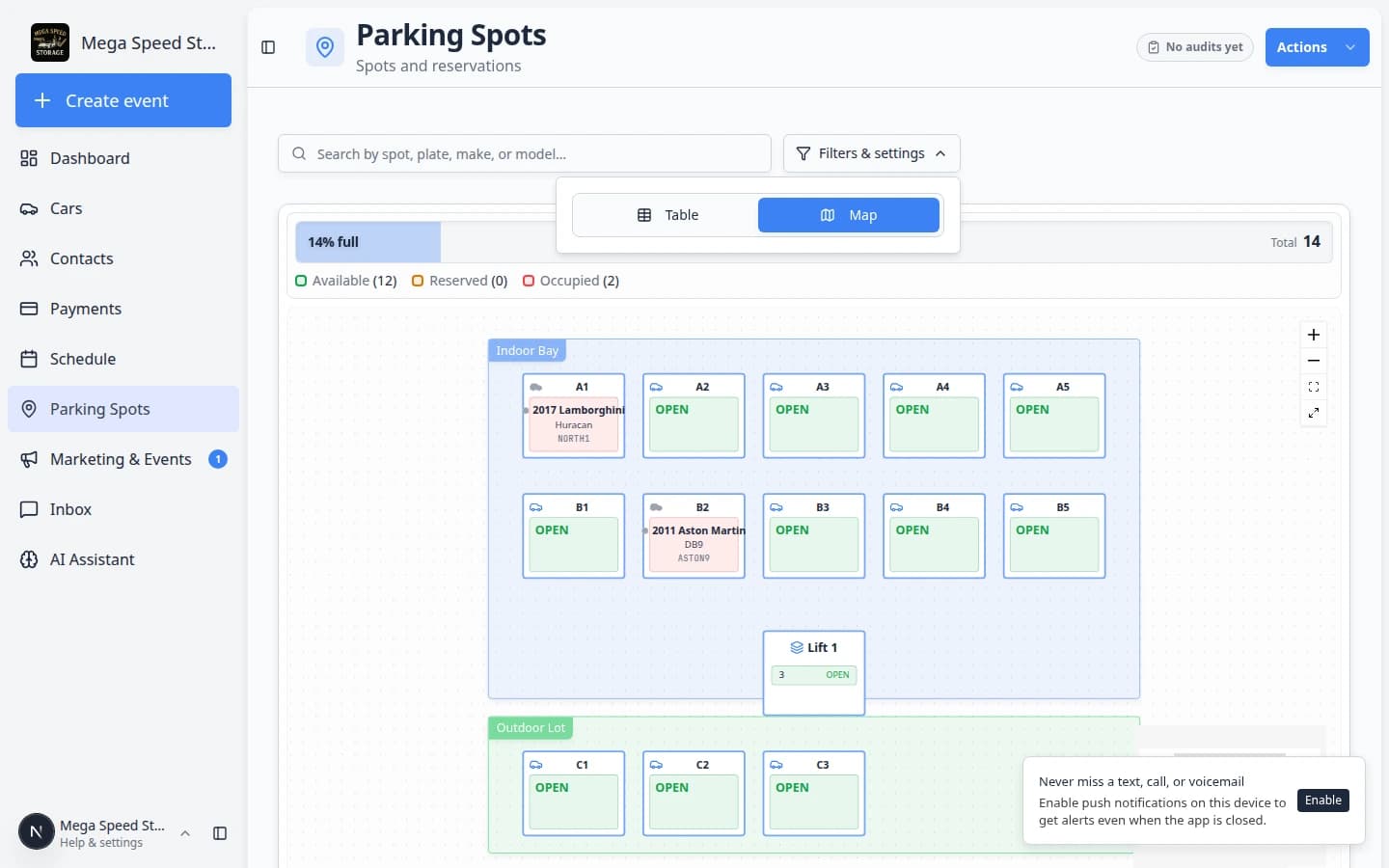
In Map view, use the legend on the parking map. It shows how many spaces are Available, Reserved, and Occupied for the spots on your floor plan.
Before you start
- The parking spots should already be set up in Settings > Floor Plan.
- Know what you are trying to find: a spot name, customer name, car, license plate, VIN, or open space.
- If you are about to move a vehicle, confirm the physical location before saving any changes.
Use Map view when you need a visual answer
Map view is best when your question is about the physical layout.
Use it for questions like:
- "Where is A3 in the building?"
- "Which spot is next to this car?"
- "Is there an open space near the front row?"
- "Which lift level is occupied?"
- "Which cars are in the outdoor zone without a numbered spot?"
Lift spots on the map
Lift spots look like one box on the map but can list more than one level (for example ground and upper). Click the lift spot to see which level is Present, Reserved, or open before you move a car.
Expected result: You know which level to use before you open Move Vehicle or assign a car.
- Open Parking Spots
Go to Parking Spots. The page usually opens in Map view.
- Look for the spot color and label
Each box on the map is a parking spot or lift. The label, such as A1 or LIFT-1, helps you match the app to the real facility.
- Use the search box if the map is busy
Click the search field near the top of the page. Type a spot name, customer name, license plate, VIN, make, or model.
- Press Enter or choose a match
If suggestions appear, click the correct match. If you press Enter, the map jumps to the first matching spot.
- Click a spot only when you are ready to review or change it
Clicking a spot opens the spot details. Use this when you are ready to assign, move, or review the car in that space.
Expected result
You can point to the correct place on the map before moving a car or changing a record.
Use full screen on a busy map
When many spots are on screen, the map can feel crowded on a laptop.
- Open Parking Spots in Map view
Go to Parking Spots and confirm you are in Map view.
- Click Full screen
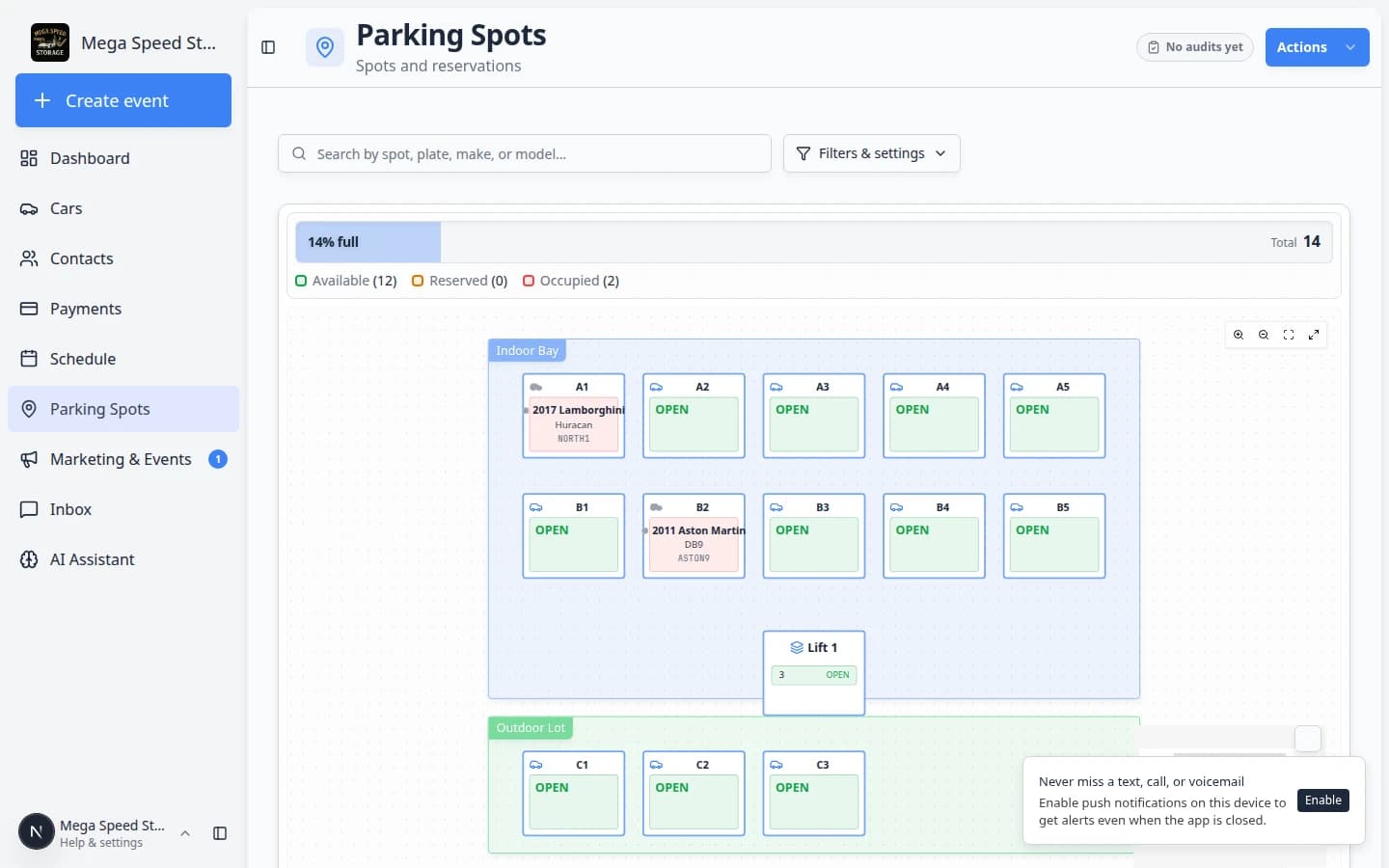
On the map toolbar, click the Full screen button (square arrows icon).
Expected result: The map expands to use more of your screen. Search and spot labels stay available.
- Exit when you are done
Click Exit full screen (same button) or press Escape to return to the normal page layout.
Use Table view when you need to compare spots
Table view is best when you want rows and columns.
Use it for questions like:
- "Which spots are available right now?"
- "Which spaces are reserved for a customer?"
- "Which spots are tagged Front Row or Lift?"
- "Which car is currently parked in this spot?"
- Open Filters & settings
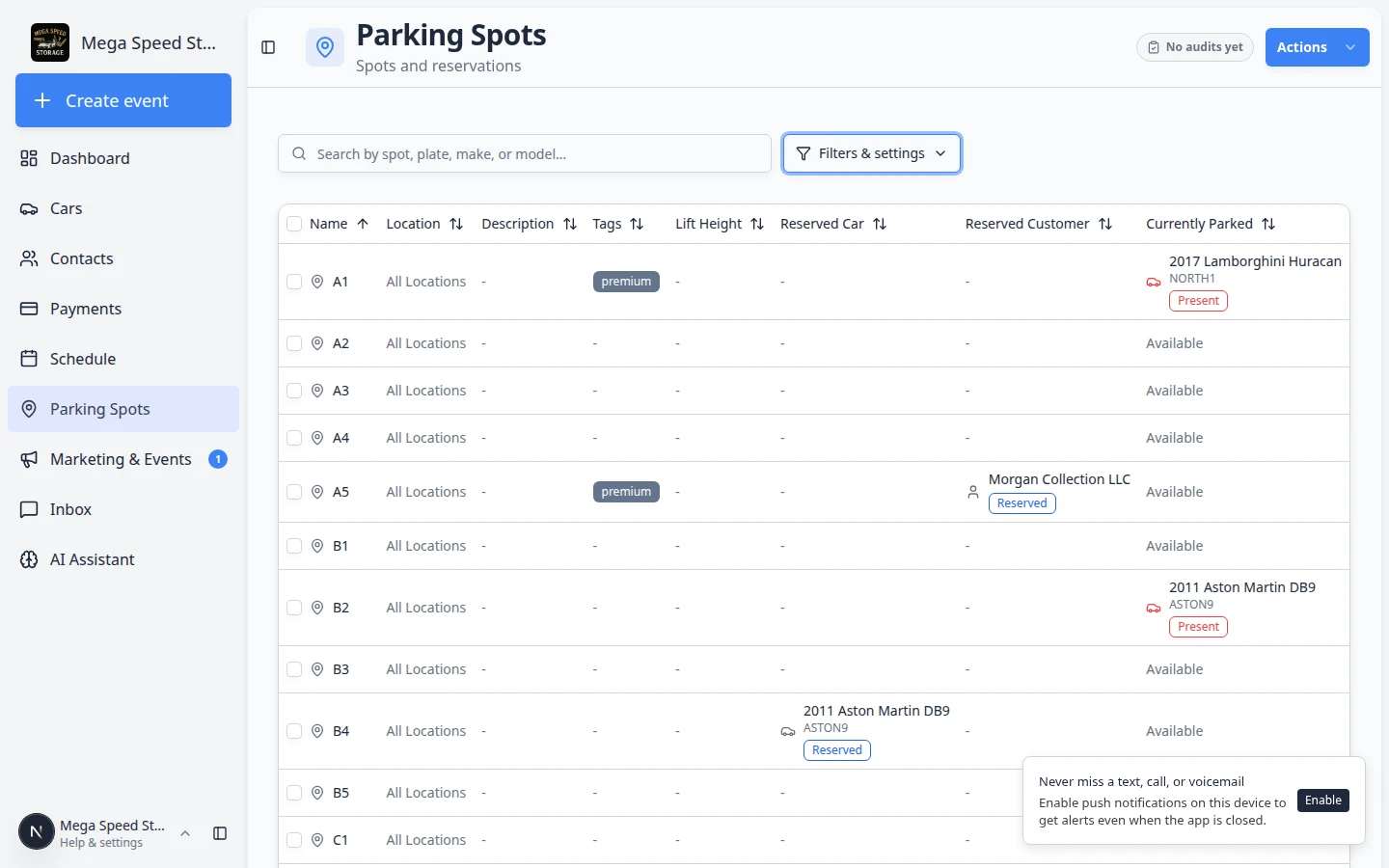
On Parking Spots, click Filters & settings near the top of the page (next to the search bar).
- Choose Table
In the view switcher, click Table. The page changes from the map to a list of parking spots.
- Read the most important columns first
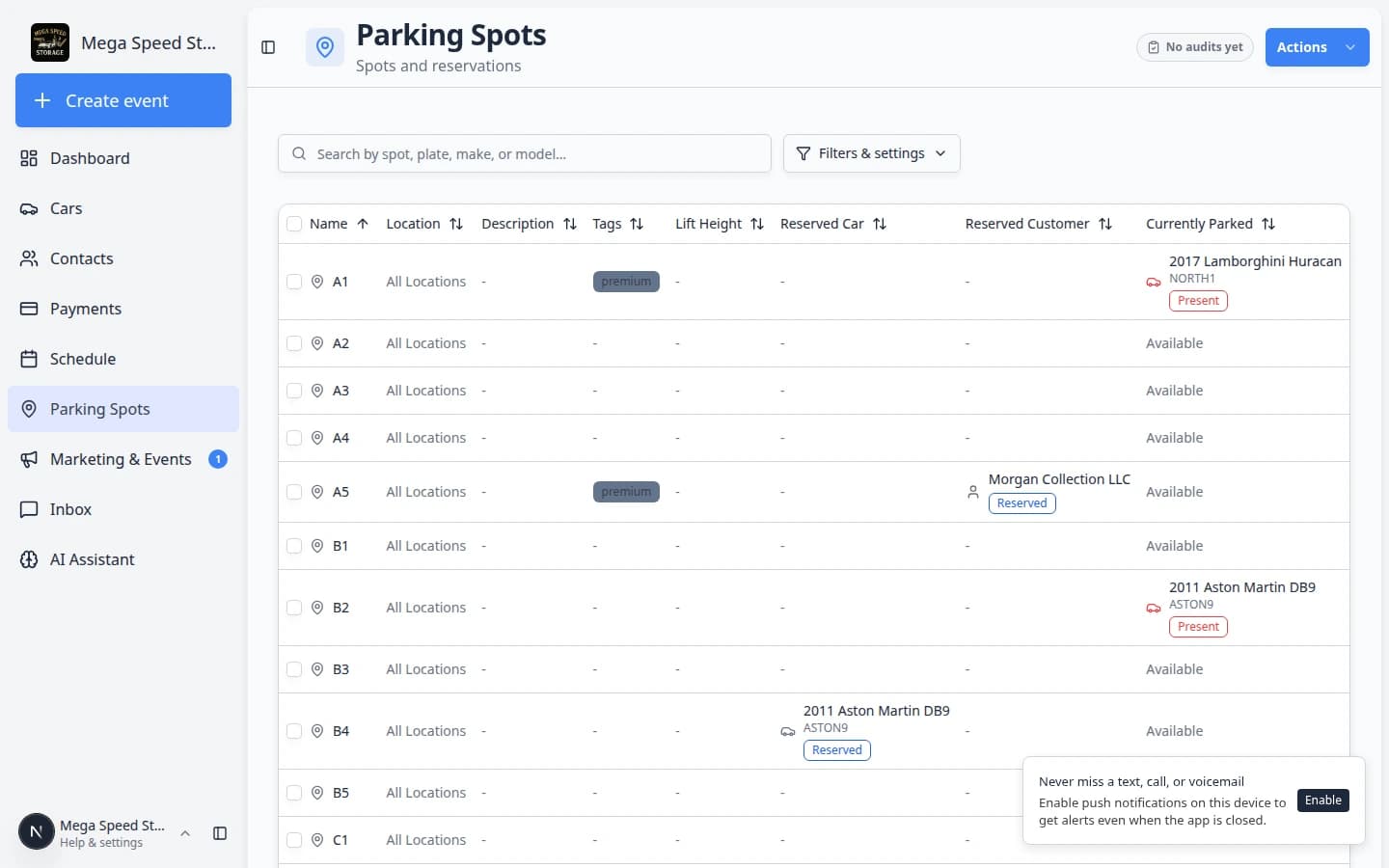
Start with Name, Location, Reserved Car, Reserved Customer, and Currently Parked.
Location shows the zone name (such as Indoor Bay or Outdoor Lot) when the spot belongs to a zone on your floor plan.
Currently Parked tells you whether a car is physically there (Present), only scheduled (Reserved), or open (Available). This is the column to scan when you need an open space.
- Use Status only for active vs inactive spots
The Status column shows Active or Inactive—whether staff should use the spot at all. It does not show whether a car is parked there.
Why this matters: Sorting Status will not group open spots together. Use Currently Parked instead.
- Sort a column if needed
Click a column heading, such as Name or Currently Parked, to change the order of the rows.
- Use Columns if the table has too much information
Open Filters & Settings, then use Columns to show only the fields you need. A shorter table is easier to read.
- Use the row menu for quick actions
On the right side of each row, click the three-dot menu (⋯). From there you can Reserve Spot or Edit Reservation without opening the map.
Expected result: A small menu drops down with actions for that spot only.
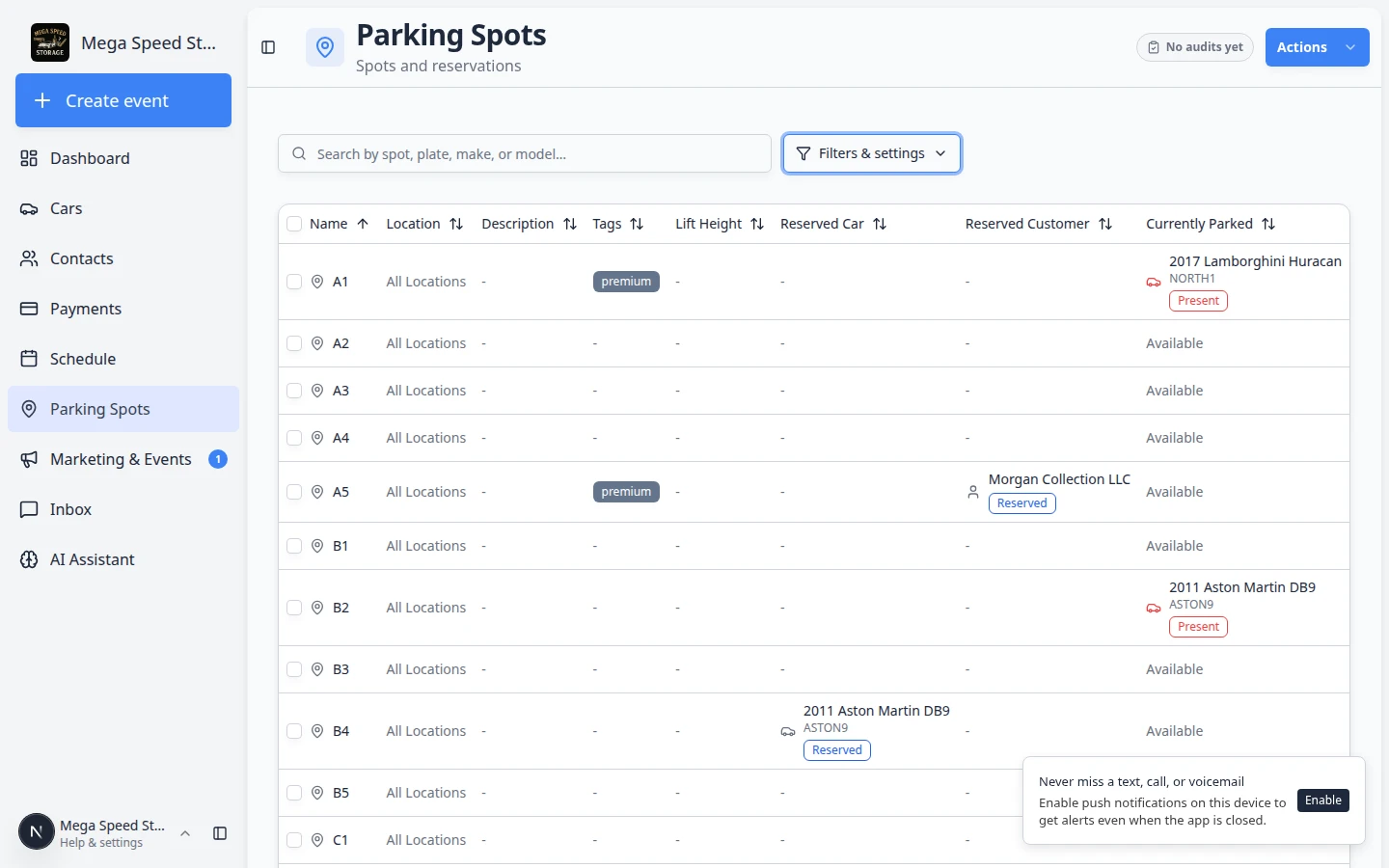
Expected result
You can quickly compare spots without opening each one.
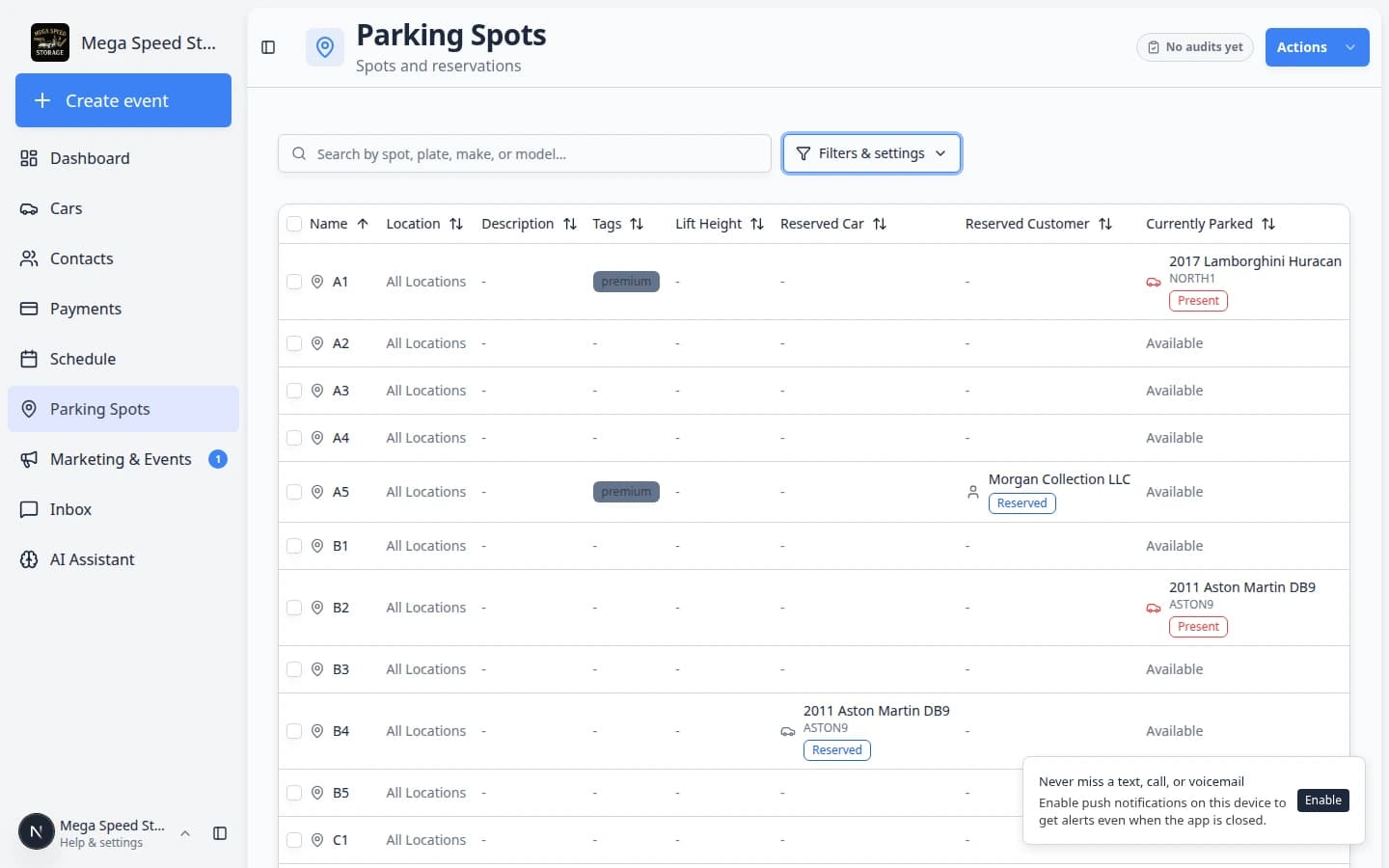
Sort and scan by occupancy or tags
When the facility is full, scanning every row is slow. Use Table view tools to narrow what you see.
- Open Filters & Settings
On Parking Spots, click Filters & Settings near the top of the page, then choose Table.
- Show Currently Parked and Tags
In Filters & Settings, open Columns and turn on Currently Parked, Reserved Car, Reserved Customer, and Tags if they are hidden.
Expected result: Each row shows whether a car is Present, Reserved, or Available in Currently Parked.
- Sort by Currently Parked
Click the Currently Parked column heading to group similar rows. Scan for Available when you need an open spot.
Why this matters: You find open spaces faster than clicking each spot on the map one by one.
- Search by tag words
If your floor plan uses tags such as premium or lift, type those words in the search box.
Why this matters: Customers who pay for climate-controlled or lift storage expect the right row—not the first open spot your team sees.
Search for a car, customer, or spot
The search box at the top of Parking Spots works in both Map and Table view. The placeholder text says:
Search by spot, plate, make, or model…
- Click the search box
Click inside the search field near the top of the page.
Expected result: The cursor is ready for typing. On the map, matching spots may highlight as you type.
- Type what you know
Enter a spot name, plate, make, model, or customer-related text. You do not need the full name—partial matches often work.
- Press Enter or pick a suggestion
Press Enter to jump the map to the first match, or click a suggestion if one appears.
Expected result: The map centers on the spot, or the table shows only matching rows.
- Clear search to see everything again
Delete the text in the search box, or open filters & settings and use Clear filters when search is active.
Expected result: All spots return to the map or table.
You can search for:
- A spot name, such as A1 or Lift 1.
- A customer name, such as Sam Rivera.
- A car make or model, such as Porsche or DB9.
- A license plate.
- A tag, such as premium or lift (when your floor plan uses tags).
Understand the column labels
The map legend and the Currently Parked column use the same short words:
Available — no car is physically in that spot, and no scheduled assignment is showing in Currently Parked.
Present — a car is physically parked there now. The map legend may say Occupied instead; it means the same thing.
Reserved — the spot is held or scheduled for a customer or car, but the vehicle may not be physically there yet. Check Reserved Car and Reserved Customer for who holds the space.
Active (in the Status column only) — staff can use this spot for normal parking.
Inactive (in the Status column only) — the spot is blocked or out of service. Do not park cars here until an admin marks it active again in Settings > Floor Plan.
Common mistakes to avoid
- Do not treat Reserved as the same thing as Present. Reserved means planned. Present means physically there.
- Do not move a car record just because a row looks available. Confirm the real spot before saving.
- Do not hide columns you need for the task. If you are checking reservations, keep Reserved Car and Reserved Customer visible.
- Do not rely on memory when the facility is busy. Search the page and confirm the spot first.
Troubleshooting
What to do next
After you find the right spot:
- Use Assign a parking spot if the car is physically moving there now.
- Use Work with zones on the map if the car is in a flexible area without an exact spot number.
- Use Reserve a parking spot if you need to hold the space for a car or customer.
- Use Review the parking report if you need history for a date range.