Schedule
Create an appointment
Add a customer appointment, vehicle task, or facility event to the Schedule calendar.
Use this guide when you need to place new work on the Schedule page. This may be a customer visit, service task, pickup, delivery, staff task, or a Calendar Block when the shop should not accept bookings.
When you save the event, your whole team sees it on the calendar, in Table and Whiteboard views, and in Progress when they track status.
What you will accomplish
- Open the Create New Event form from Schedule.
- Choose the right Event type, customer or vehicle, date, and time.
- Assign a team member and add notes when the handoff matters.
- Save the event so it appears on the calendar for your whole team.
When to create an event from Schedule
- A customer calls to book a drop-off, pickup, detail, or service visit.
- Your team needs to block time for a meeting, holiday, or bay maintenance (Calendar Block).
- Work is starting right now and you want the calendar to show the correct time without picking a future slot.
- The same visit should repeat weekly or monthly — turn on Recurring Event or follow Create recurring appointments.
Before you start
- Know what kind of event you are adding, such as Vehicle Drop Off, Dealer Service, Vehicle Pick Up, or Calendar Block.
- If the event is for a customer or vehicle, make sure the customer or car already exists in the app.
- Know the date, preferred start time, and how long the event should take.
- If the work belongs to a specific staff member or outside vendor, know who should be assigned.
- If your team uses customer notifications, confirm the time before saving so the customer receives the correct information.
Phone bookings: a simple front-desk script
When a customer calls to book, use this order so nothing is missed:
- Confirm who and what
Ask for the customer name, vehicle (year, make, model), and what they need (drop-off, detail, pickup, service).
- Open Schedule and click Schedule Event
Go to Schedule and click Schedule Event. Search for the vehicle or customer before you pick a time.
Why this matters: Booking under the wrong car is one of the most common front-desk mistakes—and it is easy to prevent with a quick search.
- Pick the right event type and time
Match the visit to the correct Event type, choose a highlighted time slot, and add notes the floor team will need (entrance, keys, special requests).
- Assign someone when you know who owns it
If a technician or vendor is already lined up, set Assigned to now. Otherwise leave it Unassigned and let the morning stand-up assign owners.
Expected result: The customer hears a confirmed time, and your team sees the visit on the calendar without a separate sticky note.
Create the event
- Open Schedule
Go to Schedule from the dashboard sidebar.
Expected result: You see the schedule header with Schedule Event, Full screen, and Filters & Settings. Events appear as colored blocks, cards, or table rows depending on your last view.
- Click Schedule Event
Click Schedule Event near the top-right of the page.
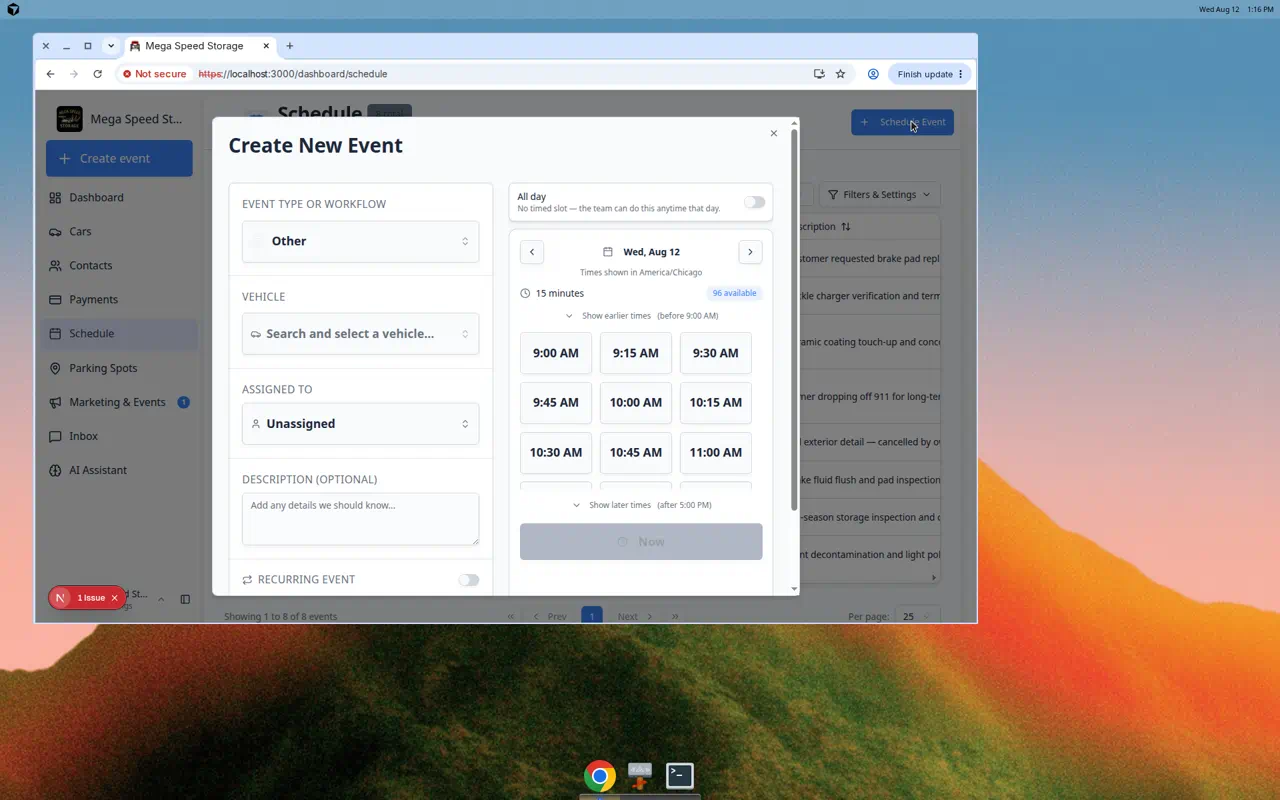
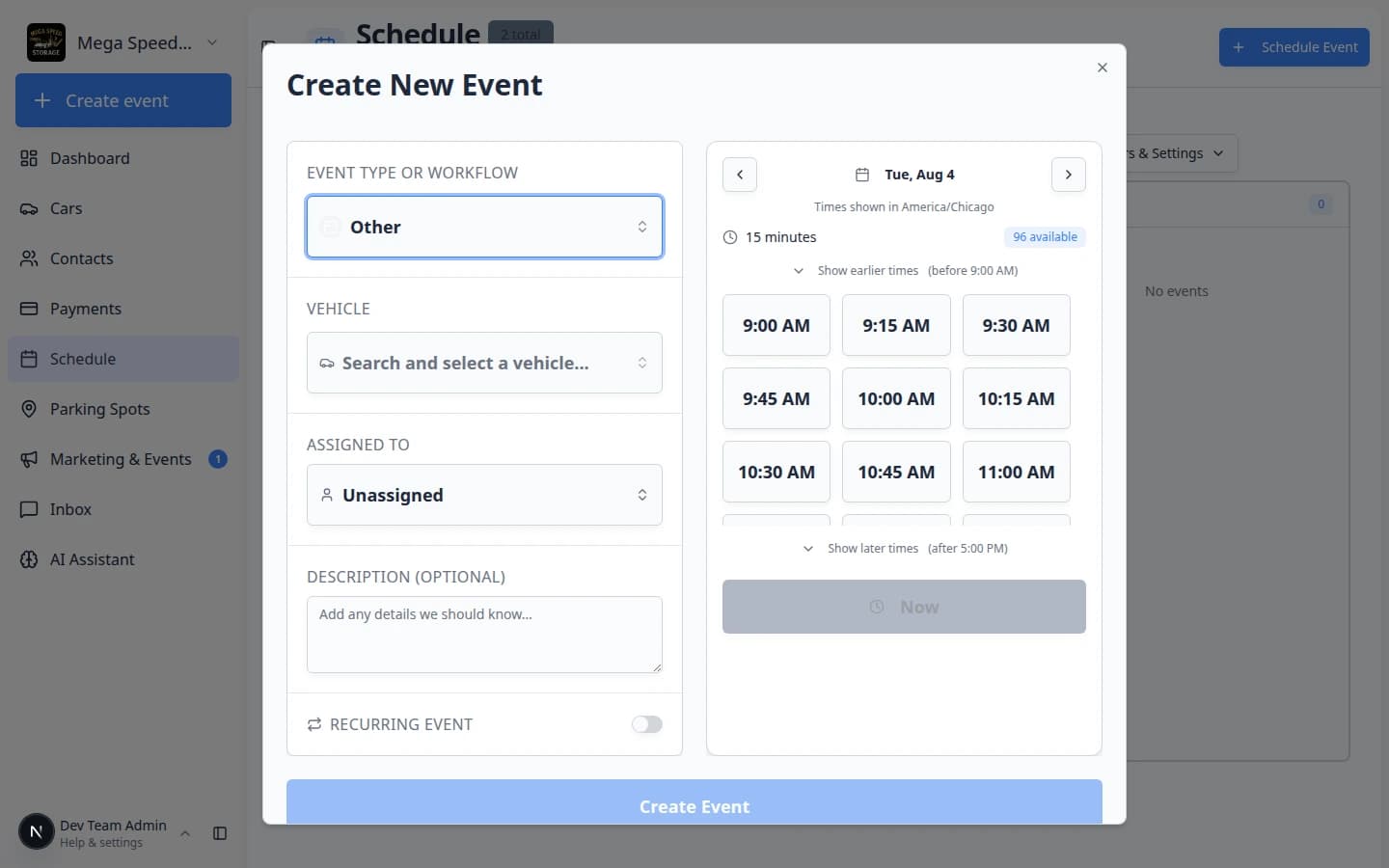
Expected result: A window titled Create New Event opens. You will see Event type, customer or vehicle fields, Assigned to (if your role allows it), Description, date and time choices, and Recurring Event at the bottom.
- Choose the Event type
Select the event type that best matches the work. The dropdown shows all event types your team has set up.
Examples:
- Use Vehicle Drop Off when a customer is bringing in a car for storage.
- Use Dealer Service when the car is going to or returning from outside service.
- Use Detail & Wash for cleaning or detailing work.
- Use Battery Maintenance for routine battery checks.
- Use Calendar Block when your facility should not accept bookings during a time period.
Choosing the right event type matters because it controls which fields the app asks for, how the event appears on the calendar (each type has its own color), and whether customers receive notifications.
- Select the vehicle or customer
If the event type is about a vehicle, search for and select the correct car. Start typing the make, model, or owner name and the app will show matching vehicles.
If the event type is about a customer but not a specific car, search for and select the customer.
Facility-only events (like Calendar Block) do not need a customer or vehicle.
- Choose an option if one appears
Some event types have options, such as a standard appointment length or service package. If an Option field appears, choose the option that matches the work.
If no option appears, your team may have only one default setup for that event type, and it is already selected.
- Assign the event if you know the owner
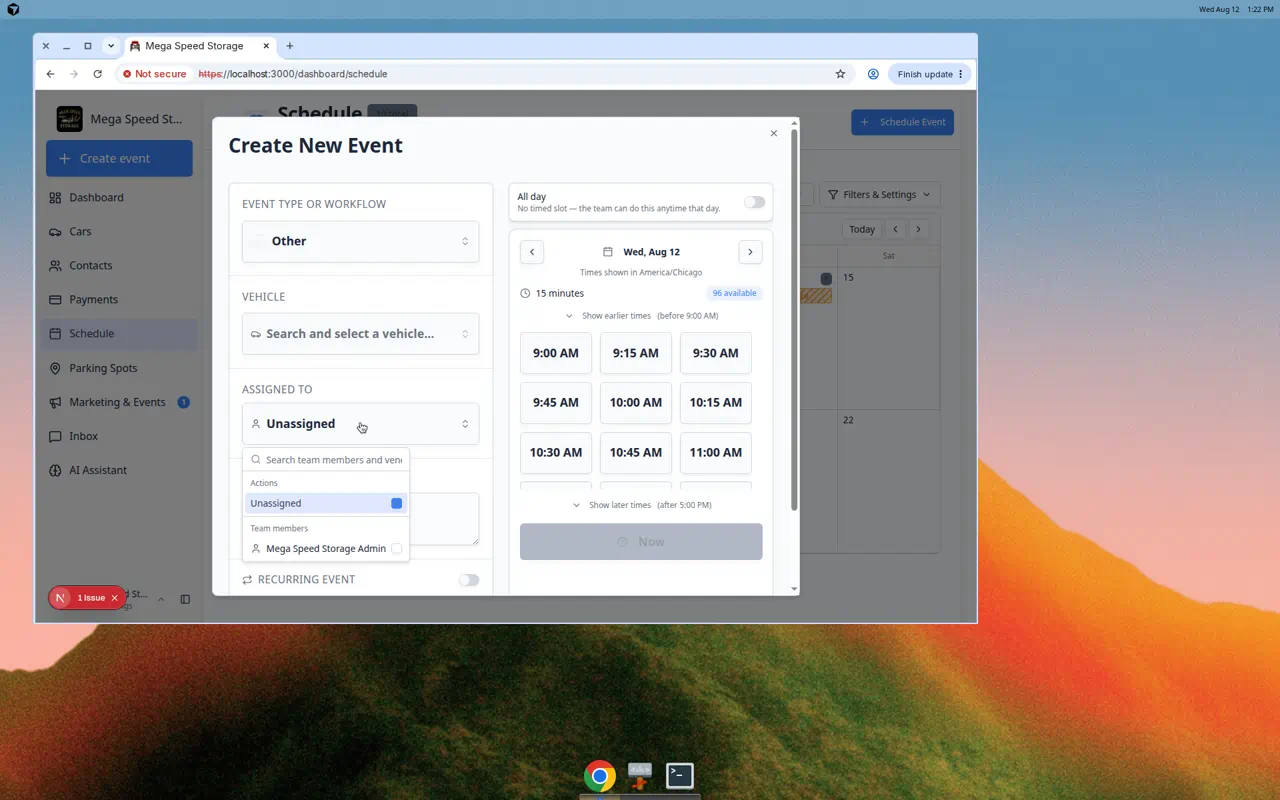
If you are an admin and the Assigned to field appears, choose the team member and/or vendor responsible for the event.
You can leave it Unassigned if the team will decide later. Assigning someone helps them find their work using the "Assigned to me" filter.
Tip: The picker lists Team members and Vendors in one searchable menu. See Assign team members and vendors to events for screenshots and vendor setup steps.
- Pick the date and time
On the right side of the form, use Choose Your Date to pick a day. Available times appear under Available Times for that date.
Click a highlighted time slot that works for the customer and your bays.
Expected result: The slot you picked is selected. The form shows the time in your facility time zone.
Why this matters: Available slots follow your event type rules (hours, buffers, and closed days). Picking a highlighted slot is the safest choice for customer notifications.
- Add a clear description
In the Description field, add notes that will help the next person understand the event.
Good notes are short and specific. Example: "Customer will drop off the Porsche at the front entrance. Please confirm battery tender setup."
- Click Create Event
Review the event type, customer or vehicle, date, time, and notes. Then click Create Event at the bottom of the form.
Expected result: The window closes. The event appears on Schedule at the date and time you chose. Other views (Table, Whiteboard, Progress) show the same event after you switch to them.
Use Now for work that is starting immediately
- Choose the event details first
Open Schedule Event, select the Event type, and choose the vehicle or customer if the event needs one.
- Click Now below the time slots
Below the available times, click Now.
Expected result: The form sets the appointment to the current time so you do not have to hunt for a slot when the car is already on the lot.
- Add notes and click Create Event
Add a short Description if the next person needs context, then click Create Event.
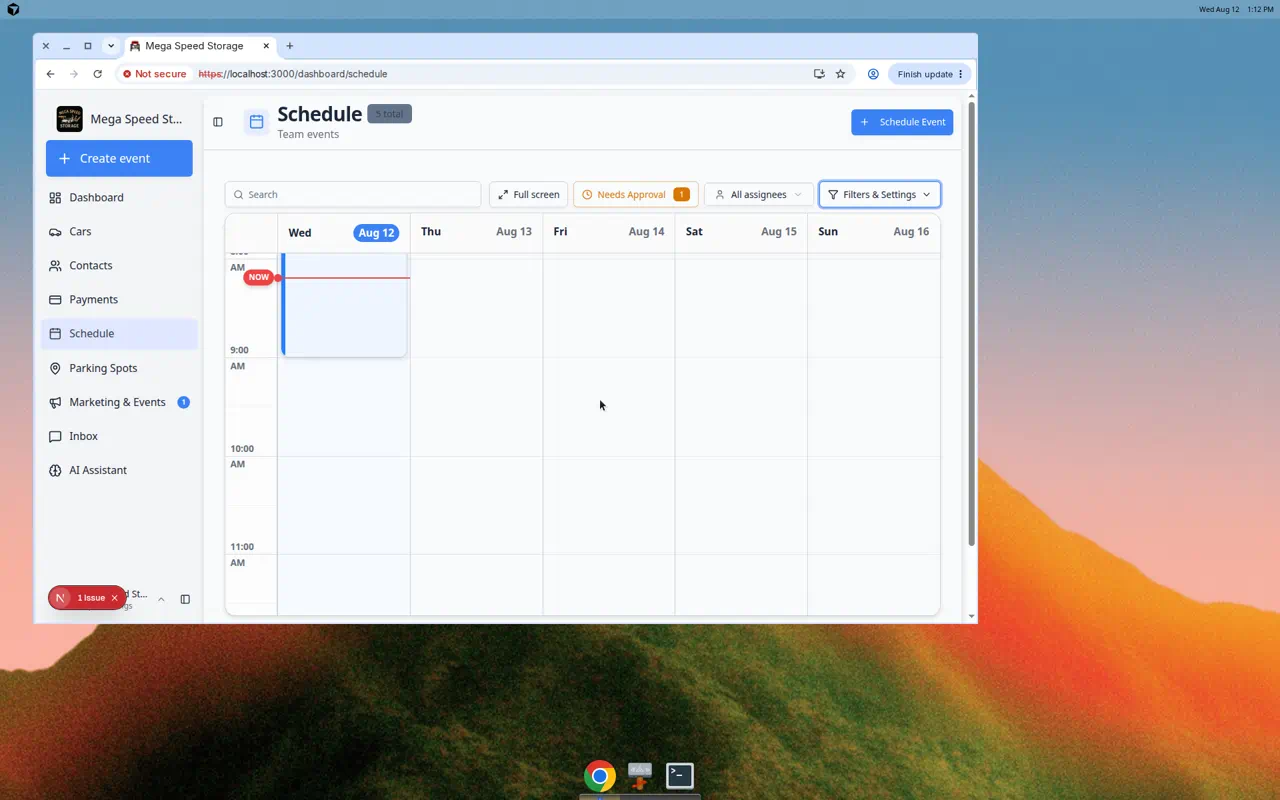
Expected result: The event appears on today’s calendar at the current time.
What success looks like
After you save the event:
- The event appears on the Schedule page as a colored block at the correct date and time.
- The event shows the correct event type name and color.
- The vehicle or customer name is visible on the event block when the event needs one.
- The assigned staff member or vendor can see the event when they use the Assigned to me filter (staff) or when your team shares the schedule with partners.
- Any notes are visible when someone clicks on the event to open its details.
Common mistakes to avoid
Troubleshooting
Create repeating work on the same form
If this visit should happen every week or month, turn on Recurring Event at the bottom of the form and set the repeat pattern.
For full step-by-step help, follow Create recurring appointments.
Create an event from Month view
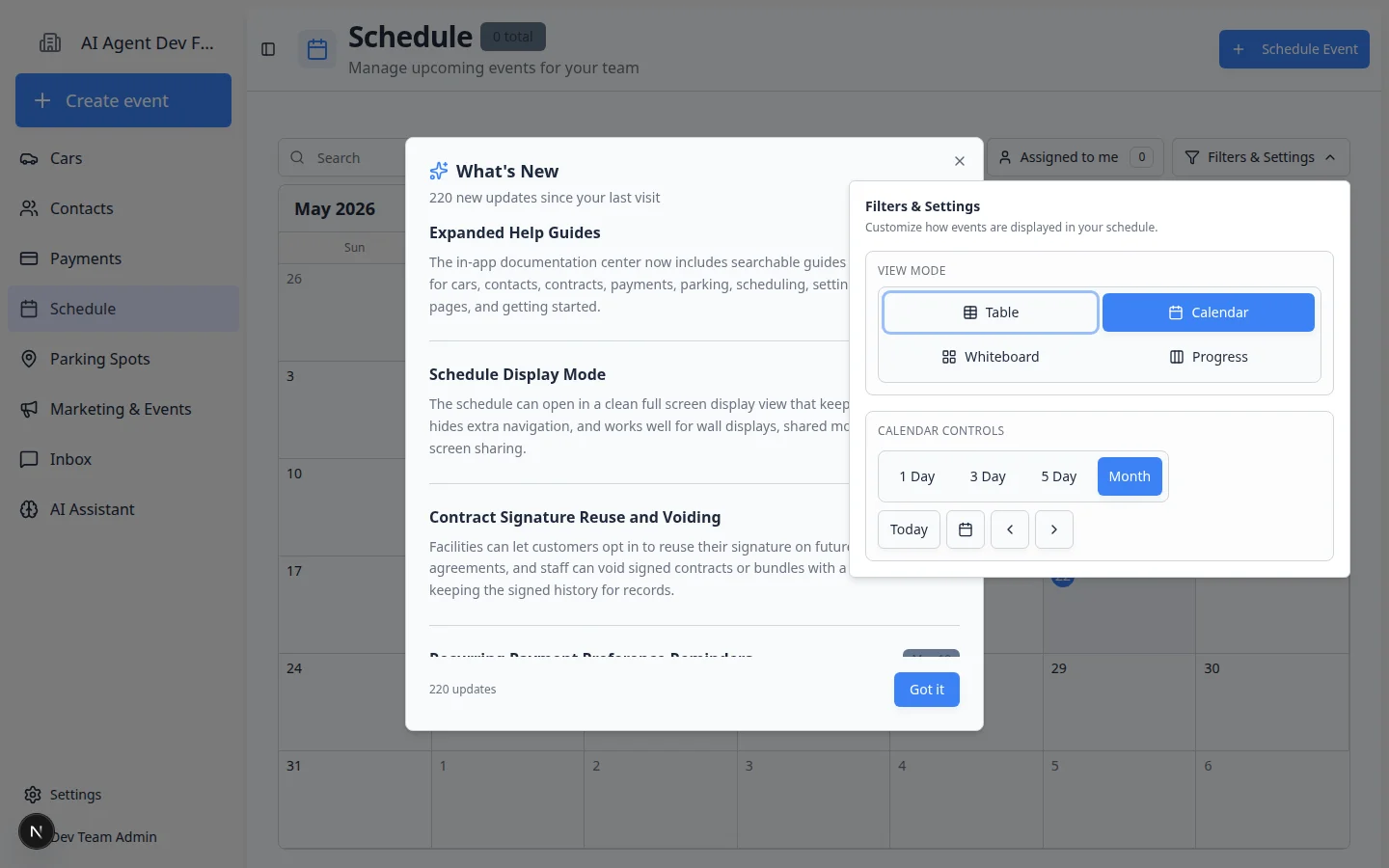
- Switch to Month view
Click Filters & Settings, choose Calendar under View Mode, then click Month.
Expected result: You see a month grid with colored dots or blocks on busy days.
- Click the day you want
Click the date on the month grid.
Expected result: A list opens showing how many events are on that day. You can read what is already booked before adding more work.
- Click Create Event on This Day
If the day has no events yet, click Create Event on This Day.
Expected result: The Create New Event form opens with that date already selected on the right side.
If the time you want is not available
Sometimes the time picker shows Unavailable, Fully booked, or No Time Slots because of booking rules, buffers, closed days, or another event already using the bay.
- Try another time or day first
Pick a highlighted slot that the app offers. This is the safest choice for customer notifications and avoids double-booking.
- Read the warning if you must override
If your role allows it, you may see a yellow alert titled This time isn’t available with the message that the time is outside available slots or conflicts with another booking.
- Click Continue anyway only with approval
Click Continue anyway only when a manager has agreed to book outside normal rules. Otherwise click Cancel and pick a different slot or day.
Expected result: The form lets you save at the time you chose. Your team should expect possible conflicts and customer messages tied to that time.
What to do next
If plans change after the event is created, use Update, assign, or reschedule an event. If the event is no longer happening, use Cancel or delete a scheduled event. To see work as cards instead of a time grid, open Use the Whiteboard view on Schedule. For a wall display, see Use full-screen schedule display.