Inbox
Inbox overview
Learn how the Inbox helps your team manage customer texts, emails, calls, and follow-up in one place.
The Inbox is where your team reads customer messages, replies by text or email, reviews call history, and keeps each conversation connected to the right customer.
Use this section when a customer asks a question, sends a photo, replies to an email, calls your facility, or needs a follow-up from your team.
When your Inbox is used well, staff do not have to search through separate phones, email accounts, and notes to understand what happened.
What you will accomplish
- Understand what Inbox is for and when to use it.
- Know how the conversation list and timeline work together.
- Pick the right guide for texting, emailing, calling, or setup.
- Spot unread conversations from Overview when your dashboard includes an Inbox panel.
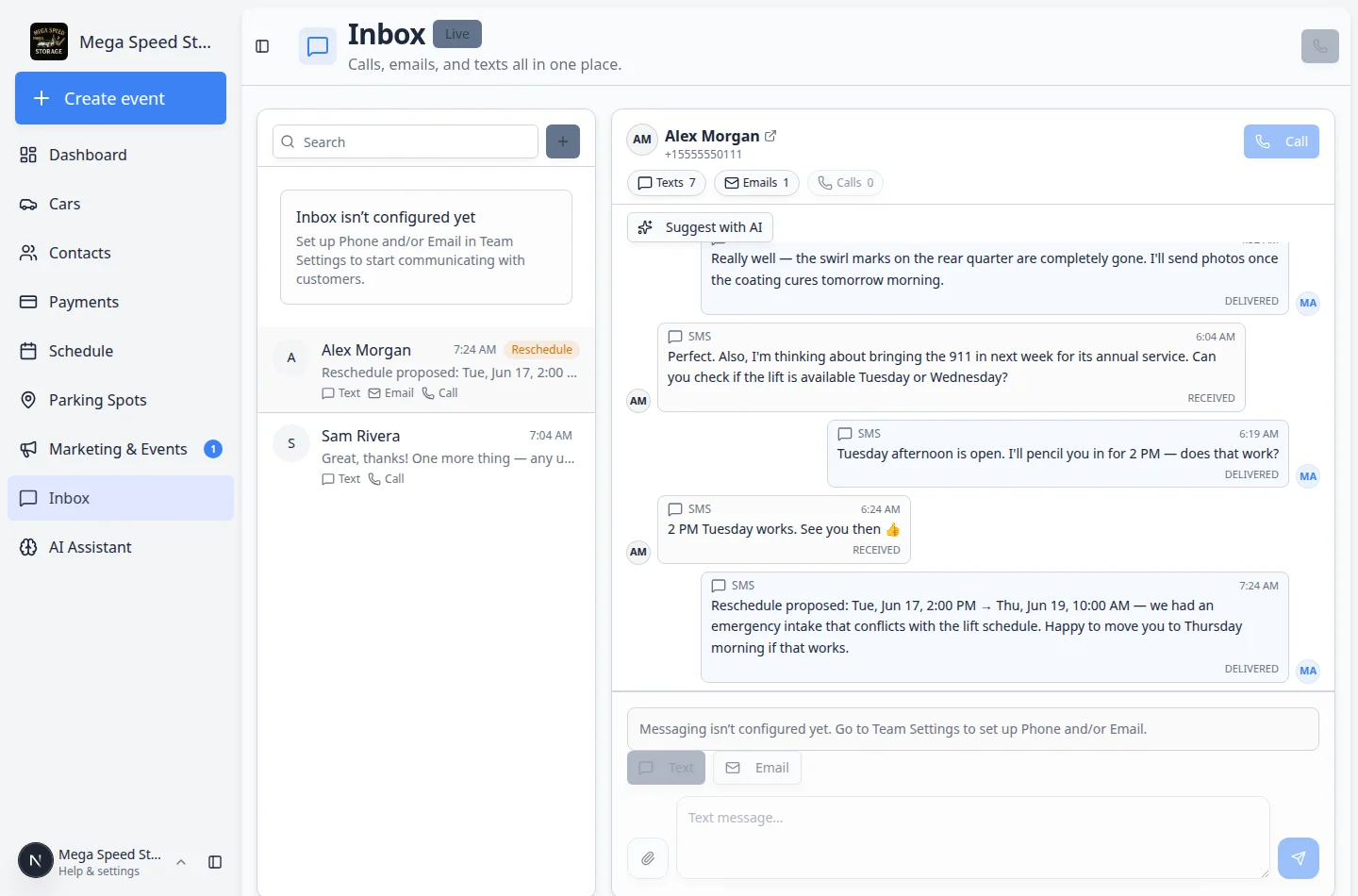

What you can do from Inbox
- Start a new conversation with an existing customer or a new phone number.
- Reply by Text when the message should be short and fast.
- Reply by Email when the answer needs a subject line, more detail, or a formal record.
- Use Call or Quick call when the customer needs a live conversation.
- Review the timeline filters Texts, Emails, and Calls when you want to focus on one type of activity.
- Use Suggest with AI to draft a possible reply when you want a starting point.
- Mark a conversation unread when someone still needs to follow up.
- Watch for the Live badge and teammate presence notes when more than one person uses Inbox.
- Spot Reschedule badges when a customer asks to move an appointment.
Start with the right guide
- If you want a quick glance from Overview
Use Use Inbox from your Overview dashboard when your Overview layout includes an Inbox panel and you only need to see unread threads before jumping into the full page.
- If Inbox is not set up yet
Start with Configure communication settings for Inbox. Text, email, and call buttons depend on this setup.
- If you need to begin a customer thread
- If a customer already messaged you
Use Respond to a conversation to review the timeline, choose the best channel, and reply carefully.
- If you are sending a short update
- If you are sending a longer or more formal message
- If you need call history, recordings, or transcripts
- Use AI-suggested replies in Inbox
Use Use AI-suggested replies in Inbox when you want help drafting a reply from the current conversation history.
Why this helps: The assistant reads recent texts and emails in the thread and suggests wording—you still review and edit before anything sends.
- If more than one person answers customers from Inbox
- If a customer calls and you need to answer from the dashboard
- If you see a Reschedule badge on a conversation
Open Inbox from anywhere in the dashboard
You do not have to click Inbox in the sidebar every time.
- Sidebar: Click Inbox for the full-page view with the conversation list and timeline.
- Overview dashboard: If your facility added an Inbox widget to Overview, unread conversations appear there with links into each thread. See Use Inbox from your Overview dashboard.
- Customer record: From Contacts, open a customer and use message shortcuts when your team needs to reach them from their profile.
How the Inbox is organized
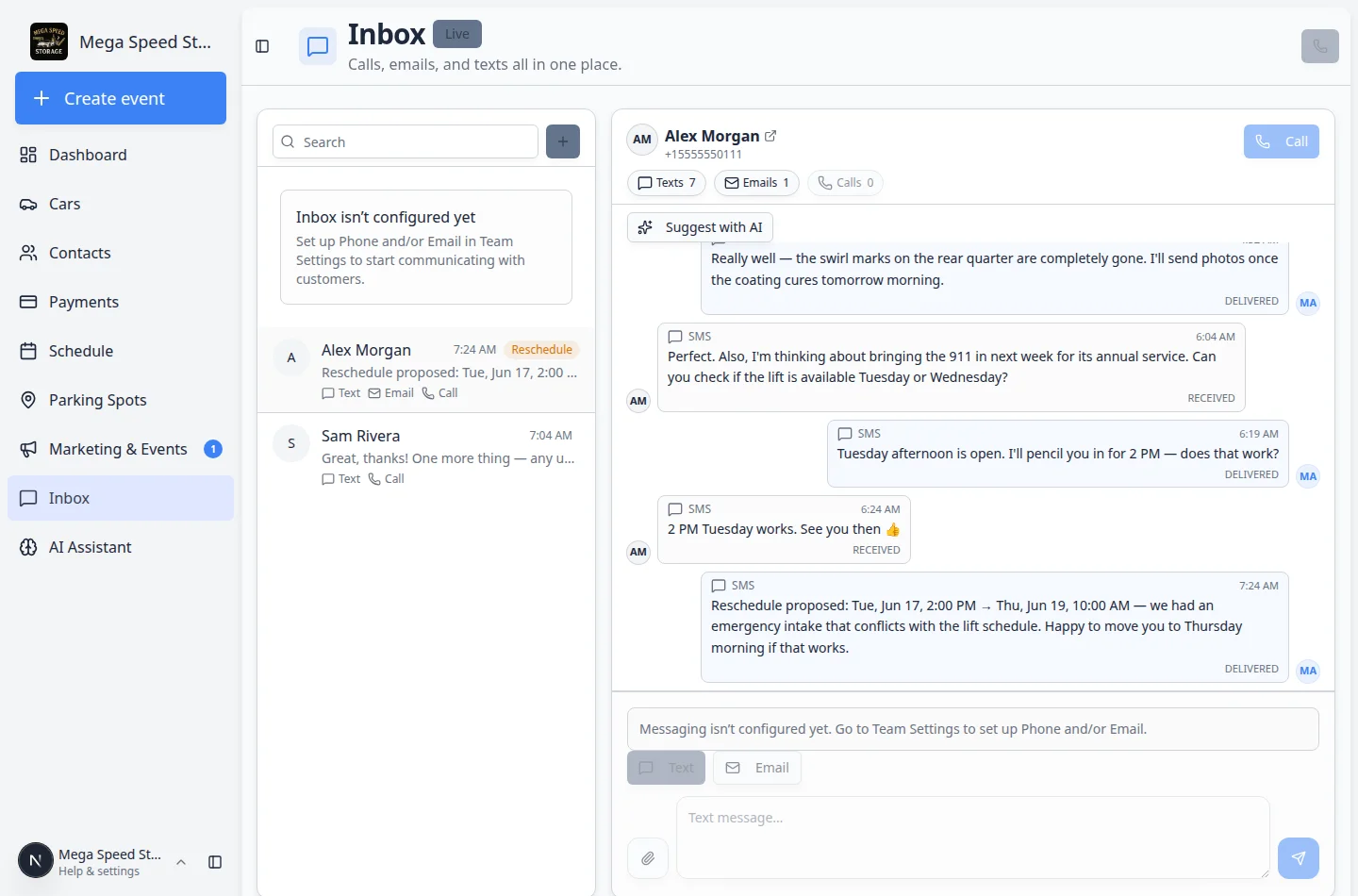
The Inbox has two main areas.
- The conversation list is on the left. It shows each customer or phone number, the most recent activity, and channel labels such as Text, Email, or Call.
- The conversation timeline is on the right. It shows the selected customer's messages and calls in time order.
- The reply area is at the bottom of the conversation. This is where you choose Text or Email and write your reply.
- The Call button is near the top of the selected conversation when the customer has a usable phone number.
- The Search field and + button are above the conversation list. Use Search to find an existing thread. Use + (labeled New when you hover) to start a new conversation.
Choose the right channel
Text is best for short, time-sensitive updates such as pickup times, quick confirmations, and simple questions.
Email is best when you need a subject line, several details, or a message the customer may want to find later.
Call is best when the topic is easier to explain live than by text or email.
What unread counts mean
Unread conversations are ones your team may still need to review.
In the conversation list on the left, you may notice:
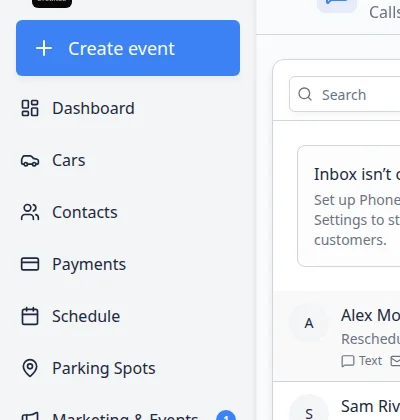
- A blue dot on the customer's circle when the conversation has unread activity.
- Bold text on the customer name when something new arrived.
- Small numbers on channel labels such as Text or Email when only that channel has unread messages.
- An orange Reschedule badge when the latest preview starts with Reschedule proposed: (see Respond to reschedule requests in Inbox).
The screenshot below shows examples of unread conversations in the list (bold names and blue dots).
Open the conversation and read the latest message before replying or marking it handled.
Settings that must be ready
Inbox behavior depends on your communication settings.
- Text messages need phone and SMS setup.
- Emails need email sending setup.
- Calling needs phone setup.
- Staff notifications depend on your team's notification preferences.
If a button is unavailable or a message does not send, ask an admin to review Configure communication settings for Inbox and Settings > Communications.
Helpful habits for your team
- Read the latest messages before you reply.
- Confirm the customer name and phone or email at the top of the conversation.
- Coordinate with teammates so two people do not send conflicting answers.
- Open the related car, invoice, or appointment record when the customer asks about specific work.
Quick links by job
| I need to… | Open this page | Step-by-step guide |
|---|---|---|
| Glance at unread from Overview | Overview → Inbox panel | Use Inbox from your Overview dashboard |
| Set up texting, email, or calls | Settings > Communications | Configure communication settings for Inbox |
| Text a customer first | Inbox → + | Start a new Inbox conversation |
| Answer a message that already arrived | Inbox | Respond to a conversation |
| Send a short update | Open the customer → Text | Send a text message from Inbox |
| Send a longer written answer | Open the customer → Email or Reply on an email | Send an email from Inbox |
| Review a phone call | Open the customer → Calls filter | Review calls and transcripts |
| Answer the phone from the dashboard | Any dashboard page when a call rings | Handle incoming phone calls |
| Move an appointment after a customer texts | Inbox then Schedule | Respond to reschedule requests in Inbox |
Your first hour in Inbox
Use this short path when a teammate is brand new to customer messages. You can finish it in one sitting.
- Open Inbox and find the Live badge
Go to Inbox. Look for Live next to the page title.
Why this matters: Live means new customer texts and emails can appear while the page is open—you do not need to refresh.
- Click one customer in the list on the left
Click a row in the conversation list, such as Alex Morgan.
Expected result: The right side shows that customer's full timeline—texts, emails, and calls together in time order.
- Practice the timeline filters
Near the top of the timeline, click Texts, Emails, or Calls.
Each pill shows a count (for example Texts 7). Click the same pill again to return to the full timeline.
See Respond to a conversation for details.
- Read before you reply
Scroll to the latest message. Confirm the customer name and phone or email at the top of the conversation.
Why this matters: A quick read prevents duplicate answers and wrong-customer replies.
- Send one practice message (optional)
If your facility has finished phone or email setup, follow Send a text message from Inbox with an internal test customer first.
If Text and Email are gray, an admin must finish Configure communication settings for Inbox before you message real customers.
Recommended path for your first week
- Day 1 — Finish communication setup
An admin should complete Configure communication settings for Inbox so Text, Email, and Call are available.
Expected result: Staff open Inbox and see active channel buttons—not a message that Inbox is not configured yet.
- Day 2 — Learn the layout
Open Inbox, click a customer, and practice reading the timeline with Texts, Emails, and Calls filters.
Expected result: Each teammate can find the conversation list, timeline, and reply area without help.
- Day 3 — Practice replying
Follow Respond to a conversation with a test customer or an internal teammate before messaging real customers.
Expected result: At least one practice outbound text or email appears in the timeline with the correct channel.
- Before busy days
Share Coordinate with your team in Inbox so two people do not send different answers to the same customer.
Expected result: Your team agrees on handoffs (Mark unread) and pauses when someone else is typing.
Important words in plain English
Conversation means one customer's message thread (texts, emails, and calls together).
Timeline means the right side of the screen where messages appear in time order.
Channel means how you communicate: Text, Email, or Call.
Live means new customer activity can appear on the page without refreshing.
Unread means someone on your team has not finished reviewing the latest message.
Reschedule badge means the newest preview starts with Reschedule proposed: — usually an appointment time change.
Common mistakes to avoid
- Do not reply before you confirm the customer name and phone or email at the top of the conversation.
- Do not send two different answers to the same customer — pause when you see a teammate typing in the same thread.
- Do not use the main Search box to find a company name — use the + button search panel instead (see Start a new Inbox conversation).
- Do not assume Text or Email will work if buttons are gray — finish setup in Configure communication settings for Inbox first.
- Do not change Schedule without confirming the new time in Inbox — and do not confirm in Inbox without updating the calendar when the customer asked to move an appointment.
What success looks like
When Inbox is working well for your facility:
- Customers receive replies on the channel they used (text, email, or call follow-up).
- Every conversation stays on the correct customer record in Contacts.
- Staff can see who sent each outbound message and what still needs a reply.
- Reschedule requests are caught early thanks to Reschedule badges in the conversation list.
See unread messages from your Overview dashboard
You do not have to open Inbox to notice new customer activity. If your facility uses the customizable home dashboard, add the Inbox widget to show recent unread conversations on Overview.
Why this helps: Front-desk staff can spot a new text while they are checking parking or today's schedule, then click through to the full conversation.
For setup steps, see Customize your Overview dashboard.
Troubleshooting
What to do next
If your Inbox is not set up yet, start with Configure communication settings for Inbox.
If the Inbox is ready and you need to contact a customer, continue with Start a new Inbox conversation.
All Inbox how-to guides
- Use Inbox from your Overview dashboard — glance at unread messages from your home screen.
- Configure communication settings for Inbox — set up phone, text, email, and alerts.
- Coordinate with your team in Inbox — avoid duplicate replies when several staff share Inbox.
- Start a new Inbox conversation — text a customer who has not messaged you yet.
- Respond to a conversation — read the timeline and choose text, email, or call.
- Send a text message from Inbox — short updates and photo attachments.
- Send an email from Inbox — longer or formal written replies.
- Respond to reschedule requests in Inbox — move appointments on Schedule and confirm in writing.
- Review calls and transcripts — call history, recordings, and transcripts.
- Handle incoming phone calls — answer from anywhere in the dashboard.
- Use AI-suggested replies in Inbox — draft a reply from recent message history.