Settings
Configure CRM settings
Set up CRM stages, customer types, and sources so leads and customers are organized in a way your staff understands.
CRM settings help your team organize leads, customers, and follow-up work.
What you will accomplish
- Name the follow-up stages your team uses (for example New Lead, Contacted, Active Customer).
- Group stages as Lead, Customer, or Former Customer so the Contacts board stays organized.
- Set Auto due date reminders so follow-up does not slip through the cracks.
- Create Customer types and Sources so staff pick consistent labels instead of typing different answers every time.
- Confirm the same stage names appear in Contacts Board view.
You do not need to know sales software terms to use this page. Think of CRM settings as the labels and stages your team uses to answer:
- Who is interested in becoming a customer?
- Where are they in our process?
- What type of customer are they?
- How did they find us?
- When should we follow up?
Before you start
- Write down the real steps your team uses from first inquiry to active customer.
- List the customer types your facility serves, such as storage, events, detailing, ancillary services, or marketplace.
- List common lead sources, such as referral, website, phone call, auction, event, social media, or marketplace.
- Decide how quickly staff should follow up at each stage.
Open CRM settings
Go to Settings > CRM.
The CRM settings page autosaves changes. You may see text such as Autosaves changes, Saving..., or Saved near the top of the page.
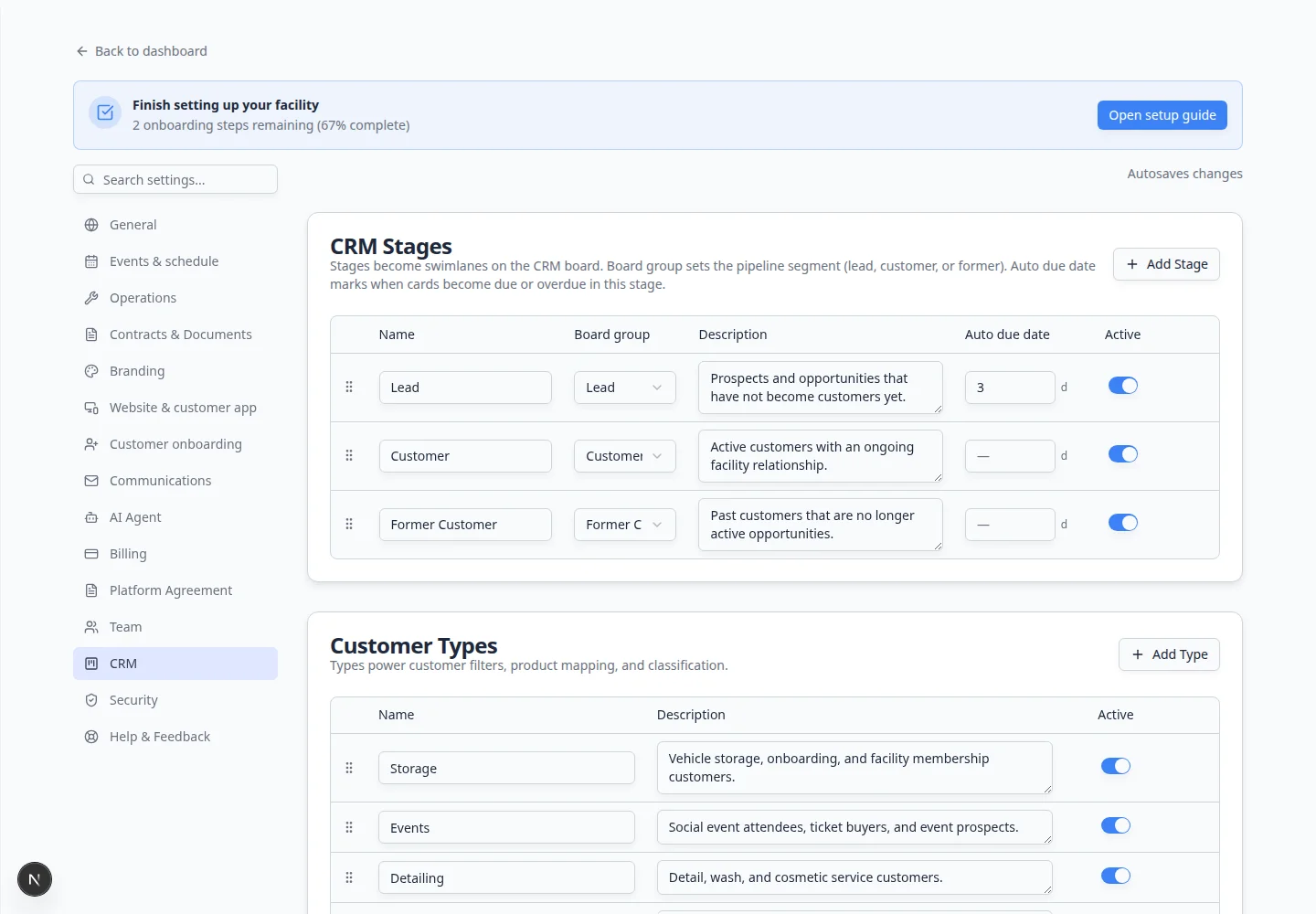
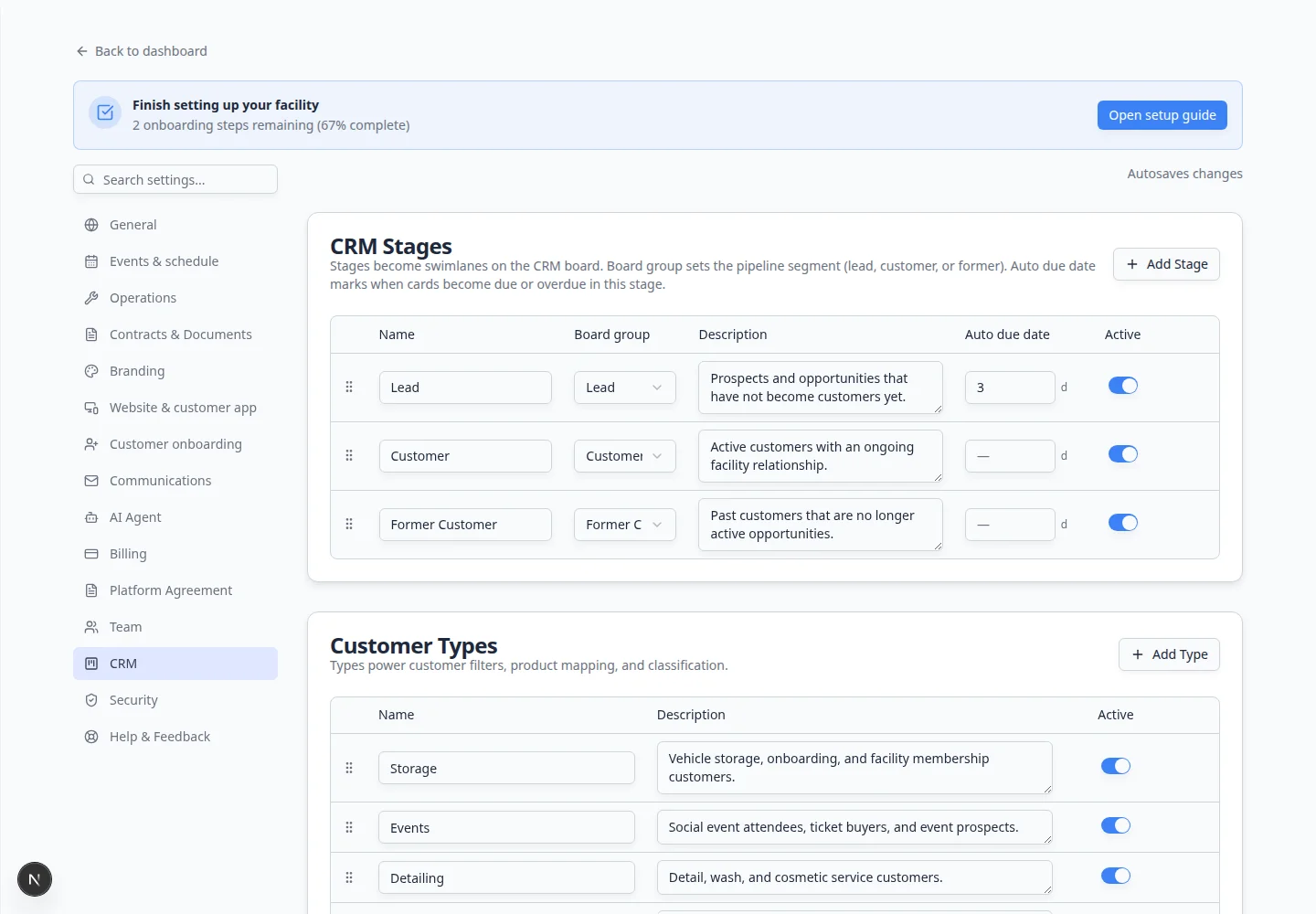
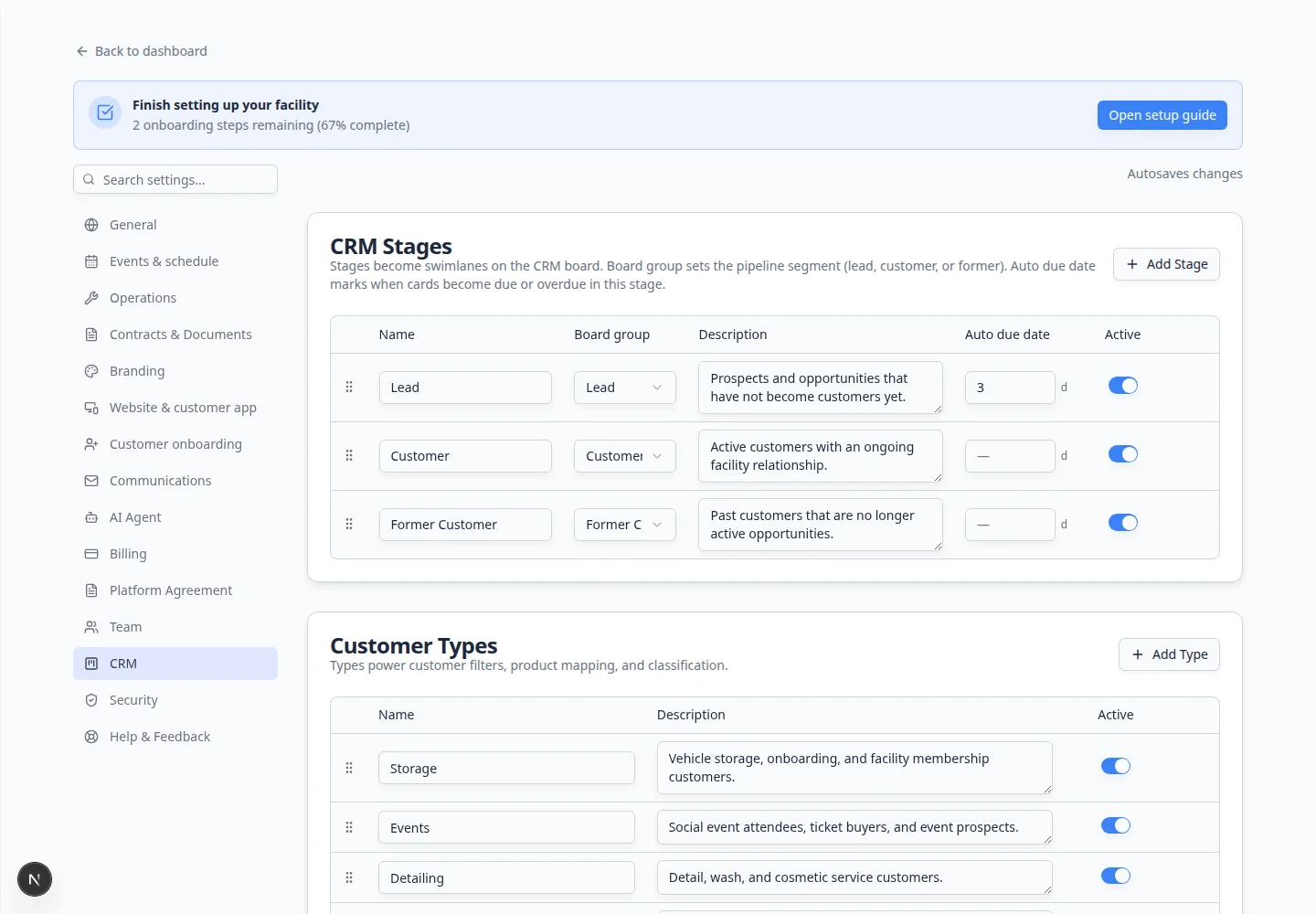
Set up CRM stages
CRM stages become the lanes or steps on your customer relationship board.
- Find CRM Stages
On Settings > CRM, find the table named CRM Stages.
- Review existing stages
Read each stage name and description.
Keep stage names simple. Good examples include New Lead, Contacted, Tour Scheduled, Proposal Sent, Active Customer, and Former Customer.
- Choose the Board group
Use Board group to choose whether the stage belongs to Lead, Customer, or Former Customer.
This helps the app group your relationship stages correctly.
- Set the Auto due date
Use Auto due date to decide when a card in that stage becomes due or overdue.
The value is in days. For example, 3 means follow up within 3 days.
Why this matters: When a customer sits in New Lead too long, your team may forget to call back. Auto due dates turn quiet leads into visible reminders on the Contacts board.
- Turn stages on or off
Use Active to control whether the stage is available now.
Turn a stage off if you want to stop using it without deleting past history.
- Add or reorder stages
Click Add Stage to create a new stage.
Use the drag handle at the left side of a row to reorder stages into the order your team follows.
Expected result: Your relationship board shows stages in the same order your team describes the sales process on the phone.
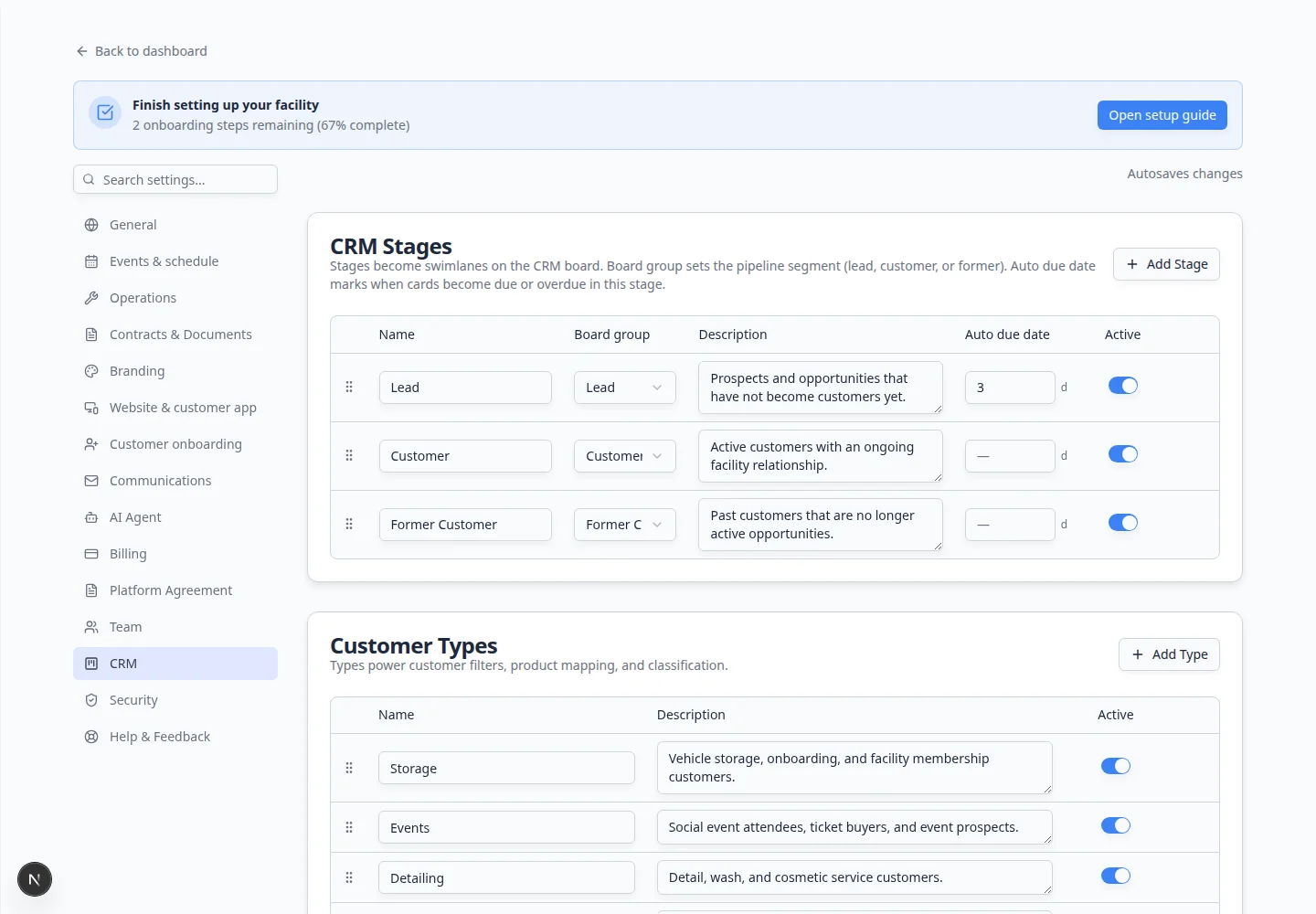
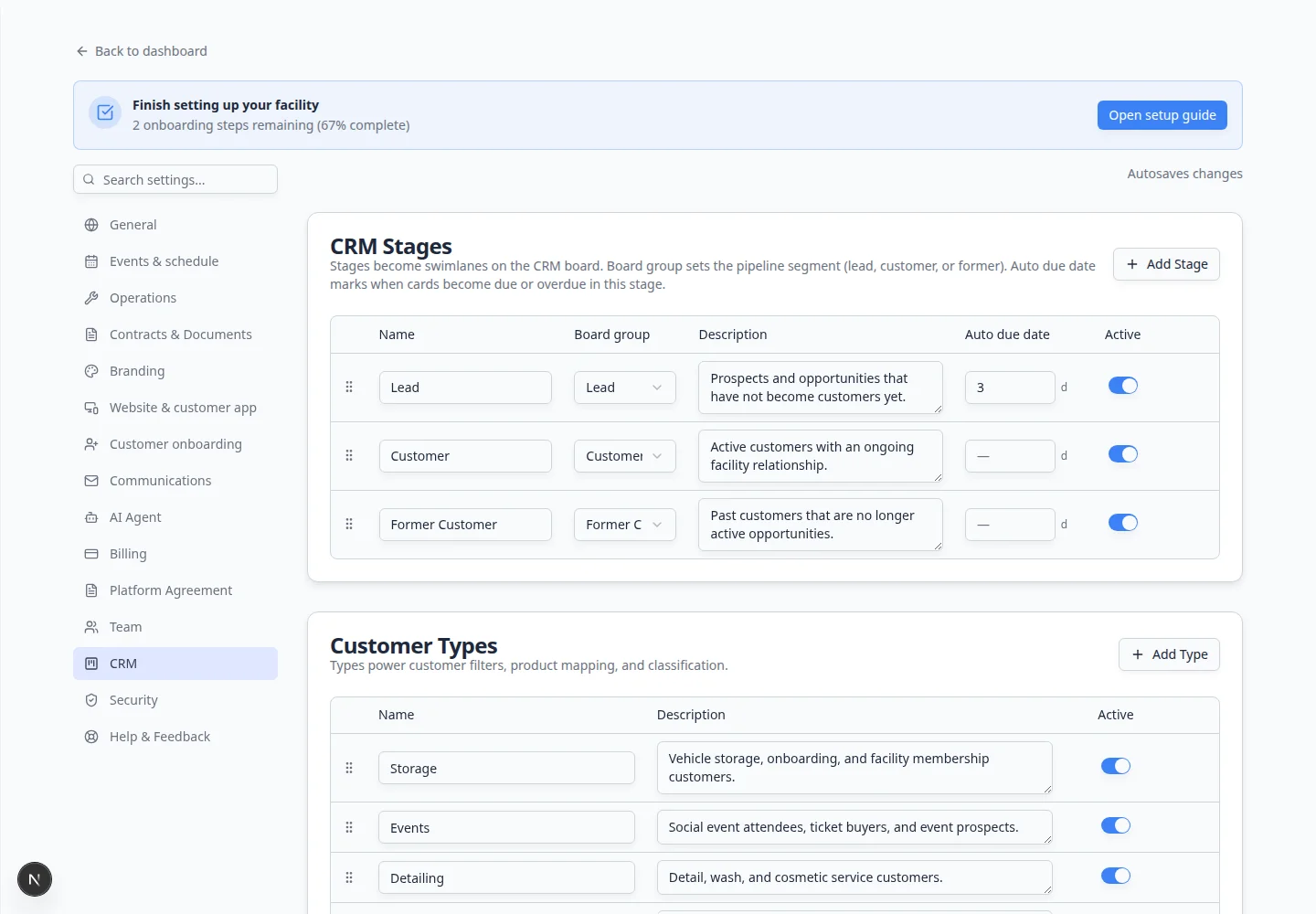
Expected result
Your CRM board matches the actual customer journey your team uses every day.
Confirm stages on the Contacts board
After you save CRM stages, check that staff will see the same labels when they follow up with leads and customers.
- Open Contacts
Go to Contacts.
- Open Filters & settings and choose Board
Click Filters & settings near the search bar (on a phone it may show only the filter icon).
In the panel that opens, click Board.
Expected result: You see columns (lanes) with the same stage names you set in CRM settings, such as New Lead, Contacted, or Active Customer.
- Drag one test card (optional)
If you have a test customer in an early stage, drag their card to the next column once to confirm the board groups match your Board group choices.
Set up customer types
Customer types help your team group customers by what they use your facility for.
- Find Customer Types
On Settings > CRM, find Customer Types.
- Review the names
Use names staff will understand, such as Storage, Events, Detailing, Marketplace, or Concierge.
- Add a type if needed
Click Add Type to create a new customer type.
- Add descriptions
Use the description field to explain when staff should choose that type.
- Turn old types off instead of deleting too quickly
If a type has been used before, consider turning Active off instead of deleting it.
Expected result
When you open a customer record, staff can pick a type that matches how your facility thinks about that relationship.
Set up CRM sources
Sources describe where a lead or customer came from.
- Find CRM Sources
On Settings > CRM, find CRM Sources.
- Add the sources your staff asks about
Common examples include Referral, Website, Phone Call, Instagram, Auction, Existing Customer, and Event.
- Add descriptions if names are not obvious
If a source could be misunderstood, add a plain description.
- Reorder sources
Put the most common sources near the top so staff can find them quickly.
Expected result
When staff add or edit a contact, they can choose a source from your list instead of typing a different answer every time.
What success looks like
- CRM stages match your real sales and customer follow-up process.
- Each stage has a clear board group: Lead, Customer, or Former Customer.
- Auto due dates remind staff when follow-up should happen.
- Customer types help group customers by the services they use.
- Sources help your team understand where new leads come from.
Simple example setup
If you are not sure where to start, try a simple setup first:
Stages: New Lead, Contacted, Tour Scheduled, Proposal Sent, Active Customer, Former Customer.
Customer Types: Storage, Detailing, Events, Marketplace, Other.
Sources: Referral, Website, Phone Call, Social Media, Event, Existing Customer.
You can improve these later after your team uses the CRM for a few weeks.
Troubleshooting
What to do next
After CRM settings are ready, review your customer records in Contacts. Use Manage contact tags and CRM fields when staff need flexible labels on individual customers. If you are still setting up the app, continue with Review security settings.