Contracts
Contracts overview
Understand contract templates, signing flows, document requirements, and customer agreements.
What you will accomplish
You will set up agreements and file types so your facility can collect signed storage contracts, waivers, and supporting documents (insurance, registration, and more) in one organized place on each customer record.
When this section is set up well:
- Customers understand what they are signing and receive links that work on a phone or computer.
- Your team can find signed PDFs and uploaded files in seconds—not in email threads.
- New customers can finish paperwork during portal onboarding without repeated phone calls.
- Front desk staff know whether to send a contract (signature required) or accept an upload (file only).
Who this section is for
These guides are for facility owners, managers, and front-desk staff who send agreements, collect uploads, and check whether a customer finished signing. You do not need technical skills—only access to Settings and Contacts in your dashboard.
Quick links by job
| I need to… | Open this page | Step-by-step guide |
|---|---|---|
| Set up templates and upload categories | Settings > Contracts & Documents | Create a contract template |
| Send one agreement to one customer | Contacts → customer record → Setup → Fields → Review wizard | Send a contract for signature |
| Send the same agreement to many customers | Contacts → select rows → Actions | Send contracts to many customers at once |
| Send the same agreement for several cars | Contacts → customer record | Send multiple contracts in one signing link |
| Save an insurance card staff received by email | Contacts → customer record | Upload a document for a customer |
| Require signing when customers first log in | Settings > Customer onboarding | Attach contracts to customer workflows |
| Check whether someone signed | Contacts → Documents & Contracts | Review signed contracts and document history |
| Coach a customer stuck during first portal login | Phone or email with the customer | Help customers complete onboarding paperwork |
| Let customers upload insurance in the portal | Customer portal My Documents | Help customers upload documents in the portal |
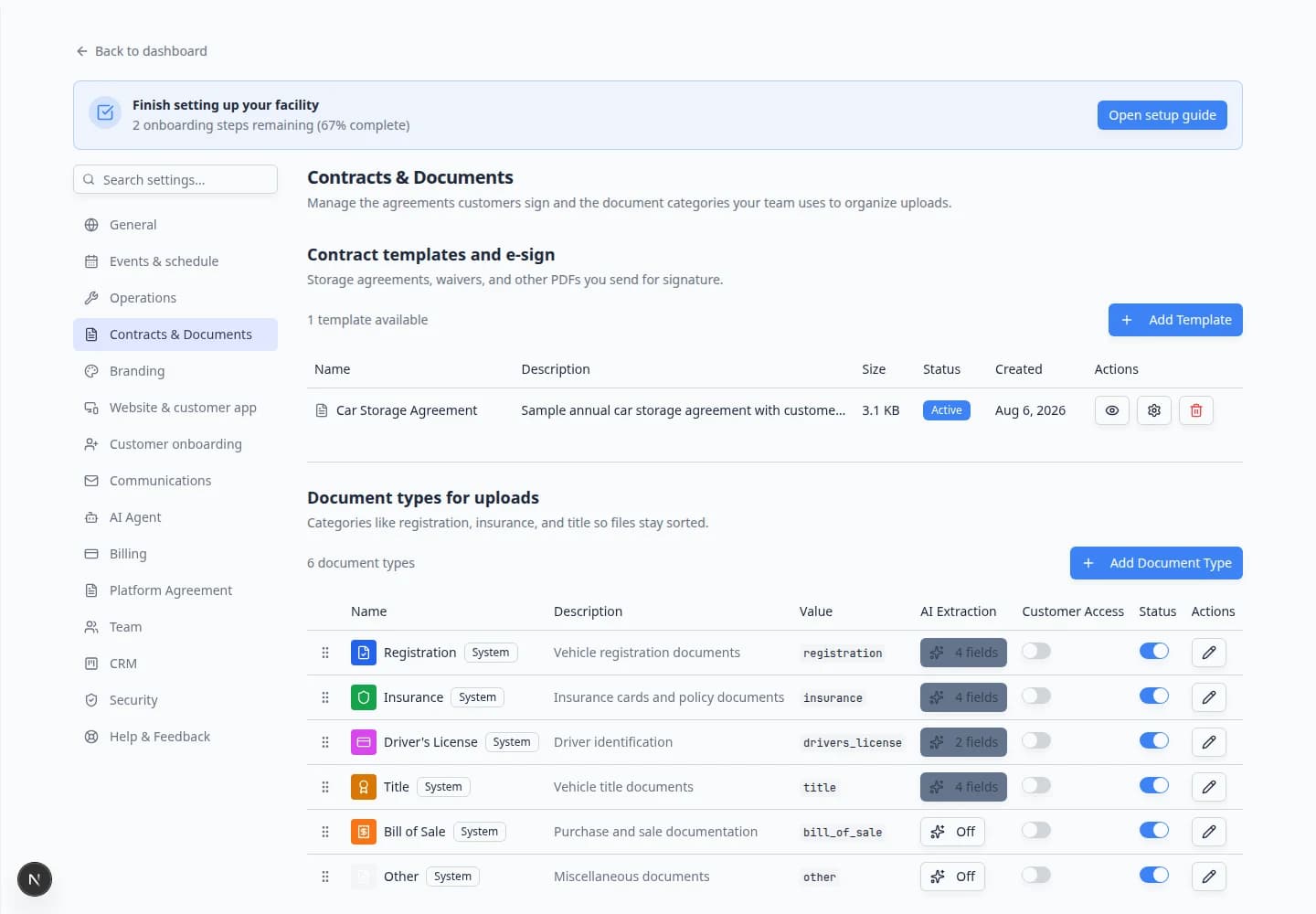
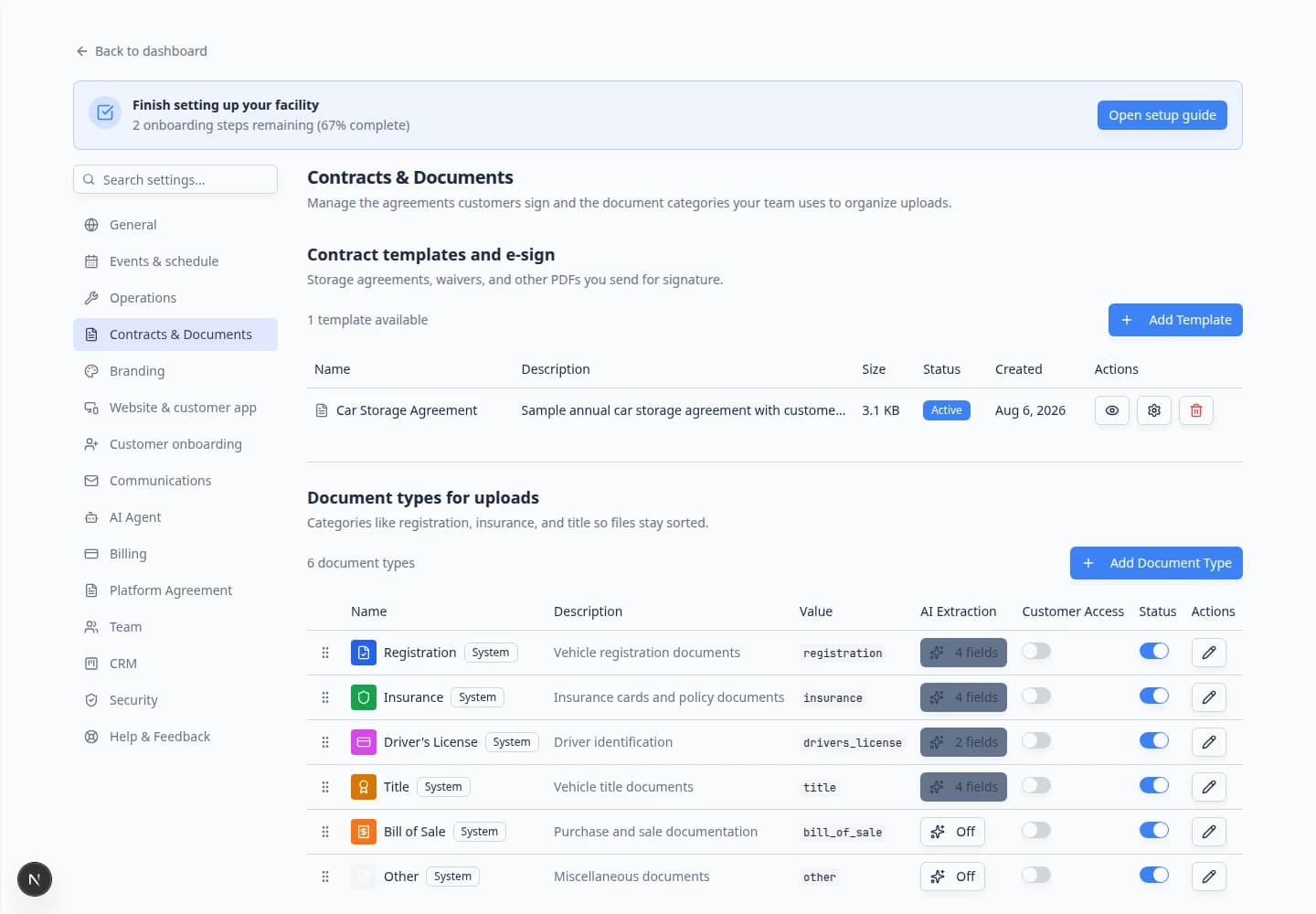
When to use Contracts vs Documents
Contracts are PDF agreements customers sign electronically (storage agreement, waiver, service authorization).
Documents are files customers or staff upload (insurance card, registration, driver's license, title).
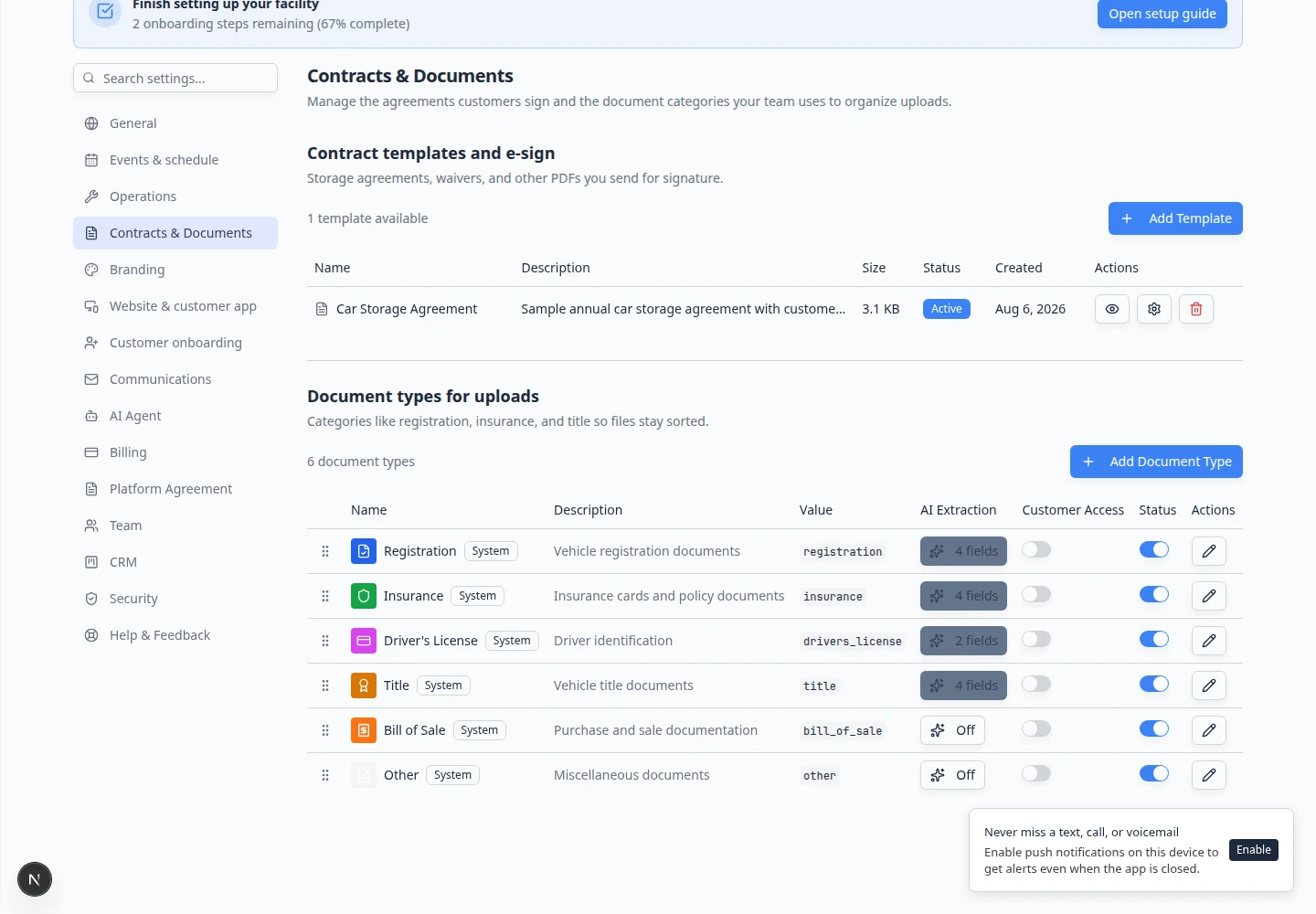
Contracts and documents both appear on the customer record under Documents & Contracts, but they serve different jobs. Use the right tool so customers are not asked to sign a file that should only be uploaded, or upload a file when they should sign an agreement.
Best setup order for a new facility
Follow this order the first time your team turns on agreements and uploads.
- Create a reusable PDF template
Build your main agreement once in Create a contract template. Example: Car Storage Agreement or Vehicle Storage Agreement.
- Set up document types
Add upload categories in Configure document requirements. Example: Insurance, Vehicle Registration.
- Test a one-off send
Send a test contract from one customer record using Send a contract for signature. You will walk through Setup → Fields → Review before the customer receives email. If your test customer has two vehicles, try Send multiple contracts in one signing link.
- Practice a staff upload
Upload a sample insurance card with Upload a document for a customer so your team knows where files live on the record.
- Attach to onboarding (optional)
If every new customer must sign during portal setup, connect the template in Attach contracts to customer workflows.
- Review signed work daily
Use Review signed contracts and document history when you need proof, downloads, or status checks.
How-to guides in this section
- Create a contract template — upload a PDF and place signature, name, vehicle, and date fields.
- Use Auto-fill when building a template — speed up field placement with suggested fields.
- Configure document requirements — define Insurance, Registration, and other upload types.
- Send contracts to many customers at once — same template for many contacts from the Contacts list.
- Send multiple contracts in one signing link — one email when the same agreement applies to several vehicles.
- Send a contract for signature — email one customer a signing link from their record.
- Counter-sign after the customer — add your facility signature when the template uses Team signs last.
- Upload a document for a customer — save insurance, registration, and other files staff receive in person or by email.
- Attach contracts to customer workflows — require signing during customer onboarding.
- Review signed contracts and document history — download PDFs, check status, and confirm uploads.
- Amend a signed contract — update allowed fields and keep version history.
- Help customers complete onboarding paperwork — coach customers through portal signing and upload steps.
- Help customers upload documents in the portal — let customers upload insurance and registration from My Documents.
What the customer sees
Customers do not use the staff dashboard. They open a link in email or the customer portal and sign in a simple browser page.
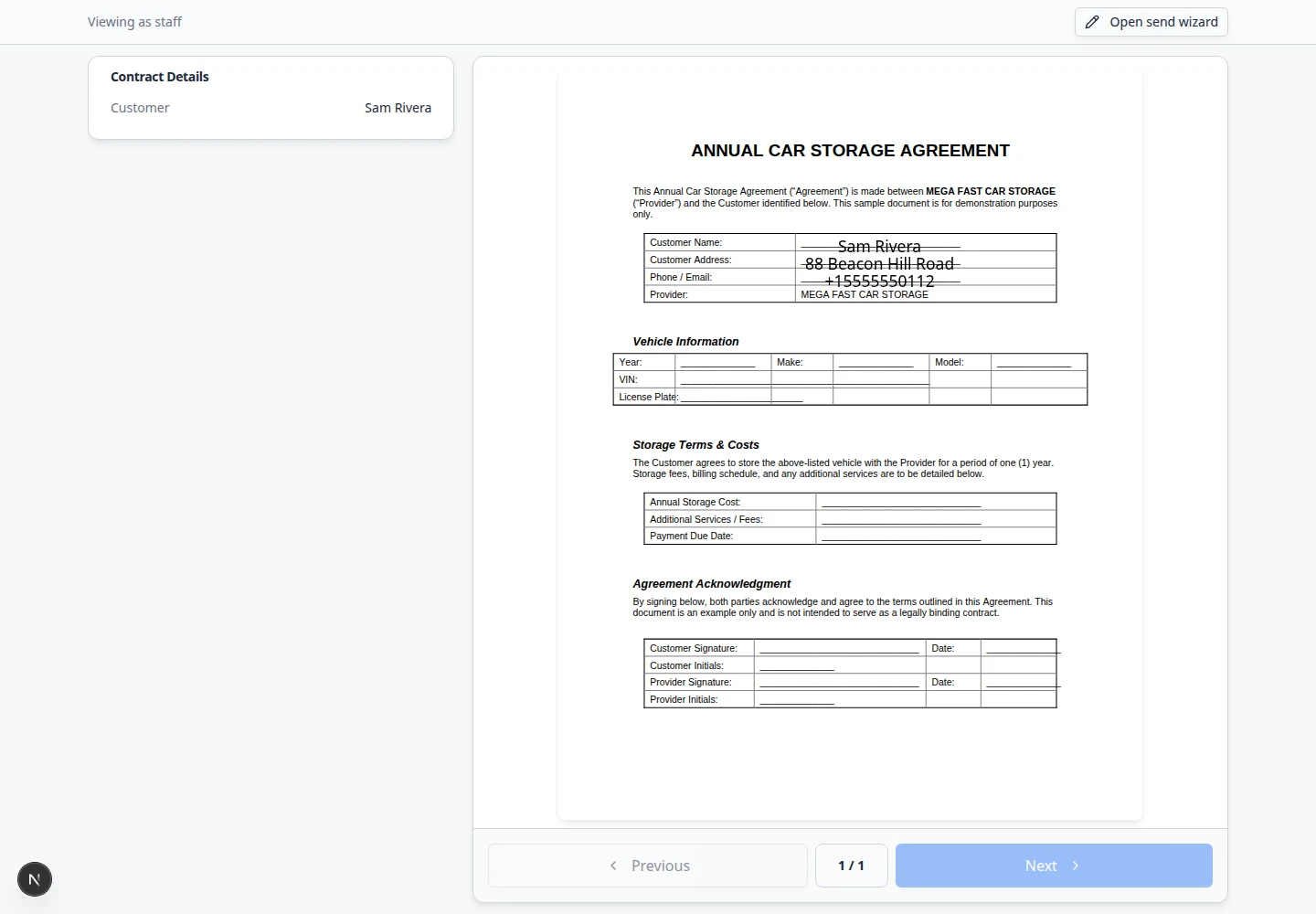
Important words in plain English
Contract template means the reusable PDF your team starts from.
Field means a spot on the PDF for a name, vehicle detail, date, signature, or initials.
Document type means a label for uploaded files, such as Insurance or Registration (your facility may use Vehicle Registration or a similar name).
Customer onboarding means the steps a new customer completes in the portal after your team invites them.
Status on a contract might read Draft, Sent, Viewed, Awaiting team signature, Signed, Completed, Cancelled, Expired, or Voided. Each status tells your team what happened and what to do next.
Contract status at a glance
Front desk staff often ask, "Did they sign yet?" Use this table before you call a customer or resend email.
| Status | What it means | What to do next |
|---|---|---|
| Draft | Created but not emailed | Review, then send—or cancel if it was a mistake |
| Sent | Signing email went out | Wait, or resend from the contract card |
| Viewed | Customer opened the link | Call or email—a reminder to finish signing often helps |
| Awaiting team signature | Customer signed; facility must counter-sign | Follow Counter-sign after the customer |
| Signed / Completed | Customer finished | Download the signed PDF for your files |
| Cancelled | Unsigned request stopped | Send a new contract if they still need to sign |
| Expired | Link timed out | Create and send a fresh contract |
| Voided | Signed copy kept but not valid anymore | Send a replacement agreement if needed |
Full steps for downloads, resends, and cancellations are in Review signed contracts and document history.
Daily paperwork habits that prevent support calls
- Morning: scan new uploads and signatures
Open Contacts for customers who finished onboarding yesterday. Check Documents & Contracts for Completed contracts and required uploads.
Expected result: You catch missing insurance or unsigned agreements before the car is released or billed.
- When a customer calls about email
Search their record first. If status is Sent or Viewed, resend from the contract card (see Review signed contracts and document history) and ask them to check spam folders.
- When email attachments arrive
Save files with Upload a document for a customer the same day. Do not leave insurance photos in personal inboxes.
Related sections
- Facility Web Pages when contracts or uploads are part of public registration.
- Contacts when you invite customers to the portal or open a customer record.
- Settings for the full first-week facility setup path.
What success looks like
- At least one active contract template exists in Settings > Contracts & Documents.
- Document types match the files your facility actually collects.
- A test customer can open a signing link, sign, and show Completed on their record.
- Staff can download a signed PDF from Documents & Contracts on the customer record.
Common mix-ups (and how to avoid them)
What to do next
After your first test send works:
- Train front desk staff
Share Upload a document for a customer for email attachments and Review signed contracts and document history for “did they sign yet?” questions.
- Turn on portal onboarding (optional)
When every new customer must sign online, follow Attach contracts to customer workflows.