Settings
Configure operations settings
Set up the Operations page so service plans, checklists, statuses, amenities, and floor plan tools match how your facility works.
Use this guide when you are ready to make day-to-day work in Car Storage Software match how your facility really runs.
The Settings > Operations page is where admins set up tools staff use again and again: recurring vehicle care plans, step-by-step checklists, custom work statuses, bookable bays or rooms, and the parking floor plan editor.
What you will accomplish
- Understand what each section on Settings > Operations does.
- Know which Operations tools to set up first (and which can wait).
- Open the right detailed guide for service plans, workflows, statuses, amenities, or parking layout.
- Help your team finish intake, service, and parking work with less guessing.
Before you start
- You should be signed in as a team admin or manager with permission to change settings.
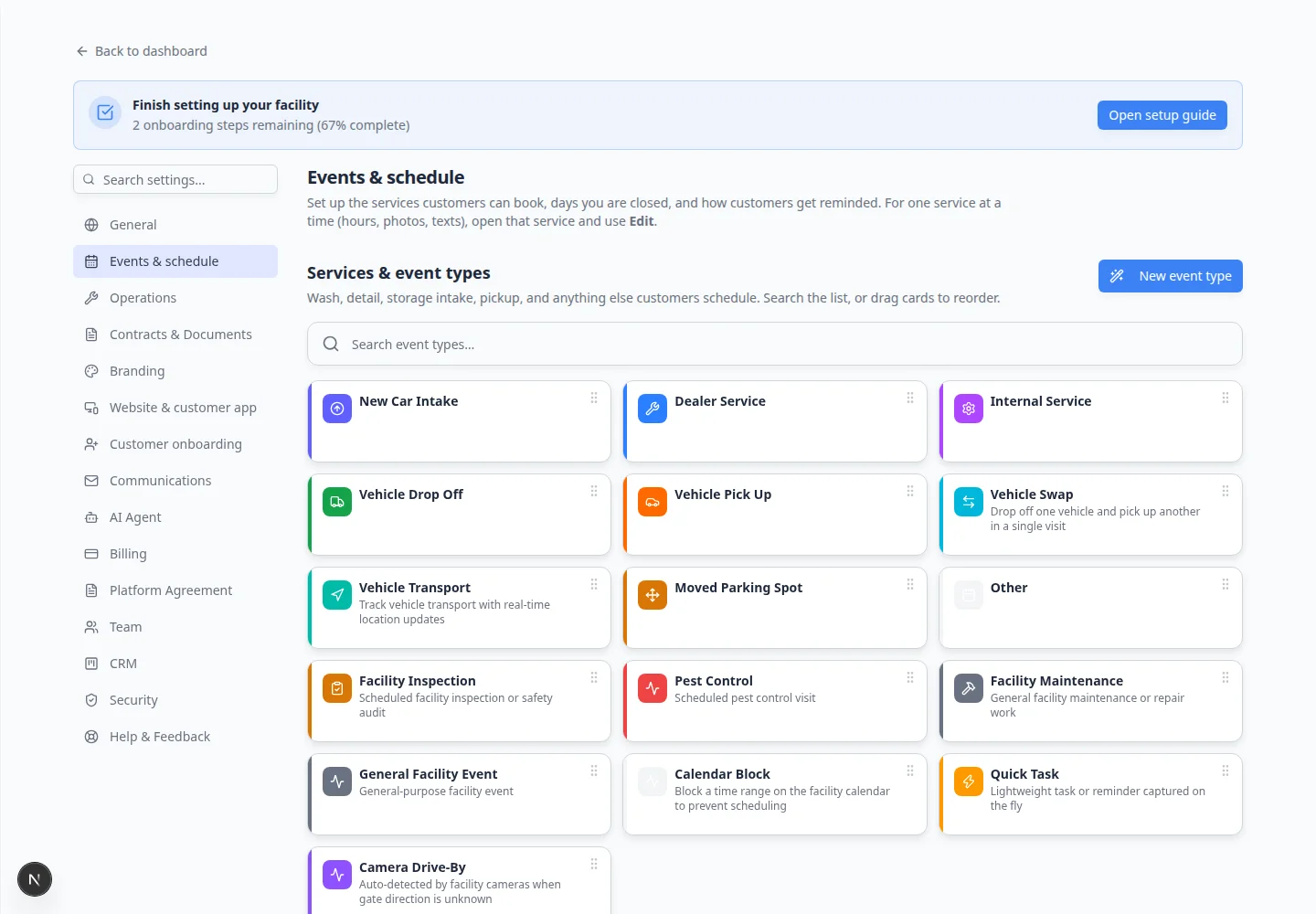
- Review Settings > Events & schedule so event types such as Internal Service, Dealer Service, or New Car Intake already exist and are active.
- Write down one real process your team repeats often (for example: monthly care on stored cars, vehicle intake, or detail bay booking).
- If you track parking on a map, skim Set up parking spots and zones so you know when to open the floor plan editor.
Open Operations settings
- Open Settings
From the Dashboard, click Settings in the main sidebar.
- Choose Operations
Click Operations in the settings category list—or search workflow or service plan in Search settings….
Direct link: Settings > Operations.
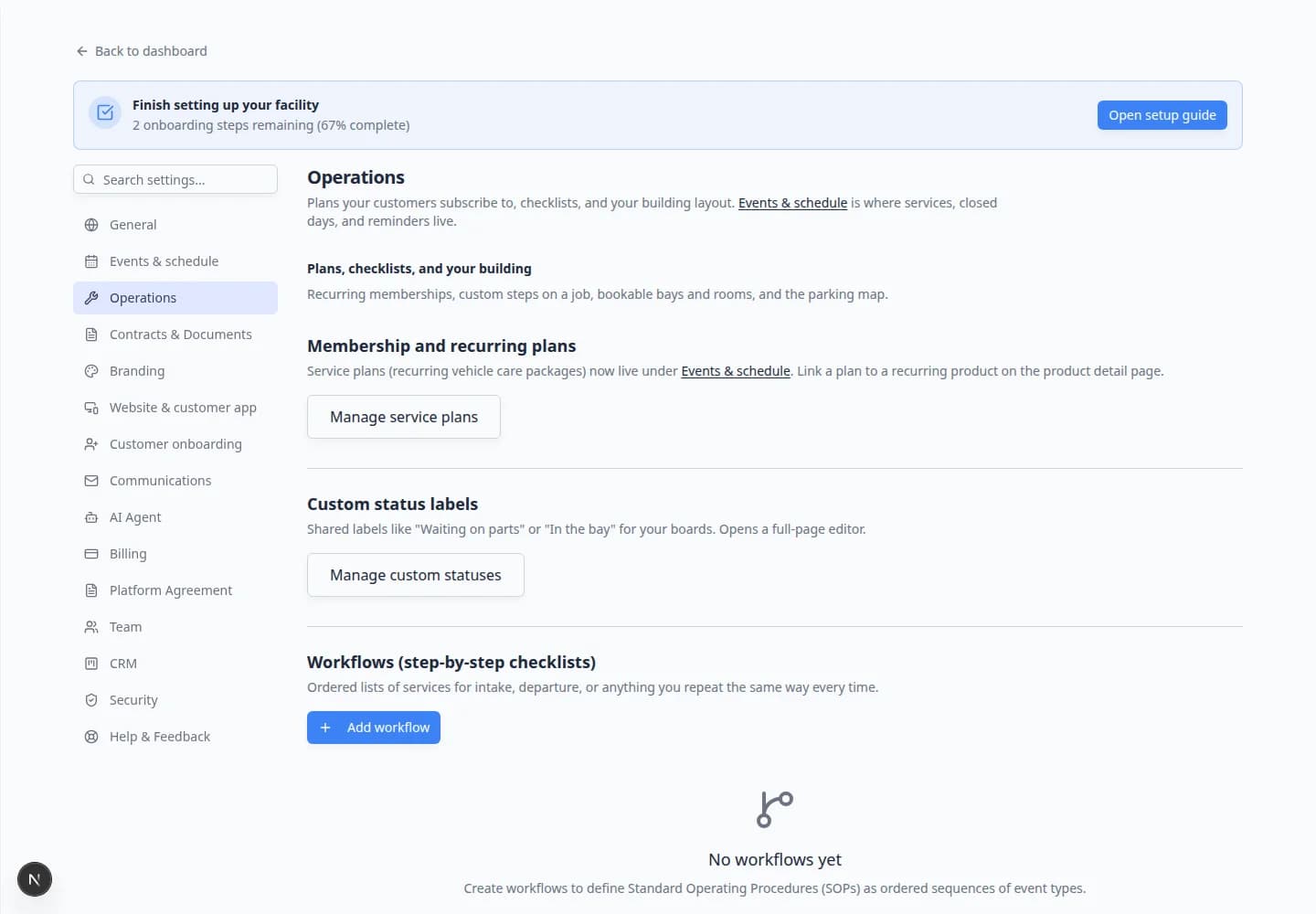
Expected result: You see sections for membership plans, custom statuses, workflows, bookable bays, and parking layout.
Set up Operations in the best order
Start with pieces other tools depend on. This order helps you avoid rework.
- Confirm event types first
Open Settings > Events & schedule and check the services your team schedules most.
Why this matters: Service plans and workflows both ask you to pick event types. Clear event names make Operations setup much faster.
Need help? Read Configure events and schedule settings, then Configure event types when you add each service.
- Set up service plans if you offer recurring care
Use Membership and recurring plans when stored vehicles should receive repeating work (monthly wash, quarterly inspection, yearly review).
Plans are edited on Settings > Events & schedule. From Operations, click Manage service plans to jump there.
Expected result: Staff can assign a named plan to a car and see what care is included.
Follow Set up vehicle service plans.
- Create custom statuses if staff need clearer job labels
Use Custom status labels on Settings > Custom statuses when broad statuses are not enough.
Examples: Waiting on customer, In the bay, Ordering parts, Ready for pickup.
Expected result: Everyone describes job progress in the same plain language.
- Create workflows for repeated checklists
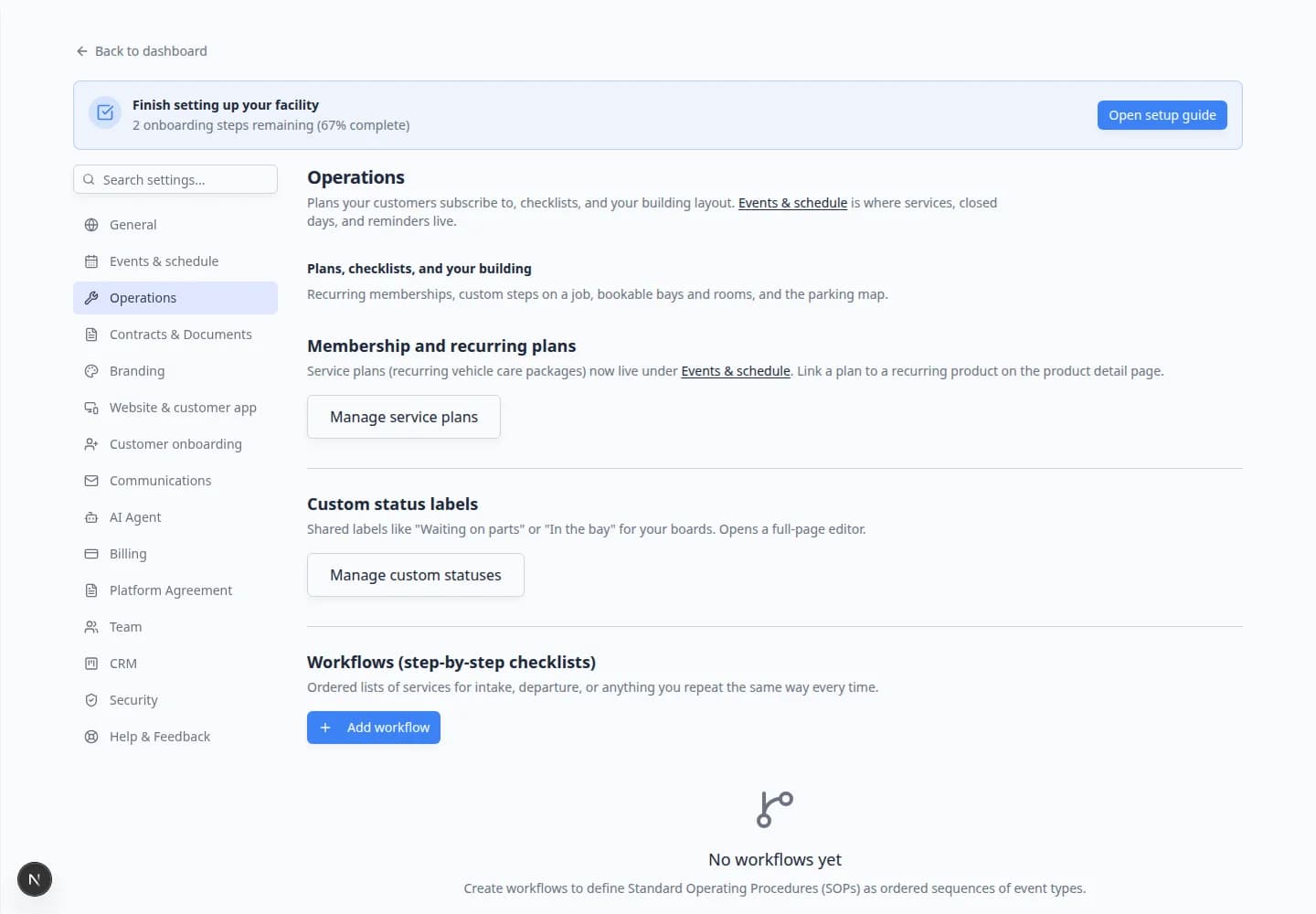
Use Workflows (step-by-step checklists) when the same steps happen in the same order every time.
Examples: vehicle intake, departure, transport prep, or standard detail process.
Expected result: Staff see a checklist instead of remembering the sequence from memory.
Follow Create operations workflows.
- Add bookable bays and rooms
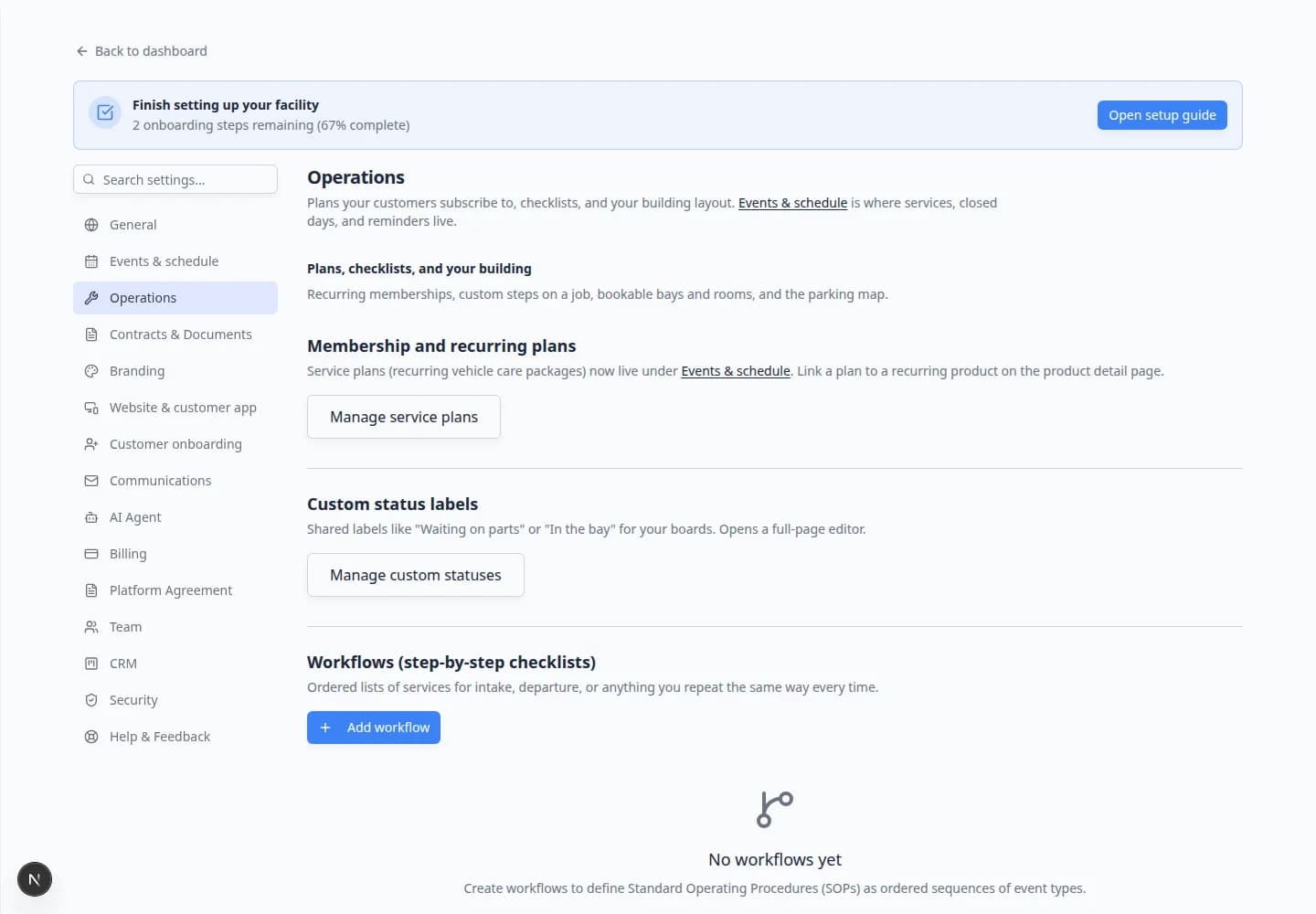
Use Bookable bays, rooms, and equipment for spaces or tools that should not be double-booked.
Examples: Detail Bay 1, Wash Bay Large, Photo Room.
Expected result: Scheduling can respect limited capacity.
See the amenities section on the same Operations page, or Manage custom statuses and amenities.
- Open the floor plan editor when you track parking visually
Use Parking and floor plan when you want a map of zones and spots.
Expected result: Parking Spots matches your real building or lot.
Follow Set up parking spots and zones.
What each Operations section is for
Membership and recurring plans — Packages of repeating work tied to event types (for example: internal service every month).
Custom status labels — Short labels staff pick to say where a job stands today.
Workflows — Ordered checklists built from event types (intake, pickup, transport, and similar).
Bookable bays, rooms, and equipment — Named spaces or tools that can be reserved and should not overlap.
Parking and floor plan — Visual layout editor for zones, spots, and lifts.
Membership and recurring plans
Service plans (recurring vehicle care packages) are managed on Settings > Events & schedule.
On Settings > Operations, the Membership and recurring plans section includes a Manage service plans button that takes you there.
- Click Manage service plans on Operations
On Settings > Operations, find Membership and recurring plans.
Click Manage service plans.
Expected result: Your browser opens Settings > Events & schedule and scrolls to the Service plans section.
- Confirm you see the plans table
The Service plans table lists each plan name, how many items it includes, and whether it is Active.
Why this matters: Plans are edited here—not on the Operations page—so your team has one place for event types and recurring care packages together.
Workflows (step-by-step checklists)
Workflows help staff follow the same order every time.
Bookable bays, rooms, and equipment
Add amenities here when scheduling must respect limited bays, lifts, or rooms.
Test Operations with one vehicle
Before rolling settings out to the whole team, walk through one real example on a test car.
- Pick one process
Choose a single workflow your shop already does well—such as vehicle intake or monthly care.
- Set up only what that process needs
Create the service plan, workflow, status labels, or amenities that process requires. Skip the rest for now.
- Open a test car
Go to Cars, open one vehicle, assign the plan or start the workflow, and confirm staff see the right labels and checklist.
- Check Schedule and Parking
If the process includes appointments or parking, open Schedule or Parking Spots and confirm the setup matches how your floor team talks about the job.
Expected result: One vehicle flows through your real process without guessing—which tells you Operations is ready for wider use.
Detailed Operations guides
When you are ready to configure one area, open the matching guide:
- Set up vehicle service plans — recurring care tiers and plan items.
- Create operations workflows — step-by-step checklists.
- Manage custom statuses and amenities — status labels and bookable spaces.
- Set up parking spots and zones — floor plan and spot layout.
How Operations connects to daily work
After Operations is configured, staff usually touch these areas:
| What you set up | Where staff use it |
|---|---|
| Service plan | Cars — assign a plan on the vehicle record |
| Workflow | Car record or schedule event — start the checklist |
| Custom status | Job boards, car activity, and workflow steps |
| Amenity / bay | Schedule when booking time in a bay |
| Floor plan | Parking Spots map and reports |
Common mistakes to avoid
- Do not create service plans before event types exist. Plans need event types to describe repeating work.
- Do not create dozens of custom statuses on day one. Start with three to five labels staff will actually use.
- Do not build a workflow for every small task. Save workflows for processes that truly need the same order every time.
- Do not name amenities Bay or Room 1 if staff say Detail Bay 1 or Wash Bay Large. Match real spoken names.
- Do not skip testing. Create one test car, assign a plan, and run one workflow before rolling out to the whole team.
Troubleshooting
What to do next
If your facility sells recurring care packages, continue with Set up vehicle service plans.
If your team needs a repeatable checklist for intake or pickup, continue with Create operations workflows.
When Operations is in good shape, return to the Settings overview for billing, communications, portal, and team setup.