Parking Spots
Assign a parking spot
Move a car into the correct parking spot or zone so your map matches the real facility.
What you will accomplish
You will record where a vehicle is parked right now so the map, the car record, and the parking report all agree.
When to use this guide
Use this guide when a vehicle enters storage, changes spaces, moves onto a lift, or needs its location corrected.
When you assign the spot in the app, the Parking Spots map, the Cars record, and the parking report all stay in sync. That helps every teammate see the same location without calling around the building.
When the app asks you to park during an event
Some event types—such as Storage Intake—can prompt staff to choose a parking spot when the appointment is finished.
- Complete the work on Schedule
Open the event on Schedule and finish the steps your facility uses (photos, notes, status, and so on).
- Look for the destination window
Near the end of the visit, click Continue to destination on the workflow page (or look for a window titled Assign parking location). This only happens when your admin set When this event completes to Ask where the car is going for that event type in Settings > Events & schedule.
See Assign parking during a Schedule event for screenshots of each step.
- Search for the spot or zone
Type the destination name (for example A2 or Outdoor Lot). Pick the correct row under Spots or Zones.
- Save and check the map
Confirm the assignment. Open Parking Spots if you want to verify the car appears in the right place.
Expected result: The car record and the map both show the new location without a separate manual update.
Before you start
- The car should already exist in Cars.
- The parking spot or zone should already exist in Parking Spots.
- Confirm the real destination before changing the record.
- If your team uses photos or inspection events for moves, complete that workflow before or during the move.
Park a car after a scheduled drop-off
When a customer arrives for a drop-off, intake, or storage start appointment on Schedule, parking the vehicle in the app should happen in the same few minutes as parking it in the building.
- Confirm the appointment on Schedule
Open Schedule and find the event for this vehicle. Note the customer and car so you pick the right record in Parking Spots.
Why this matters: Busy afternoons bring several similar cars. Matching the calendar event to the correct VIN or plate prevents putting the wrong vehicle in A3.
- Open Parking Spots and find an open space
Go to Parking Spots. Use Find parking spots and available spaces if you need to search for Available spots or a reserved space.
Expected result: You know the destination spot or zone before you walk the car there.
- Assign the car to that spot or zone
Follow the steps in this guide—map, Move Vehicle, or car record—to save the location.
Expected result: The map legend Occupied count goes up. The car record shows the new Spot: or Zone:.
- Return to Schedule if your team tracks completion there
Mark the appointment Completed or run the event workflow if your facility uses one. See Run event workflow from Schedule when photos or checklists are part of intake.
Assign a car from the Parking Spots map
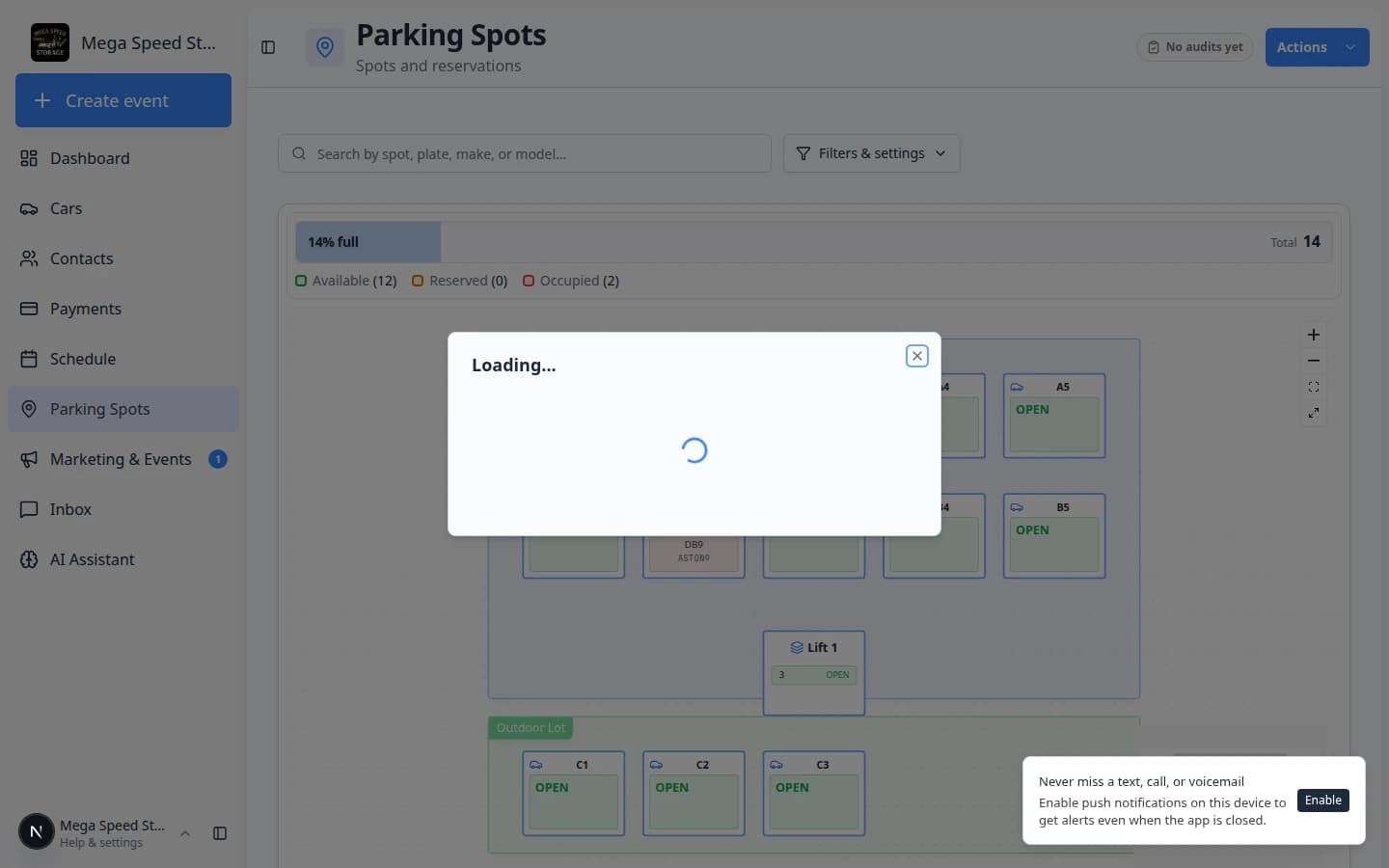
- Open Parking Spots
Go to the Parking Spots page.
- Use Map view
If you do not see the facility map, open the view controls near the top of the page and choose Map.
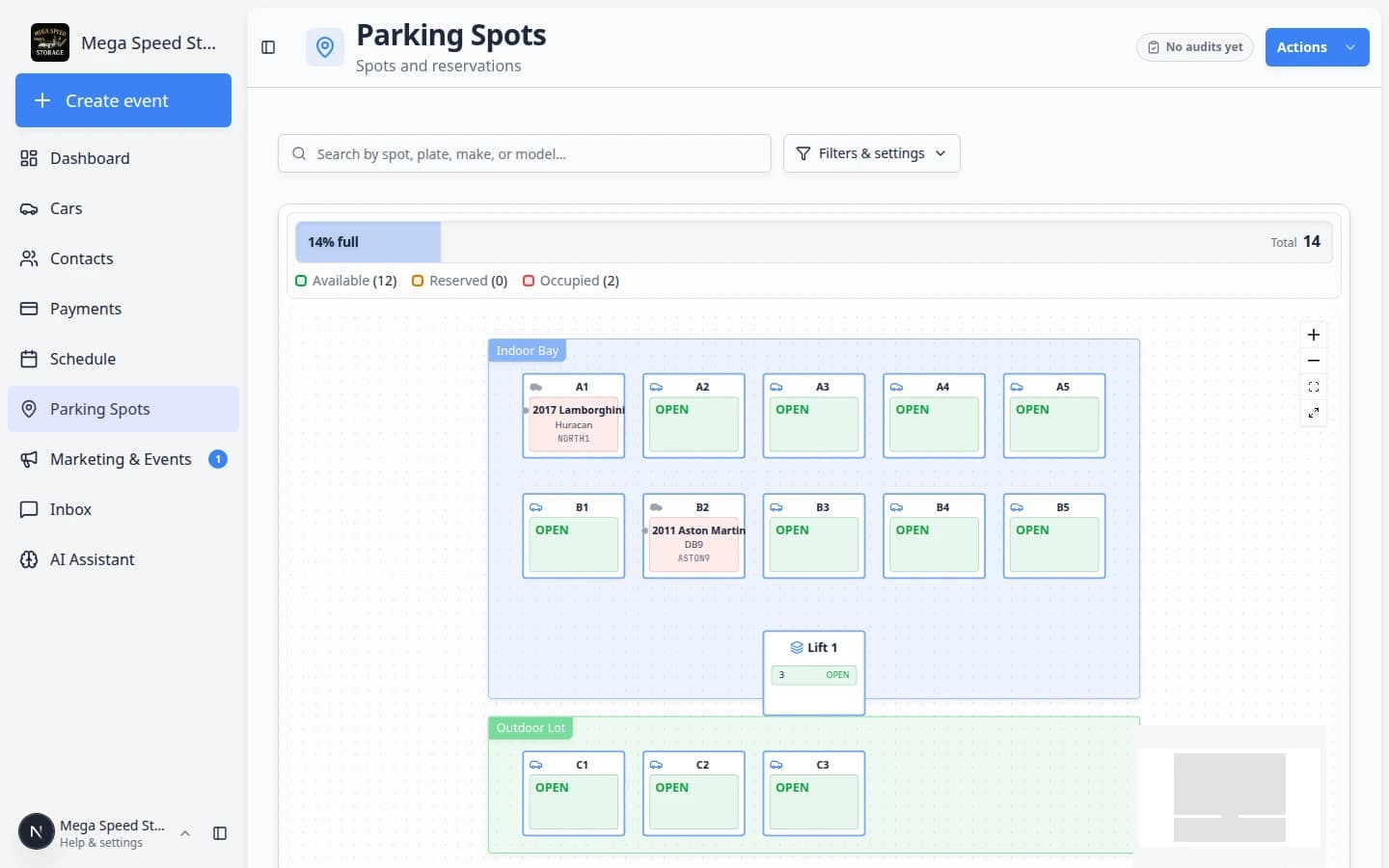
- Find the destination spot
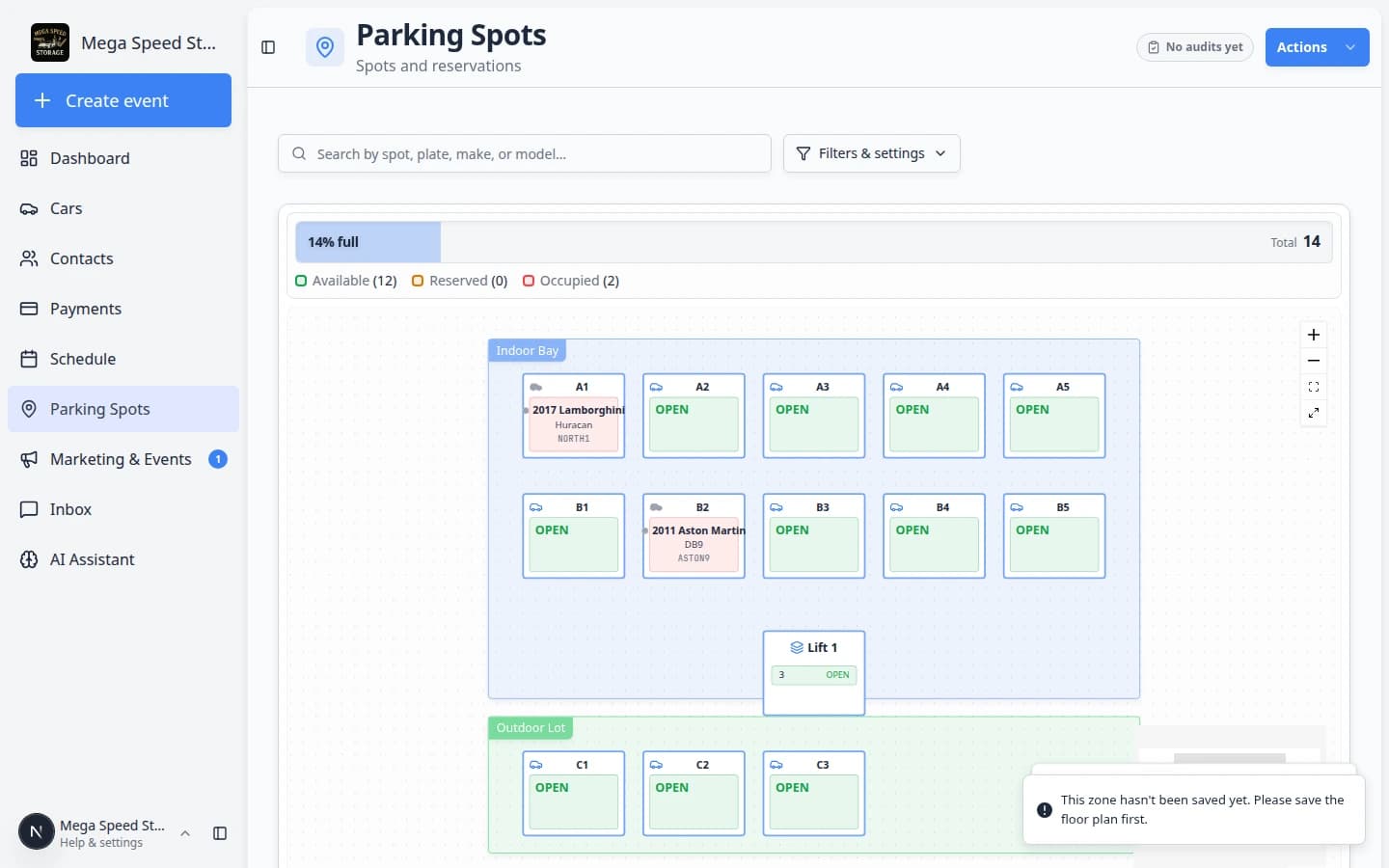
Use the search box or visually find the spot on the map. Look for the spot name, such as A1 or LIFT-1.
- Click the spot
Click the destination spot. A dialog opens with information about that spot.
- Choose the car
If the spot is empty, use the car search field in the dialog to find the vehicle. Search by customer name, plate, VIN, make, or model.
- Save the assignment
Click the button to add or move the car to the spot. The exact button text may change based on whether the spot is empty or already has a car.
- Check the map
Confirm the spot now shows the assigned vehicle. This is your quick check that the record matches the facility.
Move a car from one spot to another
Use this when a car already has a location and needs to move.
- Open the current spot
On Parking Spots, click the spot where the car is currently located.
Tip: In Table view, find the row under Currently Parked, then open the ⋯ menu on the right side of that row.
- Choose Move Vehicle
In the spot dialog, click Move Vehicle.
Expected result: A Move Vehicle window opens. You can search for the new spot or zone by name.
- Pick the destination
Type or select the new spot (for example B3) or zone (for example Outdoor Lot). Read the vehicle name and plate one more time before you continue.
- Save the move
Confirm the move. The app ends the old assignment and starts the new one.
- Verify both spots
The old spot should look open. The new spot should show the car on the map and in Table view.
Assign a car from the car record
Sometimes staff are already looking at the car record—for example during intake or when a customer calls about their vehicle. In that case, start on the car page instead of the map.
- Open the car
Go to Cars and open the vehicle.
- Use the parking location control
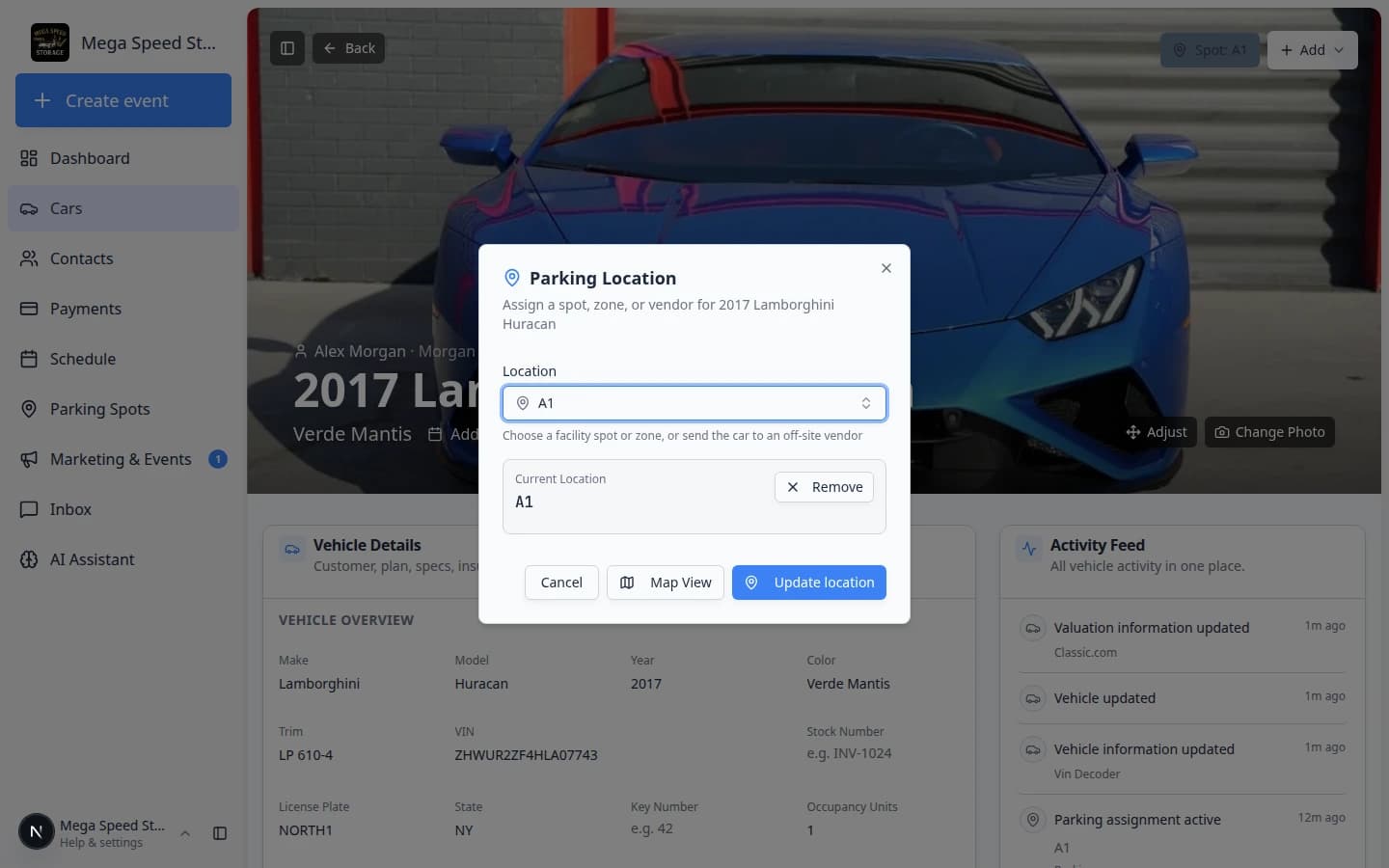
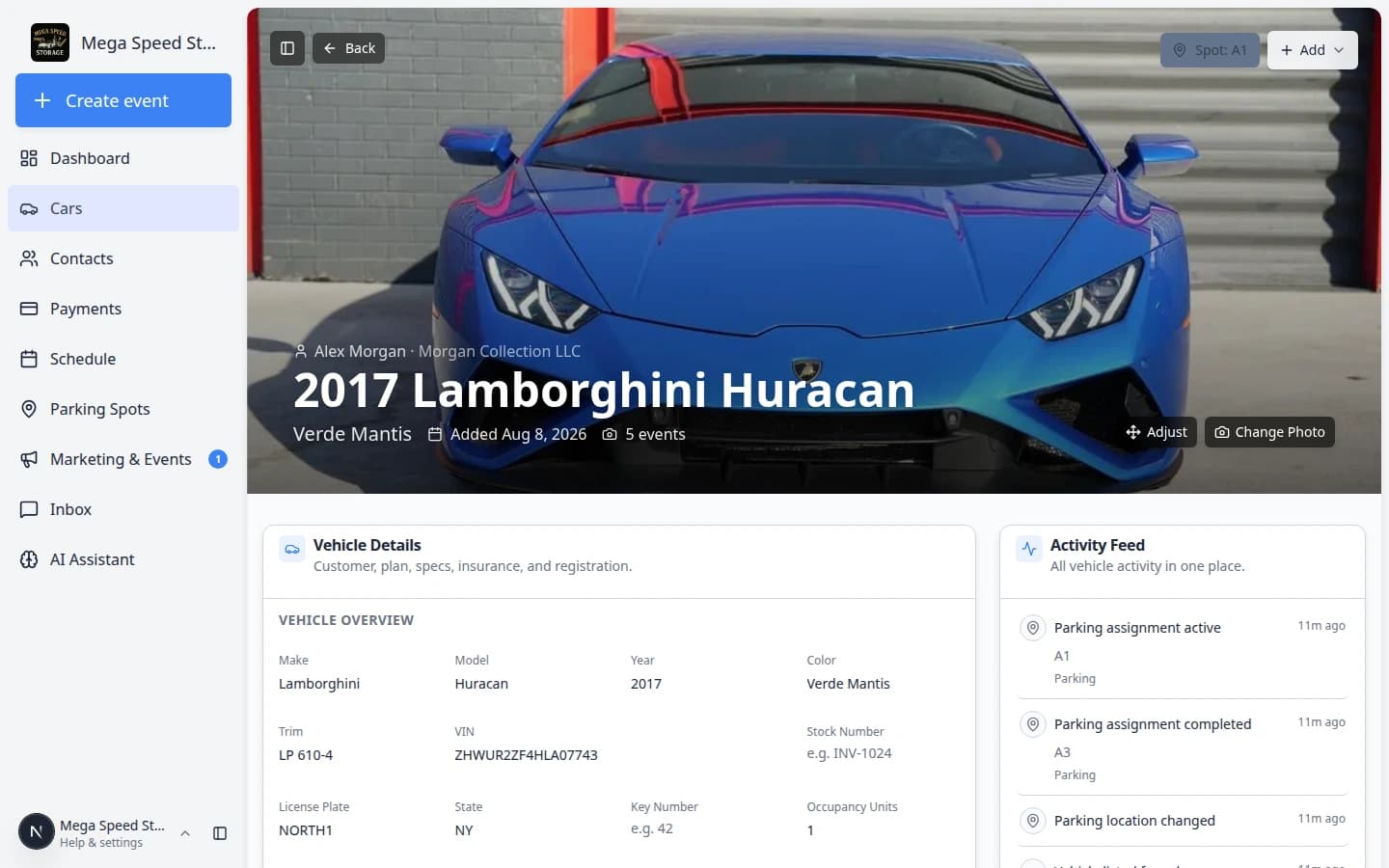
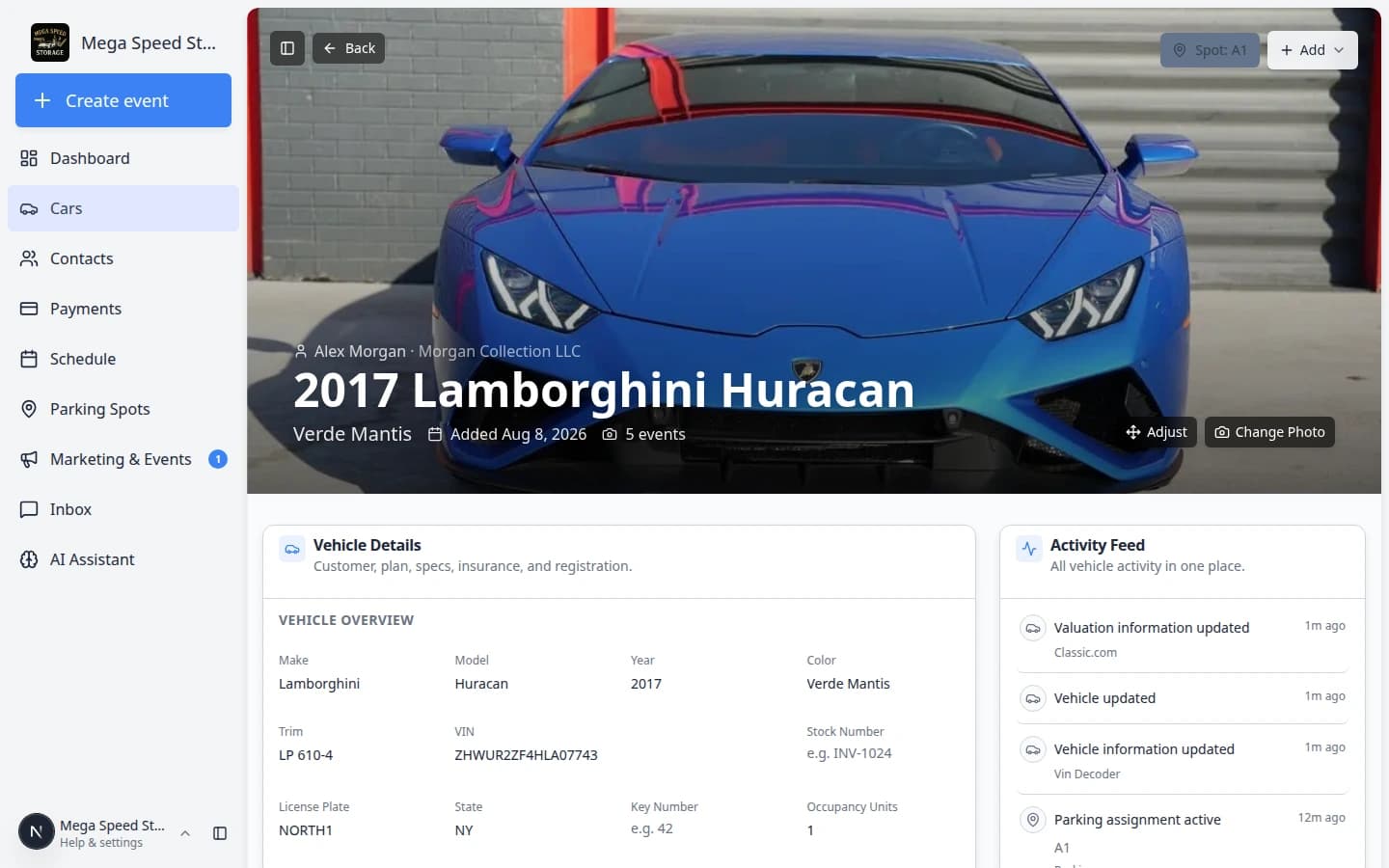
Near the top of the car page, find the parking button. If the car is already parked, it shows Spot: and the spot name (such as A1) or Zone: and the zone name (such as Outdoor Lot). If the car has no location yet, the button may say Assign location.
Expected result: You see the current spot or zone name—or a prompt to choose one—without leaving the car page.
- Choose the spot or zone
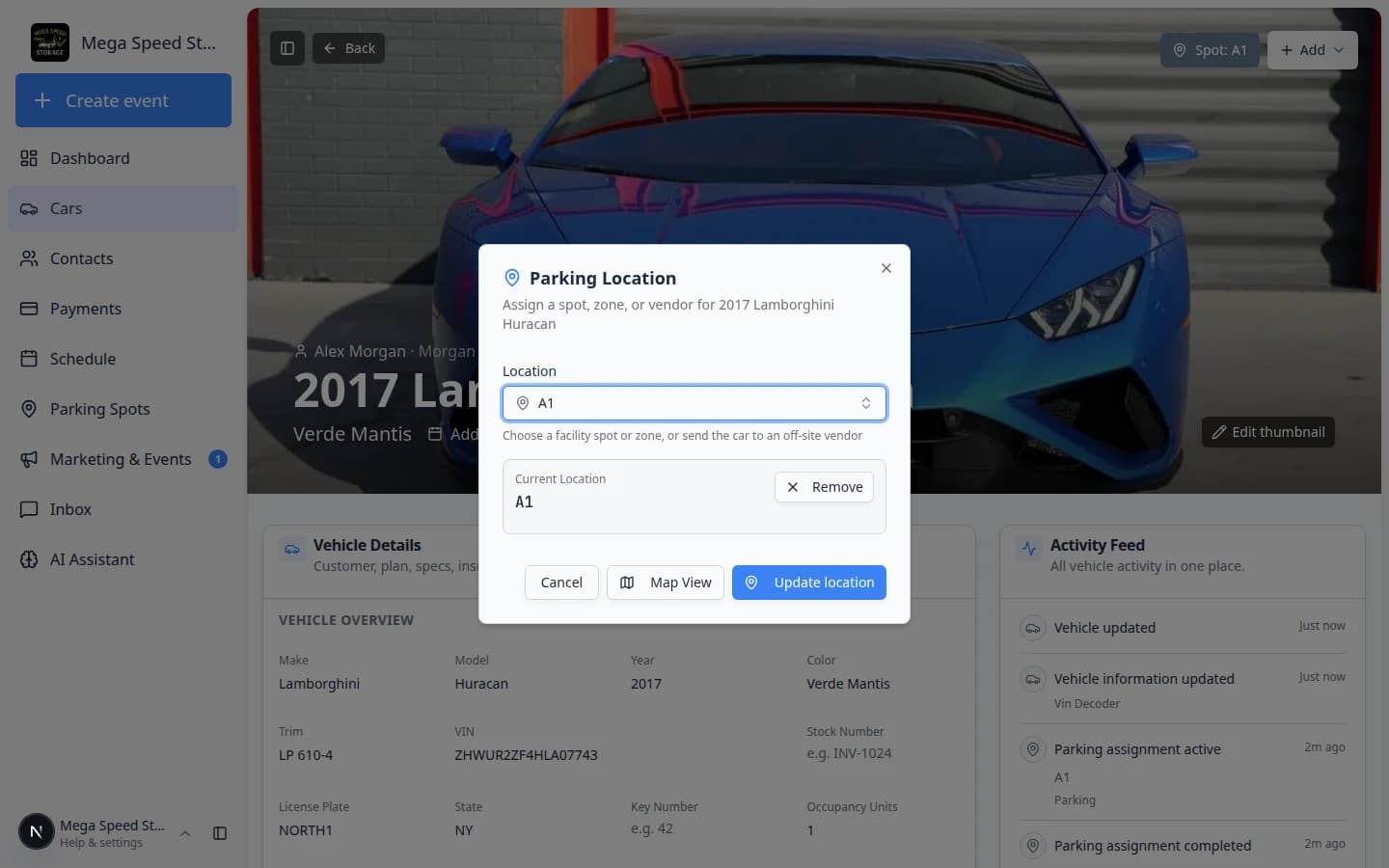
Click the parking button and select the new spot or zone. You can pick a numbered spot or a flexible zone when an exact box is not required.
Why zones matter: A car in an outdoor overflow area may be assigned to Outdoor Lot instead of C2 when staff do not need a precise space number.
- Save and confirm
Save the change, then confirm the car record shows the new location. Open Parking Spots if you want to double-check the map.
Assign a car to a zone from the map
When cars park in a flexible area, you can start on the zone instead of a numbered spot.
- Click the colored zone on the map
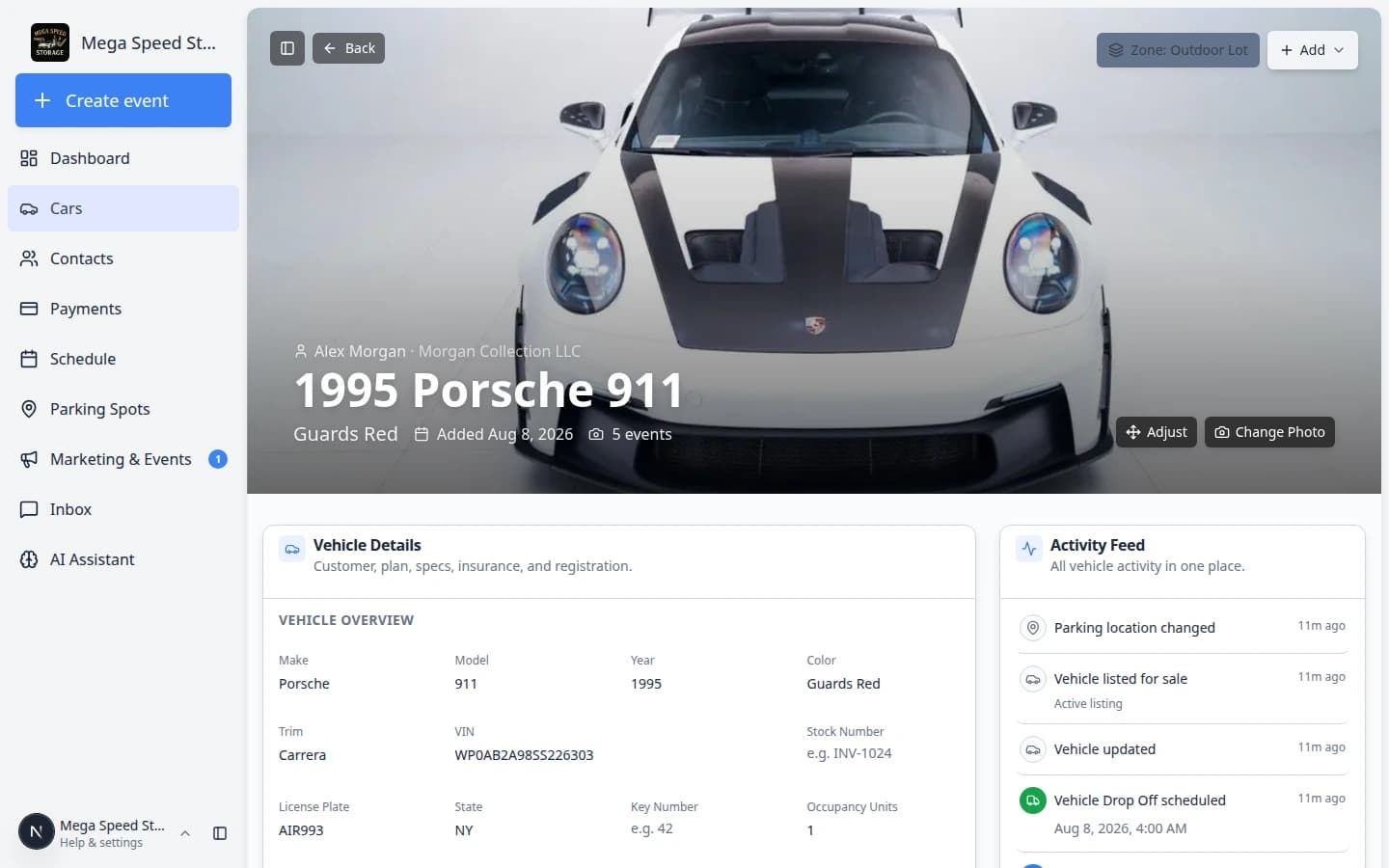
On Parking Spots, click the colored background area (for example Outdoor Lot), not a numbered spot box.
Expected result: A zone window opens showing capacity and cars already inside.
- Add or move the car
Search for the vehicle and add it to the zone, or move an existing car from the list.
Why this matters: The zone record updates even when no exact spot number is required.
- Confirm Zone on the car record
Open the vehicle in Cars. The parking button should read Zone: Outdoor Lot (or your zone name).
Expected result: Map and car record agree—staff are not guessing which screen is right.
For full step-by-step help with zones, capacity, and moving cars between spots and zones, read Work with zones on the map.
Send a car to an outside vendor from the map
Use this when the vehicle leaves your building for transport, detail, mechanical work, or another outside company.
- Open the spot where the car is now
On Parking Spots, click the spot that holds the vehicle (or use Move Vehicle from Table view).
- Click Move Vehicle
Click Move Vehicle. In the Select spot, zone, or vendor… field, type the vendor company name and pick it from the Vendors section.
Why this matters: A vendor move frees your numbered spot and shows At vendor: on the car record so staff do not search empty bays for a car that left the building.
- Confirm the move
Save the move. Open the car in Cars and confirm the banner shows At vendor: and the correct company name.
For the full vendor workflow—including adding a new vendor and reading vendor rows on the parking report—read Send a car to an outside vendor. You can also start from the car record in Move a car.
Assign a car to a zone (no exact spot number)
Some facilities park cars in a larger area—such as an outdoor lot or overflow lane—without assigning a numbered spot. Use a zone when the exact box does not matter.
- Open the car record
Go to Cars and open the vehicle.
- Click the parking location button
Near the top, click Assign location (if the car has no spot yet) or the current Spot: / Zone: label.
- Choose a zone name
In the picker, select a zone such as Outdoor Lot or Indoor Bay instead of a numbered spot like A1.
Why this matters: A zone tells your team the general area. A numbered spot tells them the exact space. Use zones only when your process allows flexible parking inside that area.
- Save and confirm on the map
Save the change. Open Parking Spots and confirm the car appears inside the colored zone area on the map.
Expected result: The car record shows Zone: Outdoor Lot (or your zone name). The map highlights the zone, even if no single spot box is selected.
Send a car to an outside vendor
When a vehicle leaves your property for transport, detail, or repair, record Vendor instead of a facility spot.
- Open the car record
Go to Cars and open the vehicle.
- Open the location picker
Click Spot:, Zone:, or Assign location.
- Search under Vendors
Type the transport or shop name. Pick the row under Vendors—not Spots or Zones.
- Click Send to vendor
Save. The car record should show Vendor: and the company name. The facility map should no longer show the car in a spot.
Expected result: Staff know the car is off-site. The parking report can list a Vendor row for that period.
For the full off-site workflow—including bringing the car back—read Send a car to an outside vendor.
Assign a car on a lift spot
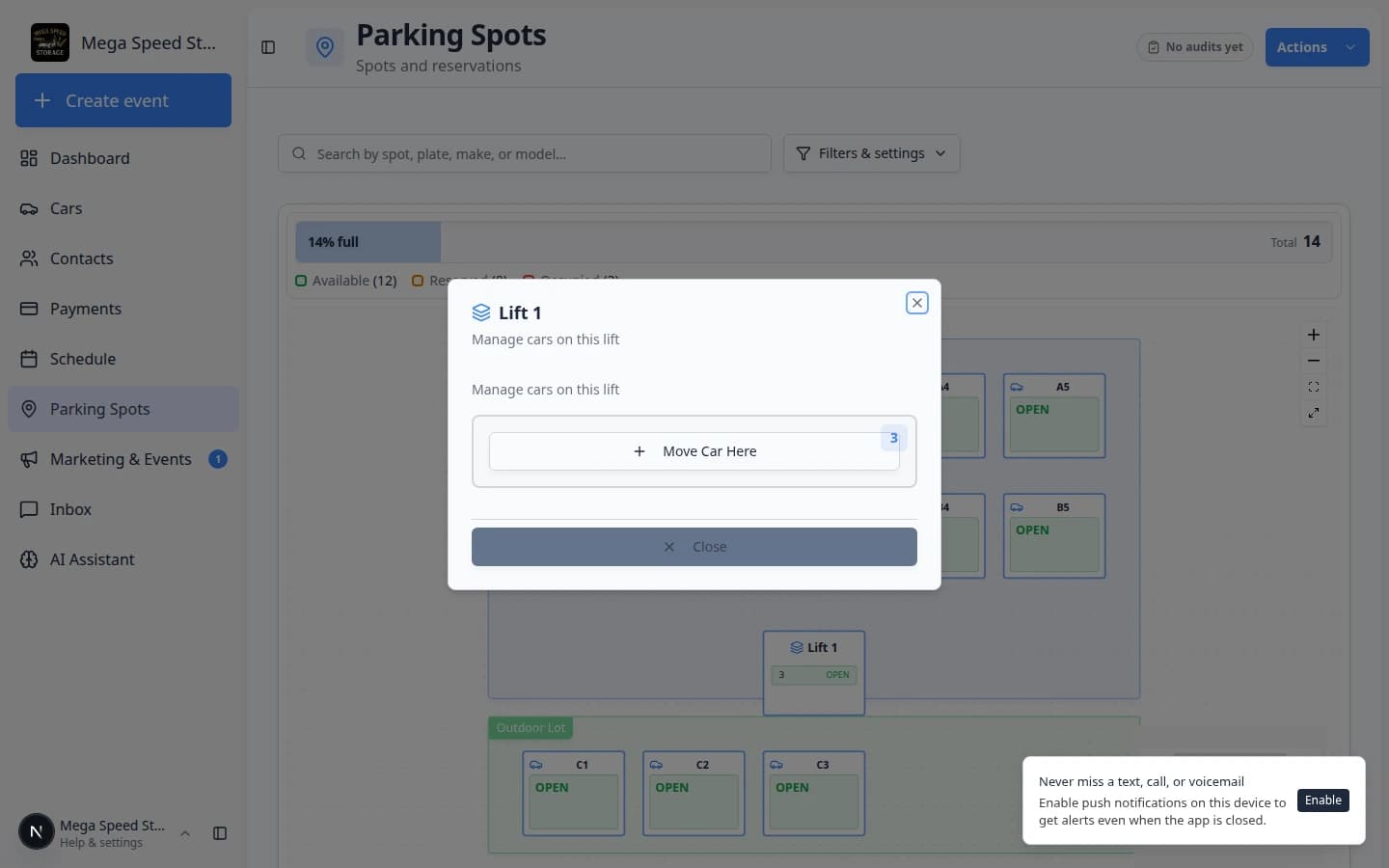
Lift spots can hold more than one vehicle (for example ground level and upper level). Always check the level before you save.
- Find the lift on the map
On Parking Spots, look for a spot labeled Lift 1 (or your lift name).
- Click the lift spot
Open the spot dialog. Read which level is Present, Reserved, or open.
Why this matters: Putting two cars on the same lift level in the app when only one fits there physically causes retrieval mistakes.
- Pick the correct level
Choose the empty level before you assign the car. Do not stack two cars on the same level in the app if only one fits there physically.
- Save and verify
Confirm the lift spot shows the car on the level you chose.
Expected result: Staff retrieving the car know whether to lower the lift or use the upper deck.
What the status colors mean
The exact colors may change with your theme, but the idea is simple:
- An empty or available spot has no car there now and no reservation showing on the map.
- An occupied or present spot has a car physically there now.
- A reserved spot is planned for a car or customer, but the car may not be there yet.
- A lift can show more than one level. Check each level label before you move a car on a stacked lift.
Common mistakes to avoid
- Do not assign a car to a spot until you know where it is physically parked.
- Do not use a zone when your team needs an exact space number.
- Do not create a new spot just because you cannot find one. Search first, then ask an admin if the spot is missing.
- If a customer has more than one car, check the year, make, model, plate, and VIN before saving.
Troubleshooting
What to do next
- If the spot was reserved before the car arrived, confirm the reservation row on Parking Spots looks correct after you assign the car.
- If the spot was only planned ahead of time, you may also have a reservation to clear. See Reserve a parking spot.
- If you finished a calendar drop-off or intake, see Assign parking during a Schedule event.
- If the car left for transport or detail off-site, see Send a car to an outside vendor.
- To review parking history for billing or audits, open Review the parking report.
- If staff cannot find the spot quickly, review Find parking spots and available spaces with the team.
- If the car left for transport or detail, read Send a car to an outside vendor.