Cars
Archive or restore a vehicle
Hide a sold or departed car from your daily inventory while keeping photos, activity, and billing history on file.
When a vehicle leaves your care—or you no longer need it on your daily floor map—you usually should not delete the record. Archive hides the car from the normal Cars list while keeping its history, photos, notes, and billing context available for questions later.
Use this guide when a customer sold a car, moved out, or you want a clean active inventory without erasing the past.
What you will accomplish
You will archive one vehicle so it no longer appears in your default Cars list, and you will know how to Restore it if the car comes back under storage.
Expected outcome: The car shows an Archived badge on its record. Staff who filter for Active cars no longer see it in day-to-day work—but managers can still open it when needed.
When to archive vs. other options
- Archive when the vehicle left your facility or sold, but you may need photos, activity, or billing history later.
- Remove from spot (see Move a car) when the car is still your customer’s record but no longer sits on your parking map today.
- Delete permanently (see Delete a vehicle record) only when the record should not exist at all—duplicate, test data, or a manager-approved permanent removal.
Before you start
- Confirm with a manager when the car has open invoices, signed contracts, or active recurring billing.
- Open the correct vehicle from Cars.
- Your role must allow archiving cars. If you do not see Danger Zone, ask an admin about permissions.
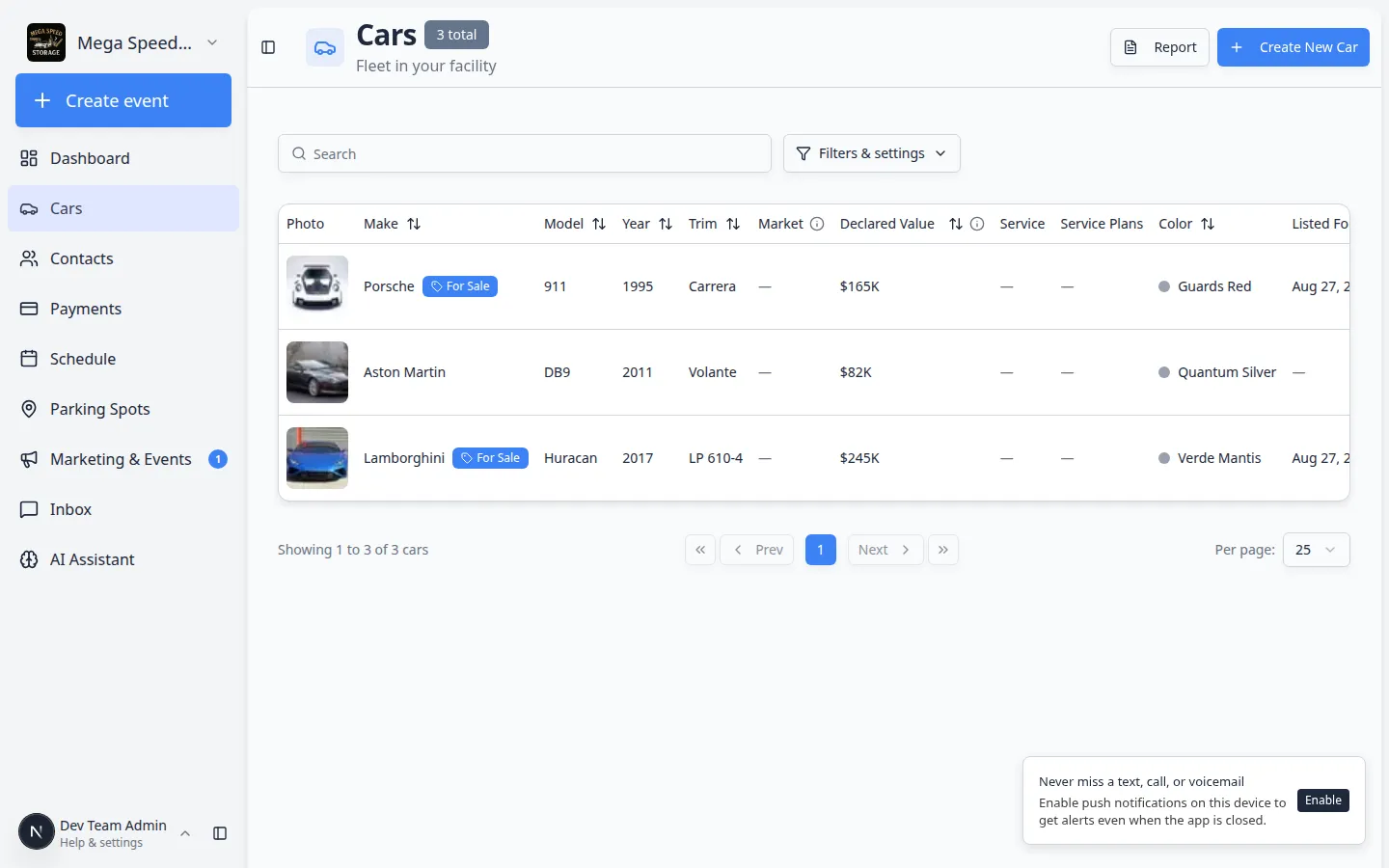
Step 1: Open the car record
- Find the vehicle
Go to Cars and click View on the car you need to archive.
Expected result: The car detail page opens. Read the banner title and VIN in Vehicle Details before you scroll down.
- Scroll to Danger Zone
Scroll to the very bottom of the page, past Vehicle Details, Activity Feed, and Notes.
Look for the Danger Zone heading with the subtitle Irreversible and destructive actions.
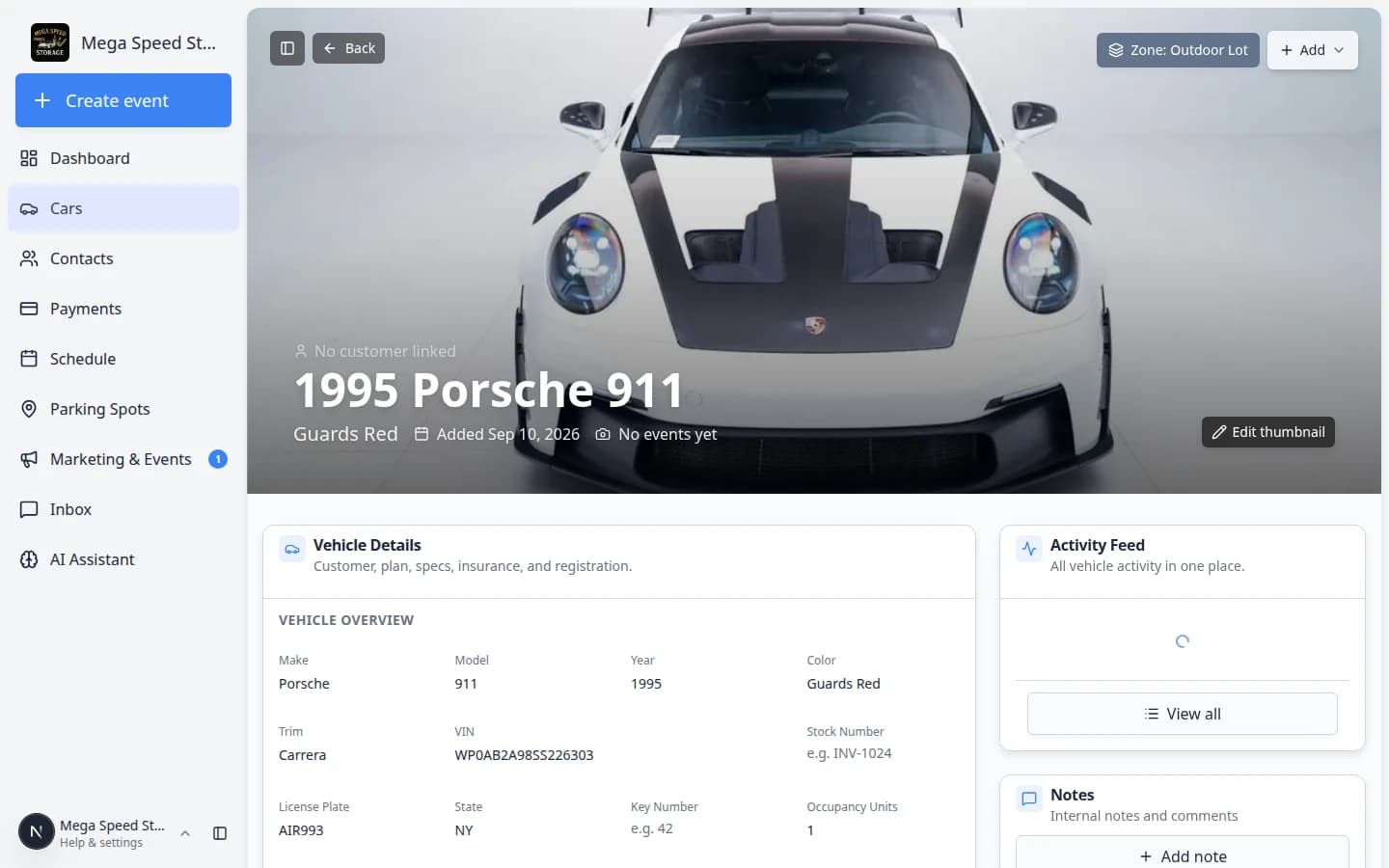
Step 2: Archive the vehicle
- Read the archive message
In the Archive Vehicle row, read the short explanation under the heading. It reminds you that archiving keeps history on file.
Why this matters: This is different from Remove from spot, which only clears parking on the map while the car stays in your active inventory list.
- Click Archive
Click the Archive button on the right side of the Archive Vehicle row.
Expected result: The page refreshes the archive state. You may see a short success message at the top of the screen.
- Answer a contract prompt if one appears
When your facility uses signed storage agreements, the app may ask whether to update the customer’s contract because the vehicle left.
Read the prompt carefully. Choose the option your manager trained you to use.
Why this matters: Keeping contracts aligned with reality prevents billing and legal surprises later.
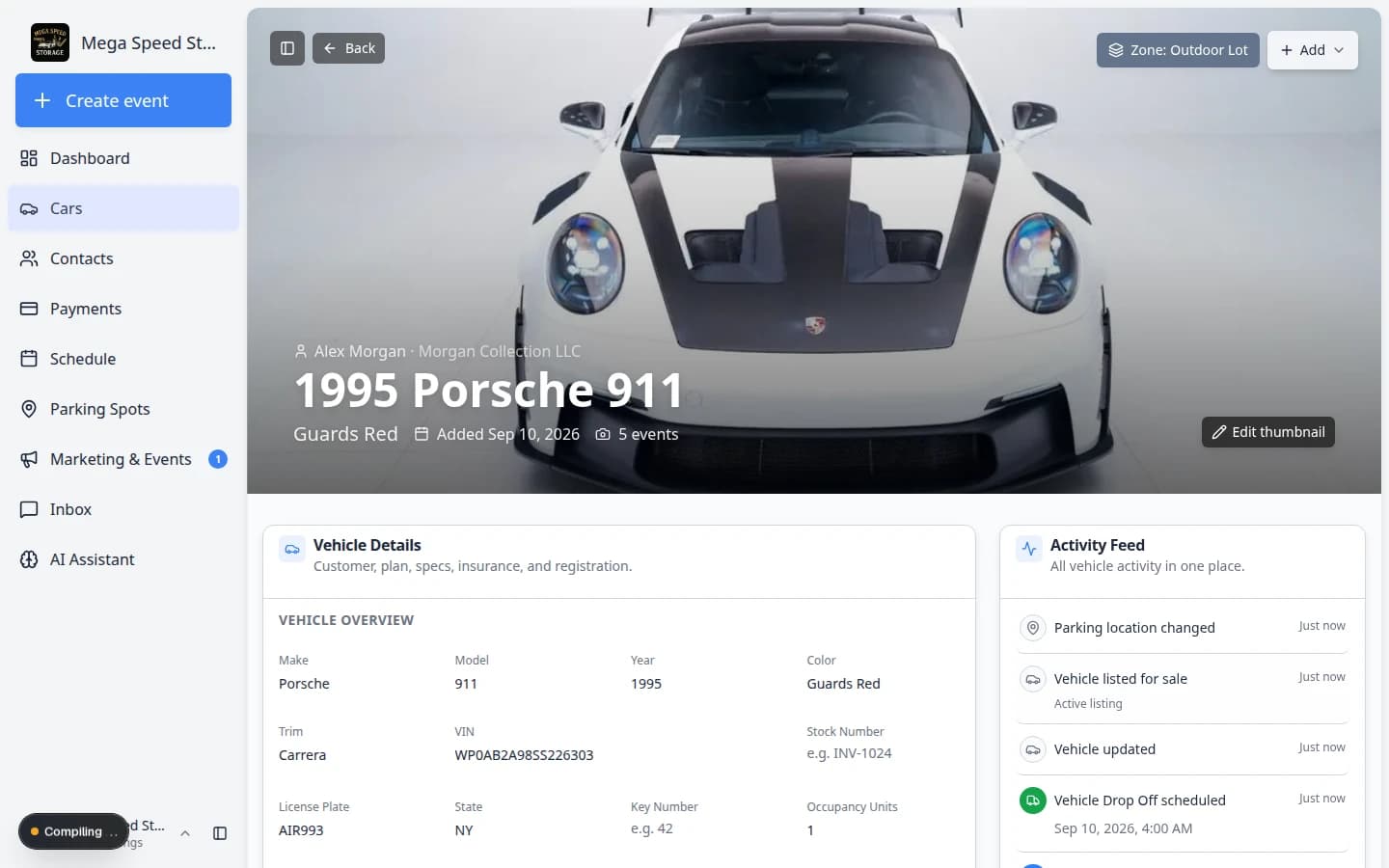
Step 3: Confirm the car is hidden from the active list
- Return to Cars
Open Cars from the sidebar.
- Check the default view
By default, the list shows Active cars only. The archived vehicle should no longer appear unless you change the archive filter.
Expected outcome: Your daily inventory list looks shorter and matches cars still in your care.
- Find archived cars when you need them
Click Filters & Settings, find Archive status, and choose Archived or All.
Expected result: Archived vehicles appear again—with an Archived label in the table when that column is visible.
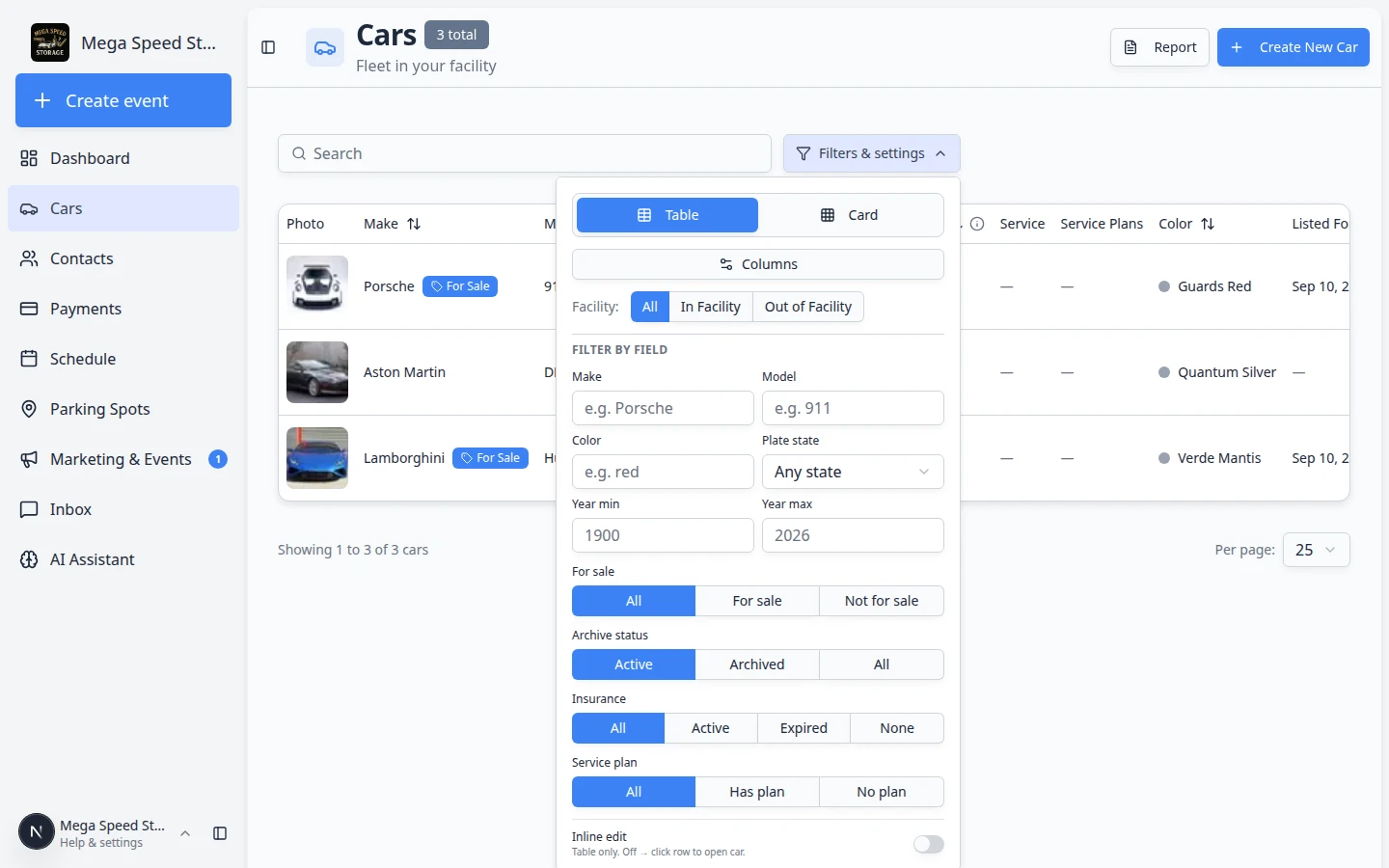
Use **Archive status** in **Filters & Settings** when you need to review departed vehicles or confirm an archive worked.
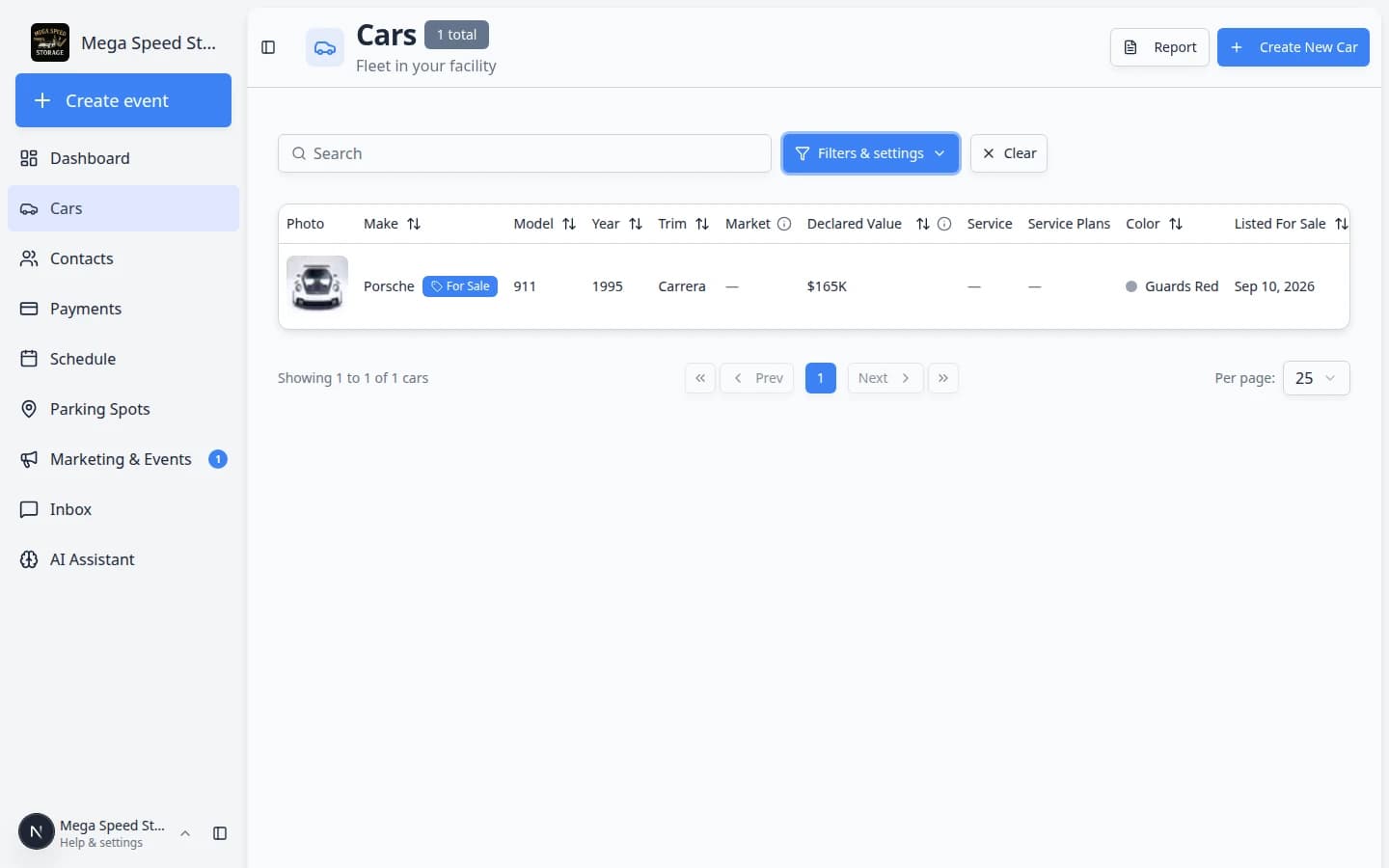
For more filter help, see Find and filter cars.
Restore an archived vehicle
When a customer brings a car back into storage, restore the record the same day you start work again.
- Open the archived car
On Cars, set Archive status to Archived or All, then click View on the vehicle.
Expected result: The page still shows the Archived badge near the top.
- Scroll to Danger Zone
Scroll to the bottom of the car page to Danger Zone.
- Click Restore
In the Restore Vehicle row, click Restore.
Expected outcome: The Archived badge disappears. The car returns to the default Active Cars list.
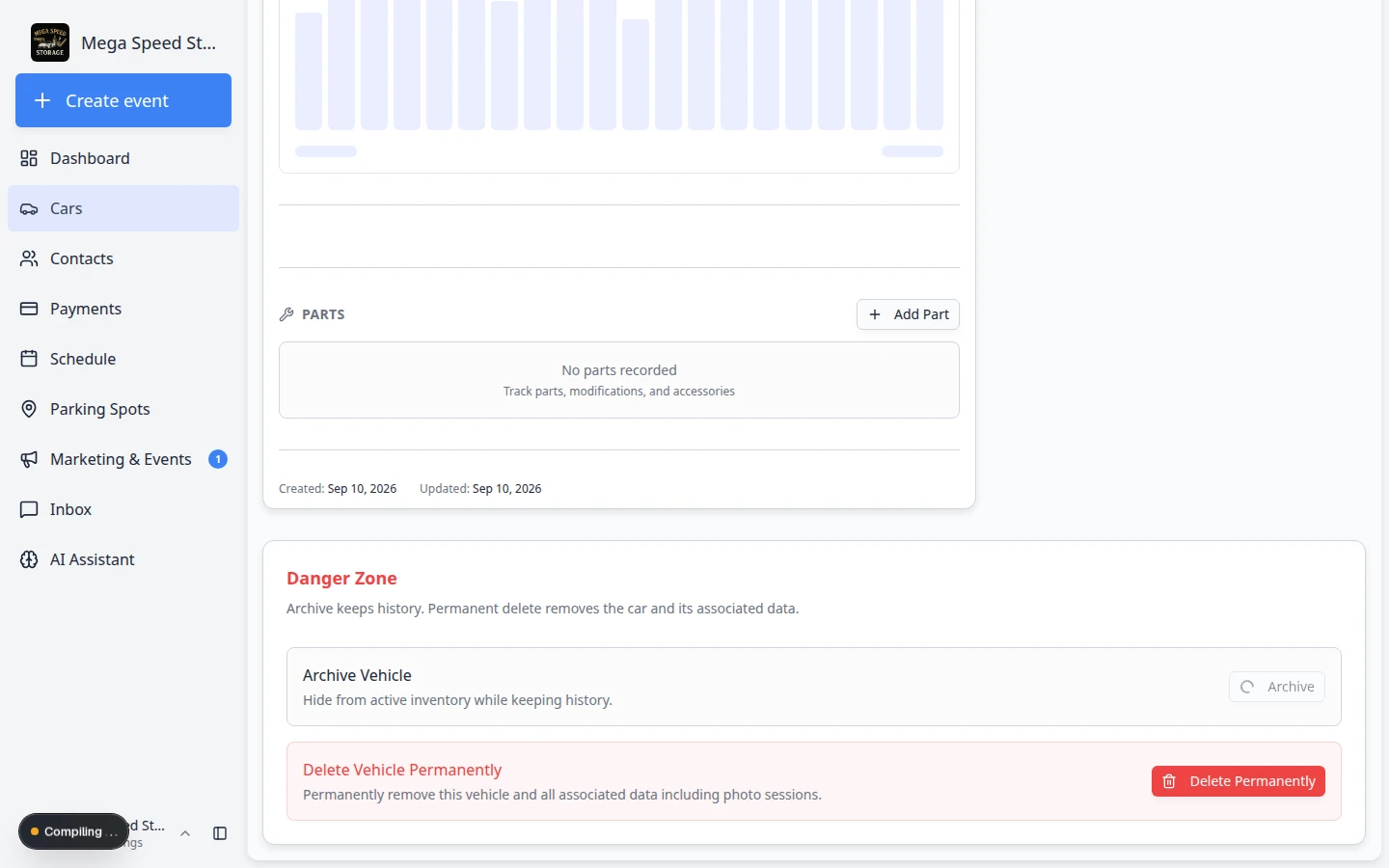
**Restore** brings the car back to your active inventory without creating a duplicate record. - Assign parking again
Click Assign location, Zone:, or Spot: at the top of the page and park the car on your map.
Expected result: Parking Spots and the car record agree on where the vehicle sits today.
Common mistakes to avoid
- Do not delete permanently when you only need to hide a departed car—archive instead.
- Do not assume archiving cancels monthly billing automatically. Check Payments or ask your billing manager.
- Do not forget to restore the record when the same customer returns with the same vehicle.
Troubleshooting
What to do next
- Export a snapshot of your inventory for records with Export your vehicle inventory report.
- Update parking with Move a car when an active car changes spots.
- When a record truly should not exist, read Delete a vehicle record with a manager first.